
Introduction
Salesforce acquired Slack for $27.7 billion in 2021, and if you think that was just about bringing chat into CRM, you’re missing the bigger picture. This integration fundamentally changes how teams work with customer data, eliminating the constant tab-switching that kills productivity.
Here’s the reality: Your sales reps won’t open Salesforce every time they need to check an opportunity status. Your support team won’t dig through Cases for customer context during crisis calls. But they’re all in Slack already. That’s where Salesforce Slack integration becomes indispensable.
This isn’t about surface-level connections. We’re talking about bidirectional data flows, real-time notifications, conversational automation, and workflow triggers that actually get used because they live where your team already works.
If you’re a Salesforce developer or admin tasked with implementing this integration, forget the marketing fluff. This guide covers what actually matters: architecture, implementation patterns, gotchas that will bite you, and real-world use cases that deliver ROI.
How It Works (Architecture)
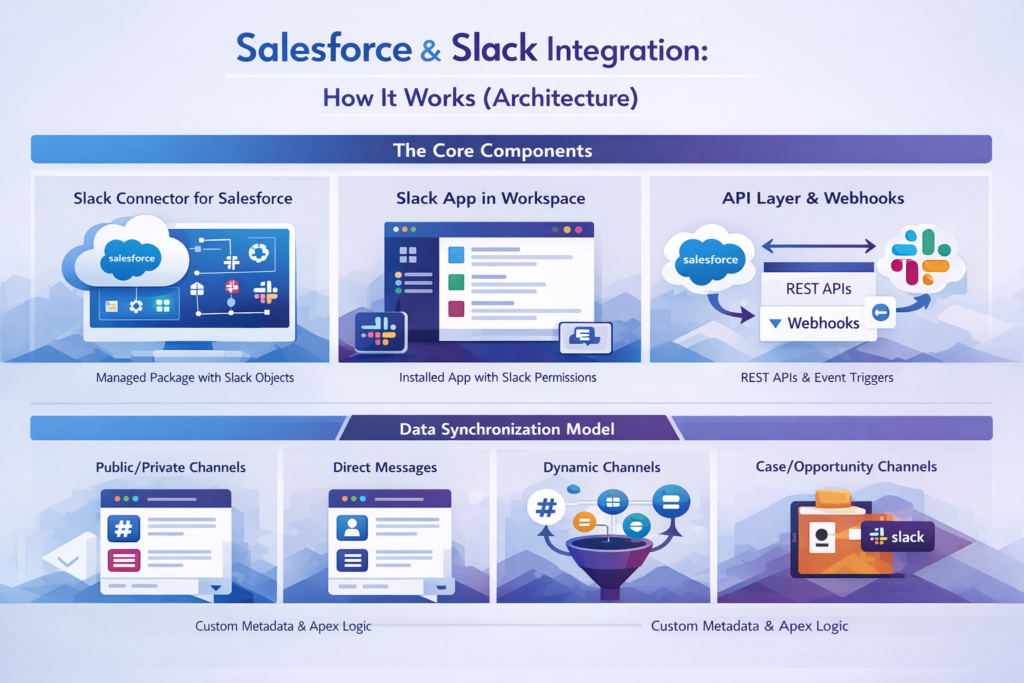
The Core Components
Salesforce Slack integration operates on three primary mechanisms, and understanding these is non-negotiable for proper implementation.
First, the Slack Connector for Salesforce. This is your managed package that creates the bridge. It installs objects, custom settings, and the underlying plumbing that makes everything work. Once installed, you get Slack-specific objects in your org: slack_Workspace, slack_Channel, slack_User, and others that map your Slack environment into Salesforce.
Second, the Slack App installed in your workspace. This isn’t just a token exchange—it’s a fully-featured application running in Slack with its own permissions model. When you install it, you’re granting access to channels, user information, and message posting capabilities. The app establishes webhook endpoints and maintains the connection state.
Third, the API layer. All communication happens through REST APIs and webhooks. Salesforce calls Slack APIs to send messages and create channels. Slack sends webhooks to Salesforce when events occur—messages posted, reactions added, users mentioned. This bidirectional flow is handled by Platform Events and Apex callouts under the hood.
Authentication Flow
The OAuth 2.0 flow here isn’t your standard implementation. When you initiate Salesforce Slack setup, Salesforce redirects to Slack’s OAuth endpoint with specific scopes. Slack validates, the user authorizes, and Slack returns an authorization code. Salesforce exchanges this for an access token and refresh token.
Critical point: These tokens are stored in Salesforce’s encrypted fields within the slack_Workspace object. Token refresh happens automatically, but network failures or permission changes can break this. You need monitoring.
The connection is org-level, not user-level by default. One admin connects the Slack workspace to the Salesforce org. Individual users then authenticate their personal Slack identity to their Salesforce user record for personalized notifications and actions.
Data Synchronization Model
Don’t expect real-time sync like you’d get with platform events internally. There’s latency. When Salesforce sends an alert to Slack, it queues the message, makes the API callout, handles the response, and logs the result. In practice, this takes 2-5 seconds under normal conditions.
Slack-to-Salesforce events come through webhooks. Slack sends HTTPS POST requests to Salesforce endpoints when configured events fire. Salesforce processes these via custom Apex handlers. If your handler fails or times out, Slack retries with exponential backoff, but only for a limited time.
Here’s what developers miss: These webhooks hit synchronous Apex. If your handler is slow or hitting governor limits, Slack will timeout and retry, potentially creating duplicates. Your code must be idempotent and fast.
Message Routing Architecture
When a Salesforce alert needs to reach Slack, the system determines the destination channel through configured mappings. You can route to:
- Named public/private channels
- Direct messages to specific users
- Dynamic channels based on record criteria
- Dedicated case/opportunity channels created programmatically
The routing configuration lives in Custom Metadata Types. Out-of-box configurations handle common patterns, but custom routing requires Apex. You’ll build trigger handlers that evaluate record data and determine the correct Slack destination.
Types of Integration
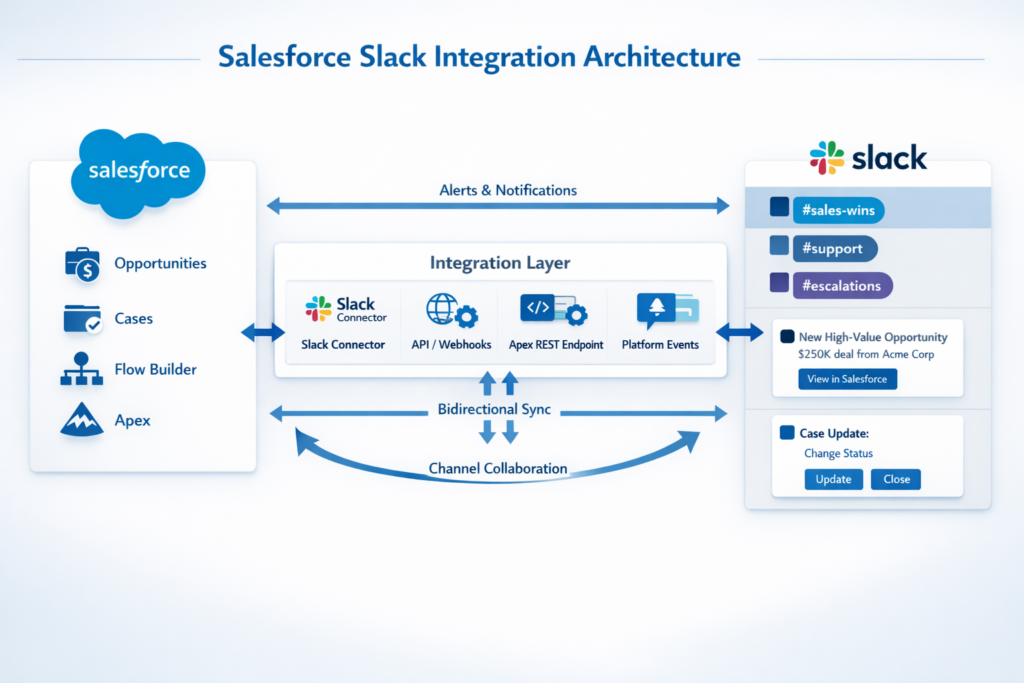
1. Alert and Notification Integration
This is entry-level but solves immediate pain. Salesforce sends notifications to Slack when specific events occur.
Practical implementation: A high-value opportunity closes. Immediately, a message hits your #sales-wins channel with opportunity details, amount, and owner. No manual posting, no forgotten celebrations.
Configure this through Flow Builder or Process Builder (though Flows are preferred). The Send Slack Message action connects directly to configured channels. You specify the message template, interpolate merge fields, and set the destination.
Developer reality check: Message templates need careful design. Slack’s Block Kit provides rich formatting—buttons, sections, images—but requires JSON structure. Don’t send plain text when you can send actionable blocks.
Example Block Kit JSON for an opportunity alert:
JSON{
  "blocks": [
    {
      "type": "section",
      "text": {
        "type": "mrkdwn",
        "text": "*New High-Value Opportunity*\n$250K deal from Acme Corp"
      }
    },
    {
      "type": "actions",
      "elements": [
        {
          "type": "button",
          "text": {"type": "plain_text", "text": "View in Salesforce"},
          "url": "https://yourinstance.salesforce.com/006..."
        }
      ]
    }
  ]
}
2. Bidirectional Record Updates
This gets interesting. Users update Salesforce records directly from Slack without opening Salesforce.
How it works: A case alert arrives in Slack. The support rep clicks “Change Status” directly in the message. Slack sends a webhook to Salesforce, Apex processes it, updates the Case, and sends confirmation back to Slack.
Implementation requires three components:
- Interactive Message Component: Buttons or select menus in your Slack message with action IDs
- Webhook Handler: Apex REST endpoint that receives Slack’s interaction payload
- DML Logic: Secure Apex that validates and performs the record update
Critical security consideration: Your webhook endpoint is publicly accessible. Slack signs requests with a secret, and you must validate this signature before processing. Otherwise, anyone can hit your endpoint and modify data.
Signature validation Apex example:
apexpublic static Boolean validateSlackSignature(String requestBody, String timestamp, String signature) {
    String sigBasestring = 'v0:' + timestamp + ':' + requestBody;
    Blob mac = Crypto.generateMac('HmacSHA256',
                                   Blob.valueOf(sigBasestring),
                                   Blob.valueOf(slackSigningSecret));
    String expectedSignature = 'v0=' + EncodingUtil.convertToHex(mac);
    return signature.equals(expectedSignature);
}
3. Salesforce Records in Slack
The Salesforce app for Slack displays record details directly in conversations. Users type /salesforce followed by a search term, and the app returns matching records with key fields.
This integration leverages Slack’s slash commands and interactive components. Under the hood:
- User executes slash command in Slack
- Slack sends command payload to Salesforce webhook
- Salesforce performs SOQL query based on search criteria
- Results return to Slack as interactive messages with drill-down options
Developer customization: The default search is basic. You’ll want to extend this with custom Apex to search specific objects, apply record-level security, and format results based on your org’s needs.
4. Channel-Based Collaboration
Create dedicated Slack channels for specific Salesforce records—individual opportunities, major cases, accounts. Team members discuss the record in context, and the conversation becomes part of the record history.
Salesforce provides automation to create these channels:
- Configure channel creation rules in Setup
- When criteria match (e.g., Opportunity Amount > $500K), Flow triggers
- Flow calls Slack API to create private channel
- Automatically invites relevant team members based on record fields
- Pins record details to channel for context
Real-world workflow: Enterprise deal comes in. Automatically creates #opp-acme-500k channel, invites AE, SE, RVP, and success manager. They collaborate in real-time. Every decision and discussion is archived and searchable.
The technical challenge: Channel names have strict constraints (lowercase, no spaces, max 80 characters). Your automation must sanitize record data to generate valid channel names.
5. Workflow Automation Triggers
Slack actions trigger Salesforce workflows. User reactions, channel posts, or slash commands initiate Process Builder flows or Apex automations.
Practical example: Support team uses a dedicated #escalations channel. When someone posts a message with specific keywords, Platform Event fires in Salesforce. Flow catches it, creates a high-priority Case, assigns to manager, and sends confirmation to thread.
Implementation pattern:
- Configure Slack webhook for message events in specific channels
- Webhook delivers payload to Salesforce REST endpoint
- Endpoint publishes Platform Event with message data
- Flow or Apex trigger subscribes to Platform Event
- Automation executes business logic
- Optional callback to Slack confirming action
This pattern decouples webhook reception from processing, avoiding timeout issues.
Developer Requirements
Prerequisites You Actually Need
Salesforce side:
- System Administrator profile for initial setup (you need Manage External Integrations permission)
- API access enabled on your org (check your license type—some restrict this)
- Custom Apex and Visualforce development enabled
- My Domain deployed (non-negotiable for OAuth flows)
- Remote Site Settings configured for Slack domains
Slack side:
- Workspace Admin or Owner role for installing apps
- Ability to create apps in your Slack workspace
- Understanding of Slack’s permission scopes and what each grants
Technical skills:
- REST API fundamentals (you’ll debug callouts constantly)
- OAuth 2.0 flow understanding (when things break, you need to diagnose auth issues)
- Apex development, especially asynchronous patterns
- Flow Builder for declarative automation
- JSON manipulation in Apex
- Platform Events for async processing
Development Environment Setup
Start in a Developer Edition org or sandbox. Do not develop this in production. The integration touches authentication, external callouts, and data sync—bugs here cause visible user impact.
Salesforce Slack setup steps:
- Install Slack Connector from AppExchange
- Deploy My Domain if not already active
- Navigate to Setup → Slack → Configure Slack Integration
- Authorize connection to your Slack workspace
- Map Salesforce users to Slack identities
Slack workspace configuration:
- Create development workspace separate from production
- Install Salesforce app from Slack App Directory
- Configure webhook URLs pointing to your sandbox
- Set up test channels for different integration scenarios
Critical configuration: Set up Named Credentials for Slack API callouts. Don’t hardcode tokens in Apex. Named Credentials handle authentication, token refresh, and endpoint management cleanly.
Required Permissions and Access
Salesforce Slack developer permissions are nuanced. Here’s what’s actually required:
For setup admins:
- Manage External Integrations
- Modify All Data (to configure workspace settings)
- Customize Application
For developers:
- Author Apex
- Create and Set Up Flows
- View Setup and Configuration
- API Enabled
- Manage External Integrations (to create Connected Apps)
For end users:
- Standard platform user license minimum
- Object CRUD permissions for records they’ll interact with via Slack
- Slack workspace membership
Slack permissions: When installing the Salesforce app, you grant bot token scopes including chat:write, channels:read, users:read, and others. Each scope is specific—adding functionality later requires reinstallation with expanded scopes.
API Limits and Considerations
Slack enforces rate limits strictly. The standard limit is approximately 1 message per second per channel. Burst beyond this, and you’ll get 429 responses.
Salesforce governor limits apply:
- Each outbound Slack message consumes an HTTP callout (100 per transaction)
- Async Apex has higher limits (200 callouts) but adds latency
- Platform Events for processing Slack webhooks consume event delivery limits
Design pattern for high volume: Queue messages using Platform Events or Queueable Apex. Process in batches. Never attempt to send 50 Slack messages from a single trigger execution—you’ll hit limits and lose messages.
API version compatibility: Salesforce’s Slack integration requires API version 52.0 or higher for full functionality. Legacy orgs might need updates.
Common Mistakes
1. Ignoring Error Handling in Callouts
Developers write happy-path code assuming Slack is always available. It’s not. Network failures, Slack outages, and rate limiting happen.
Wrong approach:
apexHttp h = new Http();
HttpRequest req = new HttpRequest();
req.setEndpoint('callout:Slack_API/chat.postMessage');
req.setMethod('POST');
req.setBody(messageJson);
HttpResponse res = h.send(req); // Boom—no error handling
Correct approach:
apextry {
    HttpResponse res = h.send(req);
    if (res.getStatusCode() == 200) {
        // Success
    } else if (res.getStatusCode() == 429) {
        // Rate limited—retry with backoff
        retryWithBackoff(messageJson);
    } else {
        // Log failure for investigation
        logSlackError(res.getBody());
    }
} catch (Exception e) {
    // Network failure—queue for retry
    queueForRetry(messageJson);
}
Always handle errors explicitly. Log failures to a custom object for debugging. Implement retry logic for transient failures.
2. Synchronous Processing of Slack Webhooks
Slack expects webhook responses within 3 seconds. If your Apex handler performs complex DML, SOQL, or additional callouts, you’ll timeout.
The symptom: Slack shows “Operation timeout” and retries the same webhook multiple times, creating duplicate records.
The fix: Receive webhook, validate signature, publish Platform Event, respond 200 OK immediately. Let async subscriber process the actual work.
apex@RestResource(urlMapping='/slack/webhook/*')
global class SlackWebhookHandler {
    @HttpPost
    global static void handleWebhook() {
        RestRequest req = RestContext.request;
        RestResponse res = RestContext.response;

        // Validate signature first
        if (!validateSignature(req)) {
            res.statusCode = 401;
            return;
        }

        // Publish event for async processing
        Slack_Event__e evt = new Slack_Event__e(
            Payload__c = req.requestBody.toString()
        );
        EventBus.publish(evt);

        // Respond immediately
        res.statusCode = 200;
        res.responseBody = Blob.valueOf('{"ok":true}');
    }
}
3. Exposing Sensitive Data in Slack Messages
Salesforce contains confidential data. Slack channels might include contractors, partners, or have lax retention policies.
Common mistake: Sending full Account details including revenue, contract terms, and strategic notes to a broadly-accessible Slack channel.
Best practice:
- Limit message content to non-sensitive fields
- Use private channels for sensitive discussions
- Link to Salesforce for full details rather than embedding everything
- Implement field-level access checks before including data in messages
- Configure channel creation rules to create private channels for sensitive records
4. Not Accounting for Slack’s Message Format
Slack uses mrkdwn (not Markdown) and Block Kit for rich formatting. Send HTML or standard Markdown, and it displays as literal text.
Wrong: <b>Opportunity closed</b> (displays with tags)
Right: *Opportunity closed* (displays bold)
Use Block Kit for anything beyond basic text. Interactive buttons, dropdown menus, and structured layouts require proper JSON block structure.
5. Hardcoding Channel IDs and User IDs
Slack IDs change between workspaces. Hardcoded IDs work in dev but fail in production.
Solution: Use Custom Metadata Types to store channel mappings. Reference channels by name in configuration, resolve to ID at runtime.
apexpublic static String getChannelId(String channelName) {
    slack_Channel__mdt channelConfig = [
        SELECT Channel_ID__c
        FROM slack_Channel__mdt
        WHERE DeveloperName = :channelName
        LIMIT 1
    ];
    return channelConfig.Channel_ID__c;
}
Populate Custom Metadata during deployment with environment-specific values.
6. Overlooking User Mapping
Salesforce users and Slack users are separate identities. The integration requires mapping between them for personalized notifications and actions.
The problem: You send a notification “@mentioning” a user by their Salesforce name. They’re not notified because their Slack identity isn’t mapped.
The solution: During Salesforce Slack setup, ensure users complete the OAuth connection linking their Salesforce user to Slack identity. Build automation to check for unmapped users and prompt them to complete connection.
Use Cases That Actually Deliver Value
1. Deal Desk Acceleration
The problem: Sales reps need pricing approvals that involve finance, legal, and sales ops. Email threads stretch for days. Deals stall.
The Salesforce Slack solution:
When Opportunity discount exceeds threshold, automation:
- Creates dedicated private Slack channel:
#deal-acmecorp-approval - Auto-invites AE, Finance approver, Legal, Sales Ops
- Pins Opportunity summary with key fields
- Posts approval request with action buttons
Approvers click “Approve” or “Request Changes” directly in Slack. Updates post back to Opportunity. Decision logged in Activity History. Approval cycle compresses from 3 days to 3 hours.
Implementation notes: Requires Flow to handle channel creation, Apex for interactive message handling, and approval process integration.
2. Customer Escalation Management
The problem: Critical customer issues require rapid cross-functional response. By the time everyone’s on the same page via email, SLA is blown.
The Salesforce Slack solution:
Priority 1 Case created:
- Flow immediately creates
#escalation-[case-number]channel - Invites case owner, customer success manager, support director, product manager
- Posts case details with customer context and issue summary
- Sets up threaded updates so all communication stays organized
Engineers troubleshoot collaboratively in channel. Customer Success keeps client updated. Product Manager identifies feature gaps. Every message archives to Case Comments via webhook automation.
Technical implementation: Bidirectional sync of Case Comments and Slack messages. Requires careful deduplication logic to avoid infinite loops.
3. Sales Pipeline Review
The problem: Weekly pipeline meetings rehash information in spreadsheets. Managers drill into details that should’ve been updated days ago.
The Salesforce Slack solution:
Every Friday morning:
- Scheduled Flow queries each rep’s pipeline
- Posts summary to dedicated
#sales-pipelinechannel - Each Opportunity appears as interactive block with current stage, amount, close date
- Managers comment directly on stalled deals
- Reps update fields via message actions
- Updated data immediately reflected in Salesforce
Pipeline review meeting becomes strategic discussion instead of data entry session.
Implementation components: Scheduled Flow for weekly trigger, Apex batch to handle potential high volume, Block Kit messages for rich display.
4. Onboarding Automation
The problem: New employee onboarding involves 15 systems, 30 people, and consistent confusion about who does what when.
The Salesforce Slack solution:
When Employee record created (Status = “Hired”):
- Creates private channel
#onboarding-[employee-name] - Invites HR, IT, hiring manager, and buddy
- Posts day-by-day checklist as interactive messages
- Automated reminders for incomplete tasks
- Each completed task updates Employee record
- Department-specific channels auto-invite based on role
New hire has single source of truth for onboarding. Stakeholders stay coordinated. HR tracks completion in Salesforce dashboards.
5. Marketing Campaign Coordination
The problem: Campaign launches involve content, design, demand gen, sales enablement, and product marketing. Coordination happens across email, meetings, and random Slack messages.
The Salesforce Slack solution:
Campaign object creation triggers:
- Channel creation:
#campaign-[name] - Auto-invites based on Campaign Type
- Pins campaign brief and timeline
- Posts milestone reminders
- Links to Campaign Influence reports
- Integrates with creative approval workflows
All stakeholders communicate in context. Campaign assets organized in channel. Performance data flows from Salesforce to Slack as reports update.
When to Use Salesforce Slack Integration
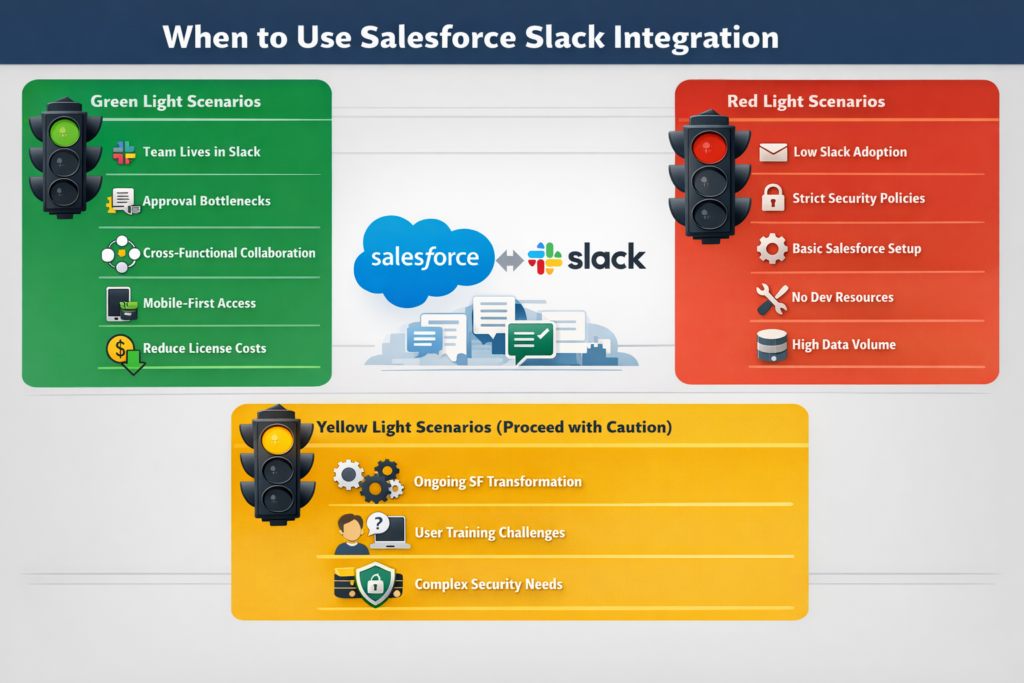
Green Light Scenarios
Your team practically lives in Slack. If your org already uses Slack as primary communication hub, integration is obvious. Don’t force people into Salesforce when they’re already elsewhere.
Information bottlenecks hurt business outcomes. Deals delay due to approval lags. Customer issues escalate because the right people don’t know. If communication friction creates business pain, integration solves it.
You need cross-functional collaboration on records. Complex sales cycles, customer success initiatives, or project-based work requires multiple departments coordinating on the same Salesforce record.
Mobile-first teams need lightweight access. Field sales, remote support, distributed teams need quick Salesforce access without full app overhead. Slack on mobile is faster than Salesforce mobile for quick updates.
You want to reduce Salesforce license costs. Some team members need read-only access to specific data. Slack messages with record details might eliminate need for full Salesforce licenses.
Red Light Scenarios
Your Slack adoption is minimal. If your org uses email primarily or has fragmented Slack usage, integration won’t drive adoption. Fix the communication culture first.
Security policies prohibit external messaging platforms. Heavily regulated industries might ban Slack entirely or restrict it severely. Don’t fight compliance.
Your Salesforce customization is minimal. If you’re using out-of-box Salesforce with standard processes, the integration might be overkill. Simple email alerts might suffice.
You lack development resources. Basic setup is manageable, but real value requires custom automation, webhook handlers, and ongoing maintenance. Without dev capacity, integration will underdeliver.
Your data volume is massive. High-volume transaction systems generating thousands of Salesforce updates daily shouldn’t blast all of them to Slack. You’ll overwhelm channels and hit rate limits.
Yellow Light Scenarios (Proceed with Caution)
You’re mid-Salesforce transformation. Integration adds complexity. If you’re still defining core data model and processes, wait until stable.
User training is already challenging. Adding Slack integration means training users on another tool and interaction model. Assess change management capacity.
You have complex security requirements. Field-level security, record-level security, and sharing rules in Salesforce don’t automatically transfer to Slack. You’ll build custom logic to respect these.
Future Scope
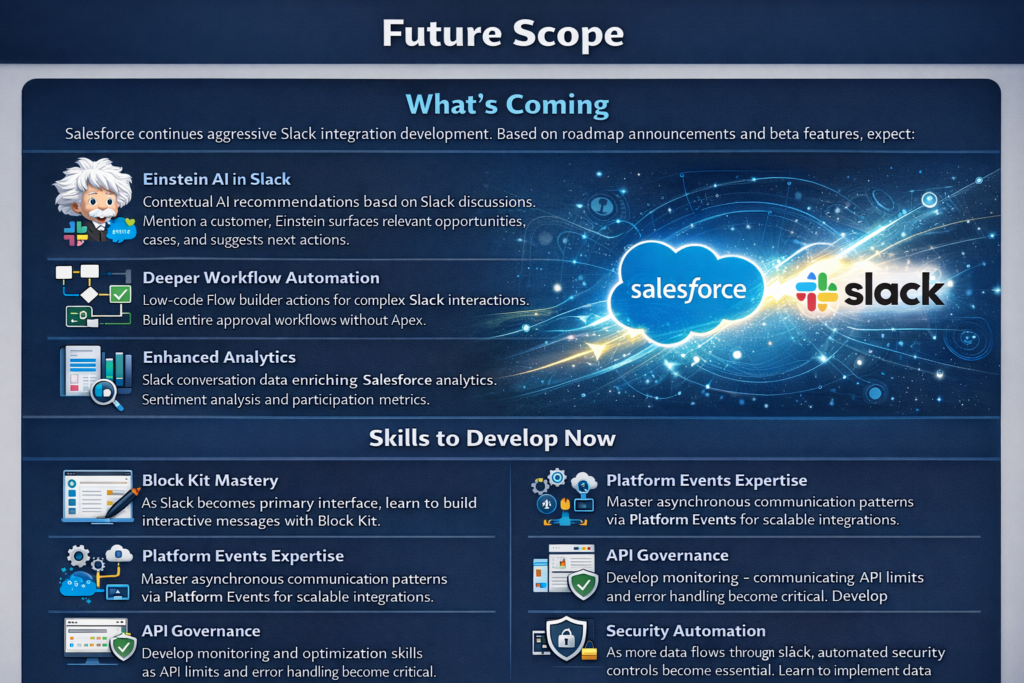
What’s Coming
Salesforce continues aggressive Slack integration development. Based on roadmap announcements and beta features, expect:
Einstein AI in Slack conversations. Contextual AI recommendations based on Slack discussions. Mention a customer, Einstein surfaces relevant opportunities, cases, and suggests next actions.
Deeper workflow automation. Low-code Flow builder actions for complex Slack interactions. Build entire approval workflows with branching logic, conditional channel creation, and dynamic user assignment without Apex.
Enhanced analytics. Slack conversation data enriching Salesforce analytics. Sentiment analysis on customer discussions. Participation metrics for team collaboration.
Tighter MuleSoft integration. Connect Slack not just to Salesforce but to entire application ecosystem through MuleSoft Composer and Anypoint Platform. Cross-system workflows triggered from Slack.
Canvas framework expansion. Embed full Salesforce Lightning components directly in Slack messages. Interactive dashboards, complex forms, and multi-object UIs without leaving Slack.
Skills to Develop Now
Block Kit mastery. As Slack becomes primary interface, building sophisticated interactive messages becomes core skill. Learn Block Kit Builder tool and JSON structure.
Platform Events expertise. Async communication patterns via Platform Events enable scalable integrations. Master event-driven architecture in Salesforce.
API governance. With multiple systems communicating, API limits and error handling become critical. Develop monitoring and optimization skills.
Security automation. As more data flows through Slack, automated security controls become essential. Learn to implement data loss prevention, access logging, and compliance automation.
Conclusion
Salesforce Slack integration isn’t a nice-to-have feature—it’s a fundamental shift in how teams interact with customer data. Done right, it eliminates context switching, accelerates decisions, and embeds CRM workflows into existing team habits.
But it’s not plug-and-play. Effective implementation requires understanding authentication flows, building resilient webhook handlers, designing user-friendly message interfaces, and avoiding common pitfalls that create bad user experiences or security gaps.
Start with high-impact use cases: deal approvals, customer escalations, pipeline visibility. Prove value with one team before rolling out org-wide. Build proper error handling from day one—it’s harder to retrofit. Respect API limits and security requirements, even when racing to deliver features.
The Salesforce developers and admins who master this integration now position themselves strategically. As Slack becomes the default interface layer for Salesforce data, your expertise in building seamless, secure, performant integrations becomes increasingly valuable.
Stop treating Salesforce Slack integration as a notification tool. Treat it as a platform for conversational business processes. That’s where the real transformation happens.
Now go build something that actually works.
About RizeX Labs
At RizeX Labs, we specialize in delivering cutting-edge Salesforce solutions, including seamless Slack integrations that enhance team collaboration and real-time communication. Our expertise combines deep technical knowledge, best practices, and real-world implementation experience to help businesses streamline workflows and improve productivity.
We empower organizations to bridge the gap between CRM data and team communication—transforming disconnected systems into a unified, intelligent collaboration ecosystem.
Internal Links:
- Salesforce Field Service Lightning (FSL): Overview, Features & Career Scope
- How Long Does It Take to Learn Salesforce and Get a Job? Honest Timeline (India, 2026)
- How to Get Your First Salesforce Job with Zero Experience in India: The 2026 Reality Check
- How to Use Salesforce Reports & Dashboards: A Beginner’s Practical Guide
- Salesforce Trailhead vs Paid Training: Which Is Better for Getting a Job in India (2026)?
- Top Companies Hiring Salesforce Professionals in Pune in 2026: Your Complete Career Guide
- Salesforce Flows vs Apex: When Should You Use Code vs No-Code Automation?
- Salesforce Nonprofit Cloud: Features, Use Cases, and Career Opportunities (2026 Guide)
- Salesforce Net Zero Cloud: What It Is and Why It’s the Next Green Career Niche (2026 Guide)
- Salesforce Slack Integration: How It Works and What Developers Need to Know
- Salesforce Named Credentials: What They Are and How to Use Them Safely
- Salesforce Deployment Best Practices: Change Sets vs Salesforce CLI vs Gearset
External Links:
McKinsey Sales Growth Reports
Gartner Sales Automation Insights
