
Introduction: Understanding Salesforce Access Control
When it comes to managing data access in Salesforce, understanding the platform’s security model is crucial for administrators, developers, and business analysts alike. Whether you’re just starting your Salesforce journey or looking to refine your existing implementation, mastering the differences between Salesforce Sharing Rules, Role Hierarchy, and Permission Sets is essential for building a secure, scalable CRM environment.
At RizeX Labs, we’ve helped dozens of organizations optimize their Salesforce implementations, and one of the most common challenges we encounter is confusion around these three core access control mechanisms. While they may seem similar on the surface, each serves a distinct purpose in Salesforce’s multi-layered security architecture.
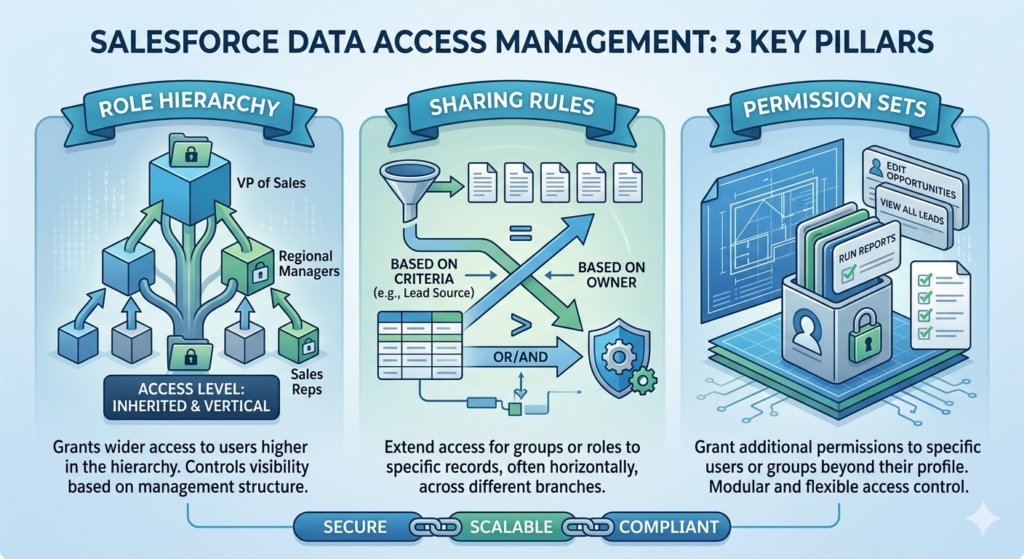
In this comprehensive guide, we’ll break down:
- What each feature does and how it works
- Real-world scenarios where each should be used
- Key differences and when to apply each mechanism
- Best practices from our team at RizeX Labs
- Common pitfalls to avoid
By the end of this blog, you’ll have a clear understanding of how to leverage Salesforce Sharing Rules, Role Hierarchy, and Permission Sets to create a robust, efficient security model for your organization.
Understanding Salesforce’s Security Model
Before diving into the specifics, let’s establish a foundation. Salesforce uses a layered security model that controls access at multiple levels:
- Organization Level – IP restrictions, login hours
- Object Level – Permission Sets and Profiles
- Field Level – Field-level security
- Record Level – OWD, Role Hierarchy, Sharing Rules, Manual Sharing
Think of it like a building with multiple security checkpoints. Even if you have a key to enter the building (org access), you still need proper credentials to access specific floors (objects), rooms (records), and safes (fields).
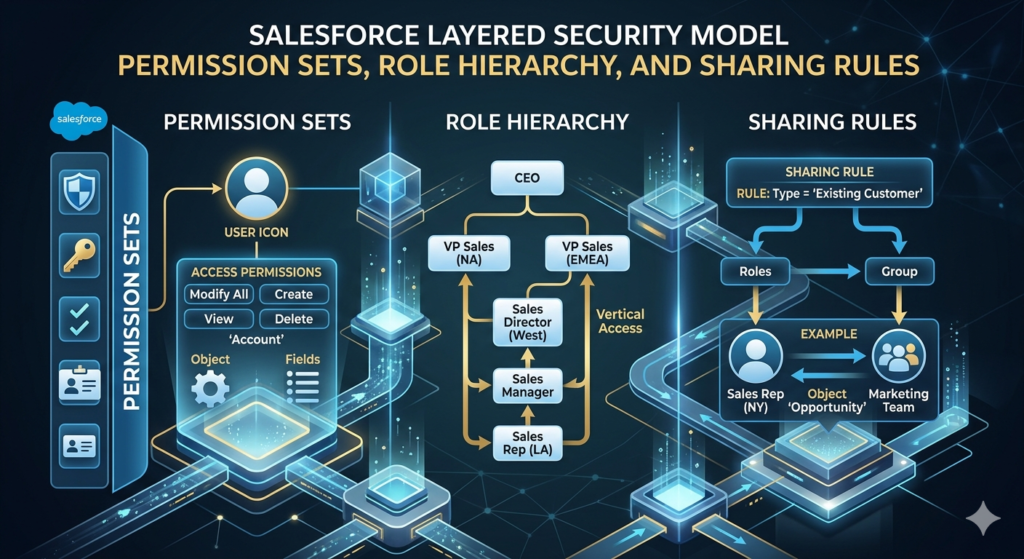
The three features we’re discussing today primarily operate at different levels:
- Permission Sets: Object and field level access
- Role Hierarchy: Record level access (opening up access)
- Sharing Rules: Record level access (opening up access)
Now, let’s explore each in detail.
Part 1: Salesforce Role Hierarchy Explained
What is Role Hierarchy in Salesforce?
The Role Hierarchy in Salesforce is a fundamental component that determines how users access and view records within the organization. It represents the organizational structure and automatically grants record access to users higher in the hierarchy.
Think of it as a corporate ladder. If your manager can see your reports, the director above them can too, and so on up the chain. This mirrors real-world business structures where senior leadership typically has visibility into their team’s work.
How Role Hierarchy Works
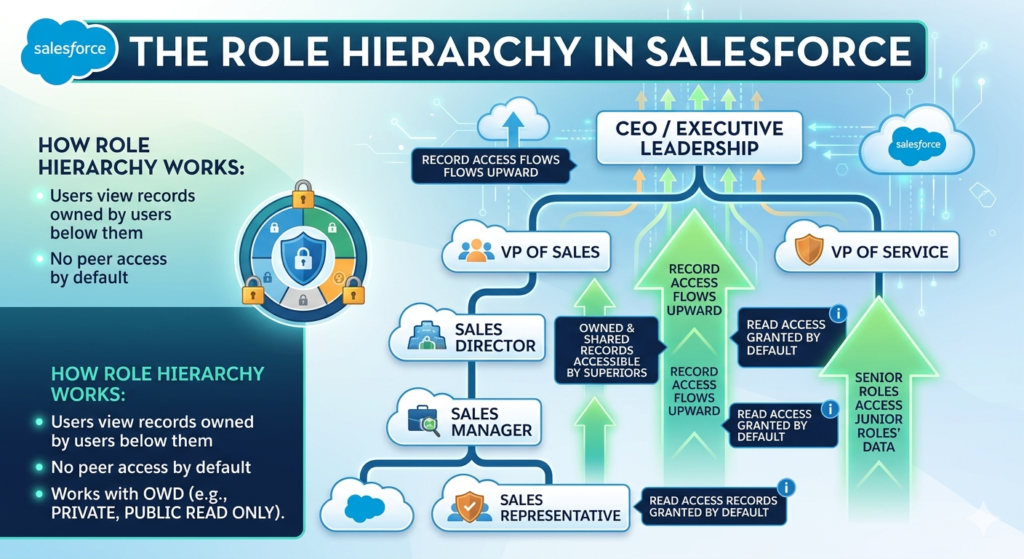
The Role Hierarchy operates on a simple principle: data flows upward.
Here’s what happens:
- Users can access records owned by or shared with users below them in the hierarchy
- Users cannot automatically access records owned by peers or superiors at the same or higher levels
- The hierarchy only grants read access by default (edit access requires additional permissions)
- Role Hierarchy only works when the Organization-Wide Default (OWD) for an object is set to Public Read Only or Private
Important Note: Role Hierarchy does NOT grant object-level permissions. A user still needs proper profile or permission set access to even see an object, regardless of their role.
Setting Up Role Hierarchy
At RizeX Labs, we recommend following these steps:
- Map Your Organization Structure
- Document reporting relationships
- Identify who needs visibility into whose records
- Consider both current and future organizational needs
- Create Roles in Salesforce
- Navigate to Setup → Roles
- Create roles that reflect your business structure
- Use clear, descriptive naming conventions
- Assign Roles Strategically
- Assign users to appropriate roles
- Remember: Not every user needs a role
- Service Cloud users and Community users often don’t require roles
Real-World Use Case: Role Hierarchy
Scenario: A mid-sized sales organization with the following structure:
textVP of Sales
    ├── Regional Manager (East)
    │   ├── Sales Rep 1
    │   └── Sales Rep 2
    └── Regional Manager (West)
        ├── Sales Rep 3
        └── Sales Rep 4
Implementation:
- Set Opportunity OWD to “Private”
- Create roles mirroring this structure
- Assign users to appropriate roles
Result:
- VP of Sales can view all opportunities owned by all regional managers and reps
- Regional Manager (East) can only see opportunities owned by Sales Rep 1 and 2
- Sales reps can only see their own opportunities
- No sharing rules needed for vertical visibility
When to Use Role Hierarchy
✅ Use Role Hierarchy when:
- Your organization has clear reporting relationships
- Managers need to see their subordinates’ records
- You want to mirror your org chart in Salesforce
- You need to grant upward visibility automatically
❌ Don’t use Role Hierarchy when:
- You need lateral (peer-to-peer) sharing
- Your organization is flat with minimal hierarchy
- You need complex sharing logic based on criteria
- You want to limit what managers can see
Best Practices for Role Hierarchy
From our experience at RizeX Labs, here are key best practices:
- Keep It Simple: Don’t create unnecessary role layers. Each additional layer adds complexity and can impact performance.
- Name Consistently: Use a clear naming convention (e.g., “Sales – Regional Manager – East” rather than just “RM East”).
- Plan for Scale: Consider future organizational growth when designing your hierarchy.
- Avoid Over-Complexity: Generally, try to keep your role hierarchy under 500 roles for optimal performance.
- Document Everything: Maintain documentation showing why each role exists and who should be assigned to it.
- Regular Audits: Quarterly reviews ensure users are in the correct roles as the organization evolves.
Part 2: Understanding Salesforce Sharing Rules
What are Salesforce Sharing Rules?
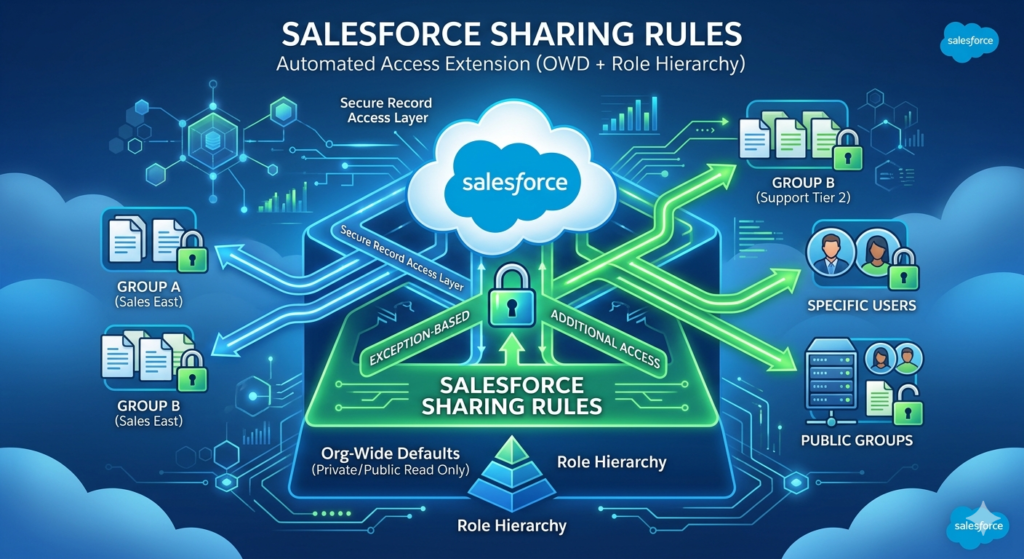
Salesforce Sharing Rules are automated mechanisms that open up record access to specific groups of users, extending beyond what Organization-Wide Defaults and Role Hierarchy provide. They’re an exception-based security tool that grants additional access without modifying base security settings.
While Role Hierarchy handles vertical (top-down) sharing, Sharing Rules excel at lateral and criteria-based sharing across your organization.
Types of Sharing Rules
Salesforce offers two primary types of sharing rules:
1. Owner-Based Sharing Rules
These rules share records based on who owns them.
Example: Share all opportunities owned by the Sales team with the Sales Operations team.
Configuration:
- Source: Owned by members of “Sales Team” public group
- Target: Share with “Sales Ops” public group
- Access Level: Read Only or Read/Write
2. Criteria-Based Sharing Rules
These rules share records based on field values, regardless of ownership.
Example: Share all accounts in the “Technology” industry with the Tech Specialist team.
Configuration:
- Criteria: Industry equals “Technology”
- Target: Share with “Tech Specialists” public group
- Access Level: Read Only or Read/Write
Components Required for Sharing Rules
To implement sharing rules effectively, you need to understand these building blocks:
Public Groups: Collections of users, roles, territories, or other groups
- Created in Setup → Public Groups
- Can include individual users, roles, roles and subordinates, or territories
Queues: Specialized groups for managing record ownership and routing
- Primarily used for Cases and Leads
- Can be used in sharing rules
Territories: Used in territory-based sales organizations
- Require Territory Management to be enabled
- Can be included in sharing rules
How Sharing Rules Work
Here’s the critical concept: Sharing rules only expand access, never restrict it.
The access hierarchy looks like this:
textMost Restrictive → Organization-Wide Defaults (OWD)
                 → Role Hierarchy (opens access upward)
                 → Sharing Rules (opens access based on criteria)
                 → Manual Sharing (individual record sharing)
Most Permissive
Each layer can only make access more permissive, never more restrictive.
Real-World Use Cases: Sharing Rules
Use Case 1: Cross-Departmental Collaboration
Scenario: Your product management team needs to see all opportunities above $100,000 to plan inventory, but they’re not in the sales role hierarchy.
Solution: Criteria-Based Sharing Rule
textObject: Opportunity
Criteria: Amount ≥ 100,000
Share with: Product Management (Public Group)
Access: Read Only
Use Case 2: Regional Support Model
Scenario: Support cases owned by East Coast reps should be visible to an East Coast Support Specialist team for escalations.
Solution: Owner-Based Sharing Rule
textObject: Case
Owned by: East Coast Sales Reps (Public Group)
Share with: East Coast Support Specialists (Public Group)
Access: Read/Write
Use Case 3: Account Team Collaboration
Scenario: Partner accounts need visibility across the partner management team, regardless of who owns the account.
Solution: Criteria-Based Sharing Rule
textObject: Account
Criteria: Account Type = "Partner"
Share with: Partner Management Team (Public Group)
Access: Read/Write
When to Use Sharing Rules
✅ Use Sharing Rules when:
- You need lateral (peer-to-peer) sharing across teams
- Access depends on field values (like region, status, amount)
- A specific group needs access to records owned by another group
- You have cross-functional teams requiring access to specific record types
❌ Don’t use Sharing Rules when:
- Role hierarchy already provides the necessary access
- You need user-specific access (use manual sharing instead)
- Requirements are extremely complex (consider custom sharing logic via Apex)
- Performance is already degraded (too many sharing rules can impact performance)
Best Practices for Sharing Rules
Based on RizeX Labs’ implementation experience:
- Use Public Groups Strategically: Create well-organized public groups that reflect business functions, not just org structure.
- Limit Quantity: Each sharing rule adds processing overhead. Aim to solve sharing needs with the fewest rules possible.
- Criteria-Based Over Owner-Based: When possible, use criteria-based rules as they’re generally more maintainable.
- Document Business Logic: Clearly document why each sharing rule exists and what business need it serves.
- Test Thoroughly: Always test sharing rules in a sandbox with real-world scenarios before deploying to production.
- Monitor Performance: Use the Sharing Rule Performance page in Setup to identify rules causing performance issues.
- Regular Recalculation: Understand when sharing recalculation occurs (mass updates, role changes) and plan accordingly.
- Combine with Groups Wisely: Keep public groups updated; outdated group membership defeats the purpose of sharing rules.
Part 3: Salesforce Permission Sets Deep Dive
What are Permission Sets in Salesforce?
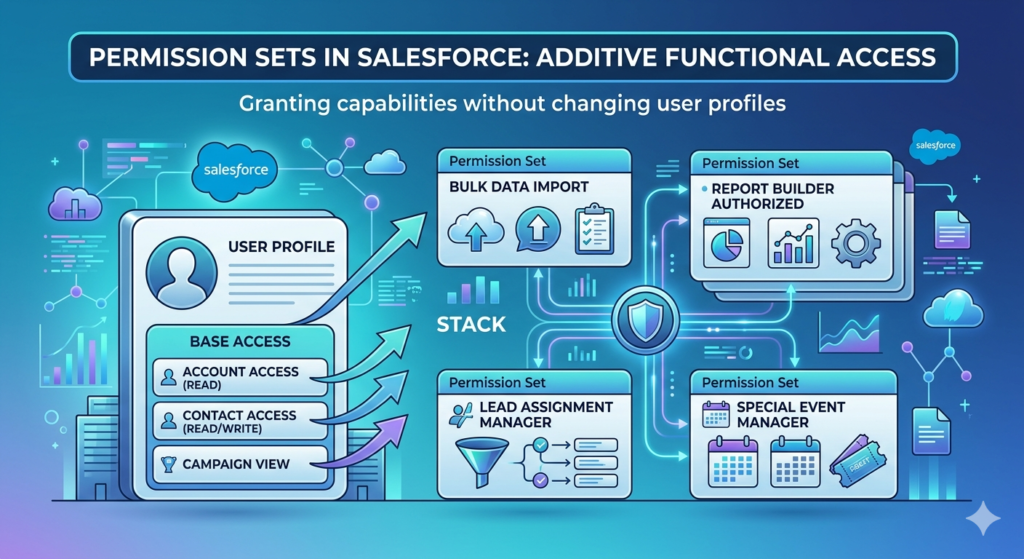
Permission Sets in Salesforce are collections of settings and permissions that extend users’ functional access without changing their profile. They work as an additive security layer, granting additional capabilities beyond what a user’s profile provides.
Think of profiles as your base job description, and permission sets as additional certifications or credentials you earn. Your profile says “Sales Rep,” but permission sets might add “Bulk Data Import Certified” or “Report Builder Authorized.”
Permission Sets vs Profiles
This is a critical distinction:
Profiles:
- Every user must have exactly one profile
- Define baseline access (minimum permissions)
- Include object permissions, field permissions, app access, and system settings
- Historically used for all permission management (legacy approach)
Permission Sets:
- Users can have zero to many permission sets
- Extend permissions beyond the profile
- Include the same types of permissions as profiles
- Recommended modern approach for flexible permission management
What Permission Sets Control
Permission Sets in Salesforce can grant access to:
- Object Permissions
- Read, Create, Edit, Delete, View All, Modify All
- Field Permissions
- Read and Edit access to specific fields
- App Access
- Visibility to specific Salesforce apps
- Apex Class Access
- Ability to execute specific Apex classes
- Visualforce Page Access
- Ability to access specific Visualforce pages
- Custom Permissions
- Custom flags for business logic
- System Permissions
- Administrative capabilities like “View Setup and Configuration”
- Tab Settings
- Which tabs are visible or hidden
Important: Permission Sets do not control record-level access. They can’t determine which specific records a user can see—only whether they can see the object at all.
Permission Set Groups
Introduced to simplify permission management, Permission Set Groups bundle multiple permission sets together.
Benefits:
- Assign multiple permission sets with a single assignment
- Create logical groupings (e.g., “Sales Manager Bundle”)
- Easier to manage complex permission scenarios
- Muting feature allows temporary permission removal
Example Structure:
textPermission Set Group: "Account Executive Standard"
    ├── Base Sales Permissions
    ├── Advanced Reporting
    ├── Opportunity Management
    └── Contract Creation
Real-World Use Cases: Permission Sets
Use Case 1: Temporary Project Access
Scenario: A finance team member needs temporary access to marketing objects for a quarterly campaign analysis project.
Solution:
- Profile: Finance User (no marketing object access)
- Permission Set: “Marketing Data Analyst” (temporary)
- Grants Read access to Campaign, Lead, Campaign Member objects
- Assigned for project duration, then removed
Benefits: No profile change needed; easy to grant and revoke
Use Case 2: Feature Rollout
Scenario: Rolling out Einstein Analytics to select power users before company-wide deployment.
Solution:
- Create “Einstein Analytics Early Adopter” permission set
- Grant Analytics Studio access
- Assign to pilot user group
- Expand assignments as rollout progresses
Benefits: Controlled, gradual feature adoption without impacting all users
Use Case 3: Specialized Function Access
Scenario: Several sales reps across different teams need ability to import data, but not all sales users should have this capability.
Solution:
- Base Profile: Sales User (standard permissions)
- Permission Set: “Data Import Certified”
- Enable “API Enabled”
- Enable “Data Import Wizard”
- Grant necessary object edit permissions
Benefits: Granular control without creating multiple profiles
Use Case 4: Cross-Functional Role
Scenario: A sales operations analyst needs both sales and service capabilities.
Solution:
- Profile: Standard Employee
- Permission Set Group: “Sales Ops Analyst Bundle”
- Permission Set 1: Sales Object Access
- Permission Set 2: Service Console Access
- Permission Set 3: Advanced Reporting
- Permission Set 4: Data Management Tools
Benefits: Flexible permission combination without custom profile creation
When to Use Permission Sets
✅ Use Permission Sets when:
- You need to grant additional permissions to specific users
- Managing specialized roles that don’t warrant separate profiles
- Rolling out new features to pilot groups
- Handling temporary access needs
- You want to minimize the number of profiles
❌ Don’t use Permission Sets when:
- Trying to grant record access (use sharing instead)
- The permission is universal for a job function (include in profile)
- Over-complicating what could be a simple profile design
- Performance is already impacted by excessive assignments
Best Practices for Permission Sets
RizeX Labs recommends these strategies:
- Follow the “Minimum Profile, Maximum Permission Set” Approach
- Keep profiles minimal (base access for job functions)
- Use permission sets for specialized access
- Reduces profile sprawl and simplifies maintenance
- Use Clear Naming Conventions
- Name format:
Function - Access Level - Object - Example: “Sales – Edit – PriceBook”
- Makes purpose immediately clear
- Name format:
- Bundle Logically with Permission Set Groups
- Group related permissions together
- Create bundles by role or function
- Makes assignment and maintenance easier
- Document Purpose and Assignment Criteria
- Maintain documentation explaining:
- What each permission set grants
- Who should receive it
- Under what circumstances
- Maintain documentation explaining:
- Regular Access Reviews
- Quarterly audits of permission set assignments
- Remove unnecessary assignments
- Verify users still need granted permissions
- Leverage Custom Permissions
- Use custom permissions for feature flags
- Enable/disable functionality in code based on permission sets
- Provides ultra-granular control
- Test in Sandbox
- Always test permission combinations before production deployment
- Verify no unintended access is granted
- Check for conflicts between multiple permission sets
- Monitor License Consumption
- Some permissions consume additional licenses
- Track assignments that might impact licensing costs
- Example: Marketing User, Knowledge User
Comprehensive Comparison: Sharing Rules vs Role Hierarchy vs Permission Sets
Now that we’ve explored each feature in detail, let’s compare them side by side:
Quick Reference Comparison Table
| Feature | Role Hierarchy | Sharing Rules | Permission Sets |
|---|---|---|---|
| Primary Purpose | Grant record access based on org structure | Extend record access based on ownership or criteria | Grant object and field level permissions |
| Access Level | Record Level | Record Level | Object/Field Level |
| Direction | Only upward (vertical) | Lateral and cross-functional | N/A (permission-based) |
| Can Restrict Access? | No (only opens) | No (only opens) | No (only grants) |
| Configuration Complexity | Low to Medium | Medium to High | Medium |
| Performance Impact | Low | Medium (can be high with many rules) | Low to Medium |
| Typical Use Case | Manager needs to see team records | Cross-team collaboration needed | User needs additional functional capabilities |
| Maintenance Effort | Low (stable structure) | Medium (rules need review) | Medium (assignment management) |
| Requires OWD Setting | Yes (must be Private or Public Read Only) | Yes (must be more restrictive than desired access) | No |
| Number per Org Limit | 500 (best practice) | 300 per object | 2,000 (1,500 permission sets + 500 groups) |
| Automatic for Users? | Based on role assignment | Based on group membership or ownership | Based on explicit assignment |
Detailed Feature Comparison
1. Scope of Control
Role Hierarchy:
- Controls: Which records users can view
- Does NOT control: Object access, field access, or record actions
- Scope: Entire organization’s vertical structure
Sharing Rules:
- Controls: Which records specific groups can access
- Does NOT control: Object access, field access (beyond record visibility)
- Scope: Specific objects and record sets
Permission Sets:
- Controls: Object access, field access, system capabilities
- Does NOT control: Which specific records users can see
- Scope: Individual user’s functional capabilities
2. Access Grant Methodology
Role Hierarchy:
textIF User.Role is above Record.Owner.Role
THEN grant read access to record
Sharing Rules:
textIF Record meets criteria OR Record.Owner in specified group
THEN grant specified access to target group
Permission Sets:
textIF User has Permission Set assigned
THEN grant specified object/field permissions
3. Business Alignment
Role Hierarchy aligns with:
- Organizational chart
- Reporting relationships
- Management structure
- Visibility based on position
Sharing Rules align with:
- Cross-functional teams
- Project-based collaboration
- Regional or business unit structures
- Record characteristics (value, type, status)
Permission Sets align with:
- Job functions and specializations
- Training and certifications
- Temporary project needs
- Feature access control
4. Change Management
Role Hierarchy:
- Changes infrequently (when org restructures)
- Major impact when roles change
- Triggers sharing recalculation
- Requires careful planning before modification
Sharing Rules:
- May change with business process evolution
- Modification triggers recalculation for affected records
- Can be added/removed with moderate impact
- Should be reviewed quarterly
Permission Sets:
- Can change frequently (assignments)
- Low impact on system performance
- Easy to assign and revoke
- Good for agile permission management
When to Use What: Decision Framework
At RizeX Labs, we’ve developed a simple decision tree to help determine which mechanism to use:
Step 1: What type of access do you need to grant?
If it’s about WHAT a user can do (create records, edit fields, run reports):
→ Use Permission Sets (or Profile)
If it’s about WHICH records a user can see:
→ Continue to Step 2
Step 2: What’s the pattern of access needed?
If managers need to see subordinates’ records (vertical visibility):
→ Use Role Hierarchy
If different teams/groups need to share records (lateral visibility):
→ Use Sharing Rules
If it’s one-off or user-specific:
→ Use Manual Sharing
Step 3: Validate with OWD Settings
Check your Object’s Organization-Wide Default:
- If OWD is Public Read/Write: Neither Role Hierarchy nor Sharing Rules are needed
- If OWD is Public Read Only: Role Hierarchy and Sharing Rules can grant edit access
- If OWD is Private: Both Role Hierarchy and Sharing Rules are essential
Real-World Scenario Examples
Scenario 1: New Sales Operations Role
Requirement: Sales Ops team member needs to:
- View all opportunities (regardless of owner)
- Edit opportunity forecast fields
- Cannot delete opportunities
- Needs access to custom forecasting app
Solution:
- Permission Set: “Sales Operations Analyst”
- Grants: Read access to Opportunity object
- Grants: Edit access to forecast-related fields
- Grants: Access to Forecasting app
- Does NOT grant: Delete permission
- Sharing Rule: “All Opportunities to Sales Ops”
- Type: Criteria-based
- Criteria: All opportunities (no filter)
- Share with: Sales Operations public group
- Access: Read Only (edit controlled by field-level security)
- Role Hierarchy: Not needed (unless they manage a team)
Scenario 2: Partner Account Management
Requirement: Partner management team needs to:
- See all accounts marked as “Partner Type”
- Access partner-specific custom objects
- Edit partnership fields
- Manager needs to see team’s activities
Solution:
- Permission Set Group: “Partner Manager Bundle”
- Permission Set 1: Partner Object Access (read/edit custom objects)
- Permission Set 2: Partner Field Access (edit partner-specific fields)
- Sharing Rule: “Partner Accounts to Partner Team”
- Type: Criteria-based
- Criteria: Account Type = “Partner”
- Share with: Partner Management Team public group
- Access: Read/Write
- Role Hierarchy:
- Create “Partner Manager” role
- Create “Partner Specialist” role (reporting to Partner Manager)
- Enables manager to see team activities
Scenario 3: Temporary Campaign Analyst
Requirement: Finance user needs to:
- Analyze campaign ROI for Q4 (3-month project)
- Read access to Campaign and Opportunity objects
- Cannot edit any marketing data
- No permanent permission change
Solution:
- Permission Set: “Campaign Analyst – Read Only”
- Grants: Read access to Campaign, Campaign Member objects
- Grants: Read access to Opportunity (if not already available)
- Assign for project duration, then remove
- Sharing Rule: Potentially not needed if:
- Campaign OWD is Public Read Only or Public Read/Write
- If Campaign OWD is Private, create temporary sharing rule
- Role Hierarchy: Not applicable (temporary, cross-functional need)
Common Pitfalls and How to Avoid Them
Through our work at RizeX Labs, we’ve seen organizations make these common mistakes:
Pitfall 1: Over-Reliance on Profiles
Mistake: Creating a unique profile for every slight variation in access needs.
Result: Profile explosion (50+ profiles), maintenance nightmare, confusion.
Solution:
- Limit profiles to core job functions (Sales User, Service User, etc.)
- Use permission sets for specialized access
- Aim for fewer than 10-15 profiles if possible
Pitfall 2: Ignoring OWD Settings
Mistake: Setting OWD to Public Read/Write “to make things easier.”
Result: Anyone can see and edit any record; sharing rules and role hierarchy become useless.
Solution:
- Start with the most restrictive OWD that makes sense
- Use Role Hierarchy and Sharing Rules to open access as needed
- Never use OWD as a band-aid for poor security design
Pitfall 3: Too Many Sharing Rules
Mistake: Creating dozens of sharing rules instead of simplifying access model.
Result: Performance degradation, complex troubleshooting, slow record saves.
Solution:
- Consolidate rules where possible
- Consider if OWD should be less restrictive
- Use criteria-based rules to combine multiple owner-based rules
- Regular audits to identify redundant rules
Pitfall 4: Not Understanding the Access Layers
Mistake: Trying to use permission sets to grant record access, or sharing rules to grant object access.
Result: Frustration, access issues, security gaps.
Solution:
- Remember the layer hierarchy:
- Profile/Permission Sets (Can I see this object?)
- OWD (What’s the baseline record access?)
- Role Hierarchy (What records do I see based on hierarchy?)
- Sharing Rules (What additional records do I see?)
- Manual Sharing (Any special one-off access?)
Pitfall 5: Neglecting Field-Level Security
Mistake: Granting object access without considering field-level security.
Result: Users can see records but not the fields they need, or see sensitive fields they shouldn’t.
Solution:
- Always consider field-level security in permission sets
- Use field-level security to hide sensitive data
- Review field access when creating permission sets
Pitfall 6: Poor Documentation
Mistake: Implementing complex sharing and permission structures without documentation.
Result: Future admins can’t understand why access is configured a certain way; fear of making changes leads to band-aid solutions.
Solution:
- Document every sharing rule’s business purpose
- Maintain a permission set catalog
- Create visual diagrams of role hierarchy
- Include decision rationale in descriptions
Best Practices: The RizeX Labs Approach
Based on our extensive Salesforce implementation experience, here are our top-level best practices:
1. Design with Security First
- Start with the principle of least privilege
- Grant only the access users need to do their jobs
- Design your security model before building customizations
- Make OWD as restrictive as practical
2. Follow the Modern Permission Model
Recommended Approach:
textMinimal Profiles + Extensive Permission Sets + Strategic Sharing Rules
Implementation:
- 5-10 base profiles maximum
- 30-50 focused permission sets
- 10-20 well-designed sharing rules per critical object
3. Name Everything Consistently
Examples:
- Roles:
[Department] - [Level] - [Region]→ “Sales – Manager – West” - Permission Sets:
[Function] - [Access Level] - [Object]→ “Marketing – Edit – Campaign” - Sharing Rules:
[Object] - [Criteria/Owner] to [Target Group]→ “Opportunity – High Value to Executives” - Public Groups:
[Function] - [Region/Type]→ “Sales Reps – East Coast”
4. Implement Regular Reviews
Quarterly Review Checklist:
- Audit role hierarchy assignments (users in correct roles?)
- Review sharing rule necessity (still needed? can be consolidated?)
- Audit permission set assignments (users still need access?)
- Check for unused public groups
- Review OWD settings (still appropriate?)
- Validate field-level security (aligned with business needs?)
5. Test Thoroughly Before Deployment
Testing Protocol:
- Create test users representing each major use case
- Verify object and field access as expected
- Confirm record visibility aligns with requirements
- Test edge cases (user in multiple groups, multiple permission sets)
- Validate in sandbox with production data refresh
- User acceptance testing with actual end users
6. Monitor Performance
Key Metrics:
- Sharing rule recalculation times
- User login times
- Record save times
- Number of sharing entries per record
- Apex Sharing Reason usage
Warning Signs:
- Record saves taking >3 seconds
- Sharing recalculation taking hours
- Users reporting slow loading times
- Role hierarchy over 500 roles
7. Plan for Scale
Scalability Considerations:
- Will this design work with 10x users?
- What happens when we expand to new regions?
- Can new products/business lines fit this model?
- Is the sharing rule logic sustainable long-term?
8. Document Everything
Essential Documentation:
- Security model overview diagram
- Role hierarchy visual chart
- Sharing rule inventory with business justification
- Permission set catalog with assignment criteria
- OWD settings with rationale
- Onboarding guide for new admins
Advanced Considerations
For organizations with complex needs, consider these advanced concepts:
Apex Managed Sharing
When sharing rules and role hierarchy aren’t sufficient, Apex managed sharing allows programmatic control of record access.
Use Cases:
- Complex sharing logic based on multiple criteria
- Dynamic sharing based on real-time calculations
- Integration with external systems for access control
- Temporary sharing with automatic expiration
Example: Share accounts with users in the same territory as the account’s custom Territory__c field value.
Territory Management
An alternative to role hierarchy for sales organizations:
Benefits:
- More flexible than role hierarchy
- Supports matrix organizations
- Multiple territory assignments per user
- Territory-based forecasting
Considerations:
- Additional license costs
- More complex to implement
- Requires ongoing territory maintenance
Teams (Account Teams, Opportunity Teams, etc.)
Built-in Salesforce functionality for record-specific sharing:
Use Cases:
- Cross-functional deal teams
- Account-specific support teams
- Default teams for automatic assignment
Benefits:
- Record-specific granular sharing
- Default team templates for consistency
- User-managed (with proper permissions)
Troubleshooting Common Access Issues
“Why can’t User X see Record Y?”
Diagnostic Checklist:
- Check Object-Level Access
- Profile/Permission Sets: Does the user have Read access to the object?
- App Visibility: Is the object tab visible in their apps?
- Check Organization-Wide Default
- What’s the OWD setting for this object?
- If Private/Public Read Only, does sharing exist?
- Check Role Hierarchy
- Is the user’s role above the record owner’s role?
- Is the user even assigned a role?
- Check Sharing Rules
- Are there sharing rules that should apply?
- Is the user in the target group?
- Does the record meet the criteria?
- Check Manual Sharing
- Has the record been manually shared with this user?
- Check in the record’s “Sharing” button
- Use “Sharing Hierarchy” Button
- On the record, click “Sharing” to see all sharing sources
- Verify what sharing exists
Common Resolutions:
- Add user to appropriate public group (for sharing rule access)
- Assign permission set (for object access)
- Adjust role hierarchy (for vertical access)
- Create new sharing rule (if systematic need exists)
“Why can User X see Record Y when they shouldn’t?”
Diagnostic Checklist:
- Check OWD Setting
- If Public Read/Write or Public Read Only, all users can see records
- Check Role Hierarchy
- Is Record Y owned by someone below User X in hierarchy?
- Check Sharing Rules
- Are there sharing rules granting access?
- Is User X in a group receiving access?
- Check Manual Sharing
- Has someone manually shared the record?
- Check Team Membership
- Is User X on the Account Team, Opportunity Team, etc.?
- Check “View All” and “Modify All”
- Does User X’s profile/permission sets include “View All” for this object?
Common Resolutions:
- Remove user from public group
- Remove manual sharing
- Adjust sharing rule criteria
- Make OWD more restrictive
- Remove “View All” permission
Real-World Implementation: Complete Example
Let’s walk through a complete implementation for a fictional company to tie everything together.
Company Profile: TechSolutions Inc.
Business:
- B2B SaaS company
- 200 employees
- Sales, Marketing, Support, Professional Services departments
- Regional sales structure (North, South, East, West)
Requirements
- Sales reps can only see their own accounts and opportunities
- Regional managers can see all accounts/opportunities in their region
- VP of Sales can see everything
- Support can see all accounts, but only cases assigned to them
- Professional Services needs to see opportunities over $50K
- Marketing needs to see all leads, but only edit their own campaigns
- Sales Ops needs to view all opportunities and edit forecast data
- Account Executives need additional forecasting capabilities
Implementation Design
Organization-Wide Defaults
textAccount: Private
Contact: Controlled by Parent
Opportunity: Private
Case: Private
Lead: Public Read/Write
Campaign: Public Read Only
Rationale:
- Private for sensitive sales data
- Leads are Public Read/Write (team can collaborate on qualification)
- Campaigns Public Read Only (marketing controls, but visibility is good)
Role Hierarchy
textVP of Sales
    ├── Regional Manager - North
    │   ├── Account Executive - North 1
    │   └── Account Executive - North 2
    ├── Regional Manager - South
    │   ├── Account Executive - South 1
    │   └── Account Executive - South 2
    ├── Regional Manager - East
    │   ├── Account Executive - East 1
    │   └── Account Executive - East 2
    └── Regional Manager - West
        ├── Account Executive - West 1
        └── Account Executive - West 2

VP of Support
    ├── Support Manager
    │   ├── Support Agent 1
    │   └── Support Agent 2

VP of Marketing
    ├── Marketing Manager
        ├── Marketing Specialist 1
        └── Marketing Specialist 2
Note: Professional Services and Sales Ops don’t need roles (access via sharing rules)
Permission Sets
- “Account Executive – Standard”
- Read/Create/Edit: Account, Contact, Opportunity
- Read: Case, Campaign
- App Access: Sales Console
- “Account Executive – Advanced Forecasting”
- Edit: Opportunity forecast fields
- Access: Forecasting app
- Custom Permission: Advanced_Forecasting
- “Sales Operations Analyst”
- Read: All sales objects
- Edit: Opportunity forecast fields
- System Permission: View Setup and Configuration (limited)
- App Access: Analytics Studio
- “Support Agent – Standard”
- Read: Account, Contact
- Read/Create/Edit: Case
- App Access: Service Console
- “Marketing User – Standard”
- Read: Lead
- Read/Create/Edit: Campaign, Campaign Member
- App Access: Marketing Console
- “Professional Services – Opportunity Access”
- Read: Opportunity
- Read: Account (related to opportunities)
Permission Set Groups
- “Sales – Account Executive Bundle”
- Includes: “Account Executive – Standard”
- Includes: “Mobile App Access”
- Includes: “Standard Report Builder”
- “Sales – Senior Account Executive Bundle”
- Includes: All from “Sales – Account Executive Bundle”
- Includes: “Account Executive – Advanced Forecasting”
Sharing Rules
- “Accounts to Support Team”
- Type: Criteria-based
- Criteria: All Accounts
- Share with: Support Team (public group)
- Access: Read Only
- “High Value Opportunities to Professional Services”
- Type: Criteria-based
- Criteria: Amount >= 50,000
- Share with: Professional Services Team (public group)
- Access: Read Only
- “All Opportunities to Sales Operations”
- Type: Criteria-based
- Criteria: All Opportunities
- Share with: Sales Operations (public group)
- Access: Read Only
- “Marketing Campaigns – Full Access”
- Type: Owner-based
- Owned by: Marketing Team (public group)
- Share with: Marketing Team (public group)
- Access: Read/Write
Public Groups
- “Sales Team – All”: All sales users
- “Sales Team – North”: North region sales
- “Sales Team – South”: South region sales
- “Sales Team – East”: East region sales
- “Sales Team – West”: West region sales
- “Support Team”: All support agents and managers
- “Marketing Team”: All marketing users
- “Professional Services Team”: All PS consultants
- “Sales Operations”: Sales ops analysts
Result: Access Matrix
| User Type | Account Access | Opportunity Access | Case Access | Lead Access |
|---|---|---|---|---|
| Account Exec | Own + below in hierarchy | Own + below in hierarchy | Read-only via sharing | Read/Write (OWD) |
| Regional Manager | Team’s (via hierarchy) | Team’s (via hierarchy) | Read-only via sharing | Read/Write (OWD) |
| VP Sales | All (via hierarchy) | All (via hierarchy) | Read-only via sharing | Read/Write (OWD) |
| Support Agent | All (via sharing rule) | None | Own + below in hierarchy | Read/Write (OWD) |
| Marketing User | None | None | None | Read/Write (OWD) |
| PS Consultant | Related to $50K+ opps | $50K+ (via sharing rule) | None | None |
| Sales Ops | Via sharing to view all | All (via sharing rule) | None | Read/Write (OWD) |
This implementation satisfies all requirements while maintaining security, performance, and maintainability.
Conclusion: Building a Robust Salesforce Security Model
Understanding the differences between Salesforce Sharing Rules, Role Hierarchy in Salesforce, and Permission Sets in Salesforce is fundamental to creating a secure, scalable, and efficient Salesforce org.
Key Takeaways
- They Work Together, Not in Isolation
- Role Hierarchy provides vertical, organizational visibility
- Sharing Rules enable lateral, cross-functional access
- Permission Sets grant functional capabilities
- Together, they form a comprehensive security model
- Each Has a Specific Purpose
- Don’t try to make one feature do another’s job
- Use the right tool for the right access need
- Understand the layer each operates on
- Start Restrictive, Open as Needed
- Begin with the most restrictive OWD that makes sense
- Use profiles to grant baseline access
- Extend with permission sets for specialized needs
- Open record access via hierarchy and sharing rules
- Simplicity Wins
- Fewer profiles are better
- Consolidate sharing rules where possible
- Clear naming and documentation
- Regular reviews to remove complexity
- Think Long-Term
- Design for scale
- Consider future organizational changes
- Build flexibility into your model
- Document for future administrators
About RizeX Labs
We’re Pune’s leading IT training institute specializing in emerging technologies like Salesforce and data analytics. At RizeX Labs, we help professionals master the complexities of the Salesforce ecosystem—from core security architecture to advanced automation—through hands-on training, real-world projects, and expert mentorship. Our programs are designed to transform learners into job-ready Salesforce professionals with the deep technical knowledge required to manage secure and scalable CRM environments.
Internal Links:
- Salesforce Admin & Development Training
- Salesforce Sharing Rules: A Deep Dive for Beginners
- Mastering Permission Set Groups: Simplify Your Security Model
