
Introduction: Why Asynchronous Processing Matters in Salesforce
If you’ve been learning Salesforce development for any amount of time, you’ve probably bumped into governor limits — Salesforce’s way of making sure no single process hogs shared resources on its multi-tenant platform. You write what seems like perfectly good code, and suddenly you’re hit with errors like:
“Too many SOQL queries: 101”
“Apex CPU time limit exceeded”
This is where asynchronous apex Salesforce processing becomes your best friend.
Welcome to this Salesforce Batch Apex tutorial — a complete, beginner-friendly guide that walks you through everything you need to know about processing large volumes of data efficiently using Batch Apex. Whether you’re a Salesforce developer looking to level up your skills, an admin transitioning into development, or a job seeker preparing for technical interviews, this guide is built for you.
By the end of this tutorial, you’ll understand:
- What Batch Apex is and when to use it
- The full Batch Apex architecture with real code examples
- How to schedule Batch Apex using Schedulable Apex
- Best practices, common mistakes, and real-world use cases
Let’s get started.
What is Batch Apex in Salesforce?
Definition and Purpose
Batch Apex is a specialized type of asynchronous Apex that allows you to process large volumes of records — potentially millions — by breaking them into smaller, manageable chunks called batches.
Instead of trying to process 1 million records in one transaction (which would instantly blow through governor limits), Batch Apex splits the work into groups of records (default: 200 per batch), processes each group separately, and then moves to the next one.
Think of it like doing laundry. Instead of trying to wash 500 shirts in one machine (impossible), you load 20 shirts per cycle and run multiple cycles until all 500 are done.
When Should You Use Batch Apex?
Use Batch Apex when you need to:
- ✅ Process more than 50,000 records (the limit for regular Apex DML operations)
- ✅ Perform mass updates across your entire database
- ✅ Run data cleanup jobs on a scheduled basis
- ✅ Do data migration between objects or systems
- ✅ Process complex calculations on large datasets
- ✅ Execute integration jobs that require processing many records
Benefits of Using Batch Apex
| Benefit | Description |
|---|---|
| Handles Large Data | Can process millions of records safely |
| Governor Limit Reset | Each batch chunk gets fresh governor limits |
| Scalable | Easily adjustable batch size |
| Schedulable | Can be automated to run at specific times |
| Error Isolation | One failed batch doesn’t stop the entire job |
| Monitoring | Visible in Salesforce Setup under Apex Jobs |
Understanding Asynchronous Apex in Salesforce
Before we go deeper into this Salesforce Batch Apex tutorial, let’s understand where Batch Apex fits within the broader family of asynchronous Apex Salesforce tools.
Salesforce offers four types of asynchronous Apex:
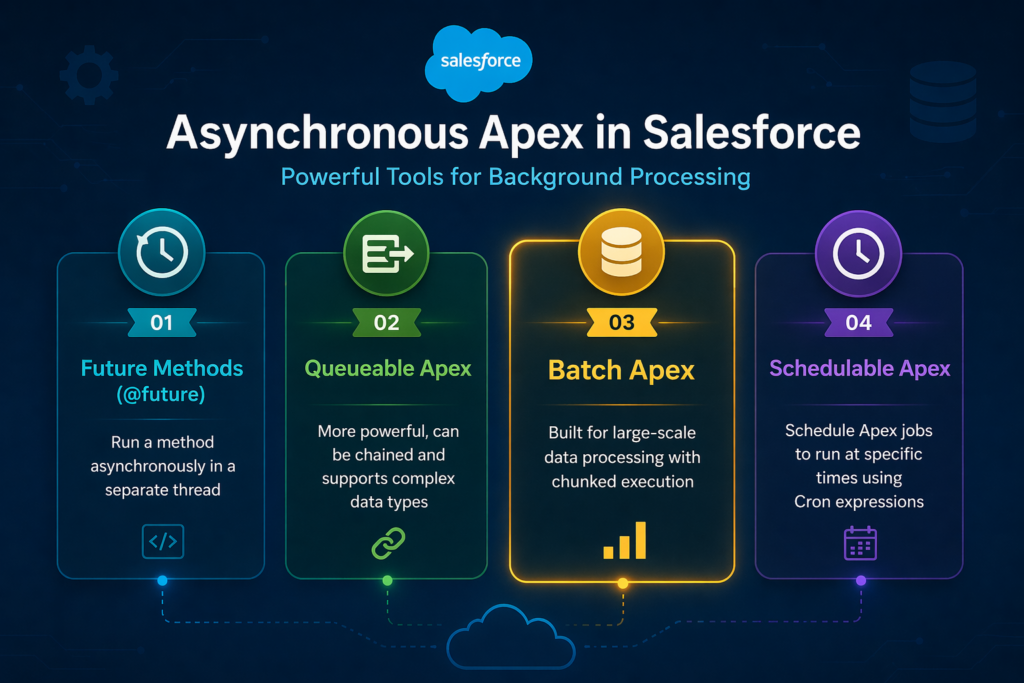
1. Future Methods (@future)
- Run a method asynchronously in a separate thread
- Simple annotation-based approach
- Limitation: Cannot be chained, no monitoring, limited to primitive parameters
- Best for: Simple callouts, small background operations
apex@future(callout=true)
public static void sendEmailAsync(String userId) {
    // runs asynchronously
}
2. Queueable Apex
- More powerful than Future Methods
- Can be chained (one job queues another)
- Supports complex data types as parameters
- Best for: Sequential background jobs, chained processing
apexpublic class MyQueueableJob implements Queueable {
    public void execute(QueueableContext context) {
        // job logic here
    }
}
3. Batch Apex ⭐
- Designed for large-scale data processing
- Breaks records into chunks with fresh governor limits per chunk
- Best for: Mass updates, data migration, scheduled data processing
4. Schedulable Apex
- Used to schedule any Apex class to run at specific times
- Works with Cron expressions (like a time-based trigger)
- Often used to schedule Batch Apex jobs
- Best for: Automated, recurring background jobs
Quick Comparison Table
| Feature | Future | Queueable | Batch | Schedulable |
|---|---|---|---|---|
| Large data processing | ❌ | ❌ | ✅ | ❌ |
| Chainable | ❌ | ✅ | ❌ | ❌ |
| Schedulable | ❌ | ❌ | ✅ | ✅ |
| Monitoring | ❌ | ✅ | ✅ | ✅ |
| Governor limit reset | ❌ | ❌ | ✅ | ❌ |
| Max records | 50K | 50K | Millions | N/A |
Batch Apex Architecture Explained
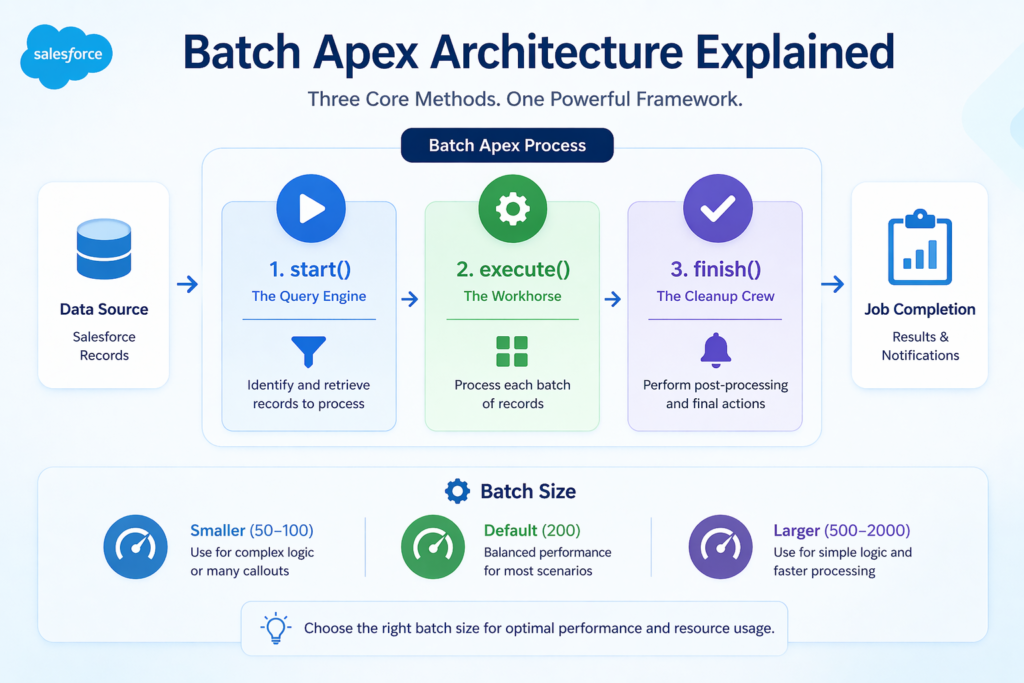
Every Batch Apex class implements the Database.Batchable interface, which requires you to define three specific methods. Understanding these three methods is the key to mastering Batch Apex.
The Three Core Methods
1. start() Method — The Query Engine
- Runs once at the beginning of the batch job
- Returns a scope of records to process (using SOQL or an Iterable)
- Uses
Database.QueryLocator(recommended — can handle up to 50 million records) orIterable
apexglobal Database.QueryLocator start(Database.BatchableContext bc) {
    // Define what records to process
    return Database.getQueryLocator(
        'SELECT Id, Name, Email FROM Contact WHERE Email = null'
    );
}
2. execute() Method — The Workhorse
- Runs once per batch chunk (once for every 200 records by default)
- Receives a list of records (
scope) to process - This is where your actual business logic lives
- Each execution gets fresh governor limits
apexglobal void execute(Database.BatchableContext bc, List<Contact> scope) {
    // Process each chunk of records here
    for (Contact con : scope) {
        con.Email = 'noemail@placeholder.com';
    }
    update scope;
}
3. finish() Method — The Cleanup Crew
- Runs once after all batches have been processed
- Used for post-processing tasks: sending notification emails, logging completion, triggering follow-up jobs
apexglobal void finish(Database.BatchableContext bc) {
    // Send completion notification
    Messaging.SingleEmailMessage mail = new Messaging.SingleEmailMessage();
    mail.setToAddresses(new String[]{'admin@company.com'});
    mail.setSubject('Batch Job Completed');
    mail.setPlainTextBody('Contact update batch job has finished successfully.');
    Messaging.sendEmail(new Messaging.SingleEmailMessage[]{mail});
}
Understanding Batch Size
The batch size determines how many records are processed in each execute() call. The default is 200, but you can set it between 1 and 2,000.
apex// Execute with custom batch size of 100
Database.executeBatch(new MyBatchClass(), 100);
When to adjust batch size:
- Smaller batch size (50–100): When your execute logic is complex or makes many callouts
- Larger batch size (500–2000): When your logic is simple and you want faster processing
- Default (200): Good starting point for most scenarios
Batch Apex Example — Full Working Code
Now let’s put it all together with a complete, real-world batch apex example.
Scenario
Your company has 500,000 Account records. Marketing wants to update all Accounts that haven’t been contacted in over a year — setting their Status field to “Inactive” and adding a note to the Description field.
Step 1: Create the Batch Apex Class
apex/**
 * Batch Apex Class: AccountInactiveStatusBatch
 * Purpose: Mark accounts inactive if last activity > 1 year ago
 * Author: Your Name
 * Date: 2024
 */
global class AccountInactiveStatusBatch implements Database.Batchable<sObject> {

    // =============================================
    // START METHOD - Defines which records to process
    // =============================================
    global Database.QueryLocator start(Database.BatchableContext bc) {

        // Calculate date 1 year ago from today
        Date oneYearAgo = Date.today().addYears(-1);

        // Query all Accounts not contacted in the last year
        // and not already marked Inactive
        return Database.getQueryLocator([
            SELECT Id,
                   Name,
                   Description,
                   Account_Status__c,
                   LastActivityDate
            FROM Account
            WHERE LastActivityDate < :oneYearAgo
            AND Account_Status__c != 'Inactive'
            ORDER BY LastActivityDate ASC
        ]);
    }

    // =============================================
    // EXECUTE METHOD - Processes each batch of records
    // Runs once per chunk (default: 200 records)
    // =============================================
    global void execute(Database.BatchableContext bc, List<Account> scope) {

        // List to hold accounts that need updating
        List<Account> accountsToUpdate = new List<Account>();

        // Loop through each account in the current batch
        for (Account acc : scope) {

            // Update the status to Inactive
            acc.Account_Status__c = 'Inactive';

            // Add a note to the description
            acc.Description = 'Marked inactive by automated batch job on '
                            + String.valueOf(Date.today())
                            + '. Last activity: '
                            + String.valueOf(acc.LastActivityDate);

            // Add to our update list
            accountsToUpdate.add(acc);
        }

        // Perform the update with error handling
        if (!accountsToUpdate.isEmpty()) {
            try {
                // Use Database.update with allOrNone = false
                // This allows partial success — failed records don't fail the whole batch
                Database.SaveResult[] results = Database.update(accountsToUpdate, false);

                // Log any errors that occurred
                for (Database.SaveResult sr : results) {
                    if (!sr.isSuccess()) {
                        for (Database.Error err : sr.getErrors()) {
                            System.debug('Error updating Account: ' + err.getMessage());
                        }
                    }
                }
            } catch (Exception e) {
                // Log unexpected exceptions
                System.debug('Unexpected error in batch execute: ' + e.getMessage());
            }
        }
    }

    // =============================================
    // FINISH METHOD - Runs once after all batches complete
    // =============================================
    global void finish(Database.BatchableContext bc) {

        // Get job details for logging/notification
        AsyncApexJob job = [
            SELECT Id,
                   Status,
                   NumberOfErrors,
                   JobItemsProcessed,
                   TotalJobItems,
                   CreatedBy.Email
            FROM AsyncApexJob
            WHERE Id = :bc.getJobId()
        ];

        // Send completion email to admin
        Messaging.SingleEmailMessage mail = new Messaging.SingleEmailMessage();

        // Send to the user who kicked off the batch
        mail.setToAddresses(new String[]{job.CreatedBy.Email});
        mail.setSubject('Account Inactive Status Batch — Completed');
        mail.setPlainTextBody(
            'Your batch job has completed.\n\n' +
            'Status: ' + job.Status + '\n' +
            'Total Batches: ' + job.TotalJobItems + '\n' +
            'Batches Processed: ' + job.JobItemsProcessed + '\n' +
            'Number of Errors: ' + job.NumberOfErrors
        );

        Messaging.sendEmail(new Messaging.SingleEmailMessage[]{mail});

        System.debug('Batch job completed. Status: ' + job.Status);
    }
}
How to Execute Batch Apex
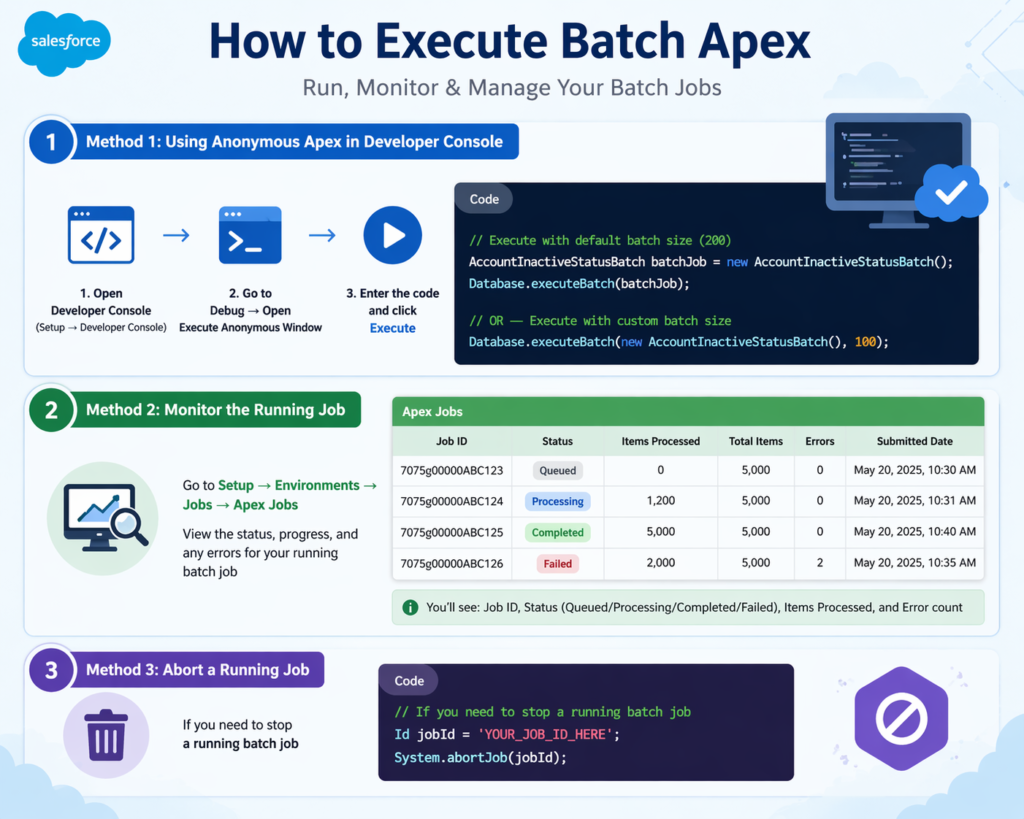
Method 1: Using Anonymous Apex in Developer Console
- Open Developer Console (Setup → Developer Console)
- Go to Debug → Open Execute Anonymous Window
- Enter the following code and click Execute:
apex// Execute with default batch size (200)
AccountInactiveStatusBatch batchJob = new AccountInactiveStatusBatch();
Database.executeBatch(batchJob);

// OR — Execute with custom batch size
Database.executeBatch(new AccountInactiveStatusBatch(), 100);
Method 2: Monitor the Running Job
- Go to Setup → Environments → Jobs → Apex Jobs
- View the status, progress, and any errors for your running batch job
- You’ll see: Job ID, Status (Queued/Processing/Completed/Failed), Items Processed, and Error count
Method 3: Abort a Running Job
apex// If you need to stop a running batch job
Id jobId = 'YOUR_JOB_ID_HERE';
System.abortJob(jobId);
What is Schedulable Apex?
Schedulable Apex allows you to schedule an Apex class to run automatically at a specific time or on a recurring schedule — like a built-in alarm clock for your code.
This is particularly powerful when combined with Batch Apex — you can schedule your batch job to run every night, every week, or at any custom interval.
Cron Expression Basics
Salesforce uses cron expressions to define schedules. The format is:
textSeconds Minutes Hours Day_of_month Month Day_of_week Optional_year
Common cron examples:
| Schedule | Cron Expression |
|---|---|
| Every day at midnight | '0 0 0 * * ?' |
| Every day at 6 AM | '0 0 6 * * ?' |
| Every Monday at 8 AM | '0 0 8 ? * MON' |
| First day of every month | '0 0 0 1 * ?' |
| Every hour | '0 0 * * * ?' |
Scheduling Batch Apex — Complete Code Example
Scenario
You want your AccountInactiveStatusBatch to run automatically every night at 2 AM so inactive accounts are always kept up to date.
Step 1: Create the Schedulable Wrapper Class
apex/**
 * Schedulable Class: AccountInactiveBatchScheduler
 * Purpose: Schedule the AccountInactiveStatusBatch to run nightly at 2 AM
 * Author: Your Name
 */
global class AccountInactiveBatchScheduler implements Schedulable {

    global void execute(SchedulableContext sc) {

        // Instantiate the batch class
        AccountInactiveStatusBatch batchJob = new AccountInactiveStatusBatch();

        // Execute the batch with a batch size of 200
        Database.executeBatch(batchJob, 200);

        System.debug('AccountInactiveStatusBatch has been triggered by scheduler.');
    }
}
Step 2: Schedule the Job via Anonymous Apex
apex// Schedule to run every night at 2:00 AM
String cronExpression = '0 0 2 * * ?';
String jobName = 'Nightly Account Inactive Status Update';

// Schedule the job
System.schedule(jobName, cronExpression, new AccountInactiveBatchScheduler());

System.debug('Batch job successfully scheduled: ' + jobName);
Step 3: Schedule via Salesforce UI (Alternative)
- Go to Setup → Custom Code → Apex Classes
- Click Schedule Apex
- Enter Job Name, select the Schedulable class
- Set frequency (Weekly/Monthly/Custom)
- Click Save
Step 4: Monitor Scheduled Jobs
- Go to Setup → Environments → Jobs → Scheduled Jobs
- View all scheduled jobs, next run times, and delete if needed
Best Practices for Batch Apex
1. Choose the Right Batch Size
- Start with 200 and adjust based on complexity
- Reduce batch size if your execute logic is heavy (callouts, complex SOQL)
- Increase if logic is lightweight and you have many records
2. Use Database.update(records, false) for Partial Success
- Setting
allOrNone = falsemeans one failed record won’t roll back the entire batch chunk - Always log
SaveResulterrors for debugging
3. Implement Database.Stateful When Needed
- By default, batch apex is stateless — instance variables reset between batches
- If you need to track totals or accumulate data across batches, implement
Database.Stateful
apexglobal class StatefulBatchExample
    implements Database.Batchable<sObject>, Database.Stateful {

    // This variable persists across all batch executions
    global Integer totalRecordsProcessed = 0;

    global void execute(Database.BatchableContext bc, List<Account> scope) {
        totalRecordsProcessed += scope.size();
        // process records...
    }

    global void finish(Database.BatchableContext bc) {
        System.debug('Total records processed: ' + totalRecordsProcessed);
    }
}
4. Avoid SOQL Inside Loops
Never put SOQL queries inside your for loop in the execute() method — this is the fastest way to hit governor limits.
5. Handle All Exceptions
Always wrap your execute logic in try-catch blocks and log errors using System.debug or a custom logging object.
6. Test with Small Datasets First
Use a small date range or LIMIT clause in your SOQL during testing before running on full production data.
Common Mistakes to Avoid
❌ Mistake 1: Using Incorrect Batch Size for Complex Logic
Setting batch size to 2,000 when your execute method makes 5 SOQL queries = instant governor limit violation. Match batch size to your logic complexity.
❌ Mistake 2: Putting SOQL in the Execute Loop
apex// ❌ WRONG — SOQL inside loop
for (Account acc : scope) {
    List<Contact> contacts = [SELECT Id FROM Contact WHERE AccountId = :acc.Id];
}

// ✅ CORRECT — Bulk query outside loop
Map<Id, List<Contact>> contactMap = new Map<Id, List<Contact>>();
List<Contact> allContacts = [SELECT Id, AccountId FROM Contact
                              WHERE AccountId IN :scope];
for (Contact c : allContacts) {
    // map contacts to accounts
}
❌ Mistake 3: Not Using Database.Stateful When Tracking Totals
If you’re counting processed records but not implementing Database.Stateful, your counter resets to zero every batch. You’ll always get wrong totals in the finish() method.
❌ Mistake 4: Overusing Batch Apex
Batch Apex has overhead. For small operations (under 10,000 records), consider Queueable Apex instead — it’s faster and simpler.
❌ Mistake 5: No Error Handling in execute()
An unhandled exception in execute() will fail that entire batch chunk. Always use try-catch and Database.update(records, false).
Real-World Use Cases for Batch Apex
🔄 1. Data Migration
Migrate data from legacy custom objects to new objects during a Salesforce org restructure — processing 500,000 records safely in manageable chunks.
🧹 2. Scheduled Data Cleanup
Nightly batch jobs that archive or delete records older than a defined period — like removing temporary log records or expiring promotional offers.
📊 3. Mass Field Updates
Update calculated fields across millions of records after a business rule change — like recalculating discount tiers for all customer accounts.
🔗 4. Integration Processing
Process incoming data from an external system that arrives in bulk — like syncing product catalog updates from an ERP system into Salesforce.
📧 5. Bulk Email Campaigns
Process large contact lists for marketing emails in chunks, respecting email sending limits and ensuring every contact gets the right message.
Conclusion: Master Batch Apex, Master Large-Scale Salesforce Development
You’ve now completed a full Salesforce Batch Apex tutorial — from understanding why asynchronous processing matters to writing production-ready batch and schedulable apex code.
Here’s what you’ve covered:
- The four types of asynchronous Apex and when to use each
- The three-method architecture of Batch Apex (start, execute, finish)
- A complete batch apex example with real, commented code
- How to execute, monitor, and abort batch jobs
- How to combine Batch + Schedulable Apex for automated processing
- Best practices, common mistakes, and real-world use cases
For anyone pursuing a Salesforce Developer career, Batch Apex is a non-negotiable skill. It comes up in virtually every technical interview, features prominently in the Salesforce Platform Developer I certification, and is used daily in enterprise Salesforce implementations.
Your next step: Open your Salesforce Developer org (free at developer.salesforce.com), copy the examples in this guide, and run your first batch job today.
About RizeX Labs
At RizeX Labs, we specialize in delivering cutting-edge Salesforce development solutions, including scalable data processing using Salesforce technologies like Batch Apex. Our expertise combines deep technical knowledge, best coding practices, and real-world implementation experience to help businesses efficiently process large volumes of data without hitting platform limits.
We empower organizations to move from manual and inefficient data operations to automated, high-performance solutions using asynchronous apex salesforce, enabling reliable background processing and improved system performance.
Internal Links:
- Link to your Salesforce course page
- Salesforce Shield: Encryption, Event Monitoring and Field Audit Trail Explained
- DevOps Roadmap for Salesforce: Tools, Skills, and Certifications You Need in 2026
- How to Build a Salesforce Portfolio That Gets You Hired (With Project Ideas)
- Salesforce Admin vs Developer: Which Career Path is Right for You in 2026?
- Wealth Management App in Financial Services Cloud
- Enroll in Salesforce Dev batch
External Links:
- Salesforce official website
- Salesforce Apex Developer Guide
- Salesforce Trailhead (Apex Modules)
- Salesforce Async Processing Guide
- Salesforce AppExchange
Quick Summary
The salesforce batch apex tutorial is essential for developers who need to process large datasets efficiently in Salesforce. Batch Apex allows you to handle thousands or even millions of records by breaking them into smaller chunks and processing them asynchronously.
With a proper batch apex example, developers can understand how to implement the start, execute, and finish methods to build scalable solutions. As part of asynchronous apex salesforce, Batch Apex works alongside tools like future methods and queueable apex to handle background operations effectively.
Additionally, schedulable apex enables automation by allowing batch jobs to run at specific times, making it ideal for recurring tasks such as data cleanup, updates, and integrations.
By mastering Batch Apex and asynchronous processing, developers can optimize performance, avoid governor limits, and build robust Salesforce applications that scale with business needs.
