
Every Salesforce admin knows the pain of dirty data. A sales rep forgets to fill in a required field. A support agent enters a phone number with too few digits. A manager approves a discount that exceeds company policy. These seemingly small errors cascade into inaccurate reports, broken automations, and frustrated stakeholders.
The solution? Salesforce validation rules.
Validation rules are one of the most powerful — yet underutilized — declarative tools in the Salesforce platform. They act as gatekeepers, preventing bad data from ever entering your org in the first place. Whether you’re a new admin building your first rule or a seasoned developer looking for a quick reference, this comprehensive guide delivers 15 practical salesforce validation rules examples complete with formula code you can copy, customize, and deploy today.
In this post, we’ll cover what validation rules are, how they work under the hood, walk through 15 real-world examples with salesforce validation rule formulas, share best practices, and wrap up with actionable validation rule tips to keep your org clean and your users happy.
Let’s dive in.

What Are Salesforce Validation Rules?
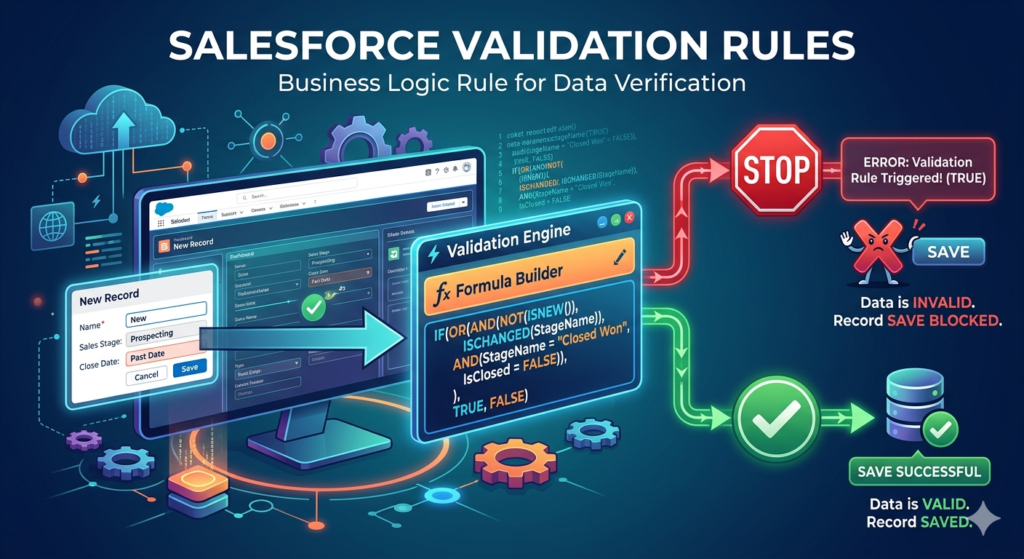
A validation rule in Salesforce is a business logic rule that verifies the data a user enters before allowing the record to be saved. Each rule contains a formula expression that evaluates to either TRUE or FALSE:
- TRUE → The data is invalid. Salesforce blocks the save and displays an error message.
- FALSE → The data is valid. The record saves normally.
Think of it this way: your validation rule formula describes the error condition — the scenario you want to prevent.
Where Do Validation Rules Live?
You can create validation rules on:
- Standard objects (Account, Contact, Opportunity, Case, etc.)
- Custom objects
- Custom metadata types (with some limitations)
Key Components of a Validation Rule
| Component | Description |
|---|---|
| Rule Name | API name (no spaces, unique per object) |
| Active | Checkbox to enable/disable the rule |
| Description | Free-text explanation of the rule’s purpose |
| Error Condition Formula | The formula that returns TRUE when data is invalid |
| Error Message | The message displayed to the user |
| Error Location | Top of page or next to a specific field |
The Order of Execution
Validation rules fire after before-triggers and before after-triggers, assignment rules, workflow rules, and process builders. Understanding this order is critical because:
- A before-trigger might modify a field value before the validation rule evaluates it.
- A workflow field update will fire after validation rules, so the updated value won’t be validated unless the record is saved again (re-evaluation).
Now that you understand the foundation, let’s explore 15 practical salesforce validation rules examples with code.
15 Common Salesforce Validation Rule Examples with Code
Example 1: Require a Phone Number on the Account
Use Case: Every Account must have a phone number. The standard “required” field setting might not apply to all page layouts or API integrations, so a validation rule provides universal enforcement.
Error Condition Formula:
JavaISBLANK(Phone)
Error Message: “Phone number is required. Please enter a valid phone number before saving.”
Error Location: Phone Field
Why It Works: ISBLANK() returns TRUE when the field is empty or contains only whitespace. Since TRUE triggers the error, users cannot save an Account without a phone number — regardless of the page layout, API call, or data loader import.
Example 2: Validate Email Format on Contact
Use Case: Ensure the email field on a Contact record contains a properly formatted email address (if provided).
Error Condition Formula:
JavaAND(
  NOT(ISBLANK(Email)),
  NOT(REGEX(Email, "^[a-zA-Z0-9._%+-]+@[a-zA-Z0-9.-]+\\.[a-zA-Z]{2,}$"))
)
Error Message: “Please enter a valid email address (e.g., user@example.com).”
Error Location: Email Field
Why It Works: The REGEX() function matches the input against a standard email pattern. The outer AND with NOT(ISBLANK()) ensures we only validate when a value is actually entered — avoiding false errors on optional fields. This is one of the most common salesforce validation rule formulas used across orgs.
Example 3: Prevent Opportunity Close Date in the Past
Use Case: Sales reps should not set an Opportunity’s Close Date to a date that has already passed.
Error Condition Formula:
JavaCloseDate < TODAY()
Error Message: “Close Date cannot be in the past. Please select today’s date or a future date.”
Error Location: Close Date Field
Why It Works: TODAY() returns the current date in the running user’s time zone. If CloseDate is earlier than today, the formula returns TRUE and blocks the save. Simple, effective, and one of the first rules every admin should implement.
Example 4: Enforce Discount Limits on Opportunity
Use Case: Sales reps can offer discounts up to 20%. Anything above requires a manager override (a custom checkbox field called Manager_Approved__c).
Error Condition Formula:
JavaAND(
  Discount_Percent__c > 0.20,
  NOT(Manager_Approved__c)
)
Error Message: “Discounts above 20% require manager approval. Please check the ‘Manager Approved’ box or reduce the discount.”
Error Location: Discount_Percent__c Field
Why It Works: This rule combines a threshold check with a bypass mechanism. Managers can approve high discounts by checking the Manager_Approved__c checkbox, while standard reps are restricted. This is a classic example of custom validation salesforce logic tailored to business policy.
Example 5: Validate US Phone Number Format (10 Digits)
Use Case: Ensure US phone numbers contain exactly 10 digits, regardless of formatting (dashes, spaces, parentheses).
Error Condition Formula:
JavaAND(
  NOT(ISBLANK(Phone)),
  NOT(REGEX(Phone, "^\\(?\\d{3}\\)?[\\s.-]?\\d{3}[\\s.-]?\\d{4}$"))
)
Error Message: “Please enter a valid 10-digit US phone number (e.g., (555) 123-4567 or 5551234567).”
Error Location: Phone Field
Why It Works: The REGEX() function accommodates common US phone formats: (555) 123-4567, 555-123-4567, 555.123.4567, and 5551234567. This flexibility improves user adoption while still enforcing data quality.
Example 6: Prevent Closing an Opportunity Without Products
Use Case: An Opportunity cannot be moved to “Closed Won” if it has no associated Opportunity Line Items (products).
Error Condition Formula:
JavaAND(
  ISPICKVAL(StageName, "Closed Won"),
  NOT(HasOpportunityLineItem)
)
Error Message: “You cannot close this Opportunity as ‘Won’ without adding at least one product. Please add products before closing.”
Error Location: Top of Page
Why It Works: HasOpportunityLineItem is a standard Salesforce field that returns TRUE when at least one line item exists. Combined with the stage check, this rule enforces a critical business process: every won deal must have documented products.
Example 7: Require Description When Case Priority Is High
Use Case: When a support agent sets Case Priority to “High,” they must provide a description explaining the urgency.
Error Condition Formula:
JavaAND(
  ISPICKVAL(Priority, "High"),
  ISBLANK(Description)
)
Error Message: “A description is required for High Priority cases. Please explain the urgency before saving.”
Error Location: Description Field
Why It Works: ISPICKVAL() is the correct function for evaluating picklist fields (not =). This rule ensures critical cases always have context, improving response times and team visibility.
Example 8: Validate US Zip Code Format (5 or 9 Digits)
Use Case: The billing zip code on an Account must follow the US format: either 5 digits (12345) or ZIP+4 (12345-6789).
Error Condition Formula:
JavaAND(
  NOT(ISBLANK(BillingPostalCode)),
  BillingCountry = "US",
  NOT(REGEX(BillingPostalCode, "^\\d{5}(-\\d{4})?$"))
)
Error Message: “Please enter a valid US zip code (e.g., 12345 or 12345-6789).”
Error Location: BillingPostalCode Field
Why It Works: The REGEX pattern ^\d{5}(-\d{4})?$ matches exactly 5 digits with an optional dash and 4 more digits. The BillingCountry = "US" condition ensures this rule only fires for US addresses — international records are unaffected.
Example 9: Prevent Stage from Moving Backward
Use Case: Once an Opportunity reaches “Negotiation/Review,” it cannot be moved back to “Prospecting” or “Qualification.”
Error Condition Formula:
JavaAND(
  CASE(TEXT(PRIORVALUE(StageName)),
    "Negotiation/Review", 3,
    "Proposal/Price Quote", 2,
    "Qualification", 1,
    "Prospecting", 0,
    0
  ) >
  CASE(TEXT(StageName),
    "Negotiation/Review", 3,
    "Proposal/Price Quote", 2,
    "Qualification", 1,
    "Prospecting", 0,
    0
  ),
  NOT(ISNEW())
)
Error Message: “Opportunity stage cannot be moved backward. Please contact your manager if a stage change is necessary.”
Error Location: StageName Field
Why It Works: The CASE() function assigns a numeric value to each stage. PRIORVALUE() captures the stage value before the edit. If the prior numeric value is greater than the new one, the stage is moving backward — and the rule blocks it. The NOT(ISNEW()) clause ensures new records aren’t affected.
Example 10: Ensure End Date Is After Start Date
Use Case: On a custom Contract or Project object, the End Date must always be after the Start Date.
Error Condition Formula:
JavaAND(
  NOT(ISBLANK(Start_Date__c)),
  NOT(ISBLANK(End_Date__c)),
  End_Date__c <= Start_Date__c
)
Error Message: “End Date must be after the Start Date. Please correct the dates before saving.”
Error Location: End_Date__c Field
Why It Works: This straightforward date comparison prevents illogical date ranges. The NOT(ISBLANK()) checks ensure the rule only fires when both dates are populated — avoiding errors on partial records.
Example 11: Prevent Duplicate Entry Based on a Custom Field
Use Case: Each Account must have a unique Tax ID (Tax_ID__c). While duplicate rules handle this at a broader level, a validation rule with VLOOKUP() provides an additional layer of protection.
Error Condition Formula:
JavaAND(
  NOT(ISBLANK(Tax_ID__c)),
  Tax_ID__c = VLOOKUP(
    $ObjectType.Account.Fields.Tax_ID__c,
    $ObjectType.Account.Fields.Tax_ID__c,
    Tax_ID__c
  ),
  OR(
    ISNEW(),
    ISCHANGED(Tax_ID__c)
  )
)
Error Message: “An Account with this Tax ID already exists. Duplicate Tax IDs are not allowed.”
Error Location: Tax_ID__c Field
Why It Works: VLOOKUP() searches for an existing record with the same Tax ID. If found, the formula returns TRUE and blocks the save. The ISNEW() and ISCHANGED() conditions prevent false positives when editing unrelated fields on an existing record.
Note:
VLOOKUP()requires the lookup field to have an External ID index. For high-volume orgs, consider using duplicate rules or Apex triggers instead.
Example 12: Require Attachment or File Before Case Closure
Use Case: Support agents must attach at least one file before closing a Case. We use a custom field Attachment_Count__c (populated via a roll-up summary or trigger).
Error Condition Formula:
JavaAND(
  ISPICKVAL(Status, "Closed"),
  Attachment_Count__c = 0
)
Error Message: “You must attach at least one file before closing this Case. Please upload documentation and try again.”
Error Location: Top of Page
Why It Works: Since Salesforce validation rules cannot directly reference attachments or files, the workaround uses a numeric field (Attachment_Count__c) that is maintained by a trigger or flow. This is a practical pattern for custom validation salesforce implementations that involve related data.
Example 13: Restrict Field Edits to Record Owner Only
Use Case: Only the Account Owner can modify the Annual_Revenue__c field. Other users (except System Admins) should be blocked.
Error Condition Formula:
JavaAND(
  ISCHANGED(Annual_Revenue__c),
  $User.Id <> OwnerId,
  $Profile.Name <> "System Administrator"
)
Error Message: “Only the Account Owner or a System Administrator can modify the Annual Revenue field.”
Error Location: Annual_Revenue__c Field
Why It Works: ISCHANGED() detects that the field value was modified. $User.Id <> OwnerId confirms the current user is not the owner. $Profile.Name <> "System Administrator" provides an escape hatch for admins. This three-part formula is a staple in salesforce validation rule formulas for field-level security beyond profiles.
Example 14: Enforce Minimum Character Length on Description
Use Case: The Opportunity Description must be at least 50 characters if populated — preventing vague or useless entries.
Error Condition Formula:
JavaAND(
  NOT(ISBLANK(Description)),
  LEN(Description) < 50
)
Error Message: “Description must be at least 50 characters. Please provide more detail about this opportunity.”
Error Location: Description Field
Why It Works: LEN() returns the number of characters in a text field. This rule allows the Description to be empty (optional) but enforces quality when a value is entered. It’s a simple yet effective way to improve data richness.
Example 15: Validate URL Format on a Custom Website Field
Use Case: A custom field Company_Website__c on the Account object should contain a properly formatted URL.
Error Condition Formula:
JavaAND(
  NOT(ISBLANK(Company_Website__c)),
  NOT(REGEX(Company_Website__c,
    "^(https?:\\/\\/)(www\\.)?[a-zA-Z0-9-]+(\\.[a-zA-Z]{2,})+(\\/[^\\s]*)?$"
  ))
)
Error Message: “Please enter a valid URL starting with http:// or https:// (e.g., https://www.example.com).”
Error Location: Company_Website__c Field
Why It Works: This REGEX pattern validates that the URL:
- Starts with
http://orhttps:// - Contains a valid domain name
- Has a proper top-level domain (
.com,.org,.io, etc.) - Optionally includes a path
This is particularly useful when Company Website data feeds into integrations or customer-facing portals.
Quick Reference Table
| # | Use Case | Key Function(s) |
|---|---|---|
| 1 | Require Phone on Account | ISBLANK() |
| 2 | Validate Email Format | REGEX() |
| 3 | No Past Close Date | TODAY() |
| 4 | Discount Limits | AND(), checkbox bypass |
| 5 | US Phone Format | REGEX() |
| 6 | Require Products Before Closing | ISPICKVAL(), HasOpportunityLineItem |
| 7 | Description for High Priority Cases | ISPICKVAL(), ISBLANK() |
| 8 | US Zip Code Validation | REGEX() |
| 9 | Prevent Stage Regression | CASE(), PRIORVALUE() |
| 10 | End Date After Start Date | Date comparison |
| 11 | Prevent Duplicate Tax ID | VLOOKUP() |
| 12 | Require Attachment Before Closure | Custom count field |
| 13 | Restrict Field Edit to Owner | ISCHANGED(), $User, $Profile |
| 14 | Minimum Description Length | LEN() |
| 15 | Validate URL Format | REGEX() |
Best Practices for Salesforce Validation Rules
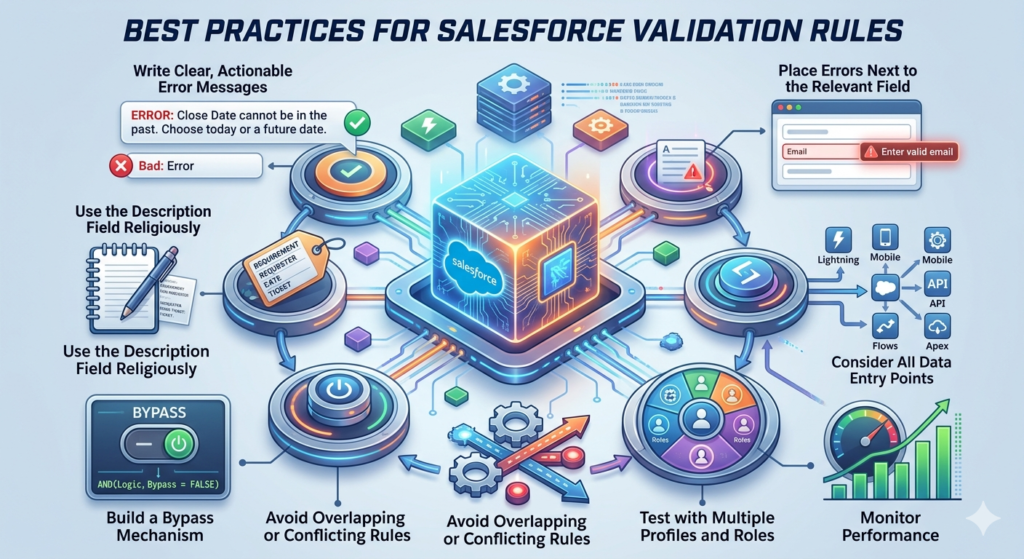
Implementing validation rules is easy. Implementing them well requires discipline. Here are the best practices every Salesforce team should follow:
1. Write Clear, Actionable Error Messages
Bad: “Error.”
Good: “Close Date cannot be in the past. Please select today’s date or a future date.”
Your error message should tell the user what went wrong and how to fix it. Include examples when possible. This single practice dramatically reduces support tickets and user frustration.
2. Use the Description Field Religiously
Six months from now, you (or your successor) will look at a complex validation rule and wonder what it does. Always document:
- The business requirement
- Who requested it
- When it was created
- Any related JIRA/ticket numbers
3. Place Errors Next to the Relevant Field
When possible, set the error location to the specific field rather than “Top of Page.” Users can immediately see which field needs attention — especially important on record types with many fields.
4. Consider All Data Entry Points
Your validation rule must work for:
- Lightning Experience
- Salesforce Classic
- Salesforce Mobile App
- Data Loader / API imports
- Flows and Process Builders
- Apex DML operations
Test across all channels your org uses.
5. Build a Bypass Mechanism
For data migrations, integrations, or admin overrides, include a bypass:
JavaAND(
  /* Your validation logic here */
  $Custom_Metadata_Type.Bypass_Validation__c = FALSE
)
Alternatively, use a custom permission, a user-level checkbox, or a hierarchical custom setting:
JavaAND(
  /* Your validation logic here */
  $Setup.Validation_Bypass__c.Bypass__c = FALSE
)
This prevents validation rules from blocking legitimate bulk operations.
6. Avoid Overlapping or Conflicting Rules
If you have 10 validation rules on the same object, a user could trigger multiple errors simultaneously. This is confusing. Audit your rules regularly and consolidate where possible.
7. Test with Multiple Profiles and Roles
A rule that works perfectly for your admin profile might behave differently for a standard user. Always test with the profiles that will actually interact with the data.
8. Monitor Performance
Each validation rule adds processing time to the save operation. While individual rules are fast, an object with 30+ rules can experience noticeable delays. Review and deactivate obsolete rules quarterly.
Pro Tips for Advanced Validation Rules
Beyond the basics, here are validation rule tips that separate good admins from great ones:
Tip 1: Use PRIORVALUE() for Change-Based Validation
Instead of validating the current value alone, check whether it changed:
JavaAND(
  ISCHANGED(Status__c),
  ISPICKVAL(Status__c, "Approved"),
  ISBLANK(Approver__c)
)
This fires only when the status changes to “Approved” — not every time the record is saved.
Tip 2: Leverage $Profile.Name and $UserRole.Name Sparingly
Hardcoding profile names makes your org fragile. Prefer Custom Permissions instead:
JavaAND(
  /* Your validation logic */
  NOT($Permission.Can_Bypass_Discount_Validation)
)
Custom Permissions can be assigned via Permission Sets, making them far more flexible than profile-based checks.
Tip 3: Chain CASE() for Complex Picklist Logic
When you need to validate against multiple picklist values:
JavaNOT(
  CASE(TEXT(Industry),
    "Technology", 1,
    "Healthcare", 1,
    "Finance", 1,
    0
  ) = 1
)
This is cleaner than chaining multiple OR(ISPICKVAL()) statements.
Tip 4: Use ISNEW() and NOT(ISNEW()) Strategically
ISNEW()→ Rule applies only to record creationNOT(ISNEW())→ Rule applies only to record updates
This distinction is crucial for rules like “prevent stage regression” (Example 9) which shouldn’t fire on new records.
Tip 5: Combine with Record Types
If a rule should only apply to specific record types:
JavaAND(
  RecordType.DeveloperName = "Enterprise_Account",
  ISBLANK(Account_Manager__c)
)
This keeps validation rules targeted and prevents unnecessary friction for other record types.
Tip 6: Document a Validation Rule Inventory
Maintain a spreadsheet or Confluence page listing every active validation rule across all objects. Include:
- Object name
- Rule name
- Business purpose
- Active/Inactive status
- Bypass mechanism
- Last reviewed date
This inventory is invaluable during org audits, user acceptance testing, and onboarding new admins.
Common Mistakes to Avoid
| Mistake | Why It’s a Problem | Solution |
|---|---|---|
| Too many rules on one object | Confusing multi-error messages; slow saves | Consolidate rules; use AND/OR logic |
| Vague error messages | Users don’t know how to fix the error | Be specific and prescriptive |
| No bypass mechanism | Blocks data migrations and integrations | Use custom settings or custom permissions |
| Not testing with API/Data Loader | Rules may behave unexpectedly | Test all entry points |
| Hardcoding Profile names | Breaks when profiles are renamed | Use Custom Permissions instead |
Forgetting ISNEW() checks | Rules fire incorrectly on create vs. update | Add ISNEW() or NOT(ISNEW()) as needed |
When NOT to Use Validation Rules
Validation rules are powerful, but they’re not always the right tool:
- Complex cross-object validation: If you need to query related records beyond what formula fields support, use an Apex trigger.
- Asynchronous validation: Validation rules are synchronous. For callout-based validation (e.g., verifying an address against an external API), use Apex or Flow with a callout.
- Conditional required fields based on page layout: Use dynamic forms in Lightning or Record Types with different page layouts.
- Soft warnings: Validation rules are hard stops. If you need a non-blocking warning, use a Flow screen component or custom Lightning component.
Conclusion
Salesforce validation rules are the unsung heroes of data quality. They’re declarative, requiring no code beyond formulas. They’re universal, enforcing rules across every data entry point. And they’re immediate, catching errors before bad data ever reaches your database.
In this guide, we explored 15 practical salesforce validation rules examples covering everything from basic required field enforcement to advanced stage regression prevention and REGEX-based format validation. We examined the salesforce validation rule formulas behind each example, discussed when and how to implement custom validation salesforce logic, and shared proven validation rule tips to help you build a cleaner, more reliable org.
Here’s your action plan:
- Audit your current validation rules. Are they documented? Are error messages clear? Are there bypass mechanisms?
- Identify gaps. Review the 15 examples above and determine which rules your org needs.
- Implement incrementally. Deploy one or two rules at a time, test thoroughly, and gather user feedback.
- Document everything. Maintain an inventory and review it quarterly.
- Educate your users. Validation rules work best when users understand why they exist — not just that they’re blocked.
Data quality isn’t a one-time project; it’s an ongoing discipline. With the right validation rules in place, you’re building a Salesforce org that your users can trust, your reports can rely on, and your business can grow with confidently.
About RizeX Labs
We’re Pune’s leading IT training institute specializing in emerging technologies like Salesforce and data analytics. At RizeX Labs, we help professionals master the intricacies of the Salesforce platform—from declarative tools like Validation Rules to complex programmatic development. Our hands-on projects and expert mentorship are designed to transform you into a job-ready professional with an eye for clean, high-quality data.
Internal Links:
- Salesforce Admin & Development Training
- Mastering Salesforce Data Security: Profiles vs. Permission Sets
- Apex Triggers: When Validation Rules Aren’t Enough
