
Introduction
If you’ve ever wished your Salesforce records could do a little math on their own — calculate a discount, flag an overdue task, or automatically label a deal as “Hot,” “Warm,” or “Cold” — then Salesforce formula fields are exactly what you need.
Formula fields are one of the most powerful, underrated features in the Salesforce platform. They allow you to automatically compute values based on other data in your org — no code, no manual entry, no stale numbers. And when used correctly, they become essential building blocks of automation, reporting, and business intelligence.
In this formula field tutorial, you’ll learn:
- What formula fields are and why every Salesforce admin should master them
- The syntax basics you need to know before writing your first formula
- 20 real-world salesforce formula fields examples spanning text, date, numeric, and logical categories
- A quick-reference salesforce formulas list of the most commonly used functions
- Best practices and common pitfalls to avoid
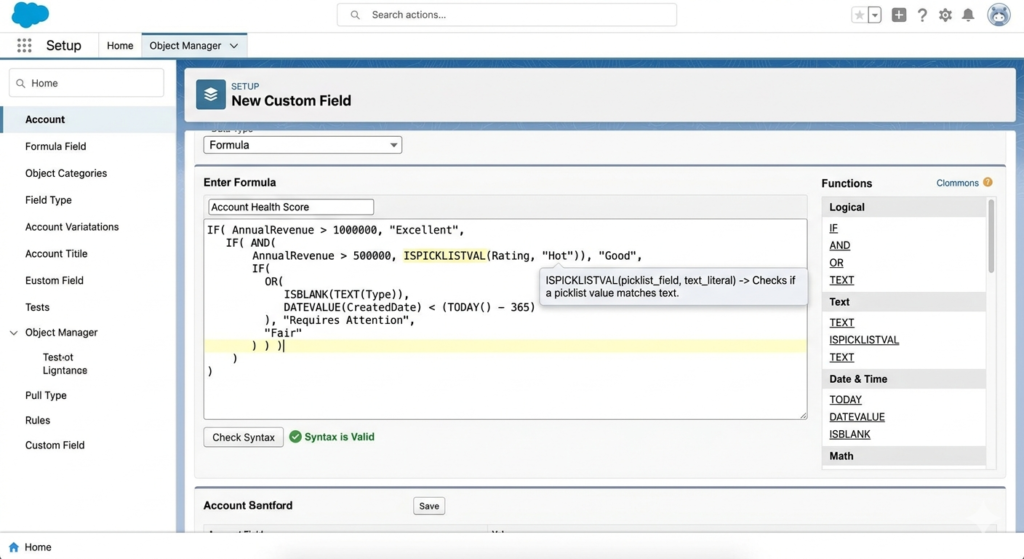
Whether you’re managing a sales pipeline, a customer support queue, or a marketing campaign, this guide will help you unlock the full potential of Salesforce formulas.
Let’s dive in.
What Are Formula Fields in Salesforce?
Simple Definition
A formula field in Salesforce is a read-only field that automatically calculates its value using a formula you define. The formula can reference other fields on the same record, use built-in functions, perform mathematical operations, evaluate logical conditions, and return a result in real time — every time the record is loaded.
Think of it like a spreadsheet formula (like Excel’s =IF(A1>100, "High", "Low")), but embedded directly into your CRM records.
Key Benefits of Formula Fields
Formula fields offer several compelling advantages over manually entered or workflow-managed data:
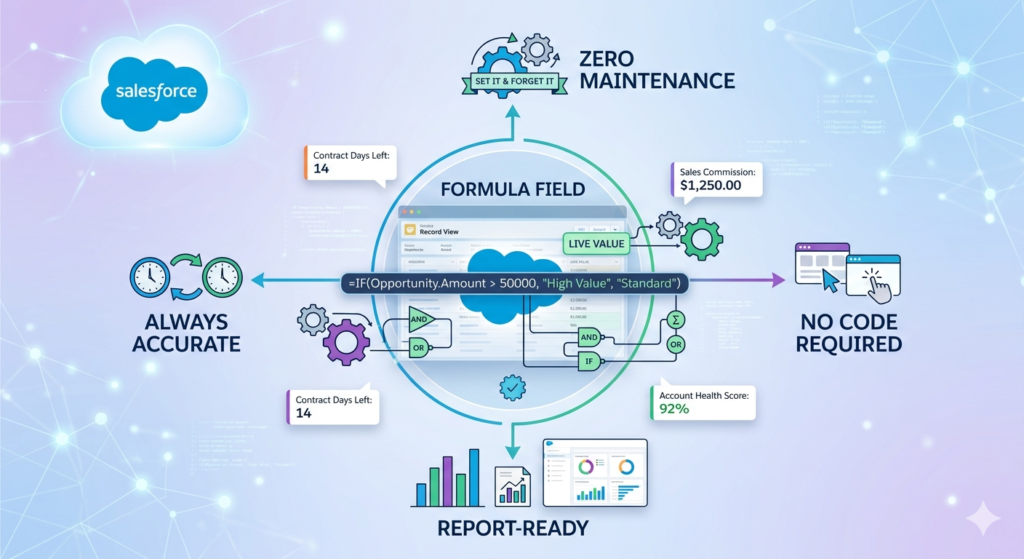
- 🔄 Always Accurate — Values are recalculated dynamically every time the record is viewed. No stale data.
- ⚡ Zero Maintenance — Once created, formula fields update themselves automatically. No triggers, no flows needed.
- 📊 Report-Ready — Formula fields are available in Salesforce reports and dashboards, making them perfect for business metrics.
- 🚫 No Code Required — Admins (not just developers) can build them using point-and-click tools.
- 🧩 Highly Flexible — Combine text, numbers, dates, and logic all in a single field.
Common Use Cases
Formula fields show up across every department:
- Sales — Calculate discount percentages, deal age, revenue per unit, or stage duration
- Support — Flag overdue cases, measure SLA compliance, or show priority scores
- Marketing — Classify lead scores, compute campaign ROI, or format display names
- Finance — Compute tax amounts, margin percentages, or projected revenue
Formula Field Syntax Basics
Before you start writing formulas, you need to understand the fundamental building blocks. This section gives you the foundation for every Salesforce formula field example that follows.
Data Types
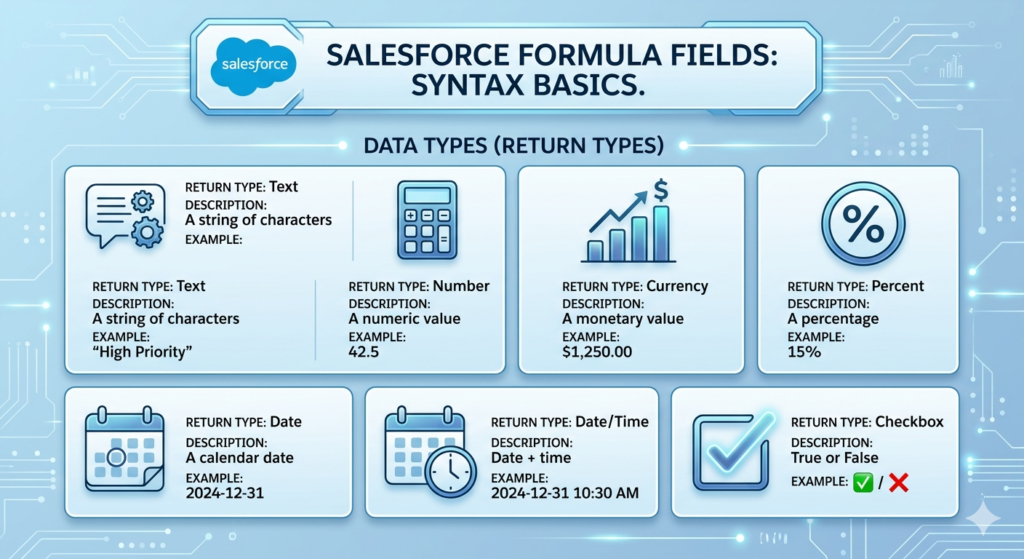
When you create a formula field, you must choose a return type — the data type of the output:
| Return Type | Description | Example Output |
|---|---|---|
| Text | A string of characters | “High Priority” |
| Number | A numeric value | 42.5 |
| Currency | A monetary value | $1,250.00 |
| Percent | A percentage | 15% |
| Date | A calendar date | 2024-12-31 |
| Date/Time | Date + time | 2024-12-31 10:30 AM |
| Checkbox | True or False | ✅ / ❌ |
Operators
| Operator | Meaning | Example |
|---|---|---|
+ | Addition | Amount + Tax__c |
- | Subtraction | Close_Date__c - TODAY() |
* | Multiplication | Quantity__c * Unit_Price__c |
/ | Division | Profit__c / Revenue__c |
& | Text concatenation | FirstName & " " & LastName |
= | Equal to | Stage = "Closed Won" |
<> | Not equal to | Status <> "Active" |
>, < | Greater/Less than | Amount > 10000 |
Key Functions
Salesforce provides dozens of built-in functions. Here are some of the most commonly used ones you’ll see throughout this guide:
IF(condition, true_result, false_result)— Conditional logicCASE(field, val1, result1, ..., else)— Multi-value matchingTODAY()— Returns today’s dateNOW()— Returns current date and timeTEXT(value)— Converts a value to textLEN(text)— Returns the length of a stringISPICKVAL(field, value)— Checks picklist field valuesISBLANK(field)— Checks if a field is emptyROUND(number, digits)— Rounds a number
💡 Pro Tip: Always validate your formula using the “Check Syntax” button in the formula editor before saving. It catches errors before they cause problems.
20 Powerful Salesforce Formula Field Examples
Here is your complete salesforce formulas list with practical, real-world examples. Each formula is ready to adapt and use in your own org.
📐 NUMERIC FORMULAS
Formula 1: Calculate Discount Percentage
Use Case: Sales reps often offer discounts. This formula automatically calculates the discount percentage based on the original and discounted price — no calculator needed.
Formula (Return Type: Percent)
text(List_Price__c - Discounted_Price__c) / List_Price__c
Output Example:
- List Price: $500
- Discounted Price: $425
- Result: 15%
💡 Pro Tip: Wrap this in an
IFto avoid divide-by-zero errors:IF(List_Price__c > 0, (List_Price__c - Discounted_Price__c) / List_Price__c, 0)
Formula 2: Calculate Profit Margin
Use Case: Helps finance and sales leadership quickly see deal profitability without running a separate report.
Formula (Return Type: Percent)
textIF(
  Amount > 0,
  (Amount - Cost__c) / Amount,
  0
)
Output Example:
- Amount: $10,000
- Cost: $6,500
- Result: 35%
Formula 3: Compute Annual Recurring Revenue (ARR)
Use Case: For SaaS businesses tracking monthly recurring revenue (MRR), this formula annualizes the figure for forecasting.
Formula (Return Type: Currency)
textMonthly_Recurring_Revenue__c * 12
Output Example:
- MRR: $2,500/month
- Result: $30,000 ARR
Formula 4: Revenue Per Unit
Use Case: Quickly calculate how much revenue each unit in a deal contributes — useful for pricing analysis.
Formula (Return Type: Currency)
textIF(
  Quantity__c > 0,
  Amount / Quantity__c,
  0
)
Output Example:
- Amount: $15,000
- Quantity: 50
- Result: $300 per unit
Formula 5: Weighted Pipeline Value
Use Case: Rather than reporting on raw deal value, weight it by the probability of closing to get a realistic pipeline forecast.
Formula (Return Type: Currency)
textAmount * (Probability / 100)
Output Example:
- Amount: $50,000
- Probability: 60%
- Result: $30,000 weighted value
📅 DATE FORMULAS
Formula 6: Days Until Close Date
Use Case: Helps sales reps and managers see exactly how many days are left before a deal is supposed to close — perfect for pipeline reviews.
Formula (Return Type: Number)
textCloseDate - TODAY()
Output Example:
- Close Date: 2024-11-30
- Today: 2024-11-10
- Result: 20 days
Formula 7: Deal Age in Days
Use Case: Track how long a deal has been in your pipeline. Useful for identifying stuck opportunities and coaching sales reps.
Formula (Return Type: Number)
textTODAY() - CreatedDate
Output Example:
- Created: 2024-09-01
- Today: 2024-11-10
- Result: 70 days old
⚠️ Note:
CreatedDateis a Date/Time field. You may need to useDATEVALUE(CreatedDate)to convert it:TODAY() - DATEVALUE(CreatedDate)
Formula 8: Is the Record Overdue?
Use Case: For tasks, cases, or opportunities, flag any record where the due date has already passed.
Formula (Return Type: Checkbox)
textIF(Due_Date__c < TODAY(), TRUE, FALSE)
Output Example:
- Due Date: 2024-10-01
- Today: 2024-11-10
- Result: ✅ TRUE (Overdue)
Formula 9: Days Since Last Activity
Use Case: Identify prospects or customers who haven’t been contacted recently — critical for account management and churn prevention.
Formula (Return Type: Number)
textIF(
  ISBLANK(LastActivityDate),
  TODAY() - DATEVALUE(CreatedDate),
  TODAY() - LastActivityDate
)
Output Example:
- Last Activity: 2024-10-25
- Today: 2024-11-10
- Result: 16 days since last activity
Formula 10: Contract Expiry Warning Flag
Use Case: Automatically flag contracts that expire within the next 30 days so your team can proactively reach out for renewal.
Formula (Return Type: Checkbox)
textAND(
  Contract_End_Date__c >= TODAY(),
  Contract_End_Date__c <= TODAY() + 30
)
Output Example:
- Contract End: 2024-11-25
- Today: 2024-11-10
- Result: ✅ TRUE (Expiring Soon)
🔤 TEXT FORMULAS
Formula 11: Full Name Concatenation
Use Case: Combine first and last name into a single display field — great for formatting contact names in reports and emails.
Formula (Return Type: Text)
textFirstName & " " & LastName
Output Example:
- First Name: “Sarah”
- Last Name: “Johnson”
- Result: “Sarah Johnson”
Formula 12: Generate a Custom Record ID Label
Use Case: Create a human-readable reference number by combining a prefix with a record number — useful for ticketing or invoice systems.
Formula (Return Type: Text)
text"INV-" & TEXT(Invoice_Number__c)
Output Example:
- Invoice Number: 1042
- Result: “INV-1042”
Formula 13: Capitalize and Format Account Tier
Use Case: Display the account tier (e.g., Bronze, Silver, Gold) with a visual emoji for quick scanning in list views.
Formula (Return Type: Text)
textCASE(
  Account_Tier__c,
  "Gold", "🥇 Gold",
  "Silver", "🥈 Silver",
  "Bronze", "🥉 Bronze",
  "⬜ Not Rated"
)
Output Example:
- Account Tier: “Gold”
- Result: “🥇 Gold”
Formula 14: Extract Domain from Email Address
Use Case: Automatically pull the domain from a contact’s email to identify the company they work for — great for deduplication and lead routing.
Formula (Return Type: Text)
textMID(Email, FIND("@", Email) + 1, LEN(Email) - FIND("@", Email))
Output Example:
- Email: “sarah@techcorp.com“
- Result: “techcorp.com”
Formula 15: Lead Source Label with Emoji
Use Case: Make list views more visually scannable by adding icons to lead source values.
Formula (Return Type: Text)
textCASE(
  LeadSource,
  "Web", "🌐 Web",
  "Phone Inquiry", "📞 Phone",
  "Partner Referral", "🤝 Partner",
  "Email Campaign", "📧 Email",
  TEXT(LeadSource)
)
Output Example:
- Lead Source: “Web”
- Result: “🌐 Web”
🧠 LOGICAL FORMULAS (IF, CASE, AND, OR)
Formula 16: Deal Priority Classification
Use Case: Automatically classify opportunities as High, Medium, or Low priority based on deal size — no manual tagging needed.
Formula (Return Type: Text)
textIF(Amount >= 100000, "🔴 High Priority",
  IF(Amount >= 25000, "🟡 Medium Priority",
    "🟢 Low Priority"
  )
)
Output Example:
- Amount: $120,000 → “🔴 High Priority”
- Amount: $40,000 → “🟡 Medium Priority”
- Amount: $8,000 → “🟢 Low Priority”
Formula 17: SLA Compliance Checker
Use Case: For support teams, automatically determine whether a case was resolved within the SLA window.
Formula (Return Type: Text)
textIF(
  AND(
    NOT(ISBLANK(ClosedDate)),
    DATEVALUE(ClosedDate) - DATEVALUE(CreatedDate) <= SLA_Days__c
  ),
  "✅ Within SLA",
  "❌ SLA Breached"
)
Output Example:
- Created: Nov 1, SLA: 5 days, Closed: Nov 4
- Result: “✅ Within SLA”
Formula 18: Opportunity Stage Health Indicator
Use Case: Give leadership a quick visual health check on every opportunity based on its current stage and probability.
Formula (Return Type: Text)
textCASE(
  StageName,
  "Closed Won", "✅ Won",
  "Closed Lost", "❌ Lost",
  "Proposal/Price Quote", IF(Probability >= 50, "🟡 On Track", "🔴 At Risk"),
  "Negotiation/Review", "🟢 Near Close",
  "🔵 In Progress"
)
Output Example:
- Stage: “Negotiation/Review”
- Result: “🟢 Near Close”
Formula 19: Contact Completeness Score
Use Case: Score how complete a contact record is (out of 5 points) so your team can prioritize data enrichment efforts.
Formula (Return Type: Number)
textIF(NOT(ISBLANK(Email)), 1, 0) +
IF(NOT(ISBLANK(Phone)), 1, 0) +
IF(NOT(ISBLANK(Title)), 1, 0) +
IF(NOT(ISBLANK(MailingCity)), 1, 0) +
IF(NOT(ISBLANK(AccountId)), 1, 0)
Output Example:
- Email ✅, Phone ✅, Title ❌, City ✅, Account ✅
- Result: 4 out of 5
Formula 20: Renewal Urgency Flag
Use Case: Combines multiple conditions — contract value, days to expiry, and customer tier — to produce a high-priority renewal alert.
Formula (Return Type: Text)
textIF(
  AND(
    Contract_End_Date__c - TODAY() <= 60,
    Annual_Contract_Value__c >= 50000,
    ISPICKVAL(Customer_Tier__c, "Enterprise")
  ),
  "🚨 URGENT: Enterprise Renewal",
  IF(
    Contract_End_Date__c - TODAY() <= 30,
    "⚠️ Renewal Due Soon",
    "🟢 No Action Needed"
  )
)
Output Example:
- Enterprise, $75K ACV, 45 days to renewal → “🚨 URGENT: Enterprise Renewal”
- SMB, $10K ACV, 20 days to renewal → “⚠️ Renewal Due Soon”
Salesforce Formulas List – Quick Reference
Here’s a condensed salesforce formulas list of the most important functions every admin should know:
| Function | Syntax | What It Does | Example |
|---|---|---|---|
IF | IF(condition, true, false) | Returns one of two values based on a condition | IF(Amount > 1000, "Big", "Small") |
CASE | CASE(field, v1, r1, ..., else) | Matches a value to multiple options | CASE(Stage, "Won", "✅", "❌") |
AND | AND(cond1, cond2) | True only if ALL conditions are true | AND(Amount > 0, Stage = "Won") |
OR | OR(cond1, cond2) | True if ANY condition is true | OR(Priority = "High", Amount > 50000) |
NOT | NOT(condition) | Reverses a boolean | NOT(ISBLANK(Email)) |
TEXT | TEXT(value) | Converts number/date/picklist to text | TEXT(CloseDate) |
TODAY | TODAY() | Returns current date | TODAY() + 30 |
NOW | NOW() | Returns current date and time | NOW() |
DATEVALUE | DATEVALUE(datetime) | Extracts date from date/time | DATEVALUE(CreatedDate) |
ISBLANK | ISBLANK(field) | True if field is empty | ISBLANK(Phone) |
ISPICKVAL | ISPICKVAL(field, "value") | Checks picklist value | ISPICKVAL(Stage, "Closed Won") |
LEN | LEN(text) | Returns string length | LEN(Description__c) |
MID | MID(text, start, length) | Extracts substring | MID(Email, 1, 5) |
FIND | FIND(search, text) | Finds position of a string | FIND("@", Email) |
ROUND | ROUND(number, digits) | Rounds a number | ROUND(Profit__c / Amount, 2) |
CONCATENATE | CONCATENATE(text1, text2) | Joins text strings (same as &) | CONCATENATE(First, Last) |
LEFT | LEFT(text, n) | First N characters of a string | LEFT(AccountName, 3) |
RIGHT | RIGHT(text, n) | Last N characters of a string | RIGHT(Phone, 4) |
ABS | ABS(number) | Absolute value | ABS(Variance__c) |
MAX | MAX(n1, n2) | Returns the larger value | MAX(0, Amount - Threshold__c) |
Formula Fields vs. Workflow vs. Flow
A common question among Salesforce admins is: “When should I use a formula field vs. a workflow rule vs. a Flow?” Here’s a clear comparison:
| Feature | Formula Field | Workflow Rule | Salesforce Flow |
|---|---|---|---|
| Updates data | ❌ Read-only | ✅ Can update fields | ✅ Full control |
| Runs automatically | ✅ Always on | ✅ On save | ✅ On trigger/schedule |
| Real-time calculation | ✅ Always current | ❌ Stored value | ❌ Stored value |
| Complexity | Low–Medium | Low | Medium–High |
| Use for reporting | ✅ Excellent | ⚠️ Limited | ⚠️ Limited |
| Can send emails | ❌ No | ✅ Yes | ✅ Yes |
| Code required | ❌ No | ❌ No | ❌ No |
| Best for | Display, calculation | Simple automation | Complex automation |
Bottom Line:
- Use formula fields when you need a calculated value that’s always current and visible in reports.
- Use Workflow/Flow when you need to write that value back to a field or trigger actions (like emails, tasks, or cross-object updates).
Best Practices for Using Formula Fields
Following these best practices will save you hours of debugging and prevent performance issues in your org.
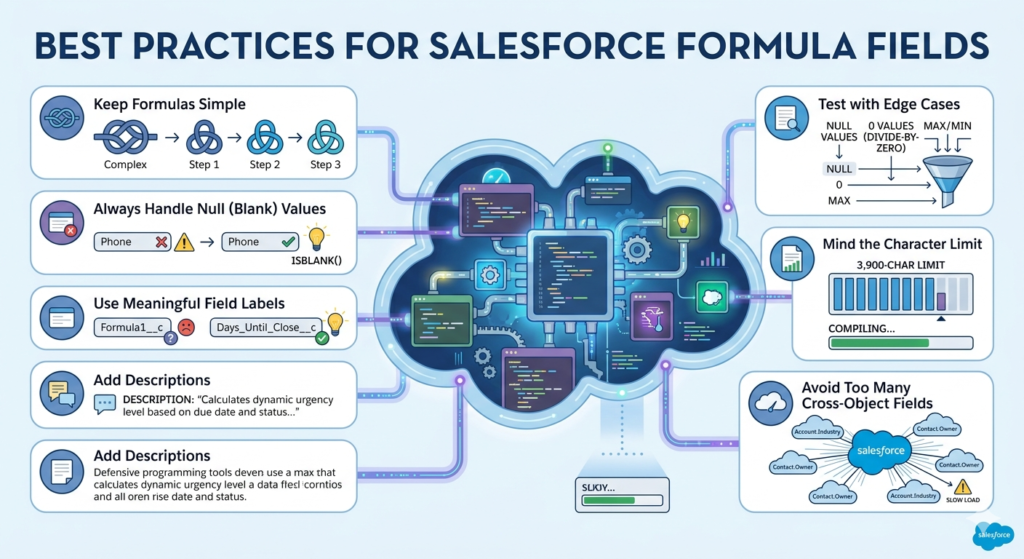
1. Keep Formulas Simple
Break complex logic into multiple formula fields that reference each other, rather than cramming everything into one massive formula.
text// Instead of one huge formula, create:
// Step 1: Days_To_Close__c = CloseDate - TODAY()
// Step 2: Is_Urgent__c = IF(Days_To_Close__c < 7, TRUE, FALSE)
// Step 3: Urgency_Label__c = IF(Is_Urgent__c, "🚨 Urgent", "Normal")
2. Always Handle Null (Blank) Values
Failing to account for blank fields is the #1 cause of formula errors. Use ISBLANK() or BLANKVALUE() defensively.
text// Bad - will error if Phone is blank
LEN(Phone)

// Good - handles blank safely
IF(ISBLANK(Phone), 0, LEN(Phone))
3. Use Meaningful Field Labels
Name your formula fields clearly so other admins understand their purpose immediately. Days_Until_Close__c is infinitely better than Formula1__c.
4. Add Descriptions
Always fill in the Description field when creating formula fields. Explain what the formula does, why it exists, and any dependencies.
5. Test with Edge Cases
Before deploying, test your formula with:
- Blank/null field values
- Zero values (to catch divide-by-zero errors)
- Minimum and maximum expected values
- All picklist options (for CASE statements)
6. Mind the Character Limit
Salesforce formula fields have a 3,900-character limit (compiled). If you’re hitting this limit, consider using a custom Apex class or breaking logic into helper formula fields.
7. Avoid Referencing Too Many Cross-Object Fields
Cross-object formulas (e.g., referencing a field on a parent record with Account.Industry) can impact page load performance if overused. Keep it reasonable.
Common Mistakes to Avoid
Even experienced admins make these mistakes. Here’s what to watch out for:
❌ Mistake 1: Data Type Mismatches
Trying to concatenate a number directly with text will throw an error.
text// Wrong
"Deal Value: " & Amount

// Correct
"Deal Value: " & TEXT(Amount)
❌ Mistake 2: Overly Nested IF Statements
Deep nesting makes formulas nearly impossible to read or maintain.
text// Hard to read and debug
IF(A, IF(B, IF(C, "X", "Y"), "Z"), "W")

// Better: Use CASE or break into multiple formula fields
❌ Mistake 3: Not Handling Division by Zero
Whenever you divide, ask yourself: can the denominator ever be zero?
text// Will error when Quantity = 0
Amount / Quantity__c

// Safe version
IF(Quantity__c > 0, Amount / Quantity__c, 0)
❌ Mistake 4: Using ISBLANK on Number Fields Incorrectly
In Salesforce, a number field with a value of 0 is not blank. Use = 0 to check for zero, and ISBLANK() only for truly empty fields.
text// Checks if a number field is empty (no value entered)
ISBLANK(Revenue__c)

// Checks if a number field is zero
Revenue__c = 0

// Checks EITHER condition
OR(ISBLANK(Revenue__c), Revenue__c = 0)
❌ Mistake 5: Forgetting That Formula Fields Are Read-Only
Formula field values cannot be directly edited by users or updated by most automation tools. If you need to store a calculated value (e.g., for use in roll-ups or external integrations), use a Flow to write the value to a regular field.
❌ Mistake 6: ISPICKVAL on Multi-Select Picklists
ISPICKVAL() doesn’t work on multi-select picklist fields. Use INCLUDES() instead.
text// Wrong for multi-select
ISPICKVAL(Tags__c, "VIP")

// Correct for multi-select
INCLUDES(Tags__c, "VIP")
Conclusion
Salesforce formula fields are one of the most accessible and impactful tools in any admin’s toolkit. They eliminate manual data entry, keep your records perpetually accurate, and surface meaningful insights in every list view, record page, and report — all without writing a single line of code.
In this formula field tutorial, you’ve learned:
✅ What formula fields are and the core benefits they provide
✅ The fundamental syntax, operators, and data types you need
✅ 20 powerful, real-world salesforce formula fields examples across numeric, date, text, and logical categories
✅ A complete salesforce formulas list quick reference for daily use
✅ How formula fields compare to Workflow and Flow
✅ Best practices and common pitfalls to avoid
The best way to master Salesforce formulas is to start experimenting. Pick one of the 20 examples above, adapt it to your org’s data model, and deploy it in a sandbox first. You’ll be surprised how quickly small formulas can deliver big value.
As your confidence grows, combine techniques — logical functions with date math, text concatenation with conditional icons, multi-field scoring models — and you’ll build a Salesforce org that practically manages itself.
About RizeX Labs
We are the premier IT training institute in Pune, dedicated to mastering emerging technologies such as Salesforce and data analytics. Our mission at RizeX Labs is to empower professionals by providing hands-on training in essential tools like Salesforce Tableau CRM. Through a combination of real-world projects and mentorship from industry experts, our programs are specifically crafted to transform students into job-ready professionals equipped with elite analytical and reporting capabilities.
Internal Links:
- Salesforce Admin & Development Training
- Salesforce Apex Triggers: Beginner’s Guide with Real-Time Examples
- Salesforce Lightning Web Components (LWC) vs Aura: Which Should You Learn First
