
Introduction
Walk into almost any organization using Salesforce and ask where their contracts, proposals, case attachments, product documentation, and marketing assets live. The answer is usually a mix of email threads, shared drives, legacy attachments on old records, and scattered files across Salesforce objects with no consistent naming convention, no version control, and no governance whatsoever.
This is not a technology problem. It is an administration and strategy problem, and it is exactly what Salesforce Files and Content Libraries are designed to solve.
Salesforce files content libraries represent the modern, scalable approach to document management within the Salesforce platform. They replace the outdated Attachments model with a structured, searchable, permission-controlled, and version-aware file management system that integrates across every Salesforce cloud, object, and channel. Understanding how to configure, govern, and optimize this system is an increasingly essential skill for every Salesforce admin, architect, and operations leader in 2026.
In this comprehensive guide, we cover everything from foundational file storage concepts and content library configuration to advanced security, compliance, team-specific use cases, and the emerging AI-powered content management trends shaping the platform in 2026 and beyond. Whether you are a beginner setting up files for the first time or an experienced admin optimizing an existing implementation, this guide has the depth and practical specificity you need.
What Are Salesforce Files Content Libraries?
Before diving into configuration and best practices, a solid conceptual foundation is essential. Understanding how Salesforce models files at the data layer changes how you think about every administrative decision related to content management.
Salesforce Files Overview
Salesforce Files is the platform’s modern file management system, introduced to replace the aging Notes and Attachments model. A file in Salesforce is a first-class object with its own record, relationships, version history, sharing settings, and metadata. Files can be attached to any Salesforce record, shared with specific users or groups, published to libraries, and accessed across multiple records simultaneously without duplication.
This last point is critically important and represents one of the most significant architectural improvements over the old Attachments model: a single file can be linked to multiple records without creating duplicate copies, keeping storage consumption efficient and ensuring that updates to a file are reflected everywhere it is referenced.
The Data Model: ContentDocument, ContentVersion, ContentDocumentLink
Understanding these three objects is essential for any admin working with Salesforce Files at a technical level:
ContentDocument
The parent object representing the file itself. Each unique file in Salesforce has one ContentDocument record. This is the “master” record for the file, containing metadata like the title, description, and the file’s sharing visibility setting.
ContentVersion
Every version of a file is stored as a separate ContentVersion record, all linked to the same ContentDocument. When a user uploads a new version of a file, a new ContentVersion record is created while the previous versions are retained. The most recent version is flagged as the “latest version” and displayed by default, but all previous versions remain accessible.
ContentDocumentLink
This junction object creates the relationship between a file (ContentDocument) and the records or libraries it is linked to. One ContentDocument can have multiple ContentDocumentLink records, allowing a single file to be associated with an Account, a Case, a Contact, an Opportunity, and a Library simultaneously, without any duplication of the underlying file data.
textContentDocument (the file identity)
    └── ContentVersion 1 (original upload)
    └── ContentVersion 2 (first revision)
    └── ContentVersion 3 (current version)
    └── ContentDocumentLink → Account: Acme Corp
    └── ContentDocumentLink → Case: 00001234
    └── ContentDocumentLink → Library: Sales Assets
What Are Content Libraries?
Content Libraries (accessed through Salesforce CRM Content) are organized workspaces within Salesforce where files can be stored, categorized, tagged, version-controlled, and shared with specific groups of users. Unlike files attached to individual records, content libraries provide a centralized, governance-friendly repository for organizational assets.
Libraries are particularly valuable for:
- Marketing asset repositories – Brand-approved images, templates, and collateral
- Sales enablement content – Pitch decks, case studies, ROI calculators
- Policy and procedure documentation – HR policies, compliance documents, standard operating procedures
- Product documentation – Technical specifications, user guides, release notes
- Legal and contract templates – NDA templates, contract frameworks, agreement libraries
Files vs. Notes vs. Attachments vs. Libraries
| Feature | Notes & Attachments (Legacy) | Salesforce Files | Content Libraries |
|---|---|---|---|
| Storage model | One copy per record | Single copy, multi-linked | Centralized repository |
| Version control | ❌ | ✅ | ✅ |
| Search (full-text) | Limited | ✅ | ✅ |
| Sharing flexibility | Very limited | ✅ | ✅ |
| Governance/categorization | ❌ | Basic | ✅ Advanced |
| Record linking | One record only | Multiple records | Library + records |
| Preview in browser | ❌ | ✅ | ✅ |
| API access | Limited | ✅ Full | ✅ Full |
| Lightning optimized | ❌ | ✅ | ✅ |
| Suitable for enterprise | ❌ | ✅ | ✅ |
Why Salesforce Modernized File Management
The shift from Attachments to Files was driven by several compounding limitations in the legacy model:
- Each attachment created a separate copy per record, causing massive storage bloat
- No version control meant multiple versions of the same document created chaos
- Search was limited to file name only, making content retrieval difficult
- No centralized governance for organizational assets
- Mobile and Lightning Experience provided poor attachment viewing experiences
- No ability to share files across records without duplication
Salesforce Files and Content Libraries address every one of these limitations while providing a scalable foundation for enterprise document management.
Salesforce File Storage Explained
Salesforce file storage is one of the most misunderstood and frequently mismanaged aspects of Salesforce administration. Storage overages can result in unexpected costs, blocked file uploads, and frustrated users.
File Storage vs. Data Storage
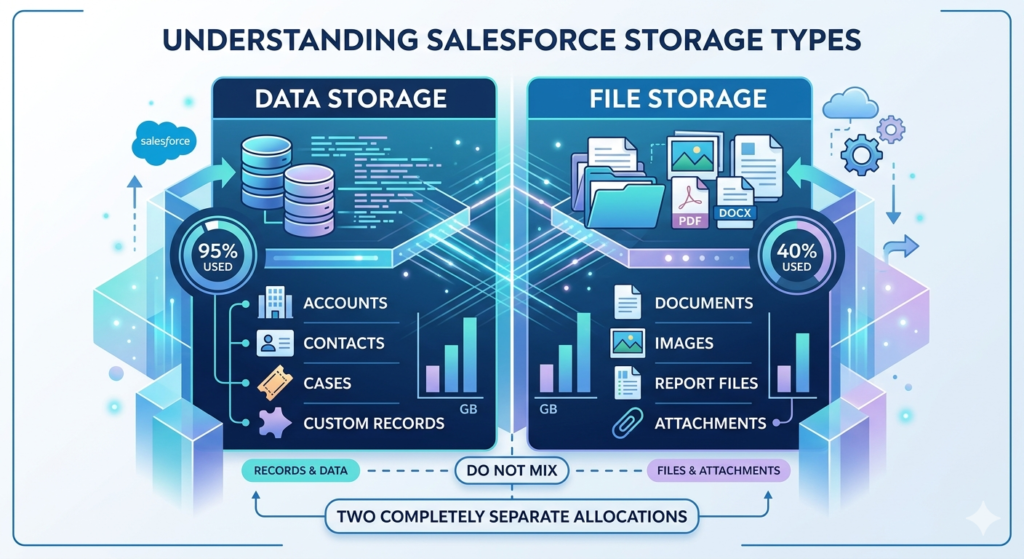
Salesforce allocates two completely separate storage pools:
Data Storage – Stores Salesforce record data (accounts, contacts, cases, custom object records, etc.). Measured in megabytes (MB) or gigabytes (GB).
File Storage – Stores file content (documents, images, attachments, Salesforce Files, etc.). Also measured in MB or GB but draws from a completely separate allocation.
Understanding this distinction is critical because exceeding one type of storage does not consume the other. An org can be at 100% data storage while having abundant file storage, and vice versa.
Storage Allocation by Edition
| Salesforce Edition | Data Storage (Per Org) | File Storage (Per User License) |
|---|---|---|
| Essentials | 10 GB | 1 GB per org |
| Professional | 1 GB | 11 GB + 2 GB per license |
| Enterprise | 10 GB | 11 GB + 2 GB per license |
| Unlimited | 10 GB | 11 GB + 2 GB per license |
| Developer | 5 MB | 20 MB |
Note: These are base allocations. Salesforce periodically updates storage limits. Always verify current allocations in your org under Setup > Storage Usage.
Example Calculation:
An Enterprise org with 50 users would receive:
- Base file storage: 11 GB
- Per-user allocation: 50 × 2 GB = 100 GB
- Total file storage: 111 GB
Monitoring Storage Usage
Proactively monitoring salesforce file storage prevents the disruptive experience of users being unable to upload files due to storage limits:
- Navigate to Setup > Quick Find > Storage Usage
- Review the File Storage gauge and current usage percentage
- Click Manage to see file storage consumption by object type
- Identify which object types (Accounts, Cases, Opportunities, etc.) consume the most file storage
- Review the list of largest files to identify optimization opportunities
Pro Tip: Set up a recurring reminder (monthly or quarterly) to review Storage Usage. Better yet, build a simple Salesforce dashboard that displays file storage percentage used, sourced from the Organization object’s
UsedFileStorageMBandMaxFileStorageMBfields via a scheduled report.
Common Storage Issues
Issue: Redundant file uploads
Users repeatedly upload the same files to multiple records instead of linking a single file to multiple records.
Solution: Train users on the “Share” or “Link” file workflow rather than re-uploading.
Issue: Legacy Attachments consuming storage
Old Attachments from Classic remain in storage even after users migrate to Files.
Solution: Conduct an Attachments audit and migrate or archive legacy content.
Issue: Large binary files with no governance
Video files, high-resolution images, and uncompressed documents accumulate without governance.
Solution: Implement file size limits and file type restrictions in your content management strategy.
Cost Considerations
When salesforce file storage approaches capacity, options include:
- Purchase additional storage – Salesforce sells additional file storage in blocks (pricing varies by contract)
- Archive and delete – Move infrequently accessed files to external storage and delete from Salesforce
- Implement external file storage – Integrate Salesforce Files with Salesforce Files Connect to link to SharePoint, Google Drive, or OneDrive without consuming Salesforce file storage
- Enforce file governance – Prevent new storage growth through governance policies
How Content Management Salesforce Works
Content management Salesforce capabilities go far beyond simple file upload and download. Understanding the full feature set helps admins design more capable and user-friendly implementations.
File Sharing and Permissions
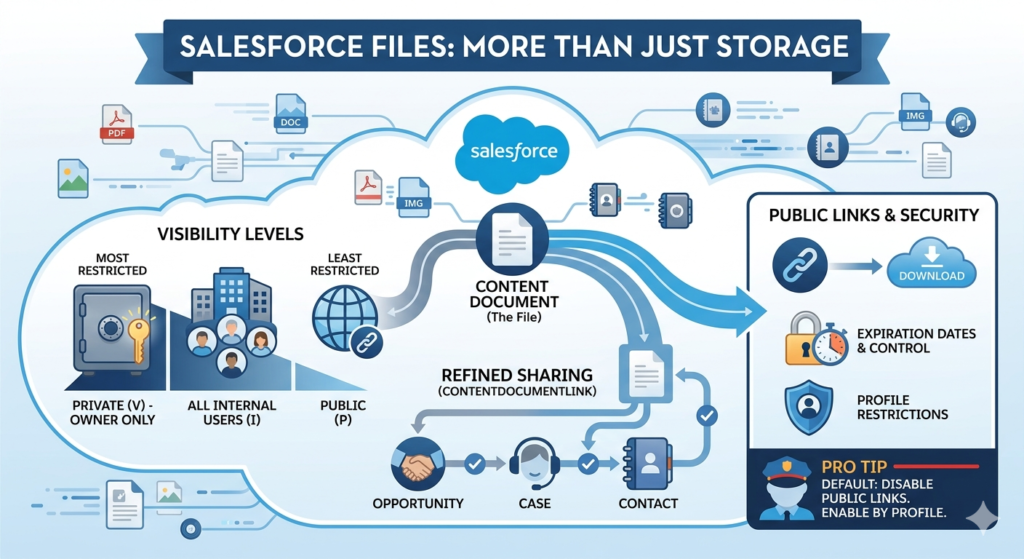
Salesforce Files offers three visibility levels at the ContentDocument level:
Private (V) – Visible only to the file owner. Not searchable by others.
All Internal Users (I) – Visible to all authenticated Salesforce users in the org. Appears in search results for internal users.
Public (P) – Visible to all users including external portal users and anyone with a public link.
Visibility can be further refined through ContentDocumentLink sharing, which controls access at the record level. A file set to “All Internal Users” can still only be seen via specific record pages if the user does not have access to the linked records.
Public Links
Salesforce Files supports the generation of public links, which allow anyone with the link to download a file without logging in to Salesforce:
- Public links can be enabled or disabled at the org level in Setup > Salesforce Files Settings
- Individual public links can be generated on a per-file basis by users with permission
- Links can be set with expiration dates for time-limited sharing
- Public link generation can be restricted by profile or permission set
Pro Tip: For most organizations handling sensitive business data, disable public link generation by default and enable it only for specific user profiles (such as marketing teams sharing press assets) through permission sets. This is a common security oversight that leaves sensitive documents publicly accessible.
Internal Collaboration
Salesforce Files integrates with Chatter for internal collaboration:
- Files can be posted directly in Chatter feeds (record feeds, group feeds, or user feeds)
- Team members can comment on files, creating a discussion thread tied to the content
- Files shared in Chatter groups are automatically visible to all group members
- Files posted on record feeds can be tracked via record activity history
Record Attachments
Linking files to records is straightforward in Lightning Experience:
- Navigate to any record (Account, Case, Opportunity, etc.)
- Find the Files related list on the record page
- Click Upload Files or Add Files (to link an existing file)
- Uploaded files are linked via a ContentDocumentLink record
One file can be linked to unlimited records without duplication, making it ideal for shared documents like standard terms and conditions, product specifications, or company policies.
Version Control
Version control is one of the most powerful and underutilized features of content management Salesforce:
- Navigate to any file in Salesforce Files
- Click the dropdown arrow and select Upload New Version
- Upload the updated file
- All previous versions remain accessible via the Version History panel
- The latest version is automatically displayed to users
- Users with appropriate permissions can restore previous versions
Version control eliminates the common problem of multiple files named “Contract_FINAL_v3_REAL_FINAL.pdf” by providing a structured version history with timestamps and author information.
Searchability
Salesforce Files supports full-text content search for common file types including:
- Microsoft Word (.docx, .doc)
- Microsoft Excel (.xlsx, .xls)
- Microsoft PowerPoint (.pptx, .ppt)
- PDF documents
- Text files (.txt, .csv)
This means users can search for a word or phrase and find files that contain that term in their content, not just in the file name. For organizations with large content libraries, this capability dramatically improves content discoverability.
File Previews
Lightning Experience provides in-browser file preview for most common file types:
- No download required for common document formats
- Preview works on desktop and mobile (Salesforce mobile app)
- Preview supports multi-page navigation for documents
- Annotations and comments can be added in some contexts
- Preview integrates with the record page, keeping users in context
Salesforce Content Libraries Setup & Configuration
Properly configured salesforce files content libraries require thoughtful planning before the first click in Setup. Here is the complete configuration guide:
Step 1: Enable Salesforce CRM Content
- Navigate to Setup > Quick Find > Salesforce CRM Content
- Check Enable Salesforce CRM Content
- Optionally enable Content Pack Creation and Content Deliveries
- Click Save
Step 2: Enable User Licenses for Libraries
Not all Salesforce users have Content library access by default:
- Navigate to Setup > Users
- Click on a user record
- Check Salesforce CRM Content User checkbox
- Click Save
- For bulk enabling: Use a data loader to update the
UserPermissionsSFContentUserfield on User records
Step 3: Create Content Libraries
- Navigate to the Content tab (or Files > Libraries in Lightning)
- Click New to create a new library
- Enter a descriptive library name (e.g., “Sales Proposals 2026,” “Legal Templates,” “Marketing Assets”)
- Enter a description explaining the library’s purpose and governance rules
- Click Save
- Add members (users or public groups) and assign roles
Step 4: Configure Library Member Roles
Each library member is assigned one of three roles:
| Library Role | Permissions |
|---|---|
| Viewer | View, download, and subscribe to content |
| Author | View, download, upload, publish, and edit content they own |
| Administrator | Full control: manage members, roles, and all content in the library |
Role assignment best practices:
- Assign Administrator only to knowledge managers or library owners
- Assign Author to team members who contribute content to the library
- Assign Viewer to users who consume content but do not contribute
- Use Public Groups rather than individual users for library membership to simplify ongoing management
Step 5: Configure Library Permissions
- In library settings, configure whether non-members can view library content
- Set Share with All Internal Users if the library contains broadly applicable content (e.g., company-wide policies)
- Restrict membership for sensitive libraries (e.g., Legal Contracts, HR Policies)
Step 6: Design Your Folder Structure Strategy
While Salesforce Content Libraries do not use traditional folders, they use content packs and tags for organization. Plan your taxonomy before populating libraries:
Tag Strategy Example:
- By Team:
#Sales,#Marketing,#Legal,#Support - By Document Type:
#Template,#Proposal,#PolicyDoc,#Training - By Product:
#ProductA,#ProductB,#PlatformCore - By Status:
#Approved,#Draft,#Archived
Content Pack Strategy:
Group related files into content packs for easy bulk sharing:
- “New Hire Onboarding Pack” – All documents needed for employee onboarding
- “Enterprise Sales Toolkit” – Proposals, case studies, ROI calculators, competitive comparisons
- “Implementation Kickoff Pack” – Welcome deck, project plan template, kickoff agenda
Setup Checklist
- CRM Content enabled in Setup
- User licenses assigned to appropriate users
- Libraries created with clear names and descriptions
- Library roles assigned using public groups, not individuals
- Tag taxonomy documented and communicated to authors
- Content pack strategy defined for key use cases
- Library governance policy documented
- File naming convention published to all library authors
- Search terms and synonyms configured for top content
- Mobile access tested for library content
Best Practices for Salesforce Files Content Libraries
Implementing salesforce files content libraries is only the beginning. Long-term value comes from consistent governance practices that keep content accurate, findable, and secure.
Naming Conventions
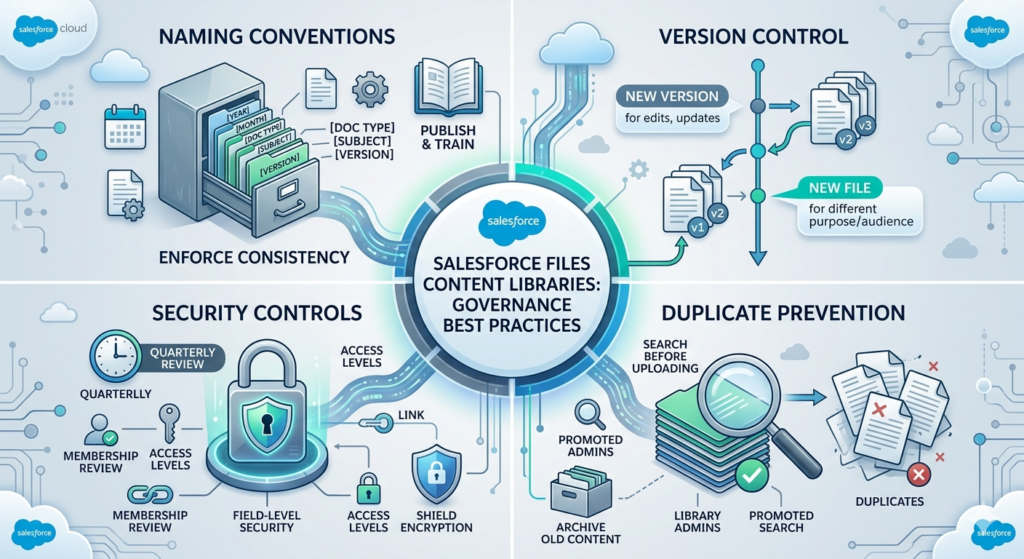
Establish and enforce a clear naming convention for all files in your libraries:
Recommended format:[Year]-[Month]-[DocumentType]-[Subject]-[Version]
Examples:
2026-03-Proposal-AcmeCorp-v22026-01-Template-NDAStandard-v52026-Q1-CaseStudy-RetailIndustry-Final
Publish naming conventions in your Salesforce Knowledge Base and include them in new author onboarding.
Version Control Governance
Define a clear policy for when to create a new version versus a new file:
Create a new version when:
- Content is revised or updated
- Formatting is changed significantly
- Information is corrected
Create a new file when:
- The document serves a fundamentally different purpose
- A completely different audience is targeted
- A new product or service version requires entirely separate documentation
Security Controls
- Review library membership quarterly and remove access for users who have changed roles or left the organization
- Restrict public link generation to only users who genuinely need it
- Use field-level security to restrict access to sensitive metadata fields on ContentDocument
- Enable Salesforce Shield Platform Encryption for highly sensitive library content
Duplicate Prevention
Duplicate files are the enemy of effective content management Salesforce governance:
- Train all authors to search before uploading
- Designate library administrators who review new uploads for potential duplicates
- Archive (rather than delete) outdated content so old links still resolve
- Conduct quarterly duplicate audits using reports on ContentDocument records
- Use promoted search terms to ensure the authoritative version of a document surfaces first in search
Retention Policies
Define how long different types of content should remain active vs. archived:
| Content Type | Active Period | Archive Policy |
|---|---|---|
| Sales proposals | 2 years | Archive after 2 years of inactivity |
| Legal templates | Until superseded | Archive previous versions on update |
| Marketing assets | 1 year | Archive after campaign end |
| Compliance documents | 7+ years | Never delete (regulatory retention) |
| Training materials | Until outdated | Archive on curriculum update |
Compliance Readiness
For organizations in regulated industries:
- Maintain audit trails through ContentDocument and ContentVersion record history
- Enable Salesforce Shield for encryption of sensitive file content
- Document your content governance policies formally
- Conduct annual library audits to verify content accuracy and appropriate access
- Integrate file management with your broader records retention program
Salesforce Files vs Attachments
For organizations still using the legacy Attachments model, understanding the full scope of the differences is essential for making the case to migrate.
| Dimension | Classic Attachments | Salesforce Files |
|---|---|---|
| Storage efficiency | Each attachment = separate copy | One file linked to multiple records |
| Version control | ❌ | ✅ Full version history |
| Search capability | File name only | Full-text content search |
| Mobile experience | Poor | ✅ Excellent |
| Lightning compatibility | ❌ Deprecated UI | ✅ Native Lightning |
| File preview | ❌ | ✅ In-browser preview |
| Sharing flexibility | Single record only | ✅ Multiple records, libraries, groups |
| Reporting | Very limited | ✅ Full API reporting |
| Max file size | 25 MB | 2 GB |
| Governance support | None | ✅ Libraries, tags, roles |
| API access | Limited | ✅ Full REST/SOAP/Bulk API |
| Future roadmap | Deprecated | ✅ Active development |
Migration Strategy
If your org still relies heavily on Attachments, here is a phased migration approach:
Phase 1: Assessment
- Run a report on Attachment records grouped by parent object type
- Identify total Attachment count and storage consumed
- Identify which parent objects have the most attachments
- Assess attachment types (document vs. image vs. binary)
- Identify critical attachments that must be preserved with full history
Phase 2: Planning
- Define target file storage structure in Salesforce Files
- Plan library structure for centralized content
- Create naming conventions for migrated files
- Select migration tool (Dataloader, MuleSoft, or custom Apex)
- Communicate migration timeline to users
Phase 3: Execution
- Migrate high-priority content first
- Validate migrated files against source records
- Update page layouts to replace Attachments related list with Files related list
- Disable Attachments upload capability after validation
- Archive or delete migrated Attachments to reclaim storage
Phase 4: User Enablement
- Train users on the Files upload and sharing workflow
- Update internal documentation and help resources
- Monitor adoption through file creation reports
Common Salesforce File Storage Challenges
Even well-configured implementations encounter challenges. Here is how to identify and address the most common ones:
Storage Overages
Symptoms: Users receive errors when uploading files. Storage Usage shows 90%+ consumed.
Immediate actions:
- Run a report on ContentDocument size and identify largest files
- Archive or delete files for deactivated users or closed accounts
- Remove duplicate file versions that are no longer needed
- Migrate to external file storage via Files Connect for large binary assets
Long-term actions:
- Implement file size restrictions (configured in Salesforce Files Settings)
- Establish a governance policy requiring large files (>50 MB) to be stored in SharePoint or Google Drive and linked via Files Connect
- Schedule monthly storage reviews
Sharing Confusion
Symptoms: Users cannot find files they know exist, or users can see files they should not have access to.
Root cause: ContentDocument visibility is set incorrectly (Private vs. All Internal Users) or ContentDocumentLink relationships are missing.
Resolution:
- Train users on the three visibility levels and when to use each
- Audit ContentDocument records for inappropriate visibility settings
- Review library membership for over-permissioned access
- Create a clear guide for users on when to use each sharing mechanism
Security Risks from Public Links
Symptoms: Sensitive documents are accessible without authentication via public links.
Resolution:
- Navigate to Setup > Salesforce Files Settings
- Disable Allow Public Links if not required
- If some teams need public link capability, restrict via permission sets
- Audit existing public links by querying the ContentDistribution object and reviewing active links
Duplicate Files
Symptoms: Multiple copies of the same document exist under different names, confusing users and wasting storage.
Resolution:
- Run a ContentDocument report grouped by Title and sorted by VersionDataSize
- Identify obvious duplicates
- Designate the authoritative version and archive duplicates
- Implement promoted search terms to surface authoritative versions
- Train authors on search-before-upload workflow
Large File Limits
Salesforce Files supports a maximum individual file size of 2 GB. However, practical upload limits depend on browser and network conditions. For files approaching this limit:
- Consider compressing files before upload
- Evaluate whether large binary files (especially videos) should be stored in a dedicated video platform linked from Salesforce
- Use the Salesforce Bulk API for programmatic upload of large files
Salesforce Files for Service, Sales & Marketing Teams
Content management Salesforce delivers distinct value across different functional teams. Here is how each team benefits:
Sales Teams
Use cases:
- Store and share proposals linked to Opportunity records
- Maintain a library of approved case studies, ROI calculators, and pitch decks
- Version-control pricing sheets so agents always use the current version
- Link signed contracts to Account and Opportunity records
Pro implementation tips:
- Create a “Sales Assets” library with Author access for sales enablement and Viewer access for all sales reps
- Configure Einstein Search to prioritize Sales library content for sales user searches
- Set up a quarterly content review process where sales leaders identify and archive outdated collateral
Service Teams
Use cases:
- Attach case-specific documentation (screenshots, logs, error reports) directly to case records
- Store troubleshooting guides and resolution templates in a Service library
- Link product documentation to Assets and Cases simultaneously
- Capture and store customer-reported evidence files (photos, videos) securely
Pro implementation tips:
- Integrate Service Cloud Knowledge with Files to attach supporting documents to Knowledge Articles
- Configure the Files component prominently on the Case record page layout in the Service Console
- Enable file preview on the service console layout to reduce context switching
Marketing Teams
Use cases:
- Centralized repository for brand assets (logos, imagery, templates)
- Campaign collateral organized by campaign or product line
- Co-marketing assets shared with partner users via partner portals
- Regulatory-compliant marketing materials archived with version history
Pro implementation tips:
- Create separate libraries for “Brand Assets,” “Campaign Materials,” and “Partner Co-Marketing”
- Restrict “Brand Assets” library to Admin role for non-marketing users (Viewer only)
- Use content tags to organize by campaign, quarter, and product line
Cross-Team Collaboration
One of the most powerful aspects of salesforce files content libraries is their ability to support cross-functional collaboration:
- A single contract linked to both the Account (visible to Account Managers) and the associated Case (visible to Support)
- Product specifications linked to the Product record, relevant Opportunities, and the Knowledge Article
- Shared training materials in an “All Staff” library accessible to every internal user
Security & Compliance for Content Management Salesforce
Security is not an afterthought in content management Salesforce strategy. It is a foundational design requirement.
File Visibility Architecture
Design your visibility model before creating any files or libraries:
- Default all files to Private – Require explicit sharing decisions rather than accidental public exposure
- Use libraries for team-level sharing – Groups of users should access shared content through libraries with defined membership
- Reserve All Internal Users – Only for genuinely org-wide content (company policies, org charts, general announcements)
- Audit public links quarterly – Query ContentDistribution records to identify active public links
Sharing Settings Interaction
Salesforce Files visibility interacts with your org’s broader sharing settings:
- A user must have access to a parent record (e.g., an Account) to see files linked only to that record
- Library membership controls file access within libraries, independent of record access
- Org-wide defaults for ContentDocument affect search result visibility
Shield Considerations
For organizations handling sensitive data:
- Salesforce Shield Platform Encryption can encrypt ContentDocument and ContentVersion data at rest
- Encryption applies to file content stored in Salesforce’s infrastructure
- BYOK (Bring Your Own Key) is available for maximum key custody control
- Encrypted files still preview and download normally for authorized users
- Encryption configuration requires careful testing as it can affect some file preview capabilities
Compliance Frameworks
| Framework | File Management Requirements | Salesforce Solution |
|---|---|---|
| GDPR | Right to erasure, data minimization | File deletion, retention policies, encryption |
| HIPAA | PHI access controls, audit trails | Library permissions, Shield encryption, audit log |
| SOX | Financial document retention | Version history, library governance, audit trail |
| PCI-DSS | Cardholder data protection | Encryption, restricted library access, public link controls |
| FINRA/SEC | Records retention (3-7 years) | Content archive policies, version history |
Audit Readiness
Prepare for compliance audits by maintaining:
- Documentation of all library permission configurations
- Quarterly access reviews for sensitive libraries
- ContentDocument audit trail showing file creation, modification, and deletion history
- Public link usage records from ContentDistribution object
- Evidence of file encryption configuration for Shield customers
Salesforce Files Content Libraries in 2026
The salesforce files content libraries landscape is evolving rapidly. Here is what admins and architects need to know about where content management is heading in 2026.
AI-Powered Search and Discovery
Einstein AI is increasingly integrated into Salesforce file management:
- Einstein Search can surface relevant files based on the context of the record a user is viewing, not just keywords they type
- Semantic search capabilities allow users to search by concept and intent, not just exact terms
- AI-generated file summaries help users quickly understand document content without opening files
- Recommendation engines suggest relevant library content based on user role, recent activity, and case context
Automation Integration
In 2026, Salesforce Flow and automation are more deeply integrated with file management:
- Triggered file creation – Flows automatically generate files from templates when specific events occur (e.g., a new quote generates a PDF proposal automatically)
- Document generation – Native and partner document generation tools integrate with Content Libraries to output structured documents directly into Salesforce
- Automated file routing – Files uploaded by customers through portals are automatically categorized, tagged, and routed to appropriate libraries
- Retention automation – Scheduled flows automatically archive files past their retention date
Governance Evolution
Enterprise document governance in 2026 goes beyond access control:
- Policy enforcement through automation – Flows validate file naming conventions before allowing upload
- Metadata completeness requirements – Files without required tags or descriptions are flagged for author action
- Cross-system governance – Files stored in SharePoint or Google Drive but linked via Files Connect are subject to Salesforce governance policies
- AI-assisted duplicate detection – Einstein identifies potential duplicate content based on file similarity, not just identical file names
Enterprise Document Strategy
Forward-thinking organizations are building unified content strategies that treat salesforce files content libraries as one component of a broader enterprise content management ecosystem:
- Salesforce as the relationship layer – Files are linked to CRM records, providing business context
- External storage (SharePoint, Google Drive) as the storage layer – Large file repositories managed outside Salesforce but accessible through Files Connect
- Document generation platforms as the creation layer – Generating structured documents from Salesforce data automatically
- Einstein AI as the intelligence layer – Surfacing the right content to the right person at the right time
Pro Tip: When building your 2026 content strategy, resist the temptation to store everything in Salesforce. Use Salesforce Files for content that has a CRM relationship (proposals linked to opportunities, contracts linked to accounts, cases linked to attachments). Use external platforms for large binary assets, video content, and archival materials that do not need CRM context.
Conclusion
Document management might not be the most glamorous aspect of Salesforce administration, but it is one of the most consequential. Disorganized, unsecured, and ungoverned file storage creates compliance risks, wastes storage budget, frustrates users, and erodes the data quality that makes CRM valuable in the first place.
Salesforce files content libraries represent the platform’s mature, enterprise-grade answer to these challenges. When configured thoughtfully and governed consistently, they provide a centralized, secure, searchable, and collaboration-ready document management system that serves every team in your organization.
Every Salesforce admin who masters salesforce files content libraries delivers a more professional, secure, and scalable Salesforce experience for their organization. In 2026, with AI-powered search, deep automation integration, and increasingly complex compliance requirements, this mastery is not optional. It is a core professional competency.
Final Recommendations
- Audit your current state first – Understand what files exist, where they live, and what storage they consume before making any changes
- Migrate from Attachments – If you have not already, prioritize this migration as Attachments are a deprecated model with no future investment from Salesforce
- Design library governance before creating libraries – Naming conventions, roles, tag taxonomies, and retention policies should be documented before the first library is created
- Invest in user training – The best technical configuration fails without users who understand how to upload, share, find, and version files correctly
- Monitor storage proactively – Storage overages are preventable with monthly monitoring and clear governance policies
- Evaluate Files Connect for large assets – External storage integration prevents unnecessary Salesforce file storage consumption
Next Steps for Optimization
- Review current Storage Usage in your org today
- Audit existing Content Libraries for governance gaps
- Identify and address any legacy Attachments still in active use
- Review public link settings and disable if not required
- Publish a file naming convention to all Salesforce users
- Configure Einstein Search for your content library
- Schedule a quarterly content governance review
- Evaluate Salesforce Shield if sensitive files are stored in your org
Your salesforce files content libraries are either a strategic asset or a governance liability. The difference is entirely in how you administer them.
About RizeX Labs
At RizeX Labs, we specialize in delivering scalable Salesforce administration, content governance, and digital productivity solutions that help businesses optimize collaboration across their Salesforce ecosystem. Our expertise in Salesforce Files, Content Libraries, user access management, and document governance enables organizations to streamline file sharing, improve collaboration, and maintain secure content management across teams.
We empower organizations to modernize how they manage business-critical documents—from scattered attachments and outdated file storage practices to centralized, secure, and scalable Salesforce content frameworks that improve productivity, compliance, and operational efficiency.
Internal Links:
- Link to your Salesforce course page
- How to Build a Salesforce Portfolio That Gets You Hired (With Project Ideas)
- Salesforce Admin vs Developer: Which Career Path is Right for You in 2026?
- Wealth Management App in Financial Services Cloud
- Salesforce Admin And Development Course
External Links:
- Salesforce official website
- Salesforce Files overview
- Salesforce Content Libraries documentation
- Salesforce AppExchange
- Salesforce Admin Guide
- Salesforce Security & Sharing Guide
Quick Summary
Salesforce Files and Content Libraries provide a centralized content management system that helps businesses store, organize, share, and govern files securely within Salesforce. By leveraging modern Salesforce content tools, admins can replace outdated attachments, improve document accessibility, manage permissions effectively, and create scalable collaboration systems for sales, service, and operations teams.
With Salesforce Files, organizations can streamline document sharing across records, users, and departments, while Content Libraries offer structured governance for large-scale content distribution. As businesses increasingly rely on digital collaboration, mastering Salesforce Files and Content Libraries becomes essential for admins seeking better productivity, stronger compliance, and efficient content lifecycle management in 2026.
