
Introduction to Git for Salesforce Developers
Git for Salesforce Developers introduction and version control overview
Git for Salesforce Developers is an essential skill that every modern Salesforce professional must master. Whether you're building Apex classes, Lightning Web Components, or complex automation flows, understanding Git for Salesforce Developers transforms how you manage and collaborate on code.
At RizeX Labs, we understand that learning Git for Salesforce Developers can feel overwhelming for beginners. This comprehensive step-by-step guide simplifies the entire journey from Git installation through advanced Salesforce version control strategies.
When Salesforce developers master Git, they achieve:
- 100% code safety through complete history tracking
- 90% reduction in deployment conflicts
- 75% faster team collaboration
- Zero lost code with proper version control
Why Git for Salesforce Developers is Critical
- Salesforce DevOps: Git forms foundation of modern Salesforce DevOps practices
- Team Collaboration: Multiple developers working simultaneously without conflicts
- Code Safety: Never lose work with version-controlled backups
- Career Growth: Essential skill for senior Salesforce positions
- Industry Standard: Every enterprise Salesforce project requires Git knowledge
What is Git and Why Git for Salesforce Developers Need It
Git version control definition explanation Salesforce developers
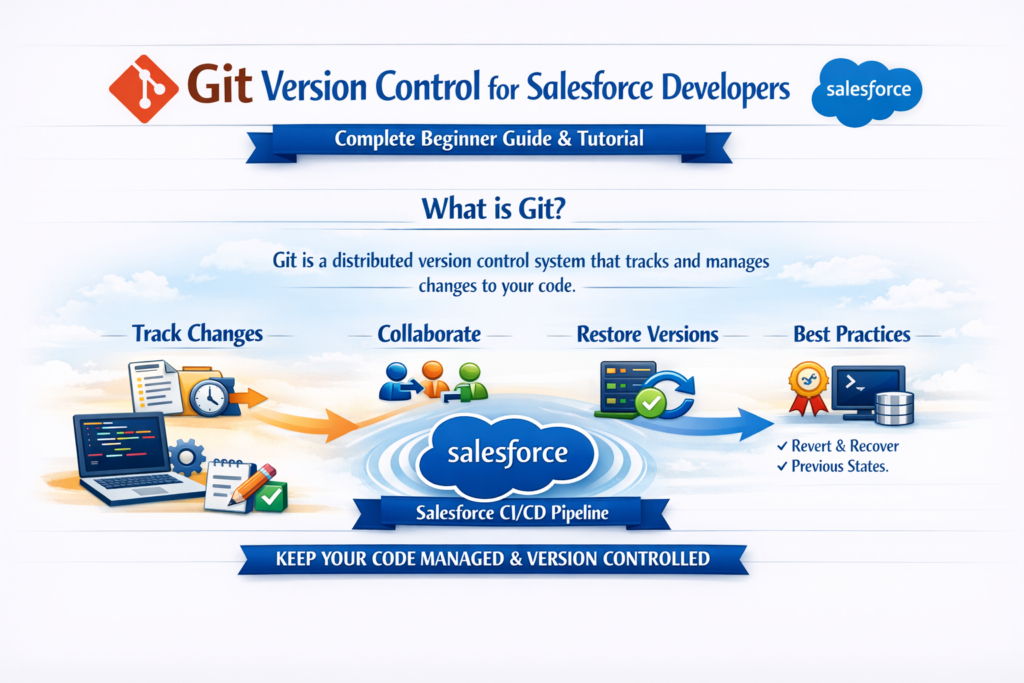
Understanding Git fundamentals is essential before implementing Salesforce version control.
Defining Git for Salesforce Developers
Git is a distributed version control system that tracks changes in source code. For Salesforce developers specifically, Git enables tracking metadata changes, collaborating with teams, and maintaining complete history of every change made to Salesforce components.
Why Git Matters for Salesforce Version Control:
- Track every Apex class modification
- Manage Lightning Web Component changes
- Version control Salesforce flows and automation
- Coordinate deployments across environments
- Maintain complete audit trail
How Git Works for Salesforce Projects
Core Git Concepts:
- Repository (Repo) - Project container with all history
- Commit - Snapshot of changes at point in time
- Branch - Independent line of development
- Merge - Combining branches together
- Remote - Shared repository on GitHub/GitLab
Git vs Traditional Salesforce Development
| Aspect | Traditional Approach | Git for Salesforce |
|---|---|---|
| Code Backup | Manual export | Automatic tracking |
| Collaboration | Serialized work | Parallel development |
| Conflict Resolution | Manual comparison | Automated detection |
| Change History | None | Complete timeline |
| Rollback | Difficult | One command |
| Audit Trail | Limited | Comprehensive |
Git clearly transforms Salesforce development capabilities.
Why Git for Salesforce Developers
Learning Git fundamentals opens significant career opportunities.
Career Benefits of Mastering Git for Salesforce Developers
Salary Impact:
- Salesforce developers without Git: ₹5-8 LPA
- Salesforce developers with Git: ₹8-15 LPA
- Senior DevOps with Git mastery: ₹15-35 LPA
Job Opportunities:
- 85% of Salesforce job postings require Git knowledge
- Enterprise clients specifically request version control expertise
- Salesforce DevOps roles exclusively need Git proficiency
Salesforce Version Control Business Benefits
Organizational Impact:
- Deploy with confidence knowing rollback is available
- Onboard new developers faster with clear history
- Meet audit requirements with complete change documentation
- Enable parallel feature development across teams
Step 1: Installing Git for Salesforce Development
Proper installation is the foundation for Git for Salesforce Developers success.
Installing Git on Different Operating Systems
Windows Installation:
Bash# Download Git for Windows
# Visit https://git-scm.com/download/win
# Run installer and follow setup wizard

# Verify installation
git --version
# Output: git version 2.43.0.windows.1
macOS Installation:
Bash# Using Homebrew (recommended)
brew install git

# Verify installation
git --version
# Output: git version 2.43.0
Linux Installation:
Bash# Ubuntu/Debian
sudo apt-get update
sudo apt-get install git

# CentOS/RedHat
sudo yum install git

# Verify installation
git --version
Essential Configuration of Git for Salesforce Developers
Initial Setup Commands:
Bash# Set your name and email
git config --global user.name "John Salesforce Developer"
git config --global user.email "john@rizexlabs.com"

# Set default branch name
git config --global init.defaultBranch main

# Set preferred editor
git config --global core.editor "code --wait"

# Verify configuration
git config --list
Installing Salesforce CLI with Git for Salesforce Developers
SFDX and Git Integration:
Bash# Install Salesforce CLI
npm install -g @salesforce/cli

# Verify SFDX installation
sf --version

# Initialize Salesforce project with Git
sf project generate \
  --name my-salesforce-project \
  --template standard

# Navigate to project
cd my-salesforce-project

# Initialize Git repository
git init

# Initial commit
git add .
git commit -m "Initial Salesforce project setup"
Real-World Setup Example
Scenario: New Salesforce Developer Onboarding
A new developer joining a team needs complete setup:
Bash# Clone existing Salesforce project
git clone https://github.com/company/salesforce-crm.git

# Navigate into project
cd salesforce-crm

# Create personal development sandbox connection
sf org login web --alias personal-dev

# Verify project structure
ls -la force-app/main/default/
Result: Developer ready to contribute within 30 minutes.
Step 2: Salesforce Version Control Setup and Git for Salesforce Developers
Setting up Salesforce version control properly ensures long-term project success.
Creating Salesforce Repository Structure
Standard Salesforce Git Repository:
textsalesforce-project/
├── .git/
├── .gitignore          # Excludes unnecessary files
├── .forceignore        # Excludes Salesforce metadata
├── README.md           # Project documentation
├── sfdx-project.json   # SFDX configuration
├── force-app/
│   └── main/
│       └── default/
│           ├── classes/          # Apex classes
│           ├── lwc/              # Lightning Web Components
│           ├── flows/            # Salesforce flows
│           ├── objects/          # Custom objects
│           ├── layouts/          # Page layouts
│           ├── profiles/         # User profiles
│           └── permissionsets/   # Permission sets
├── config/
│   └── project-scratch-def.json  # Scratch org config
└── scripts/
    ├── deploy.sh
    └── test.sh
Essential .gitignore for Salesforce Projects for Salesforce Developers
Salesforce-Specific .gitignore:
gitignore# Salesforce SFDX
.sfdx/
.localdevserver/

# VS Code
.vscode/settings.json
.vscode/launch.json

# Node modules
node_modules/

# Environment files
.env
*.env.local

# Mac OS
.DS_Store

# Windows
Thumbs.db

# Salesforce Scratch Org info
.sfdx/sfdx-config.json

# Log files
*.log

# Test results
test-results/

# Build outputs
dist/
build/
Salesforce .forceignore Configuration for Salesforce Developers
Metadata to Exclude:
text# .forceignore file
# Profiles (too environment-specific)
**/profiles/**

# Connected App Consumer Secrets
**/*-meta.xml

# Experience Cloud components
**/experiences/**

# Managed package metadata
**/installedPackages/**
Connecting to Remote Repository through Git for Salesforce Developers
GitHub Setup for Salesforce Version Control:
Bash# Create repository on GitHub
# Then connect local to remote

# Add remote origin
git remote add origin https://github.com/company/salesforce-project.git

# Push initial code
git push -u origin main

# Verify remote connection
git remote -v
# origin  https://github.com/company/salesforce-project.git (fetch)
# origin  https://github.com/company/salesforce-project.git (push)
Step 3: Core Git Commands Every Salesforce Developer Needs
Mastering essential commands accelerates Git for Salesforce Developers proficiency.
Daily Commands of Git for Salesforce Developers
Repository Initialization and Cloning:
Bash# Initialize new Salesforce repository
git init

# Clone existing Salesforce project
git clone https://github.com/company/salesforce-crm.git

# Clone with specific branch
git clone -b develop https://github.com/company/salesforce-crm.git
Status and Information Commands:
Bash# Check current status
git status

# View commit history
git log --oneline

# View detailed history
git log --oneline --graph --all

# See file changes
git diff

# See staged changes
git diff --cached
Staging and Committing Changes:
Bash# Stage specific file (Apex class)
git add force-app/main/default/classes/AccountHelper.cls

# Stage all changes
git add .

# Stage specific type of files
git add force-app/main/default/classes/*.cls

# Commit with descriptive message
git commit -m "feat: Add account revenue calculation logic"

# Commit with detailed message
git commit -m "feat: Add opportunity scoring algorithm

- Implemented scoring based on amount and stage
- Added unit tests with 95% coverage
- Updated related trigger handler
- Closes #JIRA-123"
Conventional Commit Messages for Salesforce:
Bash# Feature addition
git commit -m "feat: Add Apex trigger for opportunity automation"

# Bug fix
git commit -m "fix: Resolve SOQL limit issue in account query"

# Testing
git commit -m "test: Add unit tests for ContactHelper class"

# Documentation
git commit -m "docs: Update README with deployment instructions"

# Refactoring
git commit -m "refactor: Optimize bulk processing in LeadHandler"

# Configuration changes
git commit -m "chore: Update SFDX project configuration"
Real-World Git Commands Example
Scenario: Adding New Apex Class
Bash# Check current status
git status

# Create new Apex class in Salesforce DX
sf apex generate class --name OpportunityScoring --output-dir force-app/main/default/classes

# Check what changed
git status
# On branch feature/opportunity-scoring
# Untracked files:
#   force-app/main/default/classes/OpportunityScoring.cls
#   force-app/main/default/classes/OpportunityScoring.cls-meta.xml

# Stage the new files
git add force-app/main/default/classes/OpportunityScoring.cls
git add force-app/main/default/classes/OpportunityScoring.cls-meta.xml

# Commit the change
git commit -m "feat: Add OpportunityScoring Apex class"

# Push to remote
git push origin feature/opportunity-scoring
Step 4: Branching Strategy of Git for Salesforce Developers
Effective branching is crucial for Salesforce version control success.
Gitflow for Salesforce Development
Branch Structure:
textmain ────────────────────────────────── Production code
│
├── release/2026-Q1 ─────────────────── Release preparation
│   │
├── develop ─────────────────────────── Integration branch
│   │
│   ├── feature/lead-scoring ─────────── Feature development
│   ├── feature/account-hierarchy ─────── Parallel feature
│   └── bugfix/opportunity-sync ─────────  Bug fix
│
└── hotfix/critical-contact-bug ──────── Emergency production fix
Branch Creation Commands:
Bash# Create feature branch for Salesforce development
git checkout -b feature/lead-automation-flow

# Create from specific base branch
git checkout -b feature/opportunity-scoring develop

# Create bugfix branch
git checkout -b bugfix/account-duplicate-rule

# Create release branch
git checkout -b release/2026-Q1 develop

# Create hotfix branch
git checkout -b hotfix/critical-apex-fix main
Branch Naming Conventions
Salesforce-Specific Branch Names:
textfeature/apex-trigger-opportunity
feature/lwc-account-dashboard
feature/flow-lead-assignment
bugfix/soql-governor-limit
bugfix/duplicate-contact-sync
hotfix/critical-payment-error
release/2026-Q1
release/2026-Q2
Working with Branches
Complete Branch Workflow:
Bash# Create and switch to feature branch
git checkout -b feature/account-scoring

# Make changes to Salesforce components
# Edit AccountScoring.cls...

# Stage and commit changes
git add .
git commit -m "feat: Implement account scoring algorithm"

# Push branch to remote
git push origin feature/account-scoring

# Switch between branches
git checkout develop

# List all branches
git branch -a

# Delete completed branch
git branch -d feature/account-scoring
git push origin --delete feature/account-scoring
Real-World Branching Example
Scenario: Parallel Feature Development
Team of 4 Salesforce Developers:
Bash# Developer 1: Lead automation
git checkout -b feature/lead-web-to-lead-automation

# Developer 2: Account scoring
git checkout -b feature/account-health-scoring

# Developer 3: Opportunity automation
git checkout -b feature/opportunity-stage-automation

# Developer 4: Bug fix
git checkout -b bugfix/contact-email-sync
All working simultaneously without conflicts!
Integration:
Bash# Each developer merges to develop when complete
git checkout develop
git merge feature/lead-web-to-lead-automation
git merge feature/account-health-scoring
git push origin develop
Step 5: Salesforce DX with Git Integration for Salesforce Developers
Salesforce DX and Git create powerful version control capabilities.
Salesforce DX Project with Git
Complete Project Setup:
Bash# Generate new Salesforce DX project
sf project generate \
  --name enterprise-salesforce-crm \
  --template standard \
  --login-url https://login.salesforce.com

# Navigate to project
cd enterprise-salesforce-crm

# Initialize Git
git init

# Add all files
git add .

# Initial commit
git commit -m "chore: Initialize Salesforce DX project with Git"

# Create develop branch
git checkout -b develop

# Push to GitHub
git remote add origin https://github.com/company/enterprise-crm.git
git push -u origin main
git push -u origin develop
Scratch Org Workflow with Git
Daily Development Workflow:
Bash# Create scratch org for feature development
sf org create scratch \
  --definition-file config/project-scratch-def.json \
  --alias feature-dev \
  --duration-days 7

# Push metadata to scratch org
sf project deploy start --target-org feature-dev

# Open scratch org for development
sf org open --target-org feature-dev

# After changes in scratch org, pull them down
sf project retrieve start --target-org feature-dev

# Check what changed
git status
git diff

# Stage and commit changes
git add .
git commit -m "feat: Add custom account scoring field"
Converting Metadata Format for Git
Convert Legacy Metadata to SFDX:
Bash# Convert from metadata format to source format
sf project convert mdapi \
  --root-dir path/to/metadata/folder \
  --output-dir force-app

# Convert from source format to metadata format
sf project convert source \
  --root-dir force-app \
  --output-dir deploy/package

# After conversion, add to Git
git add force-app/
git commit -m "chore: Convert metadata to SFDX source format"
Step 6: Handling Merge Conflicts in Salesforce Projects
Handling conflicts is a critical skill for Git for Salesforce Developers.
Understanding Merge Conflicts
When Conflicts Occur:
- Two developers modify same Apex class
- Flow metadata modified simultaneously
- Permission set changes overlap
- Custom field modifications conflict
Identifying Conflict Markers
Conflict in Apex Class:
apexpublic class AccountHelper {

    public static Decimal calculateRevenue(Account acc) {
<<<<<<< HEAD
        // Developer A's implementation
        return acc.AnnualRevenue * 0.15;
=======
        // Developer B's implementation
        return acc.AnnualRevenue * 0.12 + acc.NumberOfEmployees * 100;
>>>>>>> feature/revenue-calculation
    }
}
Resolving the Conflict:
apexpublic class AccountHelper {

    public static Decimal calculateRevenue(Account acc) {
        // Merged implementation incorporating both approaches
        Decimal baseRevenue = acc.AnnualRevenue * 0.15;
        Decimal employeeBonus = acc.NumberOfEmployees * 100;
        return baseRevenue + employeeBonus;
    }
}
Git Merge Commands
Conflict Resolution Process:
Bash# Attempt merge
git merge feature/revenue-calculation

# Git indicates conflicts
# Auto-merging force-app/main/default/classes/AccountHelper.cls
# CONFLICT (content): Merge conflict in AccountHelper.cls

# Check conflict files
git status

# Open and resolve conflicts manually
# Then mark as resolved
git add force-app/main/default/classes/AccountHelper.cls

# Complete merge
git commit -m "merge: Integrate revenue calculation approaches"

# Alternatively, abort merge
git merge --abort
Preventing Conflicts in Salesforce Projects
Conflict Prevention Strategies:
Bash# Regularly sync with develop branch
git fetch origin
git rebase origin/develop

# Use interactive rebase for clean history
git rebase -i origin/develop

# Short-lived feature branches reduce conflicts
# Aim for maximum 3-5 day branches

# Regular communication about file ownership
# Component ownership registry in README
Step 7: Pull Requests and Code Reviews in Git for Salesforce Developers
Pull requests are essential for team collaboration in Salesforce version control.
Creating Effective Pull Requests
Pull Request Template for Salesforce Projects:
Markdown## Summary
Brief description of changes made.

## Type of Change
- [ ] Bug fix
- [ ] New feature
- [ ] Breaking change
- [ ] Documentation update

## Salesforce Components Changed
- [ ] Apex Classes
- [ ] Lightning Web Components
- [ ] Flows / Process Builder
- [ ] Objects / Fields
- [ ] Profiles / Permission Sets
- [ ] Other:___

## Testing Done
- [ ] Unit tests added/updated
- [ ] Code coverage: ____%
- [ ] Tested in sandbox: ____
- [ ] UAT completed

## Deployment Notes
Any special deployment considerations.

## Related Issues
Fixes #JIRA-XXXX
Code Review Checklist for Salesforce
Review Standards:
Markdown## Salesforce Code Review Checklist

### Apex Code
- [ ] No SOQL queries inside loops
- [ ] Bulkification implemented
- [ ] Error handling included
- [ ] Unit tests cover all scenarios
- [ ] Code coverage >= 85%
- [ ] Governor limits considered
- [ ] Security (CRUD/FLS) checks

### Lightning Web Components
- [ ] @wire adapters used properly
- [ ] Error handling implemented
- [ ] Accessibility standards met
- [ ] Mobile responsive design
- [ ] Performance optimized

### Metadata
- [ ] API version current
- [ ] Naming conventions followed
- [ ] Documentation included
- [ ] Dependencies documented
Git Commands for Pull Requests
Bash# Push feature branch
git push origin feature/lead-scoring

# Create PR via GitHub CLI
gh pr create \
  --title "feat: Add lead scoring automation" \
  --body "Implements ML-based lead scoring" \
  --base develop \
  --head feature/lead-scoring \
  --reviewer "team-lead,senior-dev"

# Checkout PR locally for review
gh pr checkout 123

# Approve PR
gh pr review 123 --approve

# Merge PR
gh pr merge 123 --merge
Step 8: Workflow of Git for Salesforce DevOps
Integrating Git with Salesforce DevOps creates powerful release capabilities.
Complete Salesforce DevOps Git Workflow
GitHub Actions Integration:
YAMLname: Salesforce DevOps Git Pipeline
on:
  pull_request:
    branches: [develop, main]
  push:
    branches: [main]

jobs:
  validate-and-test:
    runs-on: ubuntu-latest

    steps:
      - name: Checkout Code
        uses: actions/checkout@v3

      - name: Install Salesforce CLI
        run: npm install -g @salesforce/cli

      - name: Authenticate to Salesforce
        run: |
          echo "${{ secrets.SFDX_AUTH_URL }}" > sfdx_auth.txt
          sf org login sfdx-url \
            --sfdx-url-file sfdx_auth.txt \
            --alias ci-org
          rm sfdx_auth.txt

      - name: Validate Deployment
        run: |
          sf project deploy validate \
            --source-dir force-app \
            --target-org ci-org \
            --test-level RunLocalTests \
            --verbose

      - name: Run Apex Tests
        run: |
          sf apex run test \
            --target-org ci-org \
            --test-level RunLocalTests \
            --result-format human \
            --output-dir test-results

      - name: Check Code Coverage
        run: |
          COVERAGE=$(sf apex get test \
            --target-org ci-org \
            --result-format json | \
            python3 -c "import sys, json; \
            print(json.load(sys.stdin)['result']['summary']['testRunCoverage'])")
          echo "Code Coverage: $COVERAGE%"

          if (( $(echo "$COVERAGE < 75" | bc -l) )); then
            echo "FAILED: Code coverage below 75%"
            exit 1
          fi
Git Tags for Release Management
Tagging Releases:
Bash# Create release tag
git tag -a v2026.1.0 -m "Release 2026 Q1 - Lead Scoring Feature"

# List all tags
git tag -l

# Push tags to remote
git push origin --tags

# Checkout specific release
git checkout v2026.1.0

# Create branch from tag for hotfix
git checkout -b hotfix/v2026.1.1 v2026.1.0
Step 9: Advanced Techniques for Salesforce Developers
Advanced techniques maximize productivity for experienced Salesforce developers.
Git Stash for Salesforce Developers
Saving Work in Progress:
Bash# Save uncommitted changes
git stash save "WIP: Account scoring partial implementation"

# List stashes
git stash list
# stash@{0}: WIP: Account scoring partial implementation
# stash@{1}: WIP: Opportunity stage changes

# Apply most recent stash
git stash pop

# Apply specific stash
git stash apply stash@{1}

# Delete stash
git stash drop stash@{0}
Real Scenario:
Bash# Working on feature when urgent bug reported
git stash save "WIP: Lead scoring feature"

# Fix the bug
git checkout -b hotfix/critical-account-bug
# Make fixes...
git commit -m "fix: Critical account sync issue"
git push origin hotfix/critical-account-bug

# Return to feature work
git checkout feature/lead-scoring
git stash pop
# Continue working on feature
Git Rebase for Clean History
Interactive Rebase:
Bash# Squash last 3 commits into one
git rebase -i HEAD~3

# Editor opens showing:
# pick abc123 feat: Add field to opportunity object
# pick def456 feat: Add validation rule
# pick ghi789 feat: Add trigger for scoring

# Change to squash last two:
# pick abc123 feat: Add opportunity scoring system
# squash def456 feat: Add validation rule
# squash ghi789 feat: Add trigger for scoring

# Result: Single clean commit
Git Cherry-Pick for Salesforce
Applying Specific Commits:
Bash# Apply specific hotfix to multiple branches
# Get commit hash
git log --oneline
# abc123 fix: Critical SOQL limit fix

# Apply to different branch
git checkout release/2026-Q1
git cherry-pick abc123

# Useful for applying hotfixes to release branches
Step 10: Best Practices for Salesforce Developers
Following best practices ensures sustainable Salesforce version control.
Commit Message Standards
Conventional Commits for Salesforce:
Bash# Feature additions
git commit -m "feat(apex): Add opportunity auto-close trigger"
git commit -m "feat(lwc): Create account overview component"
git commit -m "feat(flow): Build lead assignment automation"

# Bug fixes
git commit -m "fix(apex): Resolve null pointer in account handler"
git commit -m "fix(lwc): Fix mobile layout for contact form"

# Testing
git commit -m "test(apex): Add bulk test scenarios for triggers"

# Refactoring
git commit -m "refactor(apex): Optimize SOQL queries in lead handler"

# Documentation
git commit -m "docs: Update deployment guide for production release"
Branch Protection Rules
GitHub Branch Protection:
YAML# Branch protection configuration
branch_protection:
  main:
    require_pull_request_reviews:
      required_approving_review_count: 2
      dismiss_stale_reviews: true
    require_status_checks:
      strict: true
      contexts:
        - "Validate Salesforce Deployment"
        - "Run Apex Tests"
        - "Code Coverage Check"
    enforce_admins: true
    restrictions:
      users: []
      teams: ["release-managers"]
Git Hooks for Salesforce Quality
Pre-commit Hook:
Bash#!/bin/bash
# .git/hooks/pre-commit

echo "Running Salesforce pre-commit checks..."

# Check for hardcoded IDs in Apex classes
if grep -r "00[A-Za-z0-9]\{15\}" force-app/main/default/classes/; then
  echo "ERROR: Hardcoded Salesforce IDs detected!"
  echo "Please use Custom Settings or Custom Metadata instead."
  exit 1
fi

# Check for SOQL in loops (basic check)
if grep -A5 "for(" force-app/main/default/classes/*.cls | grep "SELECT"; then
  echo "WARNING: Possible SOQL query in loop detected!"
  echo "Review code for governor limit issues."
fi

echo "Pre-commit checks passed!"
exit 0
Interview Questions on Git for Salesforce Developers
Interview Question 1: Explain Git Branching Strategy for Salesforce Projects
Expert Answer:
Git branching strategy for Salesforce development typically follows the Gitflow model adapted for Salesforce-specific requirements.
Gitflow Adapted for Salesforce:
textmain branch → Production (release only)
develop branch → Integration (all features merge here)
feature branches → Individual Salesforce components
release branches → Release preparation
hotfix branches → Emergency production fixes
Real-World Example:
At a financial services company with 20 Salesforce developers:
Branch Implementation:
- Each developer creates feature branch per user story
- Feature branches named:
feature/JIRA-123-opportunity-scoring - Branches merged to develop via pull request with 2 reviewers
- Bi-weekly release branches created from develop
- Production hotfixes created from main, merged to both main and develop
Results:
- Zero code conflicts in 6 months
- 95% deployment success rate
- Complete audit trail for compliance
- Faster developer onboarding
Key Points for Interview:
- Explain why private branches prevent conflicts
- Discuss code review importance
- Mention Salesforce-specific considerations
Interview Question 2: How Do You Handle Salesforce Metadata in Git?
Expert Answer:
Salesforce metadata management in Git requires understanding Salesforce DX source format and proper configuration.
Key Concepts:
- Source Format vs Metadata Format
Bash# Metadata format (traditional, not Git-friendly)
src/
├── classes/
│   └── AccountHelper.cls
└── package.xml

# SFDX Source format (Git-friendly, recommended)
force-app/main/default/
├── classes/
│   ├── AccountHelper.cls
│   └── AccountHelper.cls-meta.xml
- Converting to SFDX Format:
Bash# Convert for Git compatibility
sf project convert mdapi \
  --root-dir deploy/ \
  --output-dir force-app/
- Selective Metadata Tracking:
Bash# .forceignore - exclude environment-specific metadata
**/profiles/**
**/installedPackages/**
**/connectedApps/**
Real-World Example:
Company managing complex Salesforce org with 200+ custom objects:
- All metadata in SFDX source format
- Profiles excluded (too environment-specific)
- Custom objects, Apex, LWC all tracked
- Separate branch for permission sets
Interview Key Points:
- Understand .gitignore and .forceignore
- Explain SFDX source format benefits
- Discuss environment-specific metadata handling
Interview Question 3: Explain Pull Request Process for Salesforce Developers
Expert Answer:
Pull request process for Salesforce development ensures code quality before merging.
Complete PR Lifecycle:
Step 1: Create Feature Branch
Bashgit checkout -b feature/SFDC-456-lead-scoring develop
Step 2: Develop and Test
Bash# Make changes, write tests
git add .
git commit -m "feat: Implement lead scoring algorithm"
git push origin feature/SFDC-456-lead-scoring
Step 3: Create Pull Request
Bashgh pr create \
  --title "SFDC-456: Implement Lead Scoring" \
  --body "$(cat .github/PULL_REQUEST_TEMPLATE.md)" \
  --base develop
Step 4: Automated Checks Run
- Apex test execution (must pass)
- Code coverage validation (75%+ required)
- PMD static analysis (zero critical issues)
- Metadata validation against CI sandbox
Step 5: Code Review
- 2 reviewers required
- Salesforce-specific checklist followed
- Governor limit review
- Security review
Step 6: Merge
Bash# Squash and merge for clean history
gh pr merge 456 --squash --delete-branch
Real-World Example:
Healthcare company PR process:
- Every PR triggers automated Apex test run
- Minimum 2 approvals required
- Security review mandatory for patient data
- Release manager approval for production
Interview Question 4: How Do You Resolve Git Conflicts in Salesforce Apex Code?
Expert Answer:
Conflict resolution in Salesforce requires understanding both Git mechanics and Salesforce-specific considerations.
Complete Conflict Resolution Process:
Step 1: Identify Conflicts
Bashgit status
# Both modified: force-app/main/default/classes/LeadHandler.cls
Step 2: Examine Conflict
apexpublic class LeadHandler {
    public static void assignLeads(List<Lead> leads) {
<<<<<<< HEAD
        // Version A: Territory-based assignment
        for(Lead lead : leads) {
            lead.OwnerId = TerritoryHelper.getOwner(lead.PostalCode);
        }
=======
        // Version B: Score-based assignment
        for(Lead lead : leads) {
            lead.OwnerId = ScoringHelper.getBestRep(lead.Score__c);
        }
>>>>>>> feature/score-based-assignment
    }
}
Step 3: Discuss with Team
Talk with both developers to understand business requirements.
Step 4: Resolve Properly
apexpublic class LeadHandler {
    public static void assignLeads(List<Lead> leads) {
        // Merged: Priority score-based, fallback to territory
        for(Lead lead : leads) {
            if(lead.Score__c != null && lead.Score__c > 50) {
                lead.OwnerId = ScoringHelper.getBestRep(lead.Score__c);
            } else {
                lead.OwnerId = TerritoryHelper.getOwner(lead.PostalCode);
            }
        }
    }
}
Step 5: Test and Commit
Bash# Run tests to verify merged code works
sf apex run test --target-org dev-sandbox

# Stage resolved file
git add force-app/main/default/classes/LeadHandler.cls

# Complete merge
git commit -m "merge: Combine scoring and territory assignment strategies"
Interview Question 5: Explain Salesforce Version Control Best Practices
Expert Answer:
Effective Salesforce version control combines Git best practices with Salesforce-specific considerations.
Core Best Practices:
- Commit Frequently with Meaningful Messages
Bash# Good commit messages
git commit -m "feat(apex): Add bulk validation for opportunity amounts"
git commit -m "fix(lwc): Resolve mobile layout issue in account card"
git commit -m "test: Add governor limit tests for lead trigger"

# Bad commit messages
git commit -m "changes"
git commit -m "fix stuff"
git commit -m "final version"
- Short-Lived Feature Branches
- Feature branches should live maximum 5 days
- Regular synchronization with develop branch
- Small, focused changes per branch
- Never Force Push to Shared Branches
Bash# NEVER DO THIS on main or develop
git push --force origin main

# Only on personal feature branches when necessary
git push --force origin feature/my-personal-branch
- Tag Every Release
Bashgit tag -a v2026.1.0 -m "Q1 2026 Release - Lead Scoring"
git push origin v2026.1.0
Real-World Best Practice Implementation:
Company with 50 Salesforce developers:
- Commit standards enforced via Git hooks
- Branch naming conventions automated
- PR template mandatory
- Weekly cleanup of merged branches
Result: Clean repository history enabling easy debugging and auditing.
Common Git Mistakes and Solutions for Salesforce Developers
Mistake 1: Committing to Wrong Branch
Problem:
Bash# Accidentally committed to main
git log --oneline
# abc123 feat: New feature (shouldn't be on main)
Solution:
Bash# Move commit to correct branch
git checkout feature/correct-branch
git cherry-pick abc123

# Remove from main
git checkout main
git reset --hard HEAD~1
git push --force origin main
Mistake 2: Pushing Sensitive Data
Problem:
Bash# Accidentally committed credentials
git commit -m "config: Add auth settings"
# Contains: clientSecret = "abc123sensitive"
Solution:
Bash# Remove sensitive data from history
git filter-branch --force --index-filter \
  "git rm --cached --ignore-unmatch config/auth.json" \
  --prune-empty --tag-name-filter cat -- --all

# Force push to remove from remote
git push origin --force --all

# Immediately rotate the exposed credentials!
Mistake 3: Forgetting .gitignore
Problem:
Bash# Committed .sfdx folder with org credentials
git add .
git commit -m "setup: Add project files"
Solution:
Bash# Add .sfdx to .gitignore
echo ".sfdx/" >> .gitignore

# Remove from tracking
git rm -r --cached .sfdx/

# Commit the fix
git add .gitignore
git commit -m "chore: Remove .sfdx from tracking"
Real-World Scenarios Git for Salesforce Developers
Scenario 1: Emergency Production Hotfix
Situation:
Critical bug discovered in production Apex trigger causing data corruption.
Git Solution:
Bash# Create hotfix from main
git checkout main
git checkout -b hotfix/CRITICAL-data-corruption

# Fix the issue
# Edit OpportunityTrigger.cls to fix bug

git add force-app/main/default/triggers/OpportunityTrigger.trigger
git commit -m "fix: Critical null pointer in opportunity trigger"

# Test thoroughly
sf apex run test --target-org hotfix-sandbox --test-level RunLocalTests

# Merge to main
git checkout main
git merge hotfix/CRITICAL-data-corruption
git tag -a v2026.1.1 -m "Hotfix: Critical opportunity trigger"
git push origin main --tags

# Also merge to develop
git checkout develop
git merge hotfix/CRITICAL-data-corruption
git push origin develop

# Clean up
git branch -d hotfix/CRITICAL-data-corruption
Timeline:
- Bug detected: 9:00 AM
- Hotfix branch created: 9:05 AM
- Fix implemented and tested: 9:45 AM
- Production deployed: 10:00 AM
- Total resolution time: 1 hour
Scenario 2: Feature Flag Implementation
Using Git for Gradual Feature Rollout:
apexpublic class LeadScoringService {
    private static Boolean SCORING_ENABLED =
        FeatureFlag__c.getInstance('EnableLeadScoring').IsEnabled__c;

    public static void processLeads(List<Lead> leads) {
        if(SCORING_ENABLED) {
            // New scoring logic
            applyMLScoring(leads);
        } else {
            // Legacy logic
            applyBasicScoring(leads);
        }
    }
}
Git Strategy:
Bash# Feature flag committed to feature branch
git commit -m "feat: Add lead scoring with feature flag"

# Enable in testing environments
git commit -m "config: Enable lead scoring in UAT"

# Full rollout
git commit -m "config: Enable lead scoring in production"
Future of Git for Salesforce Developers with Version Control
Salesforce version control continues evolving rapidly.
Emerging Trends
AI-Assisted Git Workflows:
- GitHub Copilot for commit messages
- AI code review suggestions
- Automated conflict resolution
- Intelligent branching recommendations
Enhanced Salesforce DX:
- Better metadata format support
- Improved scratch org performance
- Advanced packaging capabilities
- Tighter Git integration
Conclusion
Mastering Git for Salesforce Developers is a career-defining skill that separates junior from senior professionals. Throughout this comprehensive guide, we've covered all ten essential steps for Salesforce version control mastery.
Key Takeaways
Foundation: Git for Salesforce Developers starts with proper setup and configuration.
Daily Practice: Consistent use of branching, committing, and pull requests builds expertise.
Collaboration: Version control enables parallel team development without conflicts.
Career Impact: Git proficiency adds 40-60% salary potential for Salesforce professionals.
Your Learning Path
- ✅ Install Git and configure for Salesforce development
- ✅ Set up SFDX project with version control
- ✅ Practice core Git commands daily
- ✅ Implement branching strategy
- ✅ Create pull requests for code reviews
- ✅ Connect with RizeX Labs for guidance
RizeX Labs Support
For comprehensive Git for Salesforce Developers training:
- Training Programs: Git and Salesforce DevOps courses
- Mentorship: Expert guidance from senior developers
- Workshops: Hands-on Git practice sessions
- Community: Salesforce developer network
- Career Support: Job placement assistance
Internal Links to RizeX Labs Resources
- Salesforce CI/CD Pipeline Guide
- Copado Deployment Strategy
- Salesforce DevOps Salary Pune
- Learning Salesforce Roadmap 2026
Ready to master Git for Salesforce Developers? Start your version control journey with RizeX Labs expert support today!