
Introduction: Why Clean Data Is the Backbone of CRM Success
Imagine this: your sales rep calls a prospect, only to discover that another rep already reached out — twice. The prospect is annoyed. Your team looks uncoordinated. And buried somewhere in your CRM are three different records for the same person, each with slightly different information.

This scenario plays out in organizations every single day, and it's entirely preventable.
Dirty data costs businesses an estimated $12.9 million per year, according to Gartner. Duplicate records are one of the most common — and most damaging — forms of data quality issues. They lead to inaccurate reporting, wasted sales efforts, poor customer experiences, and eroded trust in your CRM.
That's where Salesforce duplicate management comes in.
Salesforce provides a robust, built-in framework to detect, prevent, and resolve duplicate records before they wreak havoc on your business. Whether you're a Salesforce admin setting up rules for the first time or a seasoned professional looking to fine-tune your data quality strategy, this guide covers everything you need to know — from matching rules and Salesforce duplicate rules to how to merge records in Salesforce effectively.
Let's dive in.
1. What Is Salesforce Duplicate Management?
Salesforce duplicate management is a native set of tools and features within Salesforce that helps organizations identify, prevent, and resolve duplicate records across standard and custom objects. It works primarily through two mechanisms:
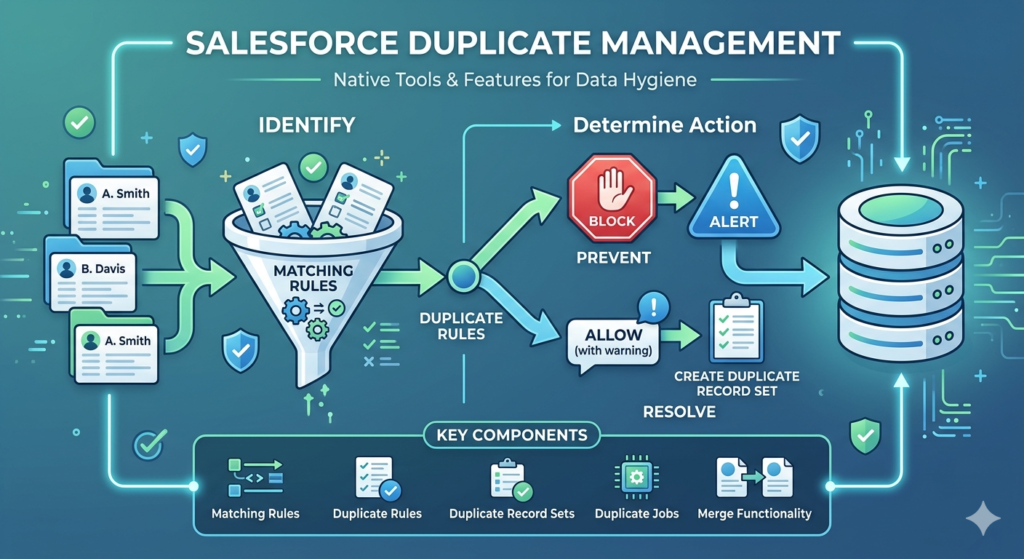
- Matching Rules — Define the criteria Salesforce uses to identify potential duplicates.
- Duplicate Rules — Determine what happens when a duplicate is detected (alert the user, block the record, or create a duplicate record set for review).
Together, these tools give administrators granular control over how duplicates are handled — without requiring any third-party apps or custom code.
Key Components of Salesforce Duplicate Management
| Component | Purpose |
|---|---|
| Matching Rules | Identify records that look alike based on field comparisons |
| Duplicate Rules | Define the action taken when a match is found |
| Duplicate Record Sets | Group potential duplicates for manual review |
| Duplicate Jobs | Scan existing data for duplicates in bulk |
| Merge Functionality | Combine duplicate records into a single master record |
The beauty of Salesforce duplicate management is that it works in real time — catching duplicates at the point of entry — and also provides tools to clean up duplicates that already exist in your database.
2. Understanding Matching Rules in Salesforce
Matching rules are the foundation of Salesforce duplicate management. They tell Salesforce how to compare records and determine whether two (or more) records are potential duplicates.
How Matching Rules Work
When a user creates or edits a record, Salesforce compares the new or updated record against existing records using the criteria defined in the matching rule. If the fields match according to the rule's logic, Salesforce flags the records as potential duplicates.
Types of Matching Rules
Salesforce offers two types of matching rules:
- Standard Matching Rules — Pre-built by Salesforce for Accounts, Contacts, and Leads. These use fuzzy matching algorithms that can detect variations in names, addresses, and other fields.
- Custom Matching Rules — Created by administrators to match on specific fields relevant to their business. You can build custom matching rules for both standard and custom objects.
Standard Matching Rule Examples
- Standard Account Matching Rule: Compares Account Name, Billing Street, Billing City, Billing State, Billing Postal Code, and Billing Country.
- Standard Contact Matching Rule: Compares First Name, Last Name, Email, Phone, Mailing Street, and Title.
- Standard Lead Matching Rule: Compares First Name, Last Name, Email, Phone, Street, Title, and Company.
Matching Methods
Salesforce uses two primary matching methods:
- Exact: The field values must be identical (case-insensitive).
- Fuzzy: Salesforce uses algorithms to detect similar — but not identical — values. For example, "Jon Smith" and "John Smith" may be flagged as a match using fuzzy logic.
Key Fields Used in Fuzzy Matching
- First Name
- Last Name
- Account Name
- Title
- Street
- City
- Phone
Creating a Custom Matching Rule
Here's how to create a custom matching rule:
- Navigate to Setup → search for Matching Rules in the Quick Find box.
- Click New Rule.
- Select the object (e.g., Lead, Contact, Account, or a custom object).
- Give your rule a name and description.
- Add matching criteria — choose the fields you want to compare and the matching method (Exact or Fuzzy).
- Use filter logic if you need to combine multiple conditions with AND/OR operators.
- Click Save, then Activate the rule.
Pro Tips for Matching Rules
- Don't over-match. Using too many fields with "Exact" matching will miss legitimate duplicates with slight variations.
- Don't under-match. Using too few fields or relying only on fuzzy matching can create false positives.
- Test before activating. Use the Rule Preview feature to see how many existing records would be flagged.
- Layer your rules. Create multiple matching rules with different levels of strictness for different scenarios.
3. Understanding Duplicate Rules in Salesforce
If matching rules are the "eyes" of Salesforce duplicate management, then Salesforce duplicate rules are the "brain." They determine what happens after a potential duplicate is detected.
How Duplicate Rules Work
A duplicate rule links to one or more matching rules and defines the action Salesforce takes when a match is found. You can configure duplicate rules to:
- Alert the user with a warning message but still allow the record to be saved.
- Block the user from saving the duplicate record entirely.
- Report the duplicate by adding it to a Duplicate Record Set for later review.
Anatomy of a Duplicate Rule
Every duplicate rule has three main sections:
a) Record-Level Security
Defines whether the rule applies based on the user's profile or permission set.
b) Actions
Specifies what happens when a duplicate is detected:
- Action on Create: What happens when a user creates a new record that matches an existing one.
- Action on Edit: What happens when a user edits a record in a way that creates a match.
For each action, you choose:
- Allow (with or without an alert)
- Block
c) Matching Rules
Each duplicate rule references one or more matching rules. You can compare records:
- Within the same object (e.g., Lead vs. Lead)
- Across objects (e.g., Lead vs. Contact)
Cross-object matching is extremely powerful. For example, you can prevent a new Lead from being created if a Contact with the same email address already exists.
Creating a Duplicate Rule: Step-by-Step
- Go to Setup → search for Duplicate Rules in Quick Find.
- Click New Rule and select the object.
- Name your rule and add a description.
- Under Record-Level Security, choose whether to enforce sharing rules.
- Under Actions, configure:
- Action on Create: Allow (with alert) or Block
- Action on Edit: Allow (with alert) or Block
- Optionally, check Report to log duplicates in Duplicate Record Sets.
- Under Matching Rules, add one or more matching rules. For each, specify:
- The object to compare against
- The matching rule to use
- Optional field mappings (for cross-object comparisons)
- Click Save, then Activate.
Alert vs. Block: Which Should You Choose?
| Scenario | Recommended Action |
|---|---|
| Sales teams need flexibility to create records quickly | Allow with Alert |
| Data quality is critical and duplicates must be prevented | Block |
| You want to review duplicates without disrupting workflows | Allow + Report |
| High-volume data imports | Block (to prevent mass duplication) |
Best practice: Start with "Allow with Alert" to gauge the volume of duplicates being flagged. Once your matching rules are fine-tuned and your team is trained, switch high-priority rules to "Block."
4. Step-by-Step Setup of Salesforce Duplicate Management
Let's walk through a complete setup of Salesforce duplicate management from scratch. In this example, we'll configure duplicate detection for Leads.
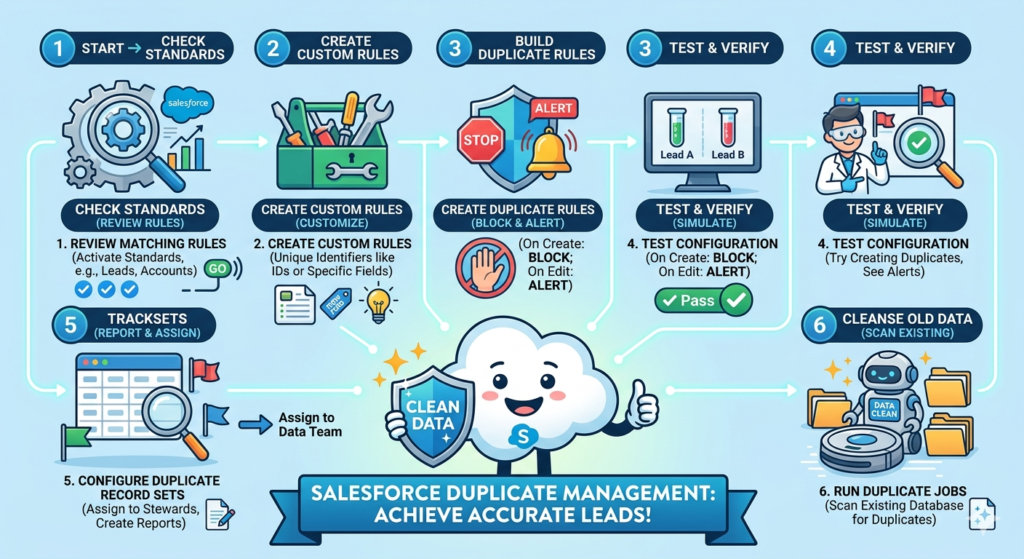
Step 1: Review Standard Matching Rules
Before creating custom rules, check whether Salesforce's standard matching rules meet your needs.
- Go to Setup → Matching Rules.
- Review the standard rules for Leads, Contacts, and Accounts.
- Activate any standard rules you want to use.
Step 2: Create Custom Matching Rules (If Needed)
If your organization has unique identifiers (e.g., Employee ID, Tax ID, Membership Number), create custom matching rules:
- Navigate to Setup → Matching Rules → New Rule.
- Select the object.
- Add fields with appropriate matching methods.
- Save and activate.
Step 3: Create Duplicate Rules
- Navigate to Setup → Duplicate Rules → New Rule.
- Select the Lead object.
- Configure actions:
- On Create: Block (to prevent new duplicate leads)
- On Edit: Allow with Alert
- Enable Report to create Duplicate Record Sets.
- Attach your matching rule(s).
- Save and activate.
Step 4: Test the Configuration
- Create a test Lead with known data.
- Try creating a second Lead with matching data.
- Verify that the alert or block message appears.
- Check that a Duplicate Record Set is created (if reporting is enabled).
Step 5: Configure Duplicate Record Sets
Duplicate Record Sets are automatically created when you enable reporting. You can:
- Create list views for Duplicate Record Sets.
- Assign them to data stewards for review.
- Use reports and dashboards to track duplicate trends.
Step 6: Run Duplicate Jobs (for Existing Data)
If you already have duplicates in your database, use Duplicate Jobs to scan existing records:
- Go to Setup → Duplicate Jobs.
- Select the object and matching rule.
- Run the job.
- Review the results and merge duplicates as needed.
Note: Duplicate Jobs are available in Lightning Experience and require the appropriate permissions.
5. How to Merge Records in Salesforce
Detection is only half the battle. Once you've identified duplicates, you need to merge records in Salesforce to consolidate them into a single, accurate record.
Merging Accounts
- Navigate to the Account you want to keep as the master record.
- Click the Find Duplicates button (or use the related list).
- Select up to three accounts to merge.
- Choose the master record.
- For each field, select which value to retain.
- Click Merge.
What happens during the merge:
- Related records (Contacts, Opportunities, Cases, etc.) are automatically re-parented to the master record.
- The duplicate records are moved to the Recycle Bin (recoverable for 15 days).
Merging Contacts
- Go to the Account that contains the duplicate Contacts.
- In the Contacts related list, click Merge Contacts.
- Select up to three contacts to merge.
- Choose the master record and the field values to keep.
- Click Merge.
Merging Leads
- Navigate to the Leads tab.
- Select a list view that shows your leads.
- Select the duplicate leads (up to three).
- Click Merge Leads.
- Choose the master record and field values.
- Click Merge.
Merging via Duplicate Record Sets
If you've enabled reporting in your duplicate rules:
- Navigate to the Duplicate Record Sets tab.
- Open a duplicate record set.
- Review the flagged records.
- Click Merge to combine them.
Important Considerations When Merging
- You cannot un-merge records. Always verify your selections carefully.
- Field-level security matters. If a user doesn't have access to a field, they won't see it during the merge process, and data in that field could be lost.
- Custom objects cannot be merged natively. You'll need third-party tools or custom Apex code for custom object merging.
- Merged records go to the Recycle Bin. Recover them within 15 days if you make a mistake.
Automating Merges at Scale
For large datasets with thousands of duplicates, manual merging isn't practical. Consider these options:
- Salesforce Data Loader + Apex: Write Apex scripts to merge records programmatically using the
Database.merge()method. - Third-party tools: Apps like DemandTools, Cloudingo, or Duplicate Check from the AppExchange can automate large-scale deduplication.
- Flows: Build screen flows that guide users through a merge process with validation and business logic.
6. Best Practices for Salesforce Duplicate Management
Implementing Salesforce duplicate management effectively requires more than just activating rules. Here are proven best practices:
1. Start with a Data Audit
Before configuring rules, understand the current state of your data:
- How many duplicates exist?
- Which objects are most affected?
- What fields are most reliable for matching?
2. Define Your "Golden Record" Strategy
Decide in advance which record should survive a merge:
- The oldest record? The most recently updated? The one with the most related records?
- Document this decision and train your team accordingly.
3. Use Cross-Object Matching
Don't just match Leads against Leads. Match Leads against Contacts to prevent scenarios where a lead is created for someone who's already a customer.
4. Layer Multiple Matching Rules
Create matching rules with varying levels of strictness:
- Strict rule: Exact match on Email (high confidence)
- Moderate rule: Fuzzy match on Name + Company (medium confidence)
- Loose rule: Fuzzy match on Phone (lower confidence, review needed)
5. Educate Your Users
Duplicate management works best when users understand why it matters:
- Train reps to recognize and respond to duplicate alerts.
- Explain that blocking isn't about restricting them — it's about protecting data quality.
- Create clear documentation and quick-reference guides.
6. Monitor and Iterate
- Build reports on Duplicate Record Sets to track duplicate volume over time.
- Review false positives and adjust matching rules accordingly.
- Schedule quarterly data quality reviews.
7. Integrate with Data Import Processes
Ensure that duplicate rules are active during data imports:
- When using Data Loader, duplicate rules are enforced by default.
- When using API integrations, confirm that duplicate rules fire on record creation.
8. Leverage Automation
- Use Flows to auto-flag or auto-assign duplicate record sets to data stewards.
- Create scheduled reports that highlight new duplicates weekly.
- Use validation rules as an additional layer of protection for critical fields like Email.
7. Common Mistakes to Avoid
Even experienced admins make mistakes with Salesforce duplicate management. Here are the most common pitfalls:
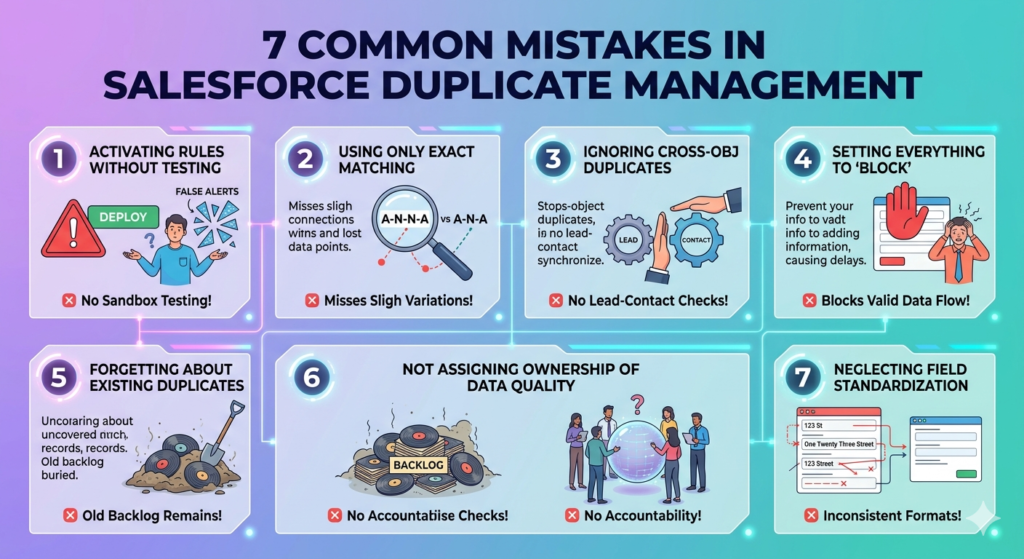
❌ Activating Rules Without Testing
Never activate a duplicate rule in production without thorough testing in a sandbox. A poorly configured rule can block legitimate records or flood users with false alerts.
❌ Using Only Exact Matching
Real-world data is messy. People misspell names, use nicknames, abbreviate company names, and enter phone numbers in different formats. If you rely solely on exact matching, you'll miss the majority of duplicates.
❌ Ignoring Cross-Object Duplicates
Matching Leads only against other Leads is a critical oversight. A Lead and a Contact can represent the same person. Always configure cross-object duplicate rules.
❌ Setting Everything to "Block"
Aggressive blocking can frustrate users and slow down sales processes. Start with alerts, gather data, and escalate to blocking only for rules with high accuracy.
❌ Forgetting About Existing Duplicates
Duplicate rules only prevent new duplicates. They don't clean up records that already exist. Use Duplicate Jobs or third-party tools to address your existing backlog.
❌ Not Assigning Ownership of Data Quality
Data quality is everyone's responsibility, but someone needs to own it. Assign a data steward or data quality team to regularly review Duplicate Record Sets and resolve flagged records.
❌ Neglecting Field Standardization
Duplicate management works best when data entry is consistent. Use picklists instead of free text where possible. Implement validation rules for phone number and email formats. Standardize address formats.
❌ Overlooking Record-Level Security
If your duplicate rule uses "Enforce Sharing Rules," users may not see all potential matches. This could lead to duplicates slipping through. Understand the implications and configure accordingly.
8. Real-World Use Cases
Let's look at how different organizations use Salesforce duplicate management in practice.
Use Case 1: B2B Sales Team Preventing Lead Duplication
Challenge: A SaaS company with 50 sales reps was experiencing constant lead ownership conflicts. Multiple reps were contacting the same prospects.
Solution:
- Activated the standard Lead matching rule (fuzzy match on Name + Email + Company).
- Created a duplicate rule that blocked duplicate Lead creation and alerted on Lead vs. Contact matches.
- Enabled Duplicate Record Sets for review by the sales operations team.
Result: Duplicate leads dropped by 72% in the first quarter. Rep productivity increased as they spent less time researching whether a lead was already being worked.
Use Case 2: Healthcare Organization Maintaining Patient Records
Challenge: A healthcare provider using Salesforce Health Cloud had multiple records for the same patient, leading to incomplete medical histories and compliance risks.
Solution:
- Created a custom matching rule using Patient ID (Exact) and Name + Date of Birth (Fuzzy).
- Configured a duplicate rule to block creation of duplicate patient records.
- Ran Duplicate Jobs to identify and merge 15,000+ existing duplicate records.
Result: Patient record accuracy improved to 99.2%. Compliance audit findings related to data quality dropped to zero.
Use Case 3: Nonprofit Managing Donor Records
Challenge: A nonprofit organization had accumulated years of donor data from events, mailings, and online donations — resulting in thousands of duplicate records and inaccurate donation tracking.
Solution:
- Created matching rules based on Email (Exact) and Name + Mailing Address (Fuzzy).
- Configured duplicate rules to alert users during manual entry and block during bulk imports.
- Used a third-party deduplication tool from AppExchange to merge 8,000 duplicate records.
Result: Donation reporting accuracy improved by 40%. The organization recovered $200,000 in previously untracked recurring donations linked to duplicate records.
Use Case 4: Financial Services Firm with Regulatory Requirements
Challenge: A financial services company needed to maintain unique records for each client to comply with Know Your Customer (KYC) regulations. Duplicate records posed a regulatory risk.
Solution:
- Built custom matching rules using Tax ID (Exact) and Company Name + Address (Fuzzy).
- Set duplicate rules to block on both create and edit.
- Implemented automated flows that routed Duplicate Record Sets to compliance officers for review.
Result: The firm passed its next regulatory audit with zero data quality findings. Client onboarding time decreased by 25% because reps could quickly find existing records instead of creating new ones.
9. Conclusion: Take Control of Your Data Quality Today
Duplicate records aren't just a nuisance — they're a business risk. They undermine trust in your CRM, waste your team's time, and lead to poor customer experiences. But the good news is that Salesforce duplicate management gives you everything you need to fight back.
Here's your action plan:
- Audit your data — Understand the scope of your duplicate problem.
- Configure matching rules — Use a combination of exact and fuzzy matching tailored to your business.
- Set up Salesforce duplicate rules — Start with alerts, then escalate to blocking as you gain confidence.
- Clean up existing duplicates — Use Duplicate Jobs and merge records in Salesforce to consolidate your data.
- Train your team — Make data quality a shared responsibility.
- Monitor continuously — Build reports, review trends, and iterate on your rules.
Don't wait for duplicates to cause the next missed deal, customer complaint, or compliance finding. Start implementing Salesforce duplicate management today and build the foundation for a CRM your team can actually trust.
About RizeX Labs
At RizeX Labs, we specialize in delivering advanced Salesforce solutions, including Salesforce Duplicate Management using powerful matching rules, duplicate rules, and data quality strategies.
Our expertise combines deep technical knowledge, real-world implementation experience, and best practices to help businesses maintain clean, accurate, and reliable CRM data.
We empower organizations to move from messy, duplicate-filled databases to intelligent, automated data management systems that improve efficiency, reporting accuracy, and customer experience.
Internal Links:
- Salesforce Admin course page
- Salesforce Flows vs Apex: When Should You Use Code vs No-Code Automation?
- Salesforce Page Layouts vs Lightning App Builder
- Salesforce Custom Objects: Complete Build Guide for Beginners
- Salesforce Headless 360: The Complete Guide to Building the Agentic Enterprise
- Salesforce Email Templates: Complete Guide (Classic vs Lightning)
- Salesforce Queues: Setup and Use Cases Explained
External Links:
McKinsey Sales Growth Reports