
Introduction: Why Salesforce Admins Hold the Key to AI Adoption
Artificial intelligence is no longer something reserved for data scientists, machine learning engineers, or enterprise development teams with six-figure budgets. Today, Salesforce Einstein for admins represents one of the most accessible, powerful, and practical paths for organizations of every size to bring AI into their daily operations.
Here's the reality that many organizations overlook: the Salesforce admin is often the single most important person in the AI adoption journey. Why? Because admins understand the data. They understand the business processes. They understand the users. And with Salesforce Einstein, they now have the tools to bridge the gap between raw data and intelligent, automated action — all through configuration, not code.
Yet despite this enormous opportunity, a surprising number of Salesforce orgs still haven't activated the Einstein features that are already included in their licenses. According to Salesforce's own ecosystem reports, a significant percentage of organizations with Einstein-eligible editions have never turned on a single AI feature. That's like buying a sports car and never taking it out of first gear.
This guide is designed to change that.
Whether you're a seasoned Salesforce administrator looking to level up, a consultant advising clients on CRM strategy, or a CRM team leader trying to understand what's possible, this Einstein AI admin guide will walk you through five high-impact Einstein features you can enable today. For each feature, we'll cover what it does, why it matters, how to set it up step by step, the practical business benefits it delivers, and the common mistakes to avoid.
By the time you finish reading, you'll have a clear roadmap to enable Einstein Salesforce capabilities that drive real, measurable value — and you'll understand why RizeX Labs believes that every admin should be an AI champion.
Let's dive in.
Understanding Salesforce Einstein: A Quick Overview for Admins
Before we explore the five features in detail, let's establish a shared understanding of what Salesforce Einstein actually is and how it fits into the admin's toolkit.
What Is Salesforce Einstein?
Salesforce Einstein is the artificial intelligence layer built natively into the Salesforce Platform. It's not a single product — it's a collection of AI capabilities embedded across Sales Cloud, Service Cloud, Marketing Cloud, Commerce Cloud, and the Salesforce Platform itself.
Einstein uses machine learning, natural language processing, predictive analytics, and generative AI to help users work smarter, prioritize better, automate routine tasks, and uncover insights that would otherwise remain hidden in mountains of data.
Why Einstein Matters for Admins Specifically
What makes Salesforce Einstein for admins uniquely powerful is the declarative nature of most Einstein features. Salesforce has designed these tools so that admins can:
- Enable AI features through Setup without needing Apex code or custom integrations
- Configure prediction and recommendation models using point-and-click interfaces
- Control data access and permissions to ensure AI operates within governance frameworks
- Monitor model performance through built-in dashboards and metrics
- Iterate and improve based on user feedback and evolving business needs
In other words, Einstein extends the admin's existing superpower — the ability to translate business requirements into platform configuration — into the realm of artificial intelligence.
Einstein Licensing: What's Included?
Einstein features are available across various Salesforce editions and add-on licenses. Some capabilities, like Einstein Activity Capture and certain Einstein Analytics features, are included in specific Sales Cloud and Service Cloud editions. Others, like Einstein Prediction Builder and Einstein Next Best Action, may require additional licensing.
Before enabling any feature, check your org's current licenses in Setup → Company Information or consult with your Salesforce account executive. RizeX Labs also offers complimentary license audits to help organizations understand exactly which Einstein features they already have access to.
Now, let's get into the five features.
Feature 1: Einstein Lead Scoring
What It Does
Einstein Lead Scoring is one of the most immediately impactful AI features available to sales-focused Salesforce admins. It uses machine learning to analyze your historical lead data — looking at which leads converted in the past and which didn't — and then assigns a predictive score to every new and existing lead in your pipeline.
Each lead receives a score from 1 to 99, where higher scores indicate a greater likelihood of conversion. But Einstein doesn't stop at just a number. It also provides scoring factors — plain-language explanations of why a particular lead scored high or low. For example, it might tell you that a lead scored 87 because they're in the technology industry, have a VP-level title, and came in through a webinar registration.
Why It Matters for Your Business
Without lead scoring, sales reps make subjective decisions about which leads to call first. They might default to calling leads in alphabetical order, or they might chase the most recent leads regardless of quality. This wastes time, burns out reps, and leaves high-potential leads sitting untouched.
Einstein Lead Scoring replaces guesswork with data-driven prioritization. The business benefits are substantial:
- Increased conversion rates because reps focus on the leads most likely to convert
- Shorter sales cycles because high-quality leads are contacted faster
- Better alignment between marketing and sales because both teams can see objective quality metrics
- Improved forecasting accuracy because pipeline quality becomes measurable
- Reduced rep burnout because effort is directed where it matters most
How to Enable Einstein Lead Scoring: Step-by-Step Setup
Prerequisites:
- Sales Cloud Einstein license or Einstein Lead Scoring add-on
- At least 1,000 leads created in the last six months
- At least 120 converted leads in that same period
- Lead conversion must follow a consistent process
Setup Steps:
- Navigate to Setup in your Salesforce org
- In the Quick Find box, type "Einstein Lead Scoring"
- Click on Einstein Lead Scoring under the Einstein section
- Click Enable Einstein Lead Scoring
- Salesforce will begin analyzing your historical lead data — this process can take up to 48 hours
- Once the model is built, you'll see a Model Card showing accuracy metrics and the fields Einstein is using
- Add the Einstein Lead Score field to your Lead page layouts and list views
- Create a list view sorted by Einstein Lead Score (descending) for your sales reps
- Optionally, add the Einstein Scoring component to the Lead Lightning record page using the Lightning App Builder
- Set up reports and dashboards to track how scored leads perform over time
Post-Setup Configuration:
- Review the scoring model regularly — Einstein automatically retrains, but you should monitor for accuracy
- Consider creating workflow rules or flows that auto-assign high-scoring leads to senior reps
- Use Einstein Lead Score in your lead assignment rules for smarter routing
Best Practices
- Don't filter out fields prematurely. Let Einstein determine which fields are predictive. Admins sometimes try to restrict the model to only certain fields, but this can reduce accuracy.
- Ensure clean data. Garbage in, garbage out applies to AI more than almost anything else. Standardize picklist values, clean up duplicate leads, and ensure consistent lead source tracking.
- Educate your sales team. Lead scoring only works if reps actually use it. Conduct training sessions explaining what the score means and how to use it in their daily workflow.
- Monitor adoption. Use reports to track whether reps are actually working high-scored leads first.
Common Mistakes to Avoid
- Mistake: Enabling lead scoring without enough historical data. If you don't meet the minimum thresholds, the model will be inaccurate or won't build at all.
- Mistake: Treating the score as an absolute guarantee. A score of 95 doesn't mean the lead will definitely convert — it means the probability is high based on historical patterns.
- Mistake: Ignoring scoring factors. The factors are just as valuable as the score itself because they help reps personalize their outreach.
- Mistake: Not refreshing your understanding of the model. Einstein retrains regularly, so the fields driving the score may change over time. Review the model card quarterly.
Feature 2: Einstein Opportunity Scoring
What It Does
If Einstein Lead Scoring tells you which leads are most likely to convert, Einstein Opportunity Scoring tells you which deals are most likely to close. It's the natural extension of AI-driven prioritization from the top of the funnel to the bottom.
Einstein Opportunity Scoring analyzes your historical opportunity data — examining factors like deal size, stage duration, activity history, account characteristics, and dozens of other variables — to predict the likelihood that each open opportunity will be won. Like lead scoring, it assigns a score from 1 to 99 and provides transparent scoring factors.
Why It Matters for Your Business
Opportunity scoring transforms pipeline management from art into science. Consider these business benefits:
- Sales managers can identify at-risk deals early and intervene before it's too late
- Reps can prioritize their time on deals with the highest probability of closing this quarter
- Revenue forecasting becomes more accurate because predictions are based on data patterns, not gut feelings
- Coaching conversations become more productive because managers can point to specific factors driving a low score
- Pipeline hygiene improves because stale, low-scored opportunities get cleaned up faster
How to Enable Einstein Opportunity Scoring: Step-by-Step Setup
Prerequisites:
- Sales Cloud Einstein license
- At least 200 closed-won and 200 closed-lost opportunities in the past two years
- Opportunities must use standard stages and have a consistent sales process
- Activity tracking (emails, events) improves model accuracy
Setup Steps:
- Go to Setup → Quick Find → type "Einstein Opportunity Scoring"
- Click Enable Einstein Opportunity Scoring
- Einstein will analyze your historical opportunity data — allow up to 48 hours for model creation
- Once the model is ready, review the Model Card to understand accuracy and key predictive fields
- Add the Opportunity Score field to your Opportunity page layout
- In Lightning App Builder, add the Einstein Scoring component to your Opportunity record page for visual score display with factors
- Create Opportunity list views filtered and sorted by Einstein Score
- Build a dashboard for sales managers showing pipeline distribution by score ranges (e.g., 0–25, 26–50, 51–75, 76–99)
- Consider adding score-based alerts using Flow — for example, notify a manager when a previously high-scoring opportunity drops below 50
Advanced Configuration:
- Segment scoring by record type if you have multiple sales processes (e.g., new business vs. renewals)
- Integrate opportunity scores into your forecasting process as a secondary validation layer
- Use opportunity scores in Einstein Analytics (CRM Analytics) dashboards for executive reporting
Best Practices
- Keep your opportunity stages clean and standardized. If reps skip stages or use stages inconsistently, the model's accuracy will suffer.
- Log activities. Einstein considers email and event history when scoring. If your team doesn't log activities, you're leaving predictive power on the table. Consider enabling Einstein Activity Capture to automate this.
- Use scores in coaching, not punishment. The goal is to help reps win more deals, not to penalize them for low-scoring opportunities. Frame the conversation around "what can we do to improve this deal?" rather than "why is your pipeline score so low?"
- Combine with lead scoring for full-funnel intelligence. When both features are active, you get a complete picture of quality from lead creation through deal closure.
Common Mistakes to Avoid
- Mistake: Having too many opportunity stages or stages that don't map to real buyer behavior. Simplify your sales process before enabling scoring.
- Mistake: Not enough closed-lost data. Many orgs are hesitant to mark deals as lost, but Einstein needs both positive and negative examples to learn effectively.
- Mistake: Relying solely on the score without reading the factors. A deal might score low because of a specific, addressable issue — like no recent activity — that a rep can fix immediately.
- Mistake: Not communicating the rollout to the sales team. If scores suddenly appear without context, reps may distrust or ignore them.
Feature 3: Einstein Activity Capture
What It Does
Einstein Activity Capture (EAC) is arguably the most underappreciated Einstein feature — and for many admins, it should be the very first one they enable. It automatically captures emails and calendar events from connected email accounts (Microsoft 365 or Google Workspace) and associates them with the relevant Salesforce records.
But EAC goes beyond simple activity logging. It also powers:
- Automated contacts — new contacts discovered in email signatures can be suggested for creation
- Activity metrics — aggregated activity data feeds into Einstein Opportunity Scoring and other AI models
- Activity timeline enrichment — records show a more complete picture of customer interactions without reps manually logging anything
Why It Matters for Your Business
Let's be honest: manual activity logging is one of the most universally despised tasks in CRM adoption. Reps hate it. Managers know the data is incomplete. And the AI models that depend on activity data are starved of the information they need to make accurate predictions.
Einstein Activity Capture solves this problem at its root. The business benefits include:
- Dramatically improved data completeness — every email and meeting is captured automatically
- Higher CRM adoption — when reps see their activities already logged, they're more likely to engage with Salesforce
- Better AI model accuracy — lead scoring, opportunity scoring, and other Einstein features perform better with rich activity data
- More accurate relationship intelligence — managers can see the true depth of engagement with accounts and contacts
- Time savings — reps reclaim hours each week that were previously spent on manual data entry
How to Enable Einstein Activity Capture: Step-by-Step Setup
Prerequisites:
- Sales Cloud Einstein, Inbox, or High Velocity Sales license (EAC is included in several license types)
- Microsoft 365 or Google Workspace email accounts
- Admin access to configure email integration
Setup Steps:
- Navigate to Setup → Quick Find → type "Einstein Activity Capture"
- Click Einstein Activity Capture Settings
- Click Enable Einstein Activity Capture
- Choose your email service connection — Microsoft 365 or Google Workspace
- For Microsoft 365: Configure the service using OAuth or service account authentication. For Google: Set up using OAuth.
- Define your sync configuration:
- Choose which objects emails and events should be associated with (Contacts, Leads, Accounts, Opportunities)
- Set matching rules for how Einstein links emails to records (by email address matching)
- Decide whether to capture sent emails, received emails, or both
- Configure event sync settings (one-way or two-way calendar sync)
- Assign Einstein Activity Capture configurations to user profiles or permission sets
- Optionally, enable Automated Contacts to let Einstein suggest new contact records from email signatures
- Add the Activity Timeline component to your record pages using Lightning App Builder
- Communicate the rollout to users — let them know their emails and events will now appear automatically on Salesforce records
Privacy and Data Considerations:
- EAC data is stored differently from standard Salesforce activities. Captured emails and events are stored in a separate data store and have different retention and reporting limitations.
- Users can exclude specific emails or domains from capture
- Admins can configure excluded addresses at the org level (e.g., personal email domains, internal HR communications)
- Review your organization's privacy policies and ensure compliance with applicable regulations
Best Practices
- Enable EAC before lead and opportunity scoring. The activity data captured by EAC directly feeds into scoring models, making them significantly more accurate.
- Start with a pilot group. Roll out to a small group of power users first, gather feedback, and refine your configuration before org-wide deployment.
- Configure exclusions thoughtfully. Exclude internal domains, personal email patterns, and sensitive departments to avoid capturing irrelevant or private communications.
- Educate users about privacy. Be transparent about what's being captured and what isn't. Trust is essential for adoption.
- Use the data for coaching. Activity metrics can reveal engagement patterns — for example, deals with fewer than three email touches in the last 30 days might need attention.
Common Mistakes to Avoid
- Mistake: Assuming EAC replaces standard Salesforce activities entirely. Captured activities have different reporting capabilities and are not stored as standard Task or Event records.
- Mistake: Not configuring email matching rules properly. If matching is too loose, emails get associated with wrong records. If too tight, many emails won't match at all.
- Mistake: Forgetting to address user concerns about privacy. If reps feel surveilled, adoption will tank. Be proactive about communication.
- Mistake: Not excluding irrelevant email traffic. Without exclusions, personal emails, newsletter subscriptions, and internal emails can clutter the activity timeline.
Feature 4: Einstein Prediction Builder
What It Does
If the previous features represent Einstein's "off-the-shelf" intelligence, Einstein Prediction Builder is where things get truly exciting for admins who want to go custom.
Einstein Prediction Builder is a point-and-click tool that allows admins to build custom AI prediction models on any standard or custom Salesforce object — without writing any code. You define what you want to predict, point Einstein at your data, and it builds a machine learning model tailored to your specific business question.
Want to predict which customers are likely to churn? Build a prediction. Want to know which cases will escalate? Build a prediction. Want to forecast which products a customer is most likely to purchase next? Build a prediction.
The possibilities are limited only by your data and your imagination.
Why It Matters for Your Business
Einstein Prediction Builder democratizes machine learning for the entire organization. Instead of hiring data scientists or investing in external AI platforms, admins can deliver custom predictive intelligence directly within the workflows where users already work.
Key business benefits include:
- Proactive decision-making — teams can act on predictions before problems materialize or opportunities pass
- Customized AI for your unique business — unlike generic lead and opportunity scoring, Prediction Builder addresses your specific use cases
- Faster time to value — models can be built and deployed in hours or days, not weeks or months
- Reduced costs — no need for external data science tools or consultants for many common prediction needs
- Competitive advantage — organizations that leverage custom predictions operate with intelligence that competitors using generic tools simply don't have
How to Enable Einstein Prediction Builder: Step-by-Step Setup
Prerequisites:
- Einstein Prediction Builder license (included in some editions, available as add-on for others)
- Sufficient historical data for the prediction you want to build (typically at least a few hundred records with known outcomes)
- A clearly defined business question
Setup Steps:
- Go to Setup → Quick Find → type "Einstein Prediction Builder"
- Click Enable Einstein Prediction Builder if not already enabled
- Click New Prediction to start the wizard
- Define your prediction:
- Give it a descriptive name (e.g., "Customer Churn Prediction")
- Choose the object (e.g., Account, Custom Object)
- Select the field you want to predict (must be a checkbox, formula, or picklist field with binary or categorical outcomes)
- For example: Predict whether the "Churned__c" checkbox will be TRUE
- Set your data segment:
- Define which records Einstein should use to train the model
- Filter by record type, date range, or other criteria if needed
- Example: "Only include accounts created in the last three years with at least six months of history"
- Review field selection:
- Einstein will automatically identify which fields are likely to be predictive
- You can exclude fields that shouldn't be considered (e.g., fields that would cause data leakage or are irrelevant)
- Build the model:
- Click Build and let Einstein process your data
- Model building can take several hours depending on data volume
- Review the Scorecard:
- Einstein provides a model quality score and shows which fields are most influential
- If model quality is low, you may need more data or better data quality
- Activate the prediction:
- Once satisfied with model quality, activate the prediction
- Einstein will start scoring records and writing prediction values to your chosen fields
- Add prediction fields to page layouts:
- Add the prediction score and prediction factors to relevant page layouts and Lightning pages
- Create list views, reports, and dashboards based on prediction scores
- Build automation:
- Use Flow to trigger actions based on prediction scores (e.g., auto-create a task for the account team when churn probability exceeds 75%)
Practical Use Case Examples
| Use Case | Object | Prediction Field | Business Impact |
|---|---|---|---|
| Customer churn prediction | Account | Churned__c (Checkbox) | Retain at-risk customers proactively |
| Case escalation prediction | Case | Escalated__c (Checkbox) | Route complex cases to senior agents early |
| Late payment prediction | Invoice (Custom) | Paid_Late__c (Checkbox) | Trigger proactive collections outreach |
| Employee attrition | HR Record (Custom) | Attrition_Risk__c (Checkbox) | Enable HR to intervene before resignation |
| Project delay prediction | Project (Custom) | Delayed__c (Checkbox) | Reallocate resources before deadlines slip |
Best Practices
- Start with a single, well-defined prediction. Don't try to predict everything at once. Pick one high-impact business question and prove value before expanding.
- Ensure your outcome field has clean, balanced data. If 99% of your records have the same outcome, there's not enough variation for Einstein to learn from.
- Avoid data leakage. Don't include fields that are direct consequences of the outcome you're predicting. For example, if predicting churn, don't include a "cancellation date" field — that would leak the answer.
- Iterate and improve. After deploying your first prediction, gather feedback, improve data quality, and refine your model over time.
- Document your predictions. Keep a record of what each prediction does, which fields it uses, and who it's designed for. This is essential for org governance.
Common Mistakes to Avoid
- Mistake: Building a prediction without a clear business question. "I want to predict stuff" is not a valid starting point. Start with a specific question that maps to a specific action.
- Mistake: Not having enough data. Prediction Builder needs a meaningful volume of historical records with known outcomes. A few dozen records won't cut it.
- Mistake: Ignoring model quality scores. If Einstein reports low confidence in the model, don't deploy it. Investigate why the quality is low — it's usually a data issue.
- Mistake: Building predictions and then forgetting about them. Predictions should be integrated into workflows, reports, and daily processes. A prediction that nobody sees or acts on delivers zero value.
Feature 5: Einstein Next Best Action
What It Does
Einstein Next Best Action (NBA) is the feature that completes the intelligence loop. While scoring features tell you what's likely to happen, and Prediction Builder tells you what you want to predict, Next Best Action tells your users what to do about it.
NBA delivers context-specific recommendations and offers directly within the Salesforce record page. These recommendations can be:
- Static strategies — business rules you define that surface specific actions based on record criteria
- Dynamic recommendations — AI-powered suggestions based on predictions, scores, or external model outputs
- Offers — specific products, services, discounts, or actions presented to the user with accept/reject tracking
For example, when a service agent opens a case for a high-value customer whose account has a high churn risk score, NBA can automatically display a recommendation: "Offer this customer a 15% renewal discount and schedule a call with their account manager."
Why It Matters for Your Business
Next Best Action is where AI stops being informational and starts being actionable. The business benefits are transformative:
- Guided selling and service — reps and agents are told exactly what to do, reducing guesswork and training time
- Consistency across the organization — every customer interaction follows best-practice recommendations, regardless of the individual rep's experience level
- Increased upsell and cross-sell revenue — product and service recommendations are presented at the right moment
- Improved customer retention — at-risk customers receive proactive offers and interventions
- Measurable action tracking — every recommendation accepted or rejected is tracked, creating a feedback loop for optimization
How to Enable Einstein Next Best Action: Step-by-Step Setup
Prerequisites:
- Einstein Next Best Action license (included in some editions)
- At least one defined recommendation or strategy
- Lightning Experience enabled
Setup Steps:
- Enable Next Best Action:
- Go to Setup → Quick Find → type "Next Best Action"
- Ensure the feature is enabled for your org
- Create Recommendations:
- Navigate to the Recommendations object (it's a standard Salesforce object)
- Create recommendation records — these are the actual suggestions users will see
- Each recommendation includes:
- Name — descriptive title (e.g., "Offer Premium Upgrade")
- Description — explanation of the recommendation
- Action Reference — optional link to a flow or URL for executing the action
- Image URL — optional visual for the recommendation card
- Acceptance Label — text for the accept button (e.g., "Apply Discount")
- Rejection Label — text for the reject button (e.g., "Not Now")
- Build a Strategy:
- Go to Setup → Quick Find → type "Strategies" or navigate to Einstein Next Best Action Strategies
- Click New Strategy
- Use the Strategy Builder — a visual, drag-and-drop canvas — to define your logic:
- Load — pull in recommendations
- Filter — apply business rules (e.g., only show the upgrade offer to accounts with revenue > $100K)
- Sort/Prioritize — rank recommendations by relevance, score, or custom criteria
- Branch/Merge — create conditional logic paths
- Limit — control how many recommendations are shown
- Save and activate the strategy
- Add the Next Best Action Component to Record Pages:
- Open Lightning App Builder
- Edit the relevant record page (e.g., Account, Contact, Case, Opportunity)
- Drag the Einstein Next Best Action component onto the page
- Configure the component to use your strategy
- Save and activate
- Test and Iterate:
- Open a record that meets your strategy's criteria
- Verify that the correct recommendations appear
- Test the accept and reject flows
- Review recommendation tracking data
Advanced Configuration:
- Integrate with Prediction Builder: Use prediction scores as filter criteria in your strategies. For example, only show churn prevention offers when the churn prediction score exceeds 70%.
- Connect to Flows: Link recommendations to screen flows that guide users through complex actions (e.g., creating a retention case, applying a discount, scheduling a meeting).
- Use external models: If you have AI models built outside Salesforce, you can integrate their outputs through Einstein Discovery or API connections to inform NBA strategies.
Practical Use Case Examples
| Scenario | Recommendation | Trigger Criteria | Expected Outcome |
|---|---|---|---|
| Service retention | "Offer 20% renewal discount" | Churn score > 75, account value > $50K | Reduce churn by addressing at-risk customers |
| Sales upsell | "Recommend Premium Plan upgrade" | Opportunity stage = Negotiation, current plan = Basic | Increase average deal size |
| Onboarding guidance | "Schedule onboarding call" | Account created < 30 days ago, no logged calls | Improve new customer experience |
| Compliance reminder | "Verify customer identity" | Case type = Financial, no verification logged | Ensure regulatory compliance |
| Cross-sell opportunity | "Suggest add-on Product B" | Customer purchased Product A, no Product B | Increase product adoption |
Best Practices
- Start simple. Build one or two strategies with clear, high-impact recommendations before attempting complex multi-branch strategies.
- Make recommendations actionable. Every recommendation should have a clear action the user can take — ideally through a connected flow that guides them through it.
- Track acceptance rates. Monitor which recommendations are accepted vs. rejected. Low acceptance rates indicate the recommendation isn't relevant or well-timed.
- Iterate based on data. Use acceptance/rejection data to refine your strategies. Remove recommendations that are consistently rejected and double down on those that drive results.
- Keep the user experience clean. Don't overwhelm users with too many recommendations. Two or three well-targeted suggestions are far more effective than ten generic ones.
Common Mistakes to Avoid
- Mistake: Creating recommendations that are too vague. "Improve customer relationship" is not actionable. "Schedule a QBR with the customer's VP of Operations" is.
- Mistake: Not connecting recommendations to executable actions. If a user accepts a recommendation but nothing happens, the feature loses credibility instantly.
- Mistake: Over-engineering strategies too early. Start with simple filter-based logic and add complexity only when needed.
- Mistake: Failing to involve business stakeholders. Admins should work with sales, service, and marketing leaders to define what "next best actions" actually look like for each team.
Bringing It All Together: The Einstein Feature Stack
The true power of Salesforce Einstein for admins isn't in any single feature — it's in how these features work together as an integrated intelligence stack.
Here's how the five features we've covered create a virtuous cycle:
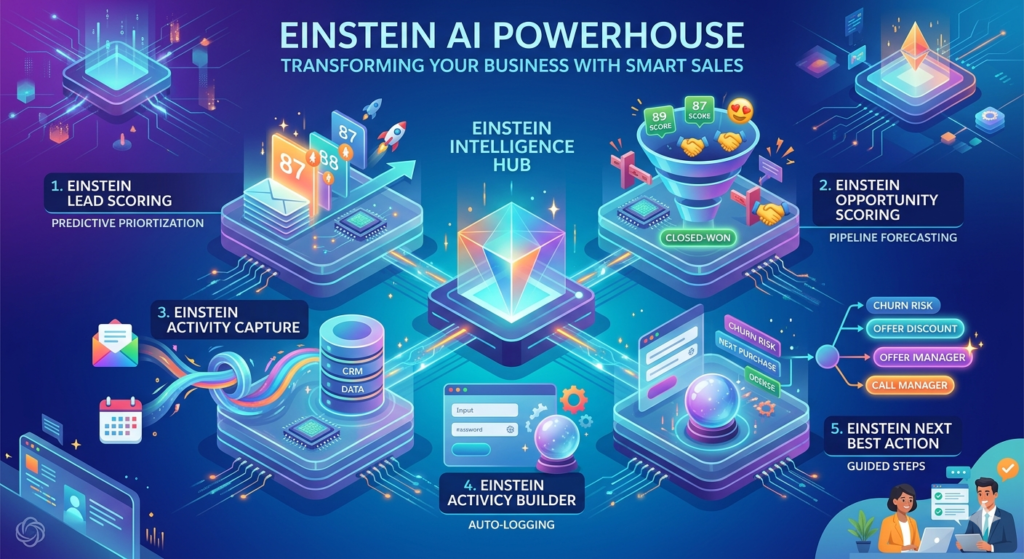
- Einstein Activity Capture automatically collects engagement data from emails and calendars
- Einstein Lead Scoring uses that activity data (plus lead attributes) to prioritize the best leads
- Einstein Opportunity Scoring tracks deal health as leads become opportunities, using activity patterns and deal characteristics
- Einstein Prediction Builder extends predictive intelligence to any custom business question across any object
- Einstein Next Best Action takes all of those insights and translates them into specific, guided recommendations for users
Each layer feeds the next. Activity data improves scoring accuracy. Scoring informs predictions. Predictions power actions. Actions generate new data. The flywheel spins faster over time.
General Best Practices for Enabling Einstein as an Admin
Beyond the feature-specific advice above, here are overarching best practices for any admin embarking on the Einstein journey:
Data Quality Is Non-Negotiable
Every Einstein feature depends on data. Before enabling any AI capability, invest time in:
- Deduplicating records
- Standardizing picklist values
- Filling in missing fields on key objects
- Establishing data entry standards and validation rules
- Implementing ongoing data quality monitoring
Start Small, Prove Value, Then Expand
Don't try to enable all five features simultaneously. Pick the one that aligns most closely with your organization's top priority — whether that's sales pipeline management, customer retention, or operational efficiency — and demonstrate clear ROI before expanding.
Communicate and Train
AI features fail when users don't understand or trust them. Plan for:
- Launch communications explaining what's changing and why
- Training sessions showing users how to interpret and use AI insights
- Feedback channels so users can report issues or confusion
- Regular updates on how AI is impacting business metrics
Governance and Ethics
As an admin, you're responsible for ensuring Einstein operates ethically and within your organization's policies:
- Review which fields Einstein is using in its models — ensure no discriminatory or sensitive fields are inadvertently influencing predictions
- Document your AI configurations and their intended purposes
- Establish a review cadence for model accuracy and fairness
- Stay informed about Salesforce's Trusted AI principles and Einstein's ethical guidelines
Monitor and Iterate
AI is not a "set it and forget it" technology. Schedule regular reviews to:
- Check model accuracy scores and retrain if needed
- Review user adoption of AI features
- Assess business impact through reports and dashboards
- Gather user feedback and make adjustments
- Stay current with new Einstein features in each Salesforce release
Common Mistakes Admins Make When Enabling Einstein (Summary)
To consolidate the lessons from across all five features, here are the most frequent pitfalls:
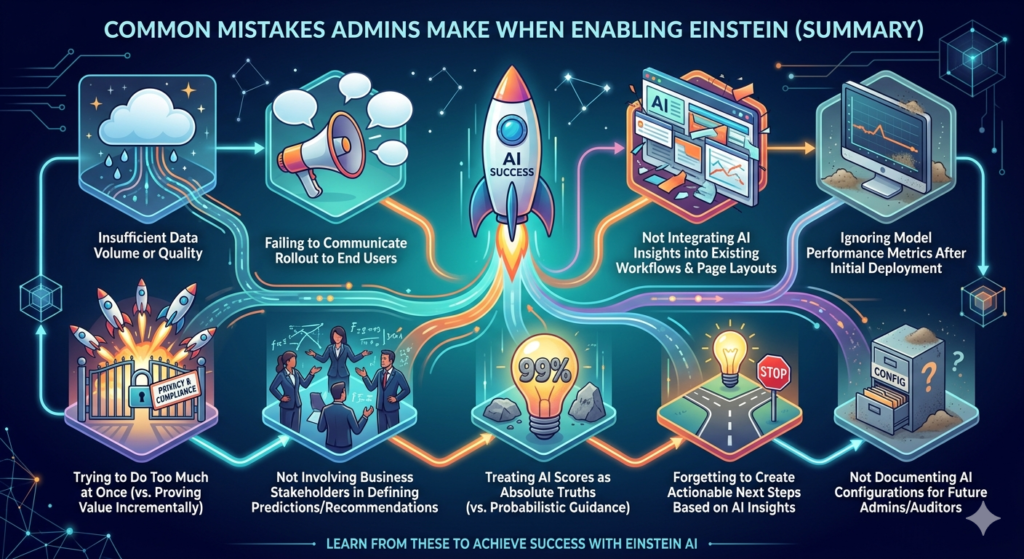
- Enabling AI features without sufficient data volume or quality
- Failing to communicate the rollout to end users
- Not integrating AI insights into existing workflows and page layouts
- Ignoring model performance metrics after initial deployment
- Trying to do too much at once instead of proving value incrementally
- Overlooking privacy and compliance considerations
- Not involving business stakeholders in defining what predictions and recommendations matter
- Treating AI scores as absolute truths rather than probabilistic guidance
- Forgetting to create actionable next steps based on AI insights
- Not documenting AI configurations for future admins and auditors
How RizeX Labs Can Help You Enable Einstein Successfully
At RizeX Labs, we specialize in helping organizations unlock the full potential of their Salesforce investment — and Einstein AI is a central part of that mission.
Our team of certified Salesforce consultants and administrators has helped dozens of organizations across industries to enable Einstein Salesforce features successfully, driving measurable improvements in sales productivity, customer retention, and operational efficiency.
Here's how we can support your Einstein journey:
- Einstein Readiness Assessment — we evaluate your data quality, licensing, and business priorities to create a customized Einstein enablement roadmap
- Implementation and Configuration — we handle the technical setup of all Einstein features, ensuring best practices are followed from day one
- User Training and Change Management — we prepare your teams to embrace AI-driven workflows through comprehensive training programs
- Ongoing Optimization — we monitor model performance, refine strategies, and help you expand Einstein capabilities over time
- Custom AI Solutions — for organizations with unique requirements, we build tailored Prediction Builder models and Next Best Action strategies aligned to specific business outcomes
Whether you're just starting to explore Salesforce Einstein for admins or you're ready to scale AI across your entire org, RizeX Labs is your partner in making it happen.
Conclusion: The Future Belongs to AI-Empowered Admins
The role of the Salesforce admin is evolving. Technical configuration skills remain essential, but the admins who will lead their organizations into the future are those who can harness the power of artificial intelligence — making their orgs smarter, faster, and more predictive.
The five Einstein features we've explored in this Einstein AI admin guide — Lead Scoring, Opportunity Scoring, Activity Capture, Prediction Builder, and Next Best Action — represent an accessible, powerful, and immediately impactful toolkit for any admin ready to take the leap.
The barriers to entry are lower than most people think. You don't need to be a data scientist. You don't need to write code. You don't need a massive budget. You need clean data, a clear business question, and the willingness to experiment and iterate.
Start with one feature. Prove its value. Expand from there. And remember: every day you wait to enable Einstein Salesforce capabilities is a day your organization is making decisions without the intelligence it already has access to.
The future of CRM is intelligent. The future of administration is AI-empowered. And with RizeX Labs by your side, that future starts today.
About RizeX Labs
At RizeX Labs, we specialize in delivering innovative Salesforce solutions that help businesses automate processes, improve productivity, and drive smarter decision-making using AI-powered technologies like Salesforce Einstein.
Our team combines hands-on Salesforce expertise, real-world implementation experience, and industry best practices to help organizations maximize the value of Salesforce AI features across Sales Cloud, Service Cloud, and Marketing Cloud.
We help Salesforce Admins transform manual workflows into intelligent automated systems using Einstein AI capabilities that improve efficiency, data accuracy, forecasting, customer engagement, and operational performance.
Internal Links:
- Salesforce Admin course page
- Salesforce Marketing Cloud vs Pardot: Which Is Right for You in 2026
- Salesforce Marketing Cloud Certification: Study Guide 2026
- SFMC Data Extensions vs Lists: What Every Marketer Should Know
- SFMC Email Content Builder: Best Practices & Templates 2026
- SFMC Query Activity SQL: The Complete Guide to Marketing Cloud SQL for Data-Driven Marketers
- SFMC Einstein Send Time Optimization: How It Works
External Links:
McKinsey Sales Growth Reports