
Introduction: Why Email Templates Matter in Salesforce
In today's fast-paced business environment, effective communication can make or break customer relationships. For organizations using Salesforce CRM, email templates serve as powerful tools that streamline communication, ensure brand consistency, and significantly boost productivity across sales, service, and marketing teams.

Salesforce email templates allow teams to create pre-formatted, reusable email messages that can be personalized with dynamic data from Salesforce records. Rather than crafting similar emails repeatedly, teams can leverage templates to respond faster while maintaining professional, on-brand messaging. This efficiency translates directly into time savings—what once took 10 minutes per email might now take just 30 seconds.
Beyond time savings, email templates ensure messaging consistency across your organization. Whether a customer interacts with sales, support, or account management, they receive cohesive communication that reflects your brand standards. Templates also reduce errors by eliminating manual data entry, automatically pulling accurate information from Salesforce records.
However, not all Salesforce email templates are created equal. The platform offers two distinct frameworks: Classic email templates and Lightning email templates. Understanding the differences between these approaches is crucial for maximizing your Salesforce investment and empowering your teams with the right tools.
This comprehensive guide explores everything you need to know about Salesforce email templates, comparing Classic and Lightning approaches, and providing practical guidance for implementation and optimization.
Understanding Salesforce Email Templates
Salesforce email templates are pre-designed email formats stored within Salesforce that users can quickly access and send to contacts, leads, accounts, and other records. These templates support merge fields—placeholder variables that automatically populate with data from Salesforce records—enabling personalization at scale.
Core Components of Salesforce Email Templates
Merge Fields: These dynamic placeholders pull data directly from Salesforce objects. For example, {!Contact.FirstName} automatically inserts the recipient's first name, while {!Account.AnnualRevenue} might reference account-specific financial data. Merge fields transform generic templates into personalized communications without manual editing.
Template Body: This is the main content area where your message lives. Depending on the template type, you can use plain text, HTML, or visual design tools to craft your message.
Template Metadata: Every template includes administrative details like template name, description, folder location, and availability settings that determine who can access and use the template.
Attachments: Many templates support file attachments, allowing you to include documents, brochures, or other resources with your emails.
How Email Templates Work in Salesforce
When a user selects a template, Salesforce automatically merges data from the related record into the designated merge fields. The user can review the populated email, make any necessary adjustments, and send it directly from Salesforce. This process maintains complete visibility—all sent emails are logged as activities on the corresponding records, creating a comprehensive communication history.
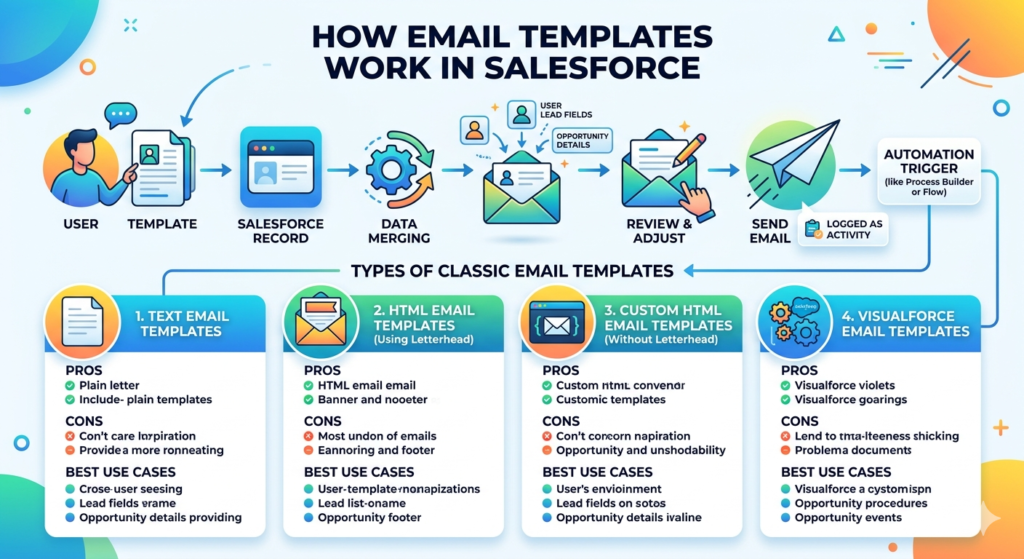
Email templates integrate seamlessly with Salesforce automation tools like Process Builder, Flow, and Apex, enabling automated email communications triggered by specific business events. This automation capability transforms templates from simple time-savers into sophisticated engagement tools.
Types of Classic Email Templates
Salesforce Classic offers four distinct email template types, each designed for specific use cases and technical requirements. Understanding these options helps organizations choose the right template type for their needs.
1. Text Email Templates
Text email templates are the simplest format, containing only plain text without any formatting, images, or HTML elements.
Pros:
- Universal compatibility: Text emails display correctly in all email clients and devices
- Minimal technical skills required: Anyone can create and edit text templates without coding knowledge
- Fast loading: No images or formatting means instant rendering
- Spam filter friendly: Plain text emails typically have better deliverability rates
- Accessibility: Screen readers and assistive technologies handle plain text perfectly
Cons:
- Limited visual appeal: No branding elements, colors, or images
- No formatting options: Cannot bold text, create bullet points, or structure content visually
- Less engaging: May not capture attention as effectively as designed emails
- Professional limitations: May appear less polished for certain business communications
Best Use Cases: Internal notifications, simple confirmations, follow-up reminders, and situations where simplicity and deliverability are priorities.
2. HTML Email Templates (Using Letterhead)
HTML templates with letterhead combine custom-designed headers and footers (the letterhead) with HTML content in between, offering branded communications with moderate design flexibility.
Pros:
- Brand consistency: Letterheads ensure all emails include standard branding elements
- Professional appearance: Formatted text, colors, and images create polished communications
- Reusable branding: Create one letterhead and apply it across multiple templates
- Moderate technical requirements: Basic HTML knowledge helpful but not mandatory for simple templates
- Merge field support: Full access to dynamic Salesforce data
Cons:
- Two-step creation process: Must create letterhead first, then build templates
- Design limitations: Letterhead framework constrains certain design choices
- HTML knowledge helpful: More complex designs require coding skills
- Rendering inconsistencies: Different email clients may display HTML differently
- Maintenance overhead: Updates to branding require letterhead modifications
Best Use Cases: Standard business communications like proposal submissions, welcome emails, meeting confirmations, and customer outreach where brand representation matters.
3. Custom HTML Email Templates (Without Letterhead)
Custom HTML templates provide complete creative control, allowing developers to code emails from scratch without the letterhead framework.
Pros:
- Complete design freedom: Build any layout, structure, or design imaginable
- Advanced functionality: Incorporate complex HTML, CSS, and responsive design
- No structural constraints: Not limited by letterhead framework
- Pixel-perfect branding: Implement exact brand specifications
- Optimal for unique designs: Perfect for special campaigns or unique communication needs
Cons:
- Requires HTML expertise: Must understand HTML and email-specific coding practices
- Time-intensive development: Building from scratch takes significantly longer
- Testing complexity: Must test across multiple email clients and devices
- Maintenance challenges: Code-level changes needed for updates
- No visual editor: Must work directly in code, no drag-and-drop interface
Best Use Cases: Highly specialized communications, newsletter templates, campaign-specific emails, and situations where unique design is critical and development resources are available.
4. Visualforce Email Templates
Visualforce email templates leverage Salesforce's Visualforce framework, enabling advanced programmatic control and complex data relationships.
Pros:
- Maximum flexibility: Access to Apex controllers and complex business logic
- Advanced data handling: Query and display data from multiple objects and relationships
- Conditional content: Show/hide content based on complex criteria
- Custom calculations: Perform computations within the template
- Enterprise-grade capabilities: Support sophisticated business requirements
Cons:
- Requires development skills: Must understand Visualforce and potentially Apex
- Longest development time: Most complex to build and maintain
- Debugging complexity: Troubleshooting requires technical expertise
- Overkill for simple needs: Unnecessarily complicated for straightforward emails
- Governor limits apply: Must consider Salesforce execution limits
Best Use Cases: Complex invoices, detailed reports, multi-object summaries, highly conditional communications, and enterprise applications requiring programmatic control.
Lightning Email Templates and Salesforce Email Builder
Lightning email templates represent Salesforce's modern approach to email communications, featuring the intuitive Salesforce Email Builder—a drag-and-drop visual design tool that democratizes email creation.
What are Lightning Email Templates?
Lightning email templates are enhanced email templates designed specifically for the Lightning Experience interface. Built using the Lightning Email Builder, these templates offer improved usability, better mobile responsiveness, and enhanced integration with Lightning-specific features.
Unlike Classic templates that require choosing between different template types, Lightning simplifies the approach with a unified template creation experience that accommodates users across technical skill levels.
Introducing Salesforce Email Builder
The Salesforce Email Builder is a visual email design tool that enables users to create professional, responsive emails without writing code. Using an intuitive drag-and-drop interface, users can assemble emails by adding content blocks like text, images, buttons, and HTML components.
Key Features of Salesforce Email Builder:
Visual Drag-and-Drop Interface: Simply drag content modules onto the canvas and arrange them as desired. No coding required for standard layouts and content.
Pre-built Content Components: Access a library of ready-made components including text blocks, images, buttons, dividers, social media links, and more.
Responsive Design: Templates automatically adapt to different screen sizes, ensuring proper display on desktop, tablet, and mobile devices.
Rich Text Formatting: Format text with various fonts, sizes, colors, alignment options, and styles using familiar word-processor-like controls.
Image Management: Upload images directly, reference existing Salesforce files, or link to external image URLs.
Merge Field Integration: Easily insert merge fields through a searchable interface, with clear field labels instead of API names.
Template Preview: See exactly how your email will appear before sending, with options to preview desktop and mobile views.
Brand Asset Management: Store brand colors, logos, and design elements for consistent reuse across templates.
HTML Component Option: For advanced users, insert custom HTML components alongside visual elements for maximum flexibility.
Advanced Lightning Email Capabilities
Lightning email templates include several advanced features that enhance functionality:
Dynamic Content Sections: Show different content to different recipients based on field values or criteria, enabling sophisticated personalization within a single template.
Related List Support: Include data from related records, such as listing opportunity products or case comments within emails.
Enhanced Attachment Handling: Attach files from Salesforce Files, Content, or upload new documents directly when sending.
Team Collaboration: Lightning templates support better collaboration with improved folder organization and sharing capabilities.
Activity Timeline Integration: Sent emails appear prominently in record timelines, providing better visibility into communication history.
Classic vs Lightning Email Templates: Key Differences
Understanding the distinctions between Classic and Lightning email templates helps organizations make informed decisions about which approach best serves their needs.
| Feature | Classic Email Templates | Lightning Email Templates |
|---|---|---|
| User Interface | Text-based, form-driven interface requiring navigation through multiple screens | Modern drag-and-drop visual builder with intuitive design canvas |
| Template Types | Four distinct types: Text, HTML with Letterhead, Custom HTML, Visualforce | Unified template type with flexibility for various complexity levels |
| Creation Experience | Requires understanding of template types, HTML for advanced designs, and letterhead creation | Visual, intuitive creation process accessible to non-technical users |
| Mobile Responsiveness | Not automatically responsive; requires manual coding for mobile optimization | Automatically responsive design adapts to all device sizes |
| Merge Field Insertion | Manual field API name entry or selection from technical dropdown menus | User-friendly searchable interface with field labels |
| Content Components | Limited to text and images; custom components require HTML coding | Pre-built components for text, images, buttons, social links, dividers, HTML, and more |
| Preview Capability | Basic text preview; HTML rendering requires sending test emails | Comprehensive preview showing desktop and mobile views before sending |
| Brand Management | Letterhead system for branding; requires separate letterhead creation and management | Integrated brand asset storage with easy application across templates |
| Dynamic Content | Requires Visualforce for conditional content display | Built-in dynamic content sections based on recipient criteria |
| Learning Curve | Steeper learning curve, especially for HTML and Visualforce templates | Gentle learning curve with intuitive visual tools |
| Collaboration | Basic folder-based organization and sharing | Enhanced folder structure, better sharing, and improved team collaboration |
| Future Development | Legacy system with minimal new feature development | Active development with ongoing enhancements and new capabilities |
| API Access | Full API support for programmatic template management | Full API support with additional Lightning-specific endpoints |
| Email Client Compatibility | Depends on HTML quality; potential rendering issues | Better cross-client compatibility with modern HTML standards |
| Attachment Management | Basic attachment functionality | Enhanced attachment options including Salesforce Files integration |
| Performance | Generally fast, depending on Visualforce complexity | Optimized performance with efficient rendering |
How to Create Email Templates in Lightning: Step-by-Step Guide
Creating effective Lightning email templates is straightforward with the Salesforce Email Builder. Follow this comprehensive guide to build your first Lightning template.

Step 1: Access the Lightning Email Template Creation Interface
- Navigate to Setup (click the gear icon in the top-right corner)
- In the Quick Find box, type "Classic Email Templates" or "Lightning Email Templates"
- Select Classic Email Templates (even in Lightning, this is often the menu name)
- Click the New Template button
- In Lightning Experience, you'll be guided to the Lightning Email Builder
Alternative Path:
- From any record page, click the Activity tab
- Select Email
- Click Select a Template
- Choose New Template from the template picker
Step 2: Configure Template Settings
Before designing your email, configure the essential template metadata:
Template Name: Create a clear, descriptive name that helps users identify the template's purpose (e.g., "Welcome Email - New Customers" or "Follow-up - Product Demo")
Description: Add detailed notes about when and how to use this template, any special instructions, or important considerations
Folder Selection: Choose the folder where this template will be stored. Folder choice determines who can access the template:
- Personal Folders: Only you can access and use
- Public Folders: All users with appropriate permissions can access
- Shared Folders: Specific users or groups have access
Available for Use: Check this box to make the template active and available for users to select when sending emails
Email Subject: Enter the subject line, including merge fields as needed (e.g., "Welcome to [Company], {!Contact.FirstName}!")
Step 3: Design Your Email Using the Email Builder
Now comes the creative part—building your email content:
Select Template Layout: Choose a starting structure:
- Blank Template: Start with an empty canvas for complete creative control
- Pre-built Templates: Select from Salesforce-provided templates as starting points
- Custom Templates: Use previously saved templates from your organization
Add Content Components: From the component panel on the left, drag elements onto your canvas:
- Text: Add formatted text blocks with rich text editing capabilities
- Image: Insert visual elements, logos, or graphics
- Button: Create clickable call-to-action buttons
- Divider: Add visual separation between sections
- Social Media: Include social media links with icon options
- HTML: Insert custom HTML code for advanced functionality
Customize Each Component:
- Click any component to reveal formatting options
- Adjust fonts, sizes, colors, alignment, padding, and margins
- Set background colors for individual sections or entire rows
- Configure button links, colors, and styles
- Size and position images appropriately
Insert Merge Fields:
- Place your cursor where you want personalized data
- Click the Merge Field button or icon
- Search for the desired field (e.g., "First Name", "Company")
- Select the appropriate field from the results
- The merge field appears in your content as
{!Contact.FirstName}
Pro Tip: Always include fallback text for merge fields that might be empty: "Hello {!Contact.FirstName}" might become "Hello [empty]" if no first name exists. Consider using: "Hello {!IF(Contact.FirstName != "", Contact.FirstName, "there")}"
Step 4: Configure Advanced Options
Lightning email templates support several advanced features:
Dynamic Content Sections:
- Add a section to your email
- Click the section settings
- Select "Make this section dynamic"
- Define rules determining what content different recipients see
- Create variations for each rule
Related List Content:
- Insert a Related List component
- Choose the related object (e.g., Opportunity Products)
- Select which fields to display
- Configure formatting and layout
Responsive Design Settings:
- Most components automatically adjust for mobile
- Review mobile preview to ensure optimal display
- Adjust padding and sizing if needed for better mobile experience
Step 5: Preview Your Template
Before saving, thoroughly preview your template:
- Click the Preview button in the top-right corner
- Review the Desktop preview for standard email client display
- Switch to Mobile preview to see smartphone rendering
- Check that all merge fields display correctly (shown with sample data)
- Verify images load properly
- Test all button links and functionality
- Review text formatting, spacing, and visual hierarchy
Step 6: Save and Test Your Template
Once satisfied with your design:
- Click Save to store your template
- Navigate to a test record (contact or lead)
- Click Send Email from the activity tab
- Select your new template
- Review how merge fields populate with actual record data
- Send a test email to yourself or a test account
- Open the email in multiple email clients (Gmail, Outlook, mobile) to verify rendering
- Check all links, images, and formatting
Important Testing Checklist:
- Merge fields populate correctly with actual data
- Images display (not blocked or broken)
- Links work as intended
- Mobile display is readable and professional
- Subject line displays properly
- Attachments (if any) are included
- Email doesn't trigger spam filters (use testing tools)
Step 7: Organize and Share Templates
After creating and testing your template:
Organization: Move the template to the appropriate folder if needed. Well-organized templates are easier for teams to find and use.
Permissions: Verify that the right users have access:
- Adjust folder permissions if needed
- Consider creating role-specific folders for different teams
- Document template usage guidelines
Documentation: Create a simple guide explaining:
- When to use this template
- Any required customizations before sending
- Which merge fields are included
- Any special considerations
Best Practices for Salesforce Email Templates
Implementing these best practices ensures your Salesforce email templates deliver maximum value while maintaining professional quality.
1. Establish Clear Naming Conventions
Consistent naming helps teams quickly locate appropriate templates:
Recommended Format: [Team/Purpose] - [Use Case] - [Variation]
Examples:
Sales - Welcome Email - New LeadSupport - Case Resolution - Satisfied CustomerMarketing - Event Invitation - Webinar
Additional Tips:
- Include dates for time-sensitive templates (e.g., "2024 Q1 Promotion")
- Use prefixes to group related templates
- Avoid generic names like "Template 1" or "Email"
- Include version numbers for templates under development
2. Implement Smart Merge Field Usage
Merge fields personalize communications but require thoughtful implementation:
Always Include Fallback Values: Use formula merge fields to provide defaults when data is missing:
text{!IF(LEN(Contact.FirstName) > 0, Contact.FirstName, "Valued Customer")}
Test with Incomplete Data: Verify templates display properly even when some fields are empty.
Don't Overuse Personalization: Too many merge fields can make emails feel robotic rather than personal. Balance automation with authentic tone.
Validate Data Quality: Poor data quality creates embarrassing emails. Implement data hygiene practices before deploying templates.
Use Appropriate Fields: Match merge fields to the email context—don't reference opportunity fields in support case emails.
3. Optimize for Mobile Devices
With over 50% of emails opened on mobile devices, mobile optimization is non-negotiable:
Keep Subject Lines Under 40 Characters: Longer subjects get truncated on mobile screens.
Use Single-Column Layouts: Multi-column designs often break on small screens.
Larger Font Sizes: Minimum 14-16pt for body text ensures readability without zooming.
Finger-Friendly Buttons: Make clickable elements at least 44x44 pixels for easy tapping.
Minimal Images: Large images slow loading on cellular connections.
Test Extensively: Preview templates on actual mobile devices before deployment.
4. Maintain Brand Consistency
Templates should reflect your organization's brand identity:
Create Brand Guidelines Document: Define approved colors, fonts, logos, tone, and messaging standards.
Use Standardized Headers/Footers: Include consistent branding elements in every template.
Limit Font Variety: Stick to 2-3 approved fonts maximum across all templates.
Color Palette: Use your brand's official color scheme consistently.
Voice and Tone: Establish guidelines for how your brand communicates in different situations (formal, friendly, technical, etc.).
Legal Requirements: Include necessary disclaimers, unsubscribe options (if applicable), and regulatory compliance elements.
5. Keep Subject Lines Compelling
Subject lines determine whether emails get opened:
Be Specific and Clear: Vague subjects get ignored. Tell recipients exactly what the email contains.
Create Urgency When Appropriate: Time-sensitive emails should communicate urgency: "Tomorrow's Webinar: Final Reminder"
Personalize Strategically: Including the recipient's name or company can increase open rates.
Avoid Spam Triggers: Words like "FREE", "ACT NOW", or excessive punctuation trigger spam filters.
Test Subject Lines: A/B test different approaches to identify what resonates with your audience.
Optimal Length: Aim for 6-10 words or 40-50 characters for best results.
6. Implement Template Governance
Proper governance ensures template quality and appropriate usage:
Approval Process: Establish review workflows before templates become available to all users.
Regular Audits: Quarterly review templates for:
- Accuracy of information
- Broken links or outdated content
- Usage statistics (archive unused templates)
- Alignment with current branding
Access Controls: Not all users need access to all templates. Implement permission structures that match organizational roles.
Version Control: When updating templates, document changes and maintain previous versions temporarily.
Archive Old Templates: Don't delete; archive outdated templates to maintain historical records.
7. Focus on Accessibility
Accessible emails ensure all recipients can engage with your content:
Alt Text for Images: Provide descriptive alternative text for every image.
Logical Reading Order: Structure content so screen readers interpret it correctly.
Sufficient Color Contrast: Ensure text is readable against background colors (WCAG AA standard: 4.5:1 ratio).
Avoid Color-Only Communication: Don't rely solely on color to convey meaning (e.g., "click the red button").
Descriptive Link Text: Instead of "click here," use "download the product brochure."
Table Structures: Use proper HTML table markup for data tables.
8. Test Thoroughly Across Email Clients
Email rendering varies significantly across platforms:
Priority Testing Environments:
- Gmail (web and mobile app)
- Outlook (various versions)
- Apple Mail (Mac and iOS)
- Mobile email apps (iOS Mail, Gmail app, Outlook app)
Testing Tools: Use email testing services like Litmus or Email on Acid to preview rendering across dozens of clients simultaneously.
Common Issues to Check:
- Image blocking/loading
- Font substitutions
- Button rendering
- Layout breaking
- Link functionality
9. Optimize Send Timing
Template design is only part of the equation—timing matters:
Track Engagement Metrics: Monitor when your emails get the highest open and response rates.
Consider Time Zones: For geographically distributed audiences, time zone awareness prevents 3 AM emails.
Industry-Specific Patterns: B2B emails often perform best Tuesday-Thursday mid-morning, while consumer patterns vary.
Avoid Weekends and Holidays: Unless your specific audience engages more during these times.
10. Measure and Iterate
Continuous improvement requires data-driven decision making:
Key Metrics to Track:
- Open rates
- Click-through rates
- Response rates
- Conversion rates (for sales templates)
- Time-to-response (for support templates)
A/B Testing: Systematically test variations in:
- Subject lines
- Email length
- Call-to-action placement and wording
- Personalization levels
- Visual design elements
Gather User Feedback: Ask team members using templates:
- Which templates are most effective?
- Which are confusing or difficult to use?
- What additional templates are needed?
- What improvements would help?
Regular Optimization: Schedule quarterly template reviews to implement improvements based on performance data.
Business Use Cases for Salesforce Email Templates
Salesforce email templates deliver value across numerous business scenarios. Understanding these use cases helps organizations identify opportunities for template implementation.
Lead Nurturing and Sales Prospecting
Initial Outreach Templates: First-touch emails introducing your company to new leads require careful crafting. Templates ensure consistent messaging while allowing sales reps to personalize key details. Include merge fields for lead name, company, industry, and specific pain points identified during research.
Follow-Up Sequences: After initial contact, systematic follow-up increases conversion rates. Create template sequences for:
- Post-demo follow-up with resources and next steps
- Check-in emails when leads go quiet
- Value-add content sharing (relevant articles, case studies)
- Meeting scheduling requests
Proposal Delivery: Standardize how sales proposals are delivered with templates that set proper expectations, explain next steps, and maintain professionalism.
Objection Handling: Common objections (pricing concerns, timing issues, competitor comparisons) benefit from thoughtfully crafted template responses that sales can customize.
Win/Loss Follow-Up: Regardless of outcome, professional follow-up maintains relationships. Templates for won deals initiate the customer onboarding process, while lost opportunity templates keep doors open for future engagement.
Customer Support and Service
Case Creation Confirmation: When customers submit support cases, immediate acknowledgment builds confidence. Automated templates confirm receipt, provide case numbers, set response time expectations, and offer self-service resources.
Status Update Communications: Keep customers informed throughout case resolution with templates for:
- Investigation in progress
- Escalation notifications
- Waiting for external dependencies
- Resolution expected timelines
Case Resolution: Standardized case closure emails summarize the resolution, confirm customer satisfaction, provide documentation, and invite feedback.
Knowledge Article Sharing: When support reps identify relevant knowledge articles, templates make sharing easy while maintaining professional communication.
Customer Satisfaction Surveys: Post-resolution survey requests benefit from consistent, well-crafted templates that maximize response rates.
Known Issue Notifications: When widespread issues affect multiple customers, templates enable rapid communication to all affected parties with consistent messaging about the problem, impact, and resolution timeline.
Customer Success and Account Management
Onboarding Sequences: New customer success begins with structured onboarding. Templates guide customers through:
- Welcome and kickoff information
- Training resource delivery
- Milestone check-ins
- First-month success tips
Business Review Invitations: Quarterly or annual business reviews require professional scheduling communications that templates standardize while allowing personalization.
Renewal Reminders: Proactive renewal conversations start with well-timed templates that reference account history, highlight value delivered, and propose next steps.
Upsell and Cross-Sell: When customer success identifies expansion opportunities, templates help initiate these conversations professionally with relevant product information and personalization based on usage patterns.
Milestone Celebrations: Recognizing customer achievements (anniversaries, usage milestones, successful outcomes) builds loyalty. Templates make these recognitions consistent yet personal.
Marketing Automation and Campaigns
Event Invitations: Webinar, conference, and event invitations benefit from visually appealing templates that clearly communicate value propositions, logistics, and registration processes.
Event Follow-Up: Post-event engagement maintains momentum with templates for:
- Thank you messages to attendees
- Recording and resource sharing
- No-show re-engagement
- Next event invitations
Content Distribution: When distributing whitepapers, ebooks, case studies, or blog posts, templates ensure consistent, professional delivery while tracking engagement.
Newsletter Templates: Regular communication with prospects and customers through newsletters requires reliable, brand-consistent templates.
Campaign Responses: Marketing campaigns generate inquiries requiring prompt responses. Templates ensure quick, consistent replies while routing leads appropriately.
Internal Communications
New Employee Onboarding: HR and IT teams use templates to deliver consistent onboarding communications, welcome messages, system access instructions, and training schedules.
System Maintenance Notifications: IT departments notify users of scheduled maintenance, system changes, or new feature releases using standardized templates.
Policy Updates: HR communicates policy changes, benefit enrollment periods, and compliance requirements through approved templates.
Team Announcements: Standardized templates for common internal communications (meeting reminders, project updates, team wins) save time while maintaining professionalism.
E-commerce and Transactional Communications
Order Confirmations: Immediate order confirmation emails reassure customers and provide transaction details via merge fields pulling order data.
Shipping Notifications: Templates inform customers when orders ship, providing tracking information and delivery estimates.
Return and Refund Processing: Standardized communications for returns, refunds, and exchanges maintain customer satisfaction during potentially frustrating situations.
Abandoned Cart Recovery: For e-commerce implementations, automated abandoned cart emails encourage purchase completion with personalized product information.
Partner and Channel Management
Partner Onboarding: Bring new partners into your ecosystem with structured onboarding templates covering training, resources, and expectations.
Deal Registration: Streamline partner deal registration processes with clear, consistent templates explaining next steps and requirements.
MDF Request Communications: Marketing development fund requests and approvals benefit from standardized templates that ensure all necessary information is communicated.
Partner Performance Reviews: Regular partner business reviews use templates to maintain consistency while incorporating partner-specific performance data through merge fields.
Conclusion: Embrace Lightning Email Templates for Modern Business Communication
As we've explored throughout this comprehensive guide, Salesforce email templates represent far more than simple time-saving tools—they're strategic assets that enhance communication quality, ensure brand consistency, and enable scalable personalization across your organization.
The evolution from Classic to Lightning email templates marks a significant advancement in usability and capability. While Classic templates served organizations well for years, Lightning email templates offer compelling advantages that make them the clear choice for forward-thinking businesses:
Accessibility for All Users: The visual, drag-and-drop Salesforce Email Builder democratizes email template creation. Marketing teams, sales representatives, customer success managers, and support agents can all create professional, effective templates without requiring technical expertise or HTML knowledge. This democratization reduces bottlenecks, accelerates template deployment, and empowers teams to optimize their communications.
Mobile-First Design: In an era where more than half of all emails are opened on mobile devices, Lightning templates' automatic mobile responsiveness isn't optional—it's essential. The framework ensures your communications display beautifully across devices without manual coding, protecting your professional image and maximizing engagement.
Future-Proof Investment: Salesforce continues investing heavily in Lightning Experience, regularly releasing enhancements and new capabilities. Classic templates, conversely, represent legacy technology receiving minimal updates. Adopting Lightning templates positions your organization to leverage future innovations as Salesforce releases them.
Enhanced Productivity: The intuitive interface, comprehensive preview capabilities, improved merge field selection, and streamlined creation process combine to dramatically reduce template development time. What once required hours of HTML coding and testing can now be accomplished in minutes through visual design.
Superior Collaboration: Lightning templates support better team collaboration through improved organization, sharing capabilities, and more intuitive access controls. Marketing can create brand-approved templates that sales and support teams easily find and deploy, ensuring messaging consistency while maintaining departmental autonomy.
Better User Experience: For the team members using templates daily, Lightning offers a markedly superior experience. Finding templates, previewing before sending, customizing content, and managing attachments all feel more intuitive and efficient in Lightning, leading to higher adoption and more consistent usage.
Making the Transition
If your organization currently relies on Classic email templates, transitioning to Lightning requires planning but delivers substantial returns:
Audit Existing Templates: Review your current Classic templates to identify which remain relevant, which need updating, and which can be retired.
Prioritize Recreation: Start by recreating your most-used templates in Lightning, delivering immediate value to the largest user base.
Train Users: Invest in training to help teams understand Lightning Email Builder capabilities and best practices.
Establish Governance: Implement the template governance practices outlined in this guide to maintain quality and consistency.
Measure Impact: Track metrics like time-to-create templates, user adoption rates, and email engagement metrics to quantify the transition's value.
Final Recommendations
Based on the comprehensive analysis presented in this guide, our strong recommendation is clear: organizations should prioritize Lightning email templates for all new template development and systematically transition existing Classic templates to Lightning.
The combination of superior usability, mobile optimization, ongoing platform investment, and enhanced capabilities makes Lightning templates the definitive choice for modern Salesforce implementations. While Classic templates will continue functioning, they represent increasingly outdated technology that limits your organization's communication effectiveness.
Start small if needed—create one Lightning template as a proof of concept, gather user feedback, and refine your approach. Then scale template creation across your organization, empowering teams with tools that enhance rather than complicate their work.
Email remains one of business's most important communication channels. Salesforce email templates, particularly Lightning templates with the powerful Email Builder, transform this channel from a manual, time-consuming necessity into a strategic advantage that enhances customer relationships, accelerates business processes, and reinforces your brand at every touchpoint.
The question isn't whether to implement Lightning email templates—it's how quickly you can deploy them to start realizing the substantial benefits they offer your organization, your teams, and ultimately, your customers.
About RizeX Labs
At RizeX Labs, we specialize in delivering cutting-edge Salesforce solutions, including advanced email automation and communication workflows within Salesforce. Our expertise combines deep technical knowledge, industry best practices, and real-world implementation experience to help businesses streamline communication, improve engagement, and boost productivity.
We empower organizations to transform their email processes—from manual and inconsistent messaging to fully automated, personalized, and scalable email systems that drive efficiency and customer satisfaction.
Internal Links:
- Salesforce Admin course page
- Salesforce Flows vs Apex: When Should You Use Code vs No-Code Automation?
- Salesforce Data Cloud Explained — What It Is and Why It Matters
- AI Tools for Salesforce Development in 2026 — Cursor AI, Copilot and More
- Why Your Company Should Invest in Salesforce Developer Training in 2026
- Salesforce Named Credentials: What They Are and How to Use Them Safely
- Prompt Engineering for Salesforce Agentforce — Beginner's Guide
External Links:
McKinsey Sales Growth Reports