
Stop Guessing Who Has Access to What in Your Org
If you’ve ever inherited a Salesforce org where every user has a custom profile, cloned from another custom profile, cloned from yet another custom profile — you already know the pain. Access control in Salesforce isn’t just an administrative task. It’s the foundation of your security model, your compliance posture, and frankly, your sanity as an admin or developer.
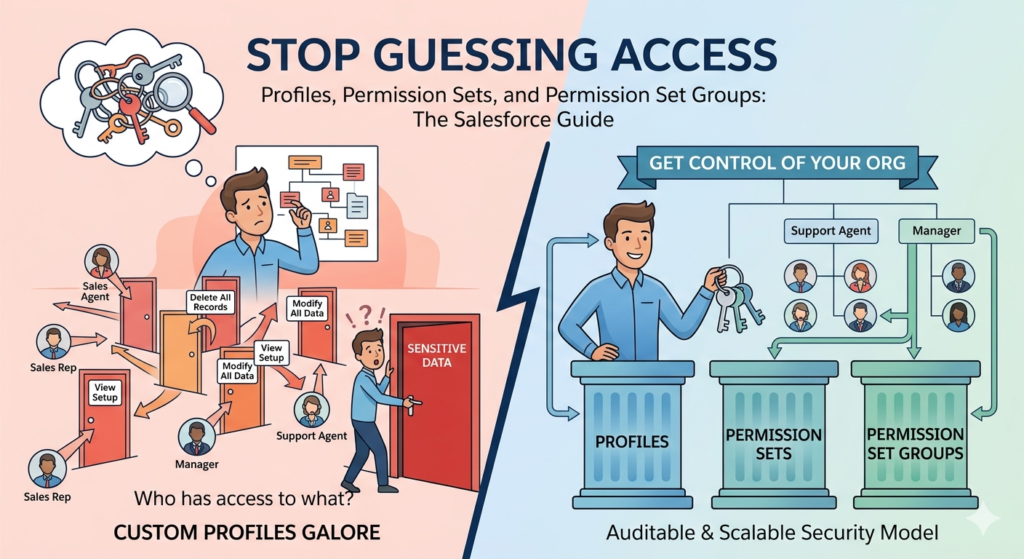
Get it wrong, and you end up with sales reps who can delete records they shouldn’t touch, or support agents who can’t see the data they need to do their jobs. Get it right, and you have a clean, scalable, auditable system that grows with your business.
This guide breaks down the Salesforce security model at its core — Profiles, Permission Sets, and Permission Set Groups — with real examples, clear comparisons, and actionable guidance you can apply immediately.
Why User Access Control in Salesforce Actually Matters
Before diving into the mechanics, let’s establish why this deserves serious thought.
Salesforce stores sensitive data — customer records, deals, financials, support cases, health information (in some industries), and more. Who can see, edit, create, or delete that data has legal and business consequences. GDPR, HIPAA, SOC 2, and other compliance frameworks explicitly require organizations to enforce the principle of least privilege — meaning users should have access to only what they need to perform their job.
Beyond compliance, poor access control creates operational problems:
- Data integrity issues when the wrong people can modify records
- Reporting inaccuracies when visibility isn’t scoped correctly
- Security vulnerabilities when overprivileged users are compromised
- Maintenance nightmares when access is scattered across dozens of poorly documented profiles
Understanding Salesforce profiles vs permission sets — and where permission set groups fit in — is the first step toward building a system that’s both secure and maintainable.
What Are Salesforce Profiles?
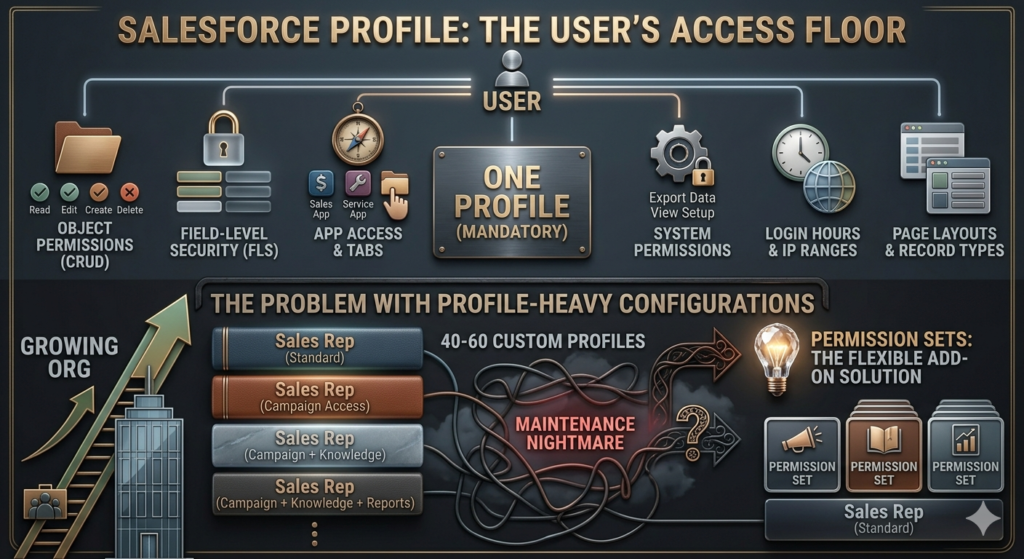
The Baseline of Every User’s Access
A Profile in Salesforce is a mandatory configuration object assigned to every user. No user can exist in Salesforce without a profile. Think of a profile as the floor — it defines the minimum (and sometimes maximum) set of permissions a user has within the system.
Every user gets exactly one profile, and that profile controls several critical settings:
What Profiles Control
Object-Level Permissions (CRUD)
Profiles define whether a user can Create, Read, Edit, and Delete records for each standard and custom object. For example, your “Sales Rep” profile might allow users to Create and Read Opportunities but not Delete them.
Field-Level Security (FLS)
Profiles control which fields on an object are visible or editable. You might want your sales team to see the “Discount Percentage” field on an Opportunity but not be able to edit it — FLS handles that.
App Access
Which apps appear in the App Launcher? Profiles control this. A user with a “Marketing User” profile won’t necessarily see the Field Service app.
Tab Visibility
Even if a user has access to an object, you can control whether the corresponding tab appears in the UI.
System Permissions
These are broader capabilities — like whether a user can export data, modify all data, view setup and configuration, or manage other users.
Login Hours and IP Ranges
Profiles allow you to restrict when and from where users can log in. This is a common security control for service accounts or external users.
Record Types
Profiles determine which record types are available to users on a given object, and which record type is assigned by default.
Page Layouts
Profiles map users to specific page layouts, controlling what fields and related lists appear on their record view screens.
Standard vs Custom Profiles
Salesforce ships with a set of Standard Profiles — System Administrator, Standard User, Read Only, Minimum Access User, and a few others. These cannot be deleted or significantly customized (many settings are locked).
Custom Profiles are clones of standard profiles where you have full control. Most orgs end up with custom profiles tailored to specific roles — “Sales Rep – North America,” “Service Agent – Tier 2,” “Marketing Manager,” and so on.
The Problem with Profile-Heavy Configurations
Here’s where things get messy. As your org grows, you end up creating more and more profiles to handle small variations between user types. Consider this scenario:
- Sales Rep (Standard)
- Sales Rep (with Campaign access)
- Sales Rep (with Campaign access + Knowledge base)
- Sales Rep (with Campaign access + Knowledge base + Reports access)
Each of these is essentially the same profile with one or two additional permissions. Multiply this across departments and regions, and you can easily end up with 40–60 custom profiles that are nearly identical and a nightmare to maintain.
This is the exact problem Permission Sets were built to solve.
What Are Salesforce Permission Sets?
Additive, Modular, Stackable Access
A Permission Set is an optional collection of permissions that can be assigned on top of a user’s profile. Unlike profiles, a user can have multiple permission sets, and unlike profiles, permission sets only add permissions — they cannot take permissions away.
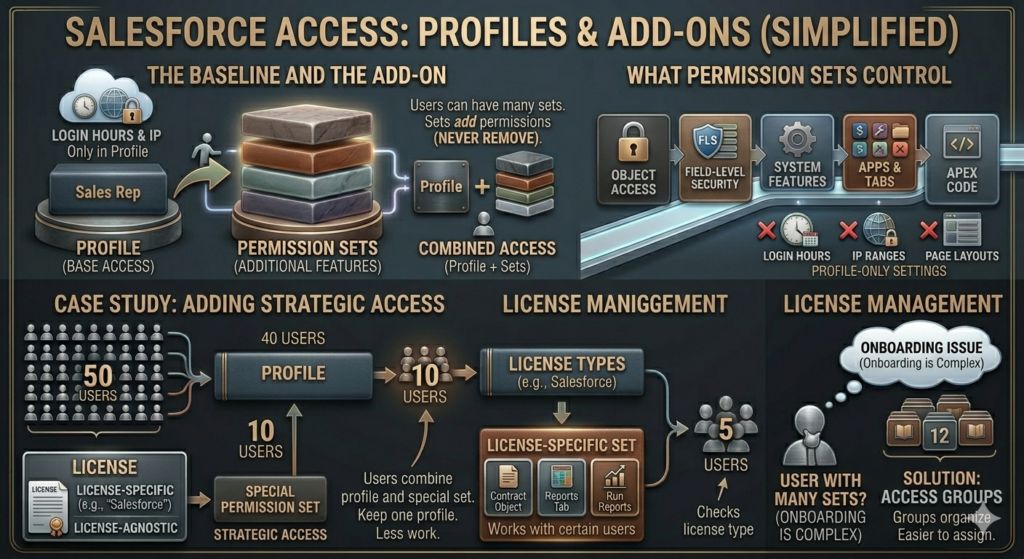
Think of permission sets as plugins. Your profile gives you the base experience. Permission sets extend it without changing the core.
What Permission Sets Control
Permission sets can control nearly everything a profile can — except a few profile-exclusive settings:
✅ Object permissions (CRUD)
✅ Field-level security
✅ System permissions
✅ App access
✅ Tab settings
✅ Apex class and Visualforce page access
✅ Custom permissions
❌ Login hours (profile-only)
❌ Login IP ranges (profile-only)
❌ Page layouts (profile-only)
❌ Record type defaults (profile-only)
A Practical Permission Set Example
Let’s say your organization has 50 Sales Reps. Most of them use the standard “Sales Rep” profile. But 10 of them manage strategic accounts and also need access to the Contracts object and the ability to run certain reports.
Without permission sets, you’d create a second profile: “Sales Rep – Strategic Accounts.” Now you have two nearly identical profiles to maintain.
With permission sets, you create a permission set called “Strategic Account Access” that grants:
- Read/Create/Edit on Contracts
- Access to the Reports tab
- Run Reports system permission
You assign this permission set to only those 10 users. Your profile count stays at one. Your maintenance burden drops significantly.
Permission Sets and License Management
One important detail: Permission Sets are associated with user licenses. When you create a permission set, you can either tie it to a specific license type or make it license-agnostic. If you tie it to a specific license (like “Salesforce” or “Service Cloud”), it can only be assigned to users with that license. License-agnostic permission sets offer more flexibility but come with constraints on what permissions you can include.
Limitations of Individual Permission Sets
Permission sets are powerful, but they come with their own scaling challenge. As your system grows, a single user might need 5, 8, or even 12 individual permission sets assigned to them. When you need to onboard a new user with that same access profile, you have to remember all 12 and assign them individually.
Miss one, and the user’s experience is broken. That’s where Permission Set Groups come in.
What Are Salesforce Permission Set Groups?
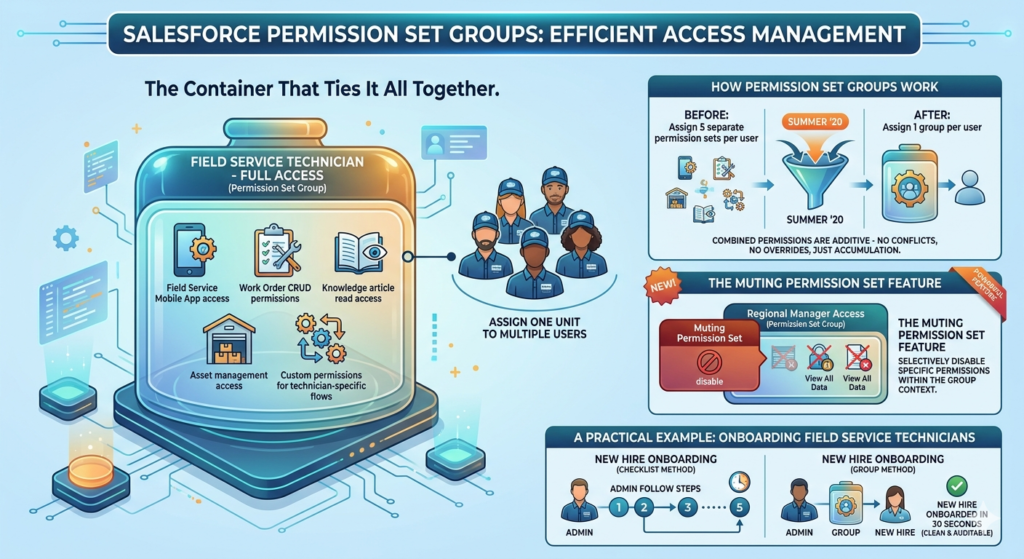
The Container That Ties It All Together
Introduced in Summer ’20, Permission Set Groups are exactly what they sound like — a group of permission sets bundled together into a single assignable unit. Instead of assigning 8 individual permission sets to a user, you assign one Permission Set Group that contains all 8.
How Permission Set Groups Work
You create a Permission Set Group and add existing Permission Sets to it. Users are then assigned the group, not the individual permission sets directly (though you can still assign individual permission sets alongside a group).
When a user is added to a Permission Set Group, they receive all the combined permissions from every permission set within that group. It’s purely additive — no conflicts, no overrides, just accumulation.
The “Muting Permission Set” Feature
This is a nuanced but powerful feature unique to Permission Set Groups. Within a group, you can apply a Muting Permission Set that selectively disables specific permissions that would otherwise be active within the group.
Example: You have a Permission Set Group called “Regional Manager Access” that includes a permission set granting “View All Data.” But for one type of user within that group, you don’t want them to have View All Data. Rather than restructuring your entire permission set architecture, you create a muting permission set that removes that specific permission within the context of the group.
This is an advanced capability and should be used carefully — but it’s a significant improvement over the old “create another profile” approach.
A Practical Permission Set Group Example
You’re onboarding a new cohort of Field Service Technicians. Each technician needs:
- Permission Set A: Field Service Mobile App access
- Permission Set B: Work Order CRUD permissions
- Permission Set C: Knowledge article read access
- Permission Set D: Asset management access
- Permission Set E: Custom permissions for technician-specific flows
Without groups, every new technician needs all 5 permission sets assigned. Your admin team has to follow a checklist every time and hope nothing is missed.
With a Permission Set Group called “Field Service Technician – Full Access”, you assign one entity. New hire onboarded in 30 seconds.
When a technician is promoted to a lead role needing additional permissions? You don’t change the group — you assign one additional permission set on top. Clean and auditable.
Salesforce Profiles vs Permission Sets vs Permission Set Groups: Side-by-Side Comparison
| Feature | Profiles | Permission Sets | Permission Set Groups |
|---|---|---|---|
| Required per user | Yes — exactly one | No — optional, multiple allowed | No — optional, multiple allowed |
| Can restrict permissions | Yes | No (additive only) | Partially (via muting) |
| Controls login hours/IP | Yes | No | No |
| Controls page layouts | Yes | No | No |
| Controls record type defaults | Yes | No | No |
| Controls object CRUD | Yes | Yes | Yes (via contained sets) |
| Controls field-level security | Yes | Yes | Yes (via contained sets) |
| Controls system permissions | Yes | Yes | Yes (via contained sets) |
| Assignable in bulk | Yes | Yes | Yes |
| Scalability | Low | Medium | High |
| Maintenance overhead | High | Medium | Low (with proper setup) |
| Recommended for new orgs | Minimal use | Yes | Yes |
| Supports muting permissions | No | No | Yes |
Best Practices for Salesforce Access Control
1. Adopt a “Minimum Profile, Maximum Permission Set” Philosophy
Salesforce’s own guidance — and best practice across the ecosystem — is to keep profiles as lean as possible. Ideally, use the Minimum Access – Salesforce profile (or equivalent) as your base for most users, and layer all meaningful access through permission sets and permission set groups.
This makes your profiles stable and consistent while keeping access configuration modular and maintainable.
2. Design Permission Sets Around Job Functions, Not Individual Users
Resist the urge to create a permission set called “John Smith’s Extra Access.” Instead, design permission sets that reflect reusable job functions — “Contract Viewer,” “Campaign Manager,” “Advanced Reporting User.” When John leaves, his replacement inherits the same permission set without any detective work.
3. Use Permission Set Groups for Role-Based Onboarding
Every clearly defined role in your organization should have a corresponding Permission Set Group. When a new Sales Rep joins, you assign: one profile + one permission set group. Done. No checklists, no room for error.
4. Audit Access Regularly
Use the Permission Set Assignment reports and User Access Summary (available in newer releases) to periodically audit who has what. Permissions granted for temporary projects are frequently forgotten and left in place indefinitely.
5. Document Everything
Label your profiles, permission sets, and permission set groups with consistent naming conventions. Use the Description field — seriously, use it. “Grants Read access to the Contracts object for Strategic Account team members” is infinitely more useful than “Contracts PS” six months from now.
6. Don’t Grant Profile-Level “Modify All Data” Lightly
System permissions like “Modify All Data” or “View All Data” in a profile apply universally. These are nuclear options. If specific users need broad data access for a legitimate reason (like a data integration user), consider a dedicated profile or permission set scoped specifically for that use case — and document why.
7. Test in a Sandbox Before Deploying Access Changes
Changes to profiles and permission sets can have broad, unexpected impacts. Always test with a sandbox user who mirrors the target audience before pushing access changes to production.
Common Mistakes Salesforce Admins Make
Mistake 1: Creating a New Profile for Every Minor Variation
This is the most common anti-pattern. If two users differ by only one or two permissions, the answer is almost never a new profile. It’s a permission set.
The fix: Audit your profiles. If you have more than 10–15 custom profiles in a mid-sized org, that’s a red flag. Consolidate where possible.
Mistake 2: Confusing “No Access” on a Permission Set with Revocation
Admins sometimes set a permission to “No Access” on a permission set expecting it to remove access granted by the profile. It doesn’t work that way. Permission sets are strictly additive. If the profile grants Create on Accounts, a permission set that shows “No” for Account Create doesn’t override it.
The fix: Understand that only profiles (or muting permission sets within a group) can restrict access. If you need to restrict, do it at the profile level.
Mistake 3: Not Using the Minimum Access Profile
Many orgs clone “Standard User” to create custom profiles, inheriting a pile of permissions they don’t actually need (or review). The “Standard User” profile comes with significant default access.
The fix: For new users in a modern org, start from Minimum Access – Salesforce and add only what’s required. It forces intentional permission grants.
Mistake 4: Assigning Individual Permission Sets When a Group Exists
If you’ve built Permission Set Groups but admins are still assigning the underlying permission sets individually, you lose the organizational benefits — and create inconsistency.
The fix: Establish and document a clear process: “Assign the group, not the individual sets.”
Mistake 5: Ignoring Field-Level Security
Many admins focus on object-level access and overlook FLS. A user might be able to see an Account record but also see the “Annual Revenue” or “Internal Credit Rating” field they absolutely shouldn’t.
The fix: Review FLS on sensitive fields across all active profiles and permission sets as part of your regular security review.
Mistake 6: Granting System Admin Profile to “Power Users”
It’s tempting. The manager is tech-savvy and keeps asking for more access. But granting System Administrator profile means full, unrestricted access to everything — including setup, data exports, and user management. It’s rarely actually needed.
The fix: Define exactly what the power user needs and create targeted permission sets for it. If they genuinely need admin-level access, that’s a separate conversation with IT governance, not a quick checkbox.
Real-World Example: Scaling Access for a Growing SaaS Company
Let’s walk through a realistic scenario to see how all three components work together.
The Company: RizeX Labs — a SaaS company with 200 Salesforce users across Sales, Customer Success, Marketing, and Operations.
The Problem: The org was built by a well-meaning admin who created 22 custom profiles over three years. Onboarding a new user takes 45 minutes of checklist-following, mistakes happen frequently, and nobody knows exactly what the “Sales Rep V3” profile grants versus “Sales Rep V3 – Partner Portal.”
The Solution Architecture:
Step 1: Consolidate Profiles
The team reduces to 5 profiles:
- Minimum Access (base for all internal users)
- System Administrator
- Community User (for portal users)
- Integration User (for API/service accounts)
- Read Only (for executive stakeholders)
Step 2: Build Functional Permission Sets
Each granular capability gets its own permission set:
- Opportunity Management — CRUD on Opportunities, Quotes
- Account Management — CRUD on Accounts, Contacts
- Campaign Access — CRUD on Campaigns, Campaign Members
- Contract Viewer — Read-only on Contracts
- Contract Editor — Full CRUD on Contracts
- Knowledge Base Access — Read on Knowledge Articles
- Reports & Dashboards Creator — Run/Create Reports, Manage Dashboards
- Data Export Access — Export Reports system permission
- Territory Management Access — relevant object and system permissions
Step 3: Build Permission Set Groups for Each Role
- Sales Development Rep: Opportunity Management + Account Management + Knowledge Base Access
- Account Executive: SDR group contents + Reports & Dashboards Creator + Contract Viewer
- Sales Manager: AE group contents + Contract Editor + Data Export Access + Territory Management Access
- Customer Success Manager: Account Management + Contract Viewer + Knowledge Base Access + Reports & Dashboards Creator
- Marketing Specialist: Campaign Access + Knowledge Base Access + Reports & Dashboards Creator
The Result:
- New user onboarding: Assign Minimum Access profile + appropriate Permission Set Group = done in under 5 minutes
- Clean audit trail: Access is tied to documented roles, not individual history
- Promotions and role changes: Swap one Permission Set Group, add/remove individual sets as needed
- Compliance reporting: Pull a Permission Set Group assignment report and instantly know who has what role-level access
Conclusion: Build for Maintainability, Not Just Functionality
The goal of understanding Salesforce profiles vs permission sets isn’t just to pass an admin certification or answer a stakeholder question. It’s to build an access control system that is secure, auditable, and easy to maintain as your organization evolves.
To summarize the core principles:
- Profiles are mandatory baselines — keep them lean, stable, and minimal in variety
- Permission Sets are modular extensions — design them around functions, not people
- Permission Set Groups are the orchestration layer — use them to define roles and simplify onboarding
Salesforce has been pushing the platform toward a profile-optional future — where permission sets and permission set groups carry the full weight of access configuration. Getting ahead of this now, rather than waiting until you’re forced to migrate, is a smart investment in your org’s long-term health.
Start by auditing your current profiles. Count them. Read their descriptions (if they have any). You’ll quickly see where consolidation opportunities exist — and where permission sets can replace the complexity you’ve built up over time.
Your future self — and every admin who inherits your org — will thank you.
About RizeX Labs
At RizeX Labs, we specialize in delivering cutting-edge Salesforce solutions, including advanced access control strategies within Salesforce.
Our expertise combines deep technical knowledge, industry best practices, and real-world implementation experience to help businesses secure their data, streamline user access, and scale efficiently.
We empower organizations to move from rigid, hardcoded access models to flexible, scalable permission architectures that support growth and compliance.
Internal Links:
- Salesforce Admin course page
Salesforce Flows vs Apex: When Should You Use Code vs No-Code Automation? - Salesforce Nonprofit Cloud: Features, Use Cases, and Career Opportunities (2026 Guide)
- Salesforce Net Zero Cloud: What It Is and Why It’s the Next Green Career Niche (2026 Guide)
- Salesforce Slack Integration: How It Works and What Developers Need to Know
- Salesforce Named Credentials: What They Are and How to Use Them Safely
- Salesforce Deployment Best Practices: Change Sets vs Salesforce CLI vs Gearset
External Links:
McKinsey Sales Growth Reports
Gartner Sales Automation Insights
Quick Summary
In Salesforce, effective user access control relies on three core components: Profiles, Permission Sets, and Permission Set Groups. Profiles act as the mandatory foundation, defining baseline permissions such as object CRUD, field-level security, page layouts, and login restrictions for each user. Permission Sets serve as flexible, additive building blocks that extend a user’s access without modifying their core profile, solving the problem of profile sprawl. Permission Set Groups take this a step further by bundling multiple permission sets into one assignable unit, making role-based access management significantly simpler and more scalable. By adopting a “minimum profile, maximum permission sets” strategy, organizations can reduce administrative overhead, improve security through the principle of least privilege, and create a clean, maintainable Salesforce security model that grows with the business.