
Introduction
In today’s crowded digital world, your customers receive dozens — sometimes hundreds — of emails every single day. Generic, one-size-fits-all messages get ignored, deleted, or worse, marked as spam. The businesses that cut through the noise are the ones that make every email feel like it was written specifically for the person reading it.
This is where SFMC AMPscript tutorial knowledge becomes your most powerful marketing weapon. Salesforce Marketing Cloud is already one of the most robust email marketing platforms on the planet. But when you add AMPscript to your skill set, you unlock a completely new level of personalization — one that goes far beyond simply inserting someone’s first name into a subject line.

In this comprehensive SFMC AMPscript tutorial, we’ll take you from complete beginner to confident AMPscript practitioner. You’ll learn what AMPscript is, how it works, and — most importantly — how to use it to create genuinely dynamic, personalized email experiences that drive real business results.
Whether you’re a marketing professional looking to level up your technical skills, a Salesforce administrator supporting your marketing team, or a developer new to the Marketing Cloud ecosystem, this guide is written for you. We’ll use plain language, real-world AMPscript examples SFMC practitioners actually use, and practical exercises you can try immediately.
Let’s dive in.
What is AMPscript in SFMC?
AMPscript (short for Advanced Message Personalization Script) is Salesforce Marketing Cloud’s proprietary scripting language designed specifically for creating dynamic, personalized content in marketing messages. Think of it as a lightweight programming language that lives inside your email templates and executes at the moment your email is sent — inserting personalized content, making decisions based on subscriber data, and transforming a single email template into millions of unique, individually tailored messages.
The Simple Explanation
Imagine you’re sending a promotional email to 100,000 subscribers. Without AMPscript, every single person receives the identical email — the same headline, the same offer, the same product recommendation. With AMPscript, that same single email template can display:
- A different greeting based on each subscriber’s name
- Different product recommendations based on their purchase history
- Different offers based on their membership tier or geographic location
- Different images based on their gender or age group
- Different calls-to-action based on where they are in the customer journey
All of this happens automatically, at send time, without you manually creating 100,000 different emails.
Where Can You Use AMPscript?
One of the great things about AMPscript is its versatility within the Salesforce Marketing Cloud ecosystem. You can use it across multiple channels and content types:
Email Messages:
The most common use case — AMPscript in email templates powers dynamic content SFMC across millions of marketing emails sent daily worldwide.
Landing Pages:
CloudPages (Marketing Cloud’s landing page builder) fully supports AMPscript, allowing you to create personalized post-click experiences that match the email content that drove the click.
SMS Messages:
AMPscript works in MobileConnect SMS messages, enabling personalized text messages beyond just the subscriber’s name.
Push Notifications:
MobilePush notifications can incorporate AMPscript for dynamic content in mobile app messages.
Dynamic Content Blocks:
Within Content Builder, AMPscript powers advanced dynamic content rules that go beyond the visual dynamic content rule builder.
How AMPscript Powers Dynamic Content SFMC
At its technical core, AMPscript works as a server-side scripting language. Here’s the execution sequence:
- You create a single email template with AMPscript code embedded within it
- A subscriber triggers a send (either through a scheduled campaign or a Journey Builder journey)
- Marketing Cloud’s rendering engine processes the AMPscript code for that specific subscriber
- The engine fetches the subscriber’s data from a Data Extension or attribute
- Conditional logic executes — if/else statements evaluate and determine which content to show
- Functions process — date formatting, string manipulation, lookups from other data sources
- The personalized output replaces the AMPscript code in the final email
- The subscriber receives what appears to be a completely customized email written just for them
This entire process happens in milliseconds, at the moment of send, for every single subscriber in your audience.
AMPscript vs. Other Personalization Methods in SFMC
Before going deeper, it’s helpful to understand where AMPscript fits in the broader personalization marketing cloud toolkit:
| Personalization Method | Complexity | Flexibility | Best For |
|---|---|---|---|
| Personalization Strings | Very Low | Low | Basic name/attribute insertion |
| Dynamic Content (Visual) | Low | Moderate | Simple rule-based content swaps |
| AMPscript | Moderate | Very High | Complex logic and personalization |
| Server-Side JavaScript (SSJS) | High | Maximum | API calls and complex processing |
| Einstein Content Selection | Low (AI-powered) | High | AI-driven content optimization |
AMPscript sits in the sweet spot — it’s more powerful than simple personalization strings and visual dynamic content rules, but more accessible and appropriate for email use cases than full Server-Side JavaScript.
Why Use AMPscript for Personalization?
Before we jump into syntax and code, let’s firmly establish why investing time in learning AMPscript for personalization marketing cloud is genuinely worth it. The business case is compelling.
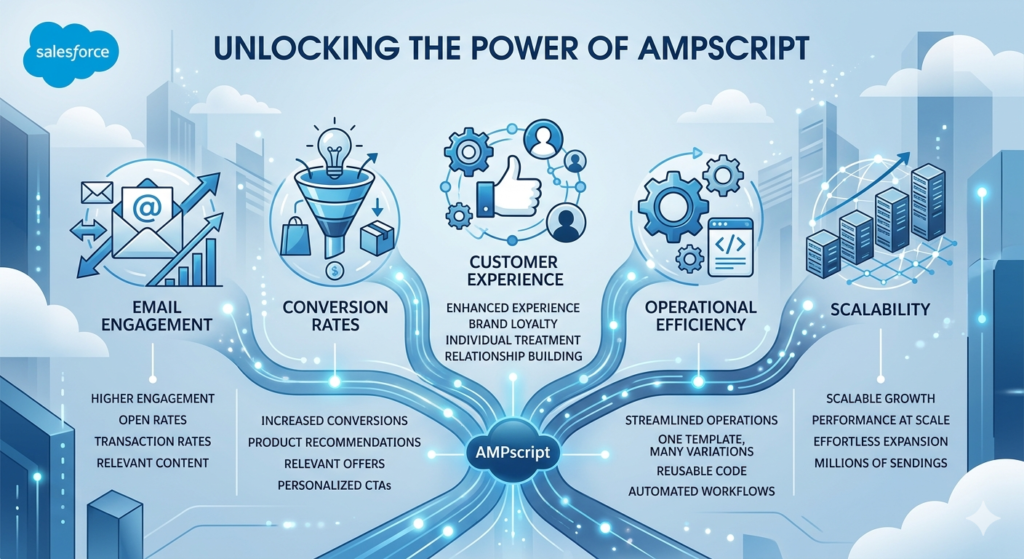
1. Dramatically Better Email Engagement
The numbers don’t lie. Personalized emails consistently outperform generic ones across every engagement metric:
- Personalized subject lines increase open rates by 26% (Campaign Monitor)
- Personalized email content delivers 6x higher transaction rates (Experian)
- Segmented and personalized campaigns drive 760% more revenue than one-size-fits-all campaigns (Campaign Monitor)
- Behavioral email triggers (enabled by AMPscript conditional logic) generate 70.5% higher open rates than standard newsletters
When a subscriber sees content that genuinely reflects their interests, history, and preferences, they engage. It’s human psychology — we pay attention to things that feel relevant to us personally.
2. Higher Conversion Rates
Engagement is valuable, but conversion is what drives business results. AMPscript-powered personalization improves conversions by:
- Showing relevant products based on purchase history (reducing friction by eliminating irrelevant options)
- Displaying context-specific offers (a subscriber who just made their first purchase sees a “loyalty program welcome” offer; a lapsed customer sees a “we miss you” discount)
- Personalizing CTAs based on the subscriber’s position in the funnel (a prospect sees “Learn More” while an active customer sees “Upgrade Now”)
- Timing-relevant content (birthday offers, anniversary messages, renewal reminders) that create urgency and relevance simultaneously
3. Improved Customer Experience
Beyond metrics, AMPscript-powered personalization fundamentally improves how customers feel about your brand. When done well, personalization communicates:
- “We know you” — we remember your preferences and history
- “We respect your time” — we’re not wasting it with irrelevant content
- “We value the relationship” — we treat you as an individual, not a number
This feeling of being known and valued is increasingly rare in digital communication — and it builds brand loyalty, advocacy, and long-term customer relationships that no amount of advertising can buy.
4. Operational Efficiency
From a marketing operations perspective, AMPscript enables massive efficiency gains:
- One template, millions of variations: Instead of creating separate templates for each audience segment, one AMPscript-powered template serves your entire database
- Reusable code blocks: Write AMPscript functions once, reuse them across dozens of email templates
- Automated personalization: Once the logic is written, it runs automatically on every send — no manual intervention required
- Reduced campaign management overhead: Fewer templates to maintain means fewer things to update when your brand evolves
5. Scalability
As your subscriber base grows, manual personalization approaches become increasingly impractical. AMPscript scales effortlessly — whether you’re sending to 1,000 subscribers or 10,000,000, the same code executes with the same performance and the same quality of personalization.
AMPscript Basics — Syntax and Structure
Now let’s get into the actual language. Don’t worry — AMPscript is designed to be readable and logical. If you’ve ever worked with any programming or scripting language, you’ll find AMPscript familiar. If you haven’t, we’ll take it step by step.
The AMPscript Code Block
AMPscript code lives within delimiters — special characters that tell Marketing Cloud’s rendering engine “this is AMPscript, execute it.” There are two delimiter styles:
Block Delimiters (for multi-line code):
text%%[
  Your AMPscript code goes here
  Across multiple lines
]%%
Inline Delimiters (for single-line output):
text%%=AMPscript_expression=%%
The block delimiter style (using %%[ and ]%%) is where you write your logic — setting variables, running conditions, executing functions. The inline delimiter style (%%= and =%%) is where you output values into the email content.
Variables — SET and VAR
Variables are containers that store data values so you can use them throughout your email. In AMPscript, you declare and set variables using the SET keyword with @ prefixed variable names:
Declaring and Setting a Variable:
text%%[
  SET @firstName = "Sarah"
]%%
Retrieving Data from a Data Extension or Subscriber Attribute:
text%%[
  SET @firstName = AttributeValue("FirstName")
]%%
The AttributeValue() function retrieves the value of a subscriber attribute or data extension field by its name. This is one of the most commonly used functions in AMPscript.
Variable Naming Rules:
- Always prefix variable names with
@(e.g.,@firstName,@offerCode,@membershipLevel) - Variable names are case-insensitive (
@firstNameand@FIRSTNAMEare the same) - No spaces in variable names (use camelCase or underscores:
@firstNameor@first_name) - Descriptive names make your code easier to understand (
@offerPercentageis better than@x)
Outputting Variables
Once you’ve set a variable, you output its value into the email content using the inline v() function:
Basic Output:
textHello %%=v(@firstName)=%%!
If @firstName contains “Sarah,” this renders as: Hello Sarah!
Alternative Output Syntax:
text%%=v(@firstName)=%%
Both %%=v(@variable)=%% formats work identically — choose whichever feels more readable to you.
Functions
AMPscript includes a rich library of built-in functions that perform operations on data. Functions are called using the syntax FunctionName(parameters).
Here’s an overview of the most commonly used function categories:
String Functions:
text%%[
  /* Convert to uppercase */
  SET @upperName = Uppercase(@firstName)

  /* Convert to lowercase */
  SET @lowerEmail = Lowercase(@emailAddress)

  /* Concatenate (join) strings */
  SET @fullName = Concat(@firstName, " ", @lastName)

  /* Get string length */
  SET @nameLength = Length(@firstName)

  /* Extract part of a string */
  SET @firstInitial = Substring(@firstName, 1, 1)

  /* Check if string is empty */
  SET @isEmpty = Empty(@firstName)

  /* Replace text within a string */
  SET @cleanPhone = Replace(@phoneNumber, "-", "")
]%%
Date Functions:
text%%[
  /* Get current date */
  SET @today = Now()

  /* Format a date */
  SET @formattedDate = Format(@today, "MMMM d, yyyy")

  /* Add days to a date */
  SET @expiryDate = DateAdd(@today, 7, "D")

  /* Get year from date */
  SET @currentYear = Year(@today)

  /* Get month from date */
  SET @currentMonth = Month(@today)
]%%
Math Functions:
text%%[
  /* Add numbers */
  SET @total = Add(@subtotal, @taxAmount)

  /* Subtract */
  SET @discount = Subtract(@originalPrice, @salePrice)

  /* Multiply */
  SET @totalCost = Multiply(@quantity, @unitPrice)

  /* Divide */
  SET @average = Divide(@totalSales, @numberOfSales)

  /* Round a number */
  SET @roundedTotal = Round(@total, 2)
]%%
Lookup Functions (retrieving data from Data Extensions):
text%%[
  /* Look up a single value from a Data Extension */
  SET @membershipLevel = Lookup(
    "MembershipDE",      /* Data Extension name */
    "MembershipLevel",   /* Field to retrieve */
    "ContactID",         /* Field to match on */
    @contactID           /* Value to match */
  )
]%%
Conditional Logic — IF, ELSEIF, ELSE
Conditional statements are the heart of dynamic content SFMC — they allow your email to make decisions based on subscriber data. The structure is logical and readable:
Basic IF Statement:
text%%[
  IF @membershipLevel == "Gold" THEN
    /* Code to execute if condition is true */
  ENDIF
]%%
IF/ELSE Statement:
text%%[
  IF @membershipLevel == "Gold" THEN
    SET @offerText = "Exclusive Gold Member Offer: 30% Off"
  ELSE
    SET @offerText = "Special Offer: 15% Off Your Next Purchase"
  ENDIF
]%%

%%=v(@offerText)=%%
IF/ELSEIF/ELSE Statement (Multiple Conditions):
text%%[
  IF @membershipLevel == "Platinum" THEN
    SET @discount = "40%"
    SET @offerText = "Platinum Exclusive: 40% Off Everything"
  ELSEIF @membershipLevel == "Gold" THEN
    SET @discount = "30%"
    SET @offerText = "Gold Member Offer: 30% Off"
  ELSEIF @membershipLevel == "Silver" THEN
    SET @discount = "20%"
    SET @offerText = "Silver Member Offer: 20% Off"
  ELSE
    SET @discount = "10%"
    SET @offerText = "Welcome Offer: 10% Off Your First Purchase"
  ENDIF
]%%
Comparison Operators:
| Operator | Meaning | Example |
|---|---|---|
== | Equal to | @age == 30 |
!= | Not equal to | @status != "Inactive" |
> | Greater than | @purchaseCount > 5 |
< | Less than | @daysSincePurchase < 30 |
>= | Greater than or equal | @totalSpend >= 1000 |
<= | Less than or equal | @age <= 25 |
Logical Operators:
text%%[
  /* AND - both conditions must be true */
  IF @membershipLevel == "Gold" AND @totalSpend > 500 THEN
    SET @message = "VIP Gold High-Spender Offer"
  ENDIF

  /* OR - at least one condition must be true */
  IF @country == "United States" OR @country == "Canada" THEN
    SET @currency = "USD"
  ENDIF

  /* NOT - condition must be false */
  IF NOT Empty(@firstName) THEN
    SET @greeting = Concat("Hello, ", @firstName, "!")
  ENDIF
]%%
Comments
Good code is documented code. Use comments to explain what your AMPscript is doing — your future self (and your colleagues) will thank you:
text%%[
  /* This is a single-line comment */

  /*
    This is a
    multi-line comment
  */

  SET @firstName = AttributeValue("FirstName") /* Get subscriber's first name */
]%%
AMPscript Examples in SFMC
Now let’s look at practical, real-world AMPscript examples SFMC marketers use every day. Each example builds on the concepts we’ve covered and demonstrates how AMPscript creates meaningful personalization marketing cloud.
Example 1: Display First Name with a Fallback Value
This is the most fundamental AMPscript use case — and one that most email marketers implement in their very first AMPscript-powered email.
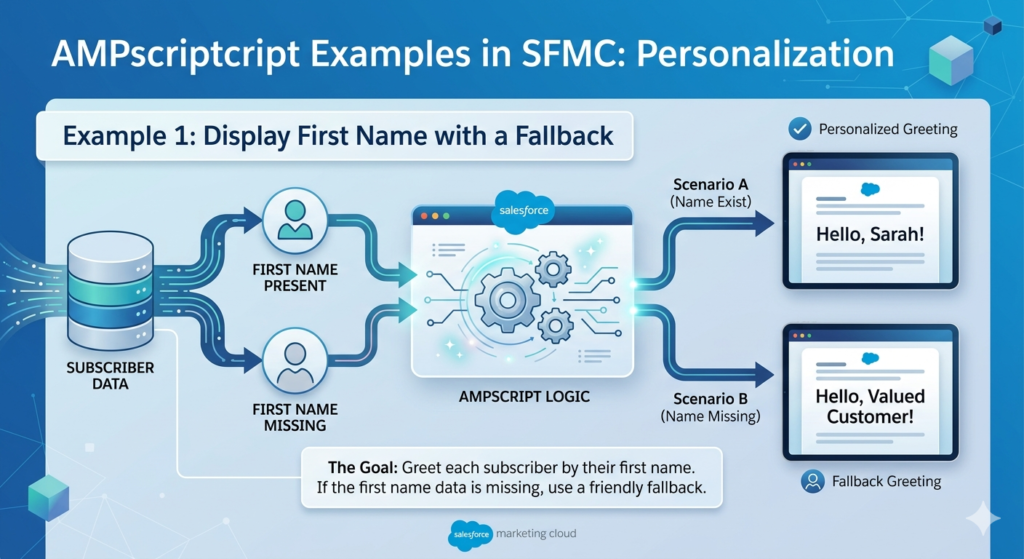
The Goal: Greet each subscriber by their first name. If the first name data is missing, use a friendly fallback so the greeting still makes sense.
The AMPscript:
text%%[
  /* Retrieve the subscriber's first name */
  SET @firstName = AttributeValue("FirstName")

  /* Check if the first name field has a value */
  IF Empty(@firstName) THEN
    /* If empty, use a friendly generic greeting */
    SET @greeting = "there"
  ELSE
    /* If not empty, use the actual first name */
    SET @greeting = @firstName
  ENDIF
]%%

Hi %%=v(@greeting)=%%,

Thank you for being a valued subscriber. We have something
special for you this week...
What This Renders As:
For Sarah Johnson (first name: “Sarah”):
textHi Sarah,
Thank you for being a valued subscriber...
For a subscriber with no first name on file:
textHi there,
Thank you for being a valued subscriber...
Why This Matters:
Without the fallback, an email to a subscriber missing first name data would render as “Hi ,” — which looks broken and unprofessional. The fallback ensures every subscriber receives a grammatically correct, professional greeting.
Pro Tip — Capitalizing the First Letter:
Sometimes subscriber data has inconsistent capitalization (all caps, all lowercase). Ensure professional formatting with the ProperCase() function:
text%%[
  SET @firstName = AttributeValue("FirstName")

  IF Empty(@firstName) THEN
    SET @greeting = "there"
  ELSE
    /* ProperCase formats as "Sarah" even if data is "SARAH" or "sarah" */
    SET @greeting = ProperCase(@firstName)
  ENDIF
]%%
Example 2: Conditional Content with IF/ELSE
The Goal: Show different email content based on the subscriber’s membership level. Gold members see a premium offer; standard members see a regular offer.
The AMPscript:
text%%[
  /* Retrieve membership level from subscriber data */
  SET @membershipLevel = AttributeValue("MembershipLevel")
  SET @firstName = AttributeValue("FirstName")

  /* Set offer details based on membership level */
  IF @membershipLevel == "Gold" THEN
    SET @offerHeadline = "Your Exclusive Gold Member Reward Is Here"
    SET @offerDescription = "As one of our valued Gold members, enjoy 30% off
    your entire next purchase — no exclusions, no minimum spend."
    SET @discountCode = "GOLD30"
    SET @discountAmount = "30%"
    SET @buttonText = "Claim Your Gold Reward"
    SET @buttonColor = "#FFD700"

  ELSEIF @membershipLevel == "Silver" THEN
    SET @offerHeadline = "A Special Thank You for Silver Members"
    SET @offerDescription = "Your loyalty means everything to us. Enjoy 20%
    off your next order as our way of saying thank you."
    SET @discountCode = "SILVER20"
    SET @discountAmount = "20%"
    SET @buttonText = "Claim Your Silver Reward"
    SET @buttonColor = "#C0C0C0"

  ELSE
    SET @offerHeadline = "A Special Offer Just for You"
    SET @offerDescription = "We appreciate your business! Enjoy 10% off your
    next purchase with the exclusive code below."
    SET @discountCode = "MEMBER10"
    SET @discountAmount = "10%"
    SET @buttonText = "Shop and Save"
    SET @buttonColor = "#0070D2"
  ENDIF
]%%

<h1>%%=v(@offerHeadline)=%%</h1>

<p>Hi %%=v(@firstName)=%%,</p>

<p>%%=v(@offerDescription)=%%</p>

<p><strong>Your Discount Code: %%=v(@discountCode)=%%</strong></p>

<p>Save %%=v(@discountAmount)=%% on your next order!</p>

<a href="https://yourstore.com/shop?code=%%=v(@discountCode)=%%"
   style="background-color: %%=v(@buttonColor)=%%; color: white;
   padding: 15px 30px; text-decoration: none; border-radius: 5px;">
  %%=v(@buttonText)=%%
</a>
What This Renders As:
For a Gold member:
- Headline: “Your Exclusive Gold Member Reward Is Here”
- Discount: 30% off with code GOLD30
- Button: Gold-colored “Claim Your Gold Reward”
For a subscriber with no membership level:
- Headline: “A Special Offer Just for You”
- Discount: 10% off with code MEMBER10
- Blue “Shop and Save” button
Why This Is Powerful:
One template, three completely different email experiences — all managed through a single send. No manual segmentation, no separate templates, no additional campaign management overhead.
Example 3: Personalized Product Offer Based on Purchase History
The Goal: Show product recommendations based on the subscriber’s most recently purchased product category, encouraging cross-sell or upsell.
The AMPscript:
text%%[
  /* Retrieve subscriber's last purchase category */
  SET @lastPurchaseCategory = AttributeValue("LastPurchaseCategory")
  SET @firstName = AttributeValue("FirstName")
  SET @loyaltyPoints = AttributeValue("LoyaltyPoints")

  /* Set recommended products based on last purchase */
  IF @lastPurchaseCategory == "Running Shoes" THEN
    SET @recommendedProduct = "Running Apparel"
    SET @productDescription = "Complete your running kit with our
    moisture-wicking performance gear — perfect for your morning runs."
    SET @productURL = "https://yourstore.com/running-apparel"
    SET @productImage = "https://cdn.yourstore.com/running-apparel.jpg"

  ELSEIF @lastPurchaseCategory == "Yoga Equipment" THEN
    SET @recommendedProduct = "Wellness Supplements"
    SET @productDescription = "Enhance your yoga practice with our
    premium wellness supplements — designed for active lifestyles."
    SET @productURL = "https://yourstore.com/wellness"
    SET @productImage = "https://cdn.yourstore.com/wellness.jpg"

  ELSEIF @lastPurchaseCategory == "Cycling" THEN
    SET @recommendedProduct = "Cycling Accessories"
    SET @productDescription = "Upgrade your ride with our premium
    cycling accessories — helmets, gloves, lights, and more."
    SET @productURL = "https://yourstore.com/cycling-accessories"
    SET @productImage = "https://cdn.yourstore.com/cycling-acc.jpg"

  ELSE
    SET @recommendedProduct = "Our Best Sellers"
    SET @productDescription = "Discover what our most passionate
    customers can't live without — curated just for you."
    SET @productURL = "https://yourstore.com/best-sellers"
    SET @productImage = "https://cdn.yourstore.com/best-sellers.jpg"
  ENDIF

  /* Format loyalty points with comma for thousands */
  SET @formattedPoints = Format(@loyaltyPoints, "N0")
]%%

<h2>%%=v(@firstName)=%%, We Think You'll Love This</h2>

<p>Based on your recent purchase, we've handpicked something
we think you'll love:</p>

<img src="%%=v(@productImage)=%%" alt="%%=v(@recommendedProduct)=%%"
     width="600" />

<h3>%%=v(@recommendedProduct)=%%</h3>

<p>%%=v(@productDescription)=%%</p>

<p>Plus, you have <strong>%%=v(@formattedPoints)=%% loyalty points</strong>
ready to redeem on this purchase!</p>

<a href="%%=v(@productURL)=%%">Shop %%=v(@recommendedProduct)=%% →</a>
Output Comparison:
| Subscriber | Last Purchase | Sees Recommendation |
|---|---|---|
| Sarah | Running Shoes | Running Apparel section |
| James | Yoga Equipment | Wellness Supplements section |
| Maria | Cycling | Cycling Accessories section |
| David | (no data) | Best Sellers section |
Example 4: Date-Based Personalization
The Goal: Create urgency with a limited-time offer that shows the subscriber exactly when the offer expires — personalized to the send date.
The AMPscript:
text%%[
  /* Get current date and time */
  SET @today = Now()

  /* Calculate offer expiry (7 days from send) */
  SET @expiryDate = DateAdd(@today, 7, "D")

  /* Format dates for display */
  SET @todayFormatted = Format(@today, "MMMM d, yyyy")
  SET @expiryFormatted = Format(@expiryDate, "MMMM d, yyyy")

  /* Get the day of the week for send day */
  SET @dayOfWeek = Format(@today, "dddd")

  /* Get current month for seasonal messaging */
  SET @currentMonth = Month(@today)

  /* Set seasonal message based on month */
  IF @currentMonth >= 12 OR @currentMonth <= 2 THEN
    SET @season = "Winter"
    SET @seasonalOffer = "our cozy winter collection"
  ELSEIF @currentMonth >= 3 AND @currentMonth <= 5 THEN
    SET @season = "Spring"
    SET @seasonalOffer = "our fresh spring arrivals"
  ELSEIF @currentMonth >= 6 AND @currentMonth <= 8 THEN
    SET @season = "Summer"
    SET @seasonalOffer = "our exciting summer sale"
  ELSE
    SET @season = "Fall"
    SET @seasonalOffer = "our gorgeous fall collection"
  ENDIF

  /* Calculate days until end of month for urgency */
  SET @currentDay = Day(@today)
  SET @daysLeftInMonth = Subtract(31, @currentDay)

  /* Get subscriber's birthday month for birthday messaging */
  SET @birthMonth = AttributeValue("BirthMonth")
  SET @isBirthMonth = IIF(@birthMonth == @currentMonth, true, false)
]%%

%%[ IF @isBirthMonth == true THEN ]%%
<h1>🎂 Happy Birthday Month! A Special Gift Inside</h1>
<p>It's your birthday month — and we're celebrating YOU with
a very special offer. Enjoy 25% off anything in the store
as our birthday gift to you.</p>
<p><strong>Your Birthday Code: BDAY25</strong></p>
%%[ ELSE ]%%
<h1>%%=v(@season)=%% Sale — Ends %%=v(@expiryFormatted)=%%</h1>
<p>Happy %%=v(@dayOfWeek)=%% — we have something exciting
to share. Our %%=v(@seasonalOffer)=%% is now live, and
this exclusive offer expires on
<strong>%%=v(@expiryFormatted)=%%</strong>.</p>
<p>Don't miss out — that's just 7 days away!</p>
%%[ ENDIF ]%%

<p><em>Offer valid through %%=v(@expiryFormatted)=%%.</em></p>
What Makes This Powerful:
- The expiry date is always exactly 7 days from the send date — automatically calculated
- The seasonal message changes based on when the email is actually sent
- Birthday month subscribers see a completely different, celebratory email
- This is truly dynamic content SFMC — the content adapts to real-time data
Example 5: Advanced Lookup from a Data Extension
The Goal: Look up personalized data from a separate Data Extension based on the subscriber’s ID — for example, retrieving their account manager’s name and contact information.
The AMPscript:
text%%[
  /* Get subscriber's account ID */
  SET @accountID = AttributeValue("AccountID")
  SET @firstName = AttributeValue("FirstName")

  /* Look up account manager details from AccountManagerDE */
  SET @managerName = Lookup(
    "AccountManagerDE",     /* Data Extension name */
    "ManagerFullName",      /* Field to retrieve */
    "AccountID",            /* Match field in DE */
    @accountID              /* Value to match */
  )

  SET @managerEmail = Lookup(
    "AccountManagerDE",
    "ManagerEmail",
    "AccountID",
    @accountID
  )

  SET @managerPhone = Lookup(
    "AccountManagerDE",
    "ManagerPhone",
    "AccountID",
    @accountID
  )

  SET @managerPhoto = Lookup(
    "AccountManagerDE",
    "ManagerPhotoURL",
    "AccountID",
    @accountID
  )

  /* Set fallbacks if lookup returns empty */
  IF Empty(@managerName) THEN
    SET @managerName = "our support team"
    SET @managerEmail = "support@yourcompany.com"
    SET @managerPhone = "1-800-YOUR-CO"
    SET @managerPhoto = "https://cdn.yourcompany.com/team-default.jpg"
  ENDIF
]%%

<h2>%%=v(@firstName)=%%, Meet Your Dedicated Account Manager</h2>

<img src="%%=v(@managerPhoto)=%%" alt="%%=v(@managerName)=%%"
     style="border-radius: 50%; width: 100px; height: 100px;" />

<p>Hi %%=v(@firstName)=%%,</p>

<p>Your dedicated account manager,
<strong>%%=v(@managerName)=%%</strong>, is here to help
you get the most out of your subscription.</p>

<p>Reach out anytime:</p>
<ul>
  <li>📧 <a href="mailto:%%=v(@managerEmail)=%%">
    %%=v(@managerEmail)=%%</a></li>
  <li>📞 %%=v(@managerPhone)=%%</li>
</ul>

<p>%%=v(@managerName)=%% looks forward to connecting with you!</p>
Why This Example Is Advanced:
- It pulls data from a completely separate Data Extension using the
Lookup()function - It handles missing data gracefully with comprehensive fallbacks
- It personalizes not just text but also images (the manager’s photo)
- This pattern is extremely common in B2B marketing and customer success emails
Creating Dynamic Content Using AMPscript
Now that you understand the core AMPscript examples SFMC practitioners use, let’s look at how to build sophisticated dynamic content SFMC experiences that respond to real-world marketing scenarios.
Location-Based Messaging
Personalizing content based on geographic location is one of the most effective ways to increase relevance and drive action.
text%%[
  /* Get subscriber's location data */
  SET @country = AttributeValue("Country")
  SET @state = AttributeValue("State")
  SET @city = AttributeValue("City")
  SET @timezone = AttributeValue("Timezone")

  /* Set region-specific store information */
  IF @country == "United States" THEN

    IF @state == "California" OR @state == "CA" THEN
      SET @region = "West Coast"
      SET @storeAddress = "123 Market Street, San Francisco, CA"
      SET @storePhone = "(415) 555-0100"
      SET @storeHours = "Mon-Sat 9AM-9PM PST, Sun 10AM-7PM PST"
      SET @regionalEvent = "Bay Area Customer Appreciation Day — March 15"
      SET @mapURL = "https://maps.google.com/?q=123+Market+St+SF"

    ELSEIF @state == "New York" OR @state == "NY" THEN
      SET @region = "East Coast"
      SET @storeAddress = "456 Fifth Avenue, New York, NY"
      SET @storePhone = "(212) 555-0200"
      SET @storeHours = "Mon-Sat 10AM-8PM EST, Sun 11AM-6PM EST"
      SET @regionalEvent = "NYC Exclusive Pop-Up — March 20"
      SET @mapURL = "https://maps.google.com/?q=456+Fifth+Ave+NYC"

    ELSEIF @state == "Texas" OR @state == "TX" THEN
      SET @region = "South Central"
      SET @storeAddress = "789 Congress Avenue, Austin, TX"
      SET @storePhone = "(512) 555-0300"
      SET @storeHours = "Mon-Sat 9AM-9PM CST, Sun 10AM-7PM CST"
      SET @regionalEvent = "Austin VIP Shopping Night — March 18"
      SET @mapURL = "https://maps.google.com/?q=789+Congress+Ave+Austin"

    ELSE
      SET @region = "Nationwide"
      SET @storeAddress = "Find your nearest store online"
      SET @storePhone = "1-800-555-0000"
      SET @storeHours = "Visit our website for local store hours"
      SET @regionalEvent = "National Sale Event — March 15-20"
      SET @mapURL = "https://yourstore.com/store-locator"
    ENDIF

  ELSEIF @country == "United Kingdom" OR @country == "UK" THEN
    SET @region = "UK"
    SET @storeAddress = "10 Oxford Street, London, W1"
    SET @storePhone = "+44 20 5555 0100"
    SET @storeHours = "Mon-Sat 9AM-8PM GMT, Sun 11AM-6PM GMT"
    SET @regionalEvent = "London VIP Preview — March 16"
    SET @mapURL = "https://maps.google.com/?q=10+Oxford+Street+London"

  ELSE
    SET @region = "International"
    SET @storeAddress = "Shop online at yourstore.com"
    SET @storePhone = "Contact us via website"
    SET @storeHours = "Online store open 24/7"
    SET @regionalEvent = "Global Online Sale — March 15-20"
    SET @mapURL = "https://yourstore.com"
  ENDIF
]%%

<h2>Your %%=v(@region)=%% Store Invitation</h2>

<p>We're excited to invite you to:</p>
<h3>%%=v(@regionalEvent)=%%</h3>

<p><strong>Visit us at:</strong><br />
%%=v(@storeAddress)=%%</p>

<p><strong>Hours:</strong> %%=v(@storeHours)=%%</p>
<p><strong>Phone:</strong> %%=v(@storePhone)=%%</p>

<a href="%%=v(@mapURL)=%%">Get Directions →</a>
Purchase History-Based Recommendations
text%%[
  /* Get purchase data */
  SET @totalOrders = AttributeValue("TotalOrders")
  SET @totalSpend = AttributeValue("TotalLifetimeSpend")
  SET @daysSinceLastPurchase = AttributeValue("DaysSinceLastPurchase")
  SET @lastProductCategory = AttributeValue("LastProductCategory")
  SET @firstName = AttributeValue("FirstName")

  /* Determine customer segment */
  IF @totalOrders > 10 AND @totalSpend > 1000 THEN
    SET @customerSegment = "VIP"
    SET @segmentMessage = "As one of our most valued VIP customers,
    you get first access to our newest arrivals — before they go
    public tomorrow."
    SET @offerCode = "VIP25"
    SET @offerText = "25% off as a VIP exclusive"

  ELSEIF @totalOrders >= 3 AND @daysSinceLastPurchase <= 90 THEN
    SET @customerSegment = "Loyal"
    SET @segmentMessage = "Your loyalty means the world to us.
    Here's a thank-you offer for being such a consistent supporter."
    SET @offerCode = "LOYAL15"
    SET @offerText = "15% off your next purchase"

  ELSEIF @daysSinceLastPurchase > 90 AND @daysSinceLastPurchase <= 180 THEN
    SET @customerSegment = "AtRisk"
    SET @segmentMessage = "We've missed you! It's been a while
    since we've heard from you, and we'd love to welcome you back
    with a special offer."
    SET @offerCode = "WEBACK20"
    SET @offerText = "20% off to welcome you back"

  ELSEIF @daysSinceLastPurchase > 180 THEN
    SET @customerSegment = "Lapsed"
    SET @segmentMessage = "It's been too long! We've added so much
    since your last visit — and we want to make it worth your while
    to rediscover us."
    SET @offerCode = "RETURN25"
    SET @offerText = "25% off — because we really miss you"

  ELSE
    SET @customerSegment = "New"
    SET @segmentMessage = "Welcome to the family! We're so glad
    you're here, and we want to make your next purchase even better
    than your first."
    SET @offerCode = "WELCOME10"
    SET @offerText = "10% off your next purchase"
  ENDIF
]%%

<h2>%%=v(@firstName)=%%, This Is Just for You</h2>

<p>%%=v(@segmentMessage)=%%</p>

<div style="background: #f5f5f5; padding: 20px; text-align: center;
            border-radius: 8px; margin: 20px 0;">
  <p style="font-size: 14px; color: #666;">Your exclusive offer:</p>
  <h3 style="color: #0070D2;">%%=v(@offerText)=%%</h3>
  <p style="font-size: 24px; font-weight: bold;
            letter-spacing: 3px;">%%=v(@offerCode)=%%</p>
</div>
Behavioral Targeting Based on Email Engagement
text%%[
  /* Get engagement metrics from subscriber attributes */
  SET @emailOpensLast90Days = AttributeValue("EmailOpens_90Days")
  SET @emailClicksLast90Days = AttributeValue("EmailClicks_90Days")
  SET @webVisitsLast30Days = AttributeValue("WebVisits_30Days")
  SET @cartAbandoned = AttributeValue("HasAbandonedCart")
  SET @abandonedProductName = AttributeValue("AbandonedProductName")
  SET @abandonedProductPrice = AttributeValue("AbandonedProductPrice")
  SET @abandonedProductURL = AttributeValue("AbandonedProductURL")

  /* Prioritize cart abandonment above all else */
  IF @cartAbandoned == "true" AND NOT Empty(@abandonedProductName) THEN
    SET @emailType = "CartAbandonment"
    SET @headline = "You Left Something Behind..."
    SET @subheadline = Concat("Your ", @abandonedProductName,
    " is waiting for you")
    SET @bodyText = Concat("Good news — it's still available!
    Complete your purchase of ", @abandonedProductName,
    " before it sells out.")
    SET @ctaText = "Complete My Purchase"
    SET @ctaURL = @abandonedProductURL

  ELSEIF @emailOpensLast90Days > 10 AND @emailClicksLast90Days > 5 THEN
    SET @emailType = "HighlyEngaged"
    SET @headline = "For Our Most Engaged Fans — Early Access"
    SET @subheadline = "You deserve first look at what's new"
    SET @bodyText = "Because you're one of our most engaged
    community members, you get 24-hour early access to our newest
    collection — before anyone else."
    SET @ctaText = "Access Early Drop"
    SET @ctaURL = "https://yourstore.com/early-access"

  ELSEIF @webVisitsLast30Days > 5 THEN
    SET @emailType = "ActiveBrowser"
    SET @headline = "We Noticed You've Been Browsing"
    SET @subheadline = "Let us help you find what you're looking for"
    SET @bodyText = "You've been spending time on our site —
    we love that! Can't decide? Our style experts have curated
    their top picks this month, just for active browsers like you."
    SET @ctaText = "See Expert Picks"
    SET @ctaURL = "https://yourstore.com/expert-picks"

  ELSE
    SET @emailType = "Standard"
    SET @headline = "New Arrivals You'll Love"
    SET @subheadline = "Fresh styles, just in"
    SET @bodyText = "Our latest collection has arrived, and
    we couldn't wait to share it with you. Here's what's new
    this week."
    SET @ctaText = "Shop New Arrivals"
    SET @ctaURL = "https://yourstore.com/new-arrivals"
  ENDIF
]%%

<h1>%%=v(@headline)=%%</h1>
<h3>%%=v(@subheadline)=%%</h3>
<p>%%=v(@bodyText)=%%</p>

%%[ IF @emailType == "CartAbandonment" ]%%
<p><strong>Price: %%=v(@abandonedProductPrice)=%%</strong></p>
%%[ ENDIF ]%%

<a href="%%=v(@ctaURL)=%%">%%=v(@ctaText)=%%</a>
AMPscript in Email Builder
Understanding how to write AMPscript is one thing — knowing where and how to physically insert it within Salesforce Marketing Cloud’s Content Builder is equally important.
Accessing the Code Editor in Content Builder
Content Builder offers multiple editing modes for working with AMPscript:
Method 1: HTML Block
- Open your email in Content Builder
- Drag an HTML Block from the content panel into your email template
- Double-click the HTML block to open the code editor
- Type or paste your AMPscript directly into the editor
- Your AMPscript code block goes here, along with any HTML markup
- Click Done to close the editor
Method 2: Switching to HTML View
- In the email editor, look for the “<>” or “HTML” button in the top-right area
- Click it to switch from the visual editor to the full HTML view
- Insert AMPscript anywhere in the HTML source code
- Switch back to the visual editor to see how the email looks
Method 3: Template-Level AMPscript
For AMPscript that affects the entire email (like variable declarations that are used throughout the template), place it at the very top of the email template in the HTML view:
text%%[
  /* Global variable declarations - runs for every subscriber */
  SET @firstName = AttributeValue("FirstName")
  SET @membershipLevel = AttributeValue("MembershipLevel")
  SET @totalSpend = AttributeValue("TotalLifetimeSpend")
  /* ... more variables ... */
]%%

<!-- Rest of email HTML follows below -->
<!DOCTYPE html>
<html>
...
Combining Drag-and-Drop with AMPscript
One of the most efficient workflows for personalization marketing cloud is combining Content Builder’s visual drag-and-drop capabilities with AMPscript for personalization:
Step 1: Use drag-and-drop to build the structural framework of your email — headers, image blocks, text sections, buttons, footers. This handles layout and design without writing any code.
Step 2: After building the structure visually, switch to HTML view and identify the specific elements you want to personalize — button text, image sources, headline copy, offer details.
Step 3: Wrap those elements with AMPscript output syntax:
HTML<!-- Before AMPscript -->
<h1>Special Offer: 15% Off</h1>

<!-- After AMPscript -->
<h1>%%=v(@offerHeadline)=%%</h1>
Step 4: Add your AMPscript logic block at the top of the template (where you set the variables used throughout)
Step 5: Preview the email using different subscriber profiles to verify personalization renders correctly
Step 6: Switch back to the visual editor to make any remaining design adjustments
Testing AMPscript in Content Builder
Before sending, always test your AMPscript thoroughly:
Preview with Subscriber Data:
- In the email editor, click Preview
- Switch to Test Send or Preview by Contact
- Select a subscriber from your data extension or enter a specific subscriber key
- Verify personalization fields populate correctly
- Test with multiple subscriber profiles — especially edge cases like missing data, very long names, or extreme values
Check All Conditional Branches:
If your AMPscript has IF/ELSEIF/ELSE logic, test with subscriber data that triggers each branch:
- A Gold member (to test the Gold branch)
- A Silver member (to test the Silver branch)
- A subscriber with no membership level (to test the ELSE fallback)
Test with Empty/Missing Data:
Deliberately test subscribers who are missing key data fields to ensure your fallback values are working correctly and the email doesn’t break or display empty values.
Best Practices for AMPscript
Writing AMPscript that works is the first goal. Writing AMPscript that is clean, maintainable, and reliable is the professional standard. Here are the best practices that experienced SFMC developers follow.
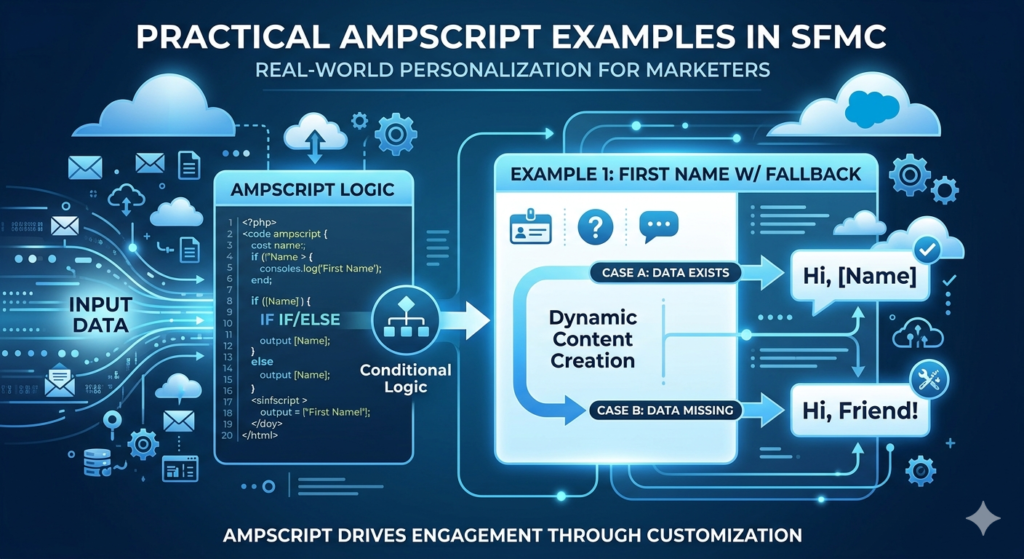
1. Always Declare Variables at the Top
Place all your variable declarations in a single AMPscript block at the very beginning of your email template. This makes it easy to:
- See at a glance what data the email depends on
- Find and update variable declarations when data field names change
- Ensure all variables are available throughout the entire template
text%%[
  /* ================================================
     EMAIL: Monthly Newsletter
     PURPOSE: Personalized member newsletter
     AUTHOR: Your Name
     DATE: January 2025
     ================================================ */

  /* Subscriber Data */
  SET @firstName = AttributeValue("FirstName")
  SET @lastName = AttributeValue("LastName")
  SET @email = AttributeValue("EmailAddress")
  SET @membershipLevel = AttributeValue("MembershipLevel")
  SET @loyaltyPoints = AttributeValue("LoyaltyPoints")
  SET @lastPurchaseDate = AttributeValue("LastPurchaseDate")
  SET @preferredCategory = AttributeValue("PreferredProductCategory")

  /* Calculated Values */
  SET @fullName = Concat(@firstName, " ", @lastName)
  SET @today = Now()
  SET @expiryDate = DateAdd(@today, 14, "D")
  SET @formattedExpiry = Format(@expiryDate, "MMMM d, yyyy")
]%%
2. Always Set Fallback Values for Every Variable
Data is never perfectly complete. Every variable that will be displayed to subscribers needs a fallback for when the data is missing:
text%%[
  SET @firstName = AttributeValue("FirstName")
  SET @cityName = AttributeValue("City")
  SET @membershipLevel = AttributeValue("MembershipLevel")

  /* Apply fallbacks immediately after retrieval */
  IF Empty(@firstName) THEN
    SET @firstName = "there"
  ENDIF

  IF Empty(@cityName) THEN
    SET @cityName = "your area"
  ENDIF

  IF Empty(@membershipLevel) THEN
    SET @membershipLevel = "Standard"
  ENDIF
]%%
The IIF() Shortcut for Simple Fallbacks:
The IIF() (Inline IF) function provides a concise way to set fallbacks in a single line:
text%%[
  /* IIF(condition, value_if_true, value_if_false) */
  SET @firstName = IIF(
    Empty(AttributeValue("FirstName")),
    "there",
    AttributeValue("FirstName")
  )
]%%
3. Comment Your Code Thoroughly
Future you — and your colleagues — will need to understand your AMPscript. Comment generously:
text%%[
  /* ===== MEMBERSHIP LEVEL LOGIC =====
     Determines offer details based on membership tier.
     Data source: Member_Data_Extension
     Field: MembershipLevel (values: Platinum, Gold, Silver, Standard)
     Default: Standard if field is empty or unrecognized value
  ===== */

  SET @membershipLevel = AttributeValue("MembershipLevel")

  /* Default values in case no conditions match */
  SET @offerCode = "MEMBER10"
  SET @discountPct = "10"

  IF @membershipLevel == "Platinum" THEN
    /* Highest tier - maximum discount */
    SET @offerCode = "PLAT40"
    SET @discountPct = "40"

  ELSEIF @membershipLevel == "Gold" THEN
    /* Second tier */
    SET @offerCode = "GOLD30"
    SET @discountPct = "30"
  ENDIF
  /* Note: Standard and unrecognized values use the defaults set above */
]%%
4. Keep Logic Simple and Readable
Resist the temptation to write overly clever or compressed code. Clear, readable code is far more valuable than technically impressive but unreadable code:
Hard to Read (avoid):
text%%[ SET @msg = IIF(@tier == "G", IIF(@spend > 500, "VIP Gold High", "Gold Standard"), IIF(@tier == "S", "Silver", "Standard")) ]%%
Easy to Read (preferred):
text%%[
  IF @tier == "Gold" AND @spend > 500 THEN
    SET @msg = "VIP Gold High Spender"
  ELSEIF @tier == "Gold" THEN
    SET @msg = "Gold Standard Member"
  ELSEIF @tier == "Silver" THEN
    SET @msg = "Silver Member"
  ELSE
    SET @msg = "Standard Member"
  ENDIF
]%%
5. Test Every Conditional Branch Before Sending
For every IF/ELSEIF/ELSE chain in your AMPscript, test with subscriber data that exercises every possible code path:
textTesting checklist for membership level example:
✅ Test with MembershipLevel = "Platinum"
✅ Test with MembershipLevel = "Gold"
✅ Test with MembershipLevel = "Silver"
✅ Test with MembershipLevel = "Standard"
✅ Test with MembershipLevel = "" (empty)
✅ Test with MembershipLevel = "GOLD" (wrong case - does it still work?)
✅ Test with MembershipLevel = "gold" (lowercase - does it still work?)
Case Sensitivity Note: AMPscript string comparisons ARE case-sensitive by default. "Gold" == "gold" evaluates to FALSE. To handle case-insensitive comparisons, normalize your data:
text%%[
  /* Normalize to lowercase for case-insensitive comparison */
  SET @membershipLevel = Lowercase(AttributeValue("MembershipLevel"))

  IF @membershipLevel == "gold" THEN
    /* This matches "Gold", "GOLD", "gold", "GoLd" */
    SET @discount = "30%"
  ENDIF
]%%
6. Use Meaningful Variable Names
Variable names should be self-documenting:
text/* Poor variable names */
SET @x = AttributeValue("FirstName")
SET @y = AttributeValue("MembershipLevel")
SET @z = "30%"

/* Good variable names */
SET @subscriberFirstName = AttributeValue("FirstName")
SET @membershipTier = AttributeValue("MembershipLevel")
SET @discountPercentage = "30%"
7. Monitor Performance for Large Lookups
If your AMPscript performs multiple Lookup() calls against large Data Extensions, it can slow down email rendering at send time. Best practices:
- Limit to the number of Lookup() calls genuinely needed
- Ensure Data Extensions used in lookups are indexed on the lookup field
- Consider pre-computing complex lookups using Automation Studio SQL queries before the send
Common AMPscript Mistakes to Avoid
Even experienced developers make mistakes with AMPscript. Here are the most common pitfalls and how to avoid them.
Mistake 1: Syntax Errors
AMPscript syntax must be exact. Missing a closing ENDIF, mismatched delimiters, or typos in function names cause the entire AMPscript block to fail — sometimes displaying raw code to subscribers instead of personalized content.
Common Syntax Errors:
text/* ERROR: Missing ENDIF */
%%[
  IF @membershipLevel == "Gold" THEN
    SET @discount = "30%"
  /* Missing ENDIF here! */
]%%

/* CORRECT: */
%%[
  IF @membershipLevel == "Gold" THEN
    SET @discount = "30%"
  ENDIF
]%%

/* ERROR: Wrong delimiter */
%%[
  SET @name = AttributeValue("FirstName")
]%   /* Should be ]%% */

/* ERROR: Missing @ on variable */
%%[
  SET firstName = "Sarah"  /* Should be @firstName */
]%%
Prevention Strategy:
- Always write IF statements with their ENDIF immediately, then fill in the content in between
- Use a text editor with syntax highlighting when writing complex AMPscript
- Indent consistently — it makes mismatched blocks obvious
Mistake 2: Not Testing with Missing Data
The most common runtime error in AMPscript is assuming all subscriber data fields are populated. When a field is empty and you don’t handle it, you get broken personalization:
text/* Without fallback - could render as "Hi ," */
Hi %%=v(AttributeValue("FirstName"))=%%,

/* With fallback - always renders correctly */
%%[
  SET @firstName = AttributeValue("FirstName")
  IF Empty(@firstName) THEN
    SET @firstName = "there"
  ENDIF
]%%
Hi %%=v(@firstName)=%%,
Prevention Strategy:
Always add explicit IF Empty() THEN ... ENDIF checks for every subscriber data field you use, or use IIF() for simple fallbacks.
Mistake 3: Case Sensitivity in String Comparisons
As mentioned earlier, AMPscript string comparisons are case-sensitive. "Gold" and "gold" and "GOLD" are three different values.
text/* This will FAIL if data contains "gold" or "GOLD" */
IF @membershipLevel == "Gold" THEN

/* This works regardless of how data is stored */
IF Lowercase(@membershipLevel) == "gold" THEN
Mistake 4: Over-Personalizing
More personalization is not always better. Excessive personalization can feel intrusive or creepy to subscribers — especially when it references data they didn’t explicitly provide or expect you to use.
Examples of over-personalization to avoid:
- “We noticed you visited our pricing page 7 times last week” — feels like surveillance
- Using highly personal data (health conditions, financial situations) in casual marketing contexts
- Referencing every data point you have in a single email
The Rule of Thumb:
Use personalization when it genuinely helps the subscriber — when it makes the content more relevant, more useful, or more appropriate for them. Don’t use personalization just because you technically can.
Mistake 5: Not Handling Lookup Failures
The Lookup() function returns an empty string if no matching record is found. Without handling this, you’ll display broken content:
text/* Without handling lookup failure */
SET @managerName = Lookup("ManagerDE", "Name", "AccountID", @accountID)
/* If no match, @managerName is empty and renders as blank */

/* With proper fallback */
SET @managerName = Lookup("ManagerDE", "Name", "AccountID", @accountID)
IF Empty(@managerName) THEN
  SET @managerName = "our team"
ENDIF
Mistake 6: Displaying AMPscript Code to Subscribers
If your AMPscript has a syntax error, Marketing Cloud may display the raw AMPscript code to subscribers instead of the rendered output. This is the email equivalent of displaying a “404 Error” page — it’s technical, ugly, and damages trust.
Prevention:
- Always test before sending using the Preview function and test sends
- Review emails thoroughly in the preview for any visible code characters (
%%[,]%%,SET @) - Enable Content Builder’s syntax validation where available
Conclusion
You’ve just completed a comprehensive journey through one of Salesforce Marketing Cloud’s most powerful features — and you should feel genuinely confident about what you’ve learned.
Let’s take a moment to appreciate how far we’ve traveled in this SFMC AMPscript tutorial:
We started by understanding what AMPscript is and why it exists — a purpose-built scripting language that powers dynamic content SFMC across emails, landing pages, SMS, and push notifications. We explored the fundamental syntax — variables, output, functions, and conditional logic — and saw how these building blocks combine to create sophisticated personalization.
Through five detailed AMPscript examples SFMC practitioners use daily, you saw AMPscript in action: greeting subscribers by name with proper fallbacks, showing different offers based on membership level, recommending products based on purchase history, creating date-aware content that always feels timely, and pulling personalized data from separate data extensions using the powerful Lookup() function.
We then explored advanced dynamic content SFMC scenarios — location-based messaging that speaks to subscribers based on where they are, purchase history recommendations that feel genuinely helpful, and behavioral targeting that responds to how subscribers have actually engaged with your brand.
You learned how to integrate AMPscript with Content Builder’s visual editor — combining the ease of drag-and-drop design with the power of script-driven personalization marketing cloud. And you’re now equipped with professional best practices and a clear understanding of the common mistakes that trip up even experienced developers.
Here’s the most important thing to remember: AMPscript mastery comes from practice. Start small — implement the first name fallback example in your next email. Then add a simple IF/ELSE condition. Then try a Lookup() call. Build your skills progressively, and within a few months, you’ll be creating email experiences that genuinely delight your subscribers and drive measurable business results.
The businesses winning in email marketing aren’t the ones with the biggest budgets — they’re the ones who treat every subscriber as an individual. AMPscript is your tool for doing exactly that.
Now open Content Builder, create a test email, and write your first AMPscript. Your subscribers are waiting for an email that finally feels like it was written just for them.
About RizeX Labs
At RizeX Labs, we specialize in delivering advanced Salesforce solutions, including personalized marketing automation using Salesforce Marketing Cloud.
Our expertise combines strong technical knowledge with real-world implementation experience to help businesses create highly targeted and personalized email campaigns using AMPscript.
We empower organizations to move from generic mass emails to intelligent, data-driven communication—where every customer receives personalized content based on their behavior, preferences, and CRM data.
Internal Links:
- Link to your Salesforce course page
- How to Build a Salesforce Portfolio That Gets You Hired (With Project Ideas)
- Salesforce Admin vs Developer: Which Career Path is Right for You in 2026?
- Wealth Management App in Financial Services Cloud
- SFMC course page
External Links:
- Salesforce official website
- Marketing Cloud overview
- AMPscript documentation
- Salesforce AppExchange
- Email Studio (Marketing Cloud)
- Journey Builder overview
Quick Summary
AMPscript is a powerful scripting language used in Salesforce Marketing Cloud to create highly personalized and dynamic email content.
With AMPscript, marketers and developers can:
- Personalize email content using subscriber data
- Display dynamic content blocks based on user behavior
- Insert real-time data from Data Extensions
- Perform conditional logic (IF/ELSE) for advanced targeting
- Customize subject lines, email body, and CTAs dynamically
By leveraging AMPscript, businesses can move beyond static campaigns and deliver tailored experiences that increase engagement, conversions, and customer satisfaction.
As customer expectations rise, mastering AMPscript is no longer optional—it’s a critical skill for building effective, data-driven email marketing strategies.
