
Introduction: Understanding Salesforce UI Customization
When working with Salesforce, creating an intuitive and efficient user interface (UI) is crucial for maximizing user adoption and productivity. The Salesforce UI offers tremendous flexibility, allowing administrators to customize how users interact with data and applications. However, this flexibility comes with choices—and understanding which customization tool to use can be challenging for many Salesforce administrators.
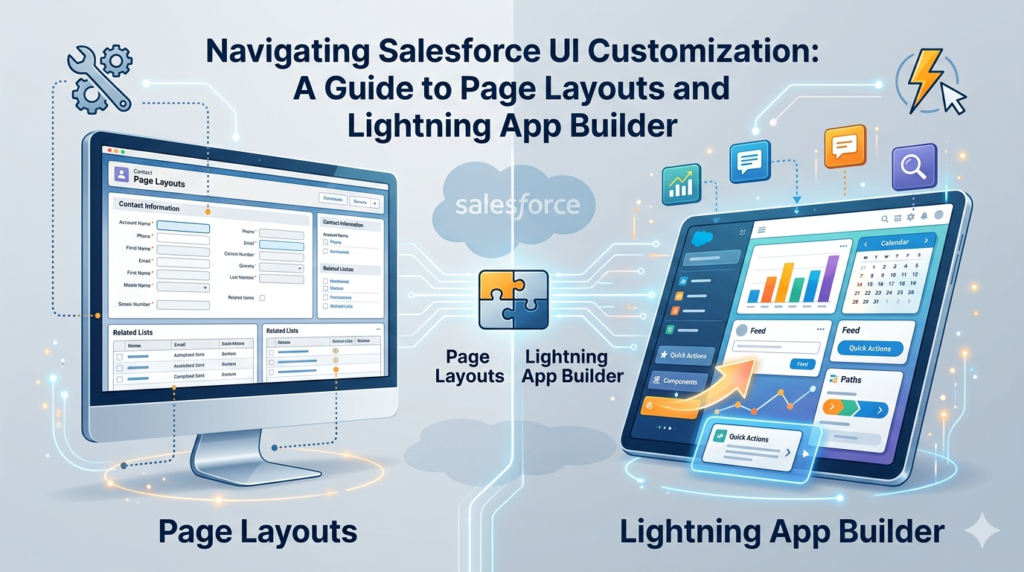
Two of the most powerful tools in your Salesforce customization arsenal are Page Layouts and Lightning App Builder. While both serve the purpose of configuring the Salesforce UI, they operate differently and serve distinct purposes. The ongoing debate of Salesforce page layouts vs Lightning App Builder often confuses beginners and even intermediate users who want to create the best possible experience for their teams.
In this comprehensive guide, we’ll demystify both tools, explore their unique capabilities, and help you understand when to use each one. Whether you’re customizing standard objects or working with custom objects (learn more in our Salesforce custom objects guide), knowing the difference between these two approaches is fundamental to building effective Salesforce solutions.
By the end of this article, you’ll have a clear understanding of:
- What Page Layouts and Lightning App Builder are
- Their key differences and similarities
- Practical use cases for each tool
- How to use both together for maximum impact
- Best practices for Salesforce UI customization
Let’s dive into the details.
What Are Salesforce Page Layouts?
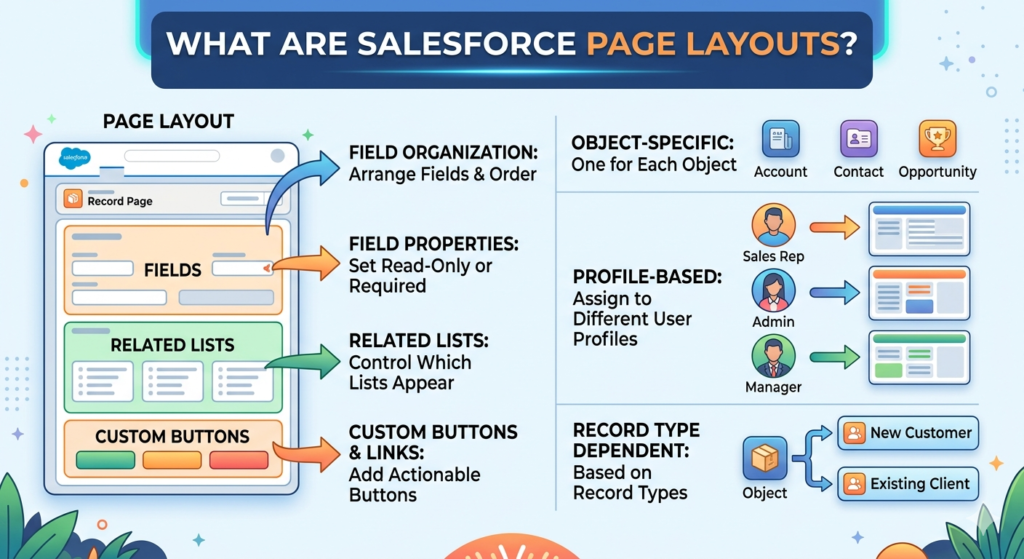
Page Layouts have been a cornerstone of Salesforce customization since the platform’s early days. They determine which fields, related lists, and custom buttons appear on record detail and edit pages for different user profiles.
Core Functions of Page Layouts
Page Layouts control several important aspects of the user experience:
- Field Organization: Determine which fields appear on a record and in what order
- Field Properties: Set fields as read-only or required for specific profiles
- Related Lists: Control which related lists appear and their sequence
- Custom Buttons and Links: Display custom actions users can take on records
- Field-Level Security: Work in conjunction with field-level security settings to control access
Key Characteristics
- Object-Specific: Each Page Layout is associated with a single object
- Profile-Based: Different Page Layouts can be assigned to different user profiles
- Record Type Dependent: Multiple Page Layouts can exist for one object based on record types
- Field-Focused: Primarily concerned with which fields users see and can edit
When administrators first learn about the Salesforce page layouts vs Lightning App Builder comparison, Page Layouts are typically more familiar because they’ve been around longer and follow a simpler, more straightforward model.
What Is Lightning App Builder?
Lightning App Builder represents Salesforce’s modern approach to UI customization. Introduced with the Lightning Experience, it’s a drag-and-drop tool that allows you to create custom pages using pre-built and custom Lightning components.
Core Functions of Lightning App Builder
Lightning App Builder empowers you to:
- Create Custom Pages: Build entirely new page layouts from scratch
- Use Components: Leverage standard and custom Lightning components
- Design Flexible Layouts: Create multi-region pages with varying component arrangements
- Add Visual Elements: Include charts, reports, dashboards, and rich media
- Control Page Activation: Determine when and where custom pages appear
Key Characteristics
- Component-Based: Uses Lightning components as building blocks
- Highly Flexible: Offers more design freedom than traditional Page Layouts
- Multiple Page Types: Supports App Pages, Home Pages, and Record Pages
- Dynamic Content: Components can display filtered, personalized information
- Visibility Rules: Fine-grained control over when components appear
The Lightning App Builder guide documentation reveals that this tool represents a paradigm shift in how Salesforce administrators think about page design—moving from field-centric to component-centric thinking.
Salesforce Page Layouts vs Lightning App Builder: Detailed Comparison
Understanding the Salesforce page layouts vs Lightning App Builder distinction requires examining how these tools differ across multiple dimensions.
1. Customization Approach
Page Layouts:
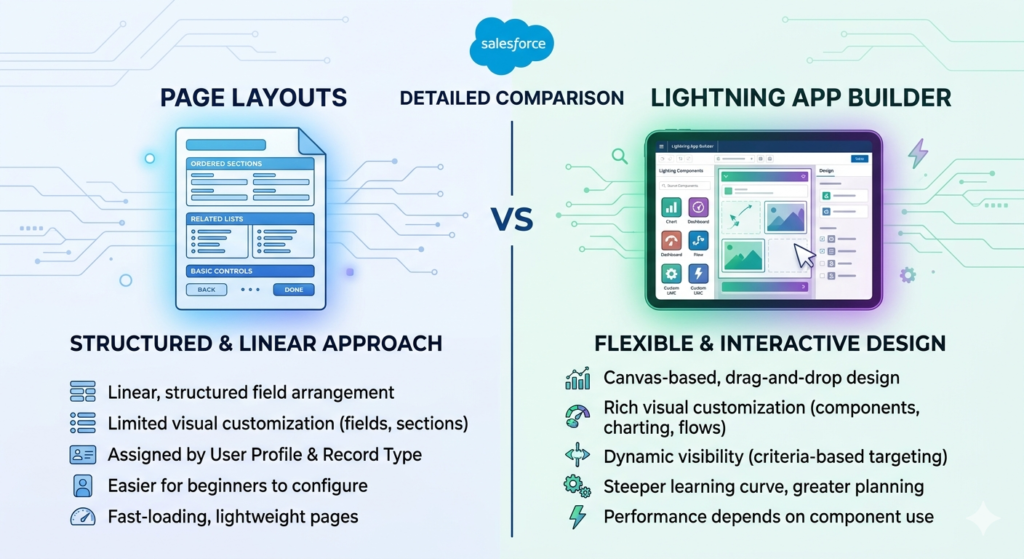
- Linear, structured approach to field arrangement
- Primarily text-based with limited visual customization
- Focus on organizing fields in sections
- Consistent, predictable layout structure
Lightning App Builder:
- Flexible, canvas-based design approach
- Rich visual customization with various component types
- Focus on creating engaging user experiences
- Highly variable layout possibilities
2. Design Flexibility
Page Layouts:
- Two-column field arrangement with some section flexibility
- Limited control over spacing and visual design
- Standard appearance that maintains Salesforce consistency
- Cannot embed dynamic components beyond fields and related lists
Lightning App Builder:
- Multiple template options with various region configurations
- Extensive control over component placement and sizing
- Ability to create unique, branded experiences
- Can embed charts, dashboards, flows, and custom components
3. Content Types
Page Layouts:
- Fields (text, picklist, lookup, etc.)
- Related lists
- Custom buttons and links
- Quick actions
- Publisher actions (for Chatter-enabled objects)
Lightning App Builder:
- All standard Lightning components
- Custom Lightning Web Components (LWC)
- Visualforce pages
- Reports and dashboards
- Flows
- Rich text and images
- Third-party components from AppExchange
4. User Targeting
Page Layouts:
- Assigned based on user profile
- Can vary by record type
- All users with the same profile/record type combination see the same layout
- Limited personalization options
Lightning App Builder:
- Dynamic visibility based on multiple criteria
- Can target specific profiles, permission sets, record types, and more
- Component-level visibility rules
- Greater personalization capabilities
5. Implementation Complexity
Page Layouts:
- Easier for beginners to understand and implement
- Straightforward configuration process
- Less technical knowledge required
- Faster initial setup for basic customizations
Lightning App Builder:
- Steeper learning curve initially
- Requires understanding of components and their properties
- More powerful but requires planning
- May need developer support for advanced customizations
6. Performance Considerations
Page Layouts:
- Lightweight and fast-loading
- Minimal performance impact
- Standard rendering process
- Predictable load times
Lightning App Builder:
- Performance varies based on components used
- Can be heavier if many complex components are added
- Requires attention to component selection
- May need optimization for heavily customized pages
When to Use Page Layouts
Despite the advanced capabilities of Lightning App Builder, Page Layouts remain essential for many scenarios in the Salesforce page layouts vs Lightning App Builder discussion.
Ideal Use Cases for Page Layouts
1. Field Organization and Data Entry
When your primary goal is controlling which fields users see and can edit, Page Layouts are your best choice. They excel at:
- Making certain fields required for specific user groups
- Hiding irrelevant fields from users who don’t need them
- Organizing fields logically for efficient data entry
- Setting fields as read-only for certain profiles
Example: A sales team needs different required fields than a support team when creating opportunities. Page Layouts assigned by profile ensure each team sees relevant fields without clutter.
2. Profile-Based Field Access
When field visibility needs to vary by user profile, Page Layouts offer a straightforward solution:
- Show sensitive fields only to management profiles
- Display simplified layouts for occasional users
- Present comprehensive field sets to power users
Example: Account executives see commission-related fields on Opportunity records, while customer service representatives see only basic opportunity information without financial details.
3. Related List Management
Page Layouts are the primary tool for controlling related lists:
- Determining which related lists appear on a record
- Setting the order of related lists
- Customizing button availability on related lists
Example: On Account records, show Cases and Opportunities to sales users, but show Cases, Service Contracts, and Assets to support users.
4. Quick Configuration Needs
When you need to make rapid, simple changes:
- Adding or removing fields quickly
- Adjusting field order
- Making emergency field requirement changes
5. Record Type Variations
When different record types need different field sets:
- Various Account types (Customer, Partner, Competitor)
- Different Case categories (Technical, Billing, General)
- Multiple Opportunity types (New Business, Renewal, Upsell)
Example: A company using the Salesforce custom objects guide to create a custom Project object might have different record types for Internal Projects, Client Projects, and Research Projects—each requiring different fields and related lists.
When to Use Lightning App Builder
Lightning App Builder shines when you need to go beyond simple field organization and create rich, interactive user experiences.
Ideal Use Cases for Lightning App Builder
1. Dashboard-Style Record Pages
When users need at-a-glance insights alongside record details:
- Embedding reports and charts relevant to the record
- Displaying key metrics and KPIs
- Showing aggregated data from related records
Example: An Account record page that displays a sales pipeline chart, recent activity timeline, and health score component—all updating dynamically based on the account being viewed.
2. Guided User Experiences
When users need step-by-step guidance:
- Embedding Flows for guided processes
- Adding help text and instructional components
- Creating wizard-like experiences
Example: A Lead conversion page with an embedded Flow that guides sales reps through qualification questions, automatically populating fields and creating related records based on responses.
3. Role-Specific Experiences
When different user groups need entirely different page experiences:
- Showing different component sets to different roles
- Creating specialized views for specific use cases
- Tailoring information density based on user sophistication
Example: A single Opportunity record page that shows a simplified view with key actions for sales managers but displays detailed analytics, competitor intelligence, and forecasting components for strategic account managers.
4. Multi-Object Information Integration
When users need to see information from multiple related objects simultaneously:
- Displaying data from parent, child, and related records
- Showing cross-object reporting components
- Creating unified views of connected data
Example: A Case record page showing not only Case fields but also components displaying the customer’s account history, recent purchases, open orders, and knowledge articles relevant to the case category.
5. Custom Component Integration
When you have custom Lightning components that enhance functionality:
- Displaying custom-built business logic tools
- Integrating third-party AppExchange components
- Showing specialized visualizations
Example: A custom Territory Management component on Account pages that displays territory assignments, coverage maps, and assignment history—built as a custom Lightning Web Component.
6. Home Page Customization
When you want to customize the Home page experience:
- Creating role-specific home pages
- Adding personalized dashboards and metrics
- Providing quick access to common tasks
Example: A sales rep home page featuring today’s appointments, pipeline snapshot, leaderboard, and quick action buttons for common tasks.
The Power of Using Both Together
The real answer to Salesforce page layouts vs Lightning App Builder isn’t choosing one over the other—it’s understanding how to leverage both together for optimal results.
How Page Layouts and Lightning App Builder Work Together
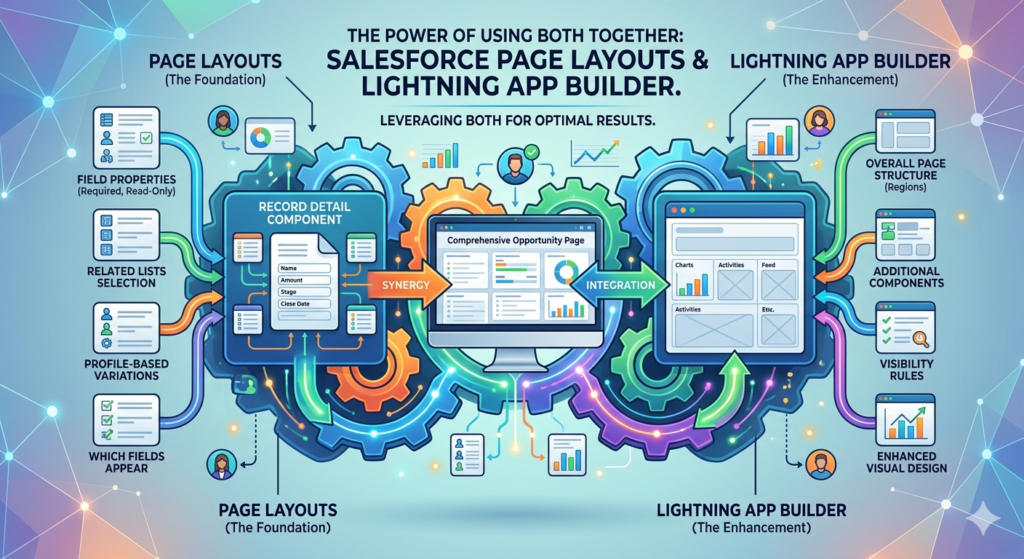
When you create a Lightning Record Page using Lightning App Builder, you’ll typically include a Record Detail component. This component displays the fields and related lists defined in your Page Layout. Here’s how they complement each other:
Page Layouts Handle:
- Which fields appear in the record detail component
- Field properties (required, read-only)
- Related list selection and order
- Profile-based field variations
Lightning App Builder Handles:
- Overall page structure and regions
- Additional components beyond the record detail
- Component visibility rules
- Enhanced visual design
Practical Integration Strategy
Step 1: Configure Your Page Layout
Start by setting up your Page Layout to include the appropriate fields and related lists. This establishes your foundational record information.
Step 2: Create Your Lightning Page
Use Lightning App Builder to create a Record Page for the object. Add the Record Detail component, which will display information according to your Page Layout.
Step 3: Enhance with Components
Add additional Lightning components around the Record Detail to provide context, insights, and actions:
- Reports and charts for analytical insights
- Activity timelines for engagement history
- Related record lists with custom filtering
- Quick actions and flows for common tasks
Step 4: Set Visibility Rules
Configure component-level visibility rules to show different components to different users, record types, or based on field values.
Example: Comprehensive Opportunity Page
Let’s see how combining both tools creates a powerful solution:
Page Layout Configuration:
- Include standard Opportunity fields (Name, Amount, Close Date, Stage)
- Add custom fields specific to your sales process
- Display related lists for Contacts, Products, and Competitors
- Make certain fields required based on opportunity stage
- Assign different layouts to different sales profiles
Lightning App Builder Configuration:
- Use a three-region template
- Left region: Record Detail component (shows Page Layout content)
- Right region:
- Opportunity health score component
- Recent activity timeline
- Related account information
- Competitive intelligence component
- Bottom region:
- Pipeline influence chart
- Historical close rate for similar opportunities
- Related quotes and proposals
Result: Users see all relevant fields (controlled by Page Layout) plus rich contextual information (provided by Lightning components) in a single, cohesive interface optimized for their role and the opportunity stage.
Salesforce UI Best Practices
When working with the Salesforce UI through either Page Layouts or Lightning App Builder, following best practices ensures optimal user adoption and system performance.
General Salesforce UI Design Principles
1. User-Centric Design
- Always design with your end users in mind
- Involve actual users in testing and feedback
- Minimize clicks required for common tasks
- Present information in logical, task-oriented groupings
2. Consistency
- Maintain consistent patterns across objects
- Use similar layouts for similar objects
- Standardize naming conventions for custom components
- Apply uniform design principles across your org
3. Performance Optimization
- Limit the number of components on Lightning pages
- Avoid unnecessary related lists on Page Layouts
- Use component visibility rules to load content conditionally
- Monitor page load times and optimize accordingly
4. Mobile Considerations
- Test your Salesforce UI designs on mobile devices
- Prioritize most important information at the top
- Ensure components are mobile-responsive
- Consider creating mobile-specific Lightning pages
Page Layout Best Practices
1. Field Organization
- Group related fields in logical sections
- Place most important fields at the top
- Use clear, descriptive section labels
- Limit fields to only what users actually need
2. Required Fields
- Make fields required only when absolutely necessary
- Consider using validation rules for conditional requirements
- Communicate required field changes to users in advance
3. Related Lists
- Show only relevant related lists
- Order related lists by frequency of use
- Customize related list columns to show key information
- Remove unnecessary standard buttons
Lightning App Builder Best Practices
1. Component Selection
- Choose components purposefully
- Avoid component overload that clutters the page
- Test component performance impact
- Verify component mobile compatibility
2. Layout Design
- Use templates that support your content strategy
- Balance information density with white space
- Create visual hierarchy with component sizing
- Consider user scan patterns (F-pattern, Z-pattern)
3. Visibility Rules
- Use component visibility to personalize experiences
- Test visibility rules thoroughly
- Document visibility logic for maintenance
- Avoid overly complex rule combinations
4. Activation Strategy
- Plan page activation carefully
- Communicate changes to users before activation
- Consider phased rollouts for major changes
- Provide training and documentation
Creating Custom Objects and UI Customization
When following a Salesforce custom objects guide to create new objects for your organization, you’ll need to consider both Page Layouts and Lightning App Builder in your implementation strategy.
Custom Object UI Setup Process
Phase 1: Object and Field Creation
- Define your custom object and its fields
- Set up field-level security
- Create necessary relationships
- Configure validation rules
Phase 2: Page Layout Configuration
- Create Page Layouts for different user groups
- Organize fields into logical sections
- Add relevant related lists
- Assign Page Layouts to profiles and record types
Phase 3: Lightning Page Enhancement
- Create Lightning Record Pages for the custom object
- Add analytical and functional components
- Configure visibility rules
- Assign Lightning Pages to appropriate users/record types
Phase 4: Testing and Refinement
- Test with actual users from different profiles
- Gather feedback on usability
- Refine based on real-world usage
- Document final configuration
Example: Custom Project Management Object
Imagine creating a custom “Project” object following your Salesforce custom objects guide:
Custom Object Setup:
- Custom fields: Project Name, Budget, Timeline, Status, Priority, Project Manager (lookup to User)
- Related objects: Tasks, Resources, Budgets, Deliverables
Page Layout Strategy:
- Executive Layout: Shows high-level fields like Budget, Timeline, Status, Priority
- Project Manager Layout: Shows all fields including detailed planning information
- Team Member Layout: Shows relevant task-related fields, hides budget details
Lightning Page Design:
- Top section: Record Detail (controlled by Page Layout)
- Left column: Gantt chart component showing project timeline
- Right column: Team member list, budget utilization gauge, upcoming milestones
- Bottom section: Related tasks with custom filtering options
This approach combines the field-level control of Page Layouts with the rich functionality of Lightning components, creating an effective project management interface.
Common Mistakes to Avoid
Understanding what NOT to do is just as important in the Salesforce page layouts vs Lightning App Builder discussion.
Page Layout Mistakes
1. Including Too Many Fields
Creating cluttered Page Layouts with every available field overwhelms users and slows data entry.
2. Inconsistent Section Organization
Using different section structures across similar objects creates confusion.
3. Ignoring Field Dependencies
Not considering dependent picklists and controlling fields when organizing Page Layouts.
4. Over-Restricting with Read-Only Fields
Making too many fields read-only frustrates users and may force them to seek admin help unnecessarily.
Lightning App Builder Mistakes
1. Component Overload
Adding too many components makes pages slow and difficult to navigate.
2. Neglecting Mobile Experience
Designing beautiful desktop pages that are unusable on mobile devices.
3. Complex Visibility Rules
Creating overly complicated visibility logic that’s difficult to maintain and troubleshoot.
4. Ignoring Performance
Adding resource-intensive components without considering page load impact.
5. Inconsistent User Experience
Creating wildly different Lightning pages for similar objects without good reason.
Integration Mistakes
1. Duplicating Information
Showing the same information in both Page Layout fields and additional Lightning components unnecessarily.
2. Misaligned Access Control
Setting field-level security that conflicts with Lightning page visibility rules.
3. Incomplete Testing
Not testing how Page Layouts and Lightning pages work together for all user profiles.
Migration from Classic to Lightning: UI Considerations
Organizations moving from Salesforce Classic to Lightning Experience face unique considerations in the Salesforce page layouts vs Lightning App Builder context.
Classic to Lightning UI Transition
What Carries Over:
- Page Layouts function similarly in Lightning Experience
- Field organization remains intact
- Profile assignments continue to work
- Related lists transfer directly
What Changes:
- Visual appearance updates to Lightning design system
- Page Layout capabilities expand with Lightning-specific features
- Opportunity to enhance with Lightning App Builder
Migration Strategy
Phase 1: Assessment
- Review existing Classic Page Layouts
- Identify pain points in current UI
- Gather user feedback on desired improvements
- Prioritize objects for Lightning page creation
Phase 2: Enhancement Planning
- Determine which objects benefit from Lightning pages
- Identify useful Lightning components for each object
- Plan visibility rules and targeting strategy
- Create mobile experience strategy
Phase 3: Implementation
- Optimize existing Page Layouts
- Build Lightning pages for priority objects
- Configure activation rules
- Test thoroughly with users
Phase 4: Training and Rollout
- Train users on new Lightning interface
- Provide documentation and resources
- Support users during transition
- Gather feedback for refinement
Advanced Techniques and Tips
Once you’ve mastered the basics of Salesforce page layouts vs Lightning App Builder, these advanced techniques can take your Salesforce UI customization to the next level.
Dynamic Forms (Lightning Feature)
Dynamic Forms allow you to move away from traditional Page Layouts entirely, giving you field-level control within Lightning App Builder:
Benefits:
- Add fields as individual components
- Set field-level visibility rules
- Arrange fields more flexibly
- Reduce dependency on Page Layouts
Considerations:
- Available only in Lightning Experience
- Requires migrating from classic Record Detail component
- More configuration complexity
- Better for advanced customization needs
Component Reusability
Create custom Lightning components that you can reuse across multiple objects and pages:
Strategies:
- Build generic components with configurable properties
- Create component bundles for common use cases
- Document component usage for other admins
- Share components across namespaces when appropriate
Performance Optimization
For Page Layouts:
- Remove unused fields and related lists
- Limit use of formula fields on layouts
- Optimize related list column selection
- Use field dependencies to reduce field count
For Lightning Pages:
- Implement lazy loading for components
- Use component visibility to load conditionally
- Limit number of reports and dashboards per page
- Monitor component governor limits
- Cache data where appropriate
A/B Testing Your UI
Test different UI approaches to find what works best:
Method:
- Create variant Lightning pages or Page Layouts
- Assign to different user subgroups
- Measure adoption, efficiency, and satisfaction metrics
- Implement winning approach org-wide
Real-World Success Stories
Understanding theory is important, but seeing how organizations successfully navigate the Salesforce page layouts vs Lightning App Builder decision provides valuable insights.
Case Study 1: Financial Services Firm
Challenge: Account managers needed comprehensive client information but were overwhelmed by cluttered record pages.
Solution:
- Simplified Page Layout to include only essential fields and top-priority related lists
- Created Lightning page with tabs organizing information by category:
- Overview tab: Key account information and health metrics
- Opportunities tab: Pipeline visualization and forecast components
- Relationship tab: Contact hierarchy and engagement history
- Compliance tab: Regulatory information and documentation status
Results:
- 35% reduction in time spent searching for information
- 20% increase in user satisfaction scores
- Improved compliance documentation
Case Study 2: Healthcare Provider
Challenge: Multiple user groups needed very different views of patient interaction records while maintaining data integrity.
Solution:
- Created four distinct Page Layouts for different clinical roles (doctors, nurses, admin staff, billing)
- Built role-specific Lightning pages with targeted components:
- Clinical staff: Treatment history, medication interactions, diagnostic results
- Administrative staff: Scheduling components, insurance verification, contact information
- Billing staff: Payment history, insurance claims status, outstanding balance calculators
Results:
- Reduced data entry errors by 40%
- Decreased training time for new staff
- Improved patient data completeness
Case Study 3: Manufacturing Company
Challenge: Sales team needed better visibility into production status and inventory when managing opportunities.
Solution:
- Maintained traditional Page Layouts for basic opportunity data entry
- Enhanced Opportunity Lightning pages with custom components:
- Real-time inventory availability checker
- Production schedule integration
- Shipping timeline estimator
- Competitive pricing analyzer
Results:
- 25% increase in quote accuracy
- Reduced back-and-forth with operations team
- Faster opportunity closure times
Future of Salesforce UI Customization
Salesforce continues to evolve its platform, and understanding the trajectory helps you make forward-looking decisions in the Salesforce page layouts vs Lightning App Builder discussion.
Emerging Trends
1. Increased Component Intelligence
- AI-powered components that provide recommendations
- Predictive analytics embedded in Lightning components
- Einstein-powered insights surfaced contextually
2. Greater Personalization
- More granular control over user experiences
- Adaptive UIs that learn from user behavior
- Automated layout optimization based on usage patterns
3. Enhanced Mobile Capabilities
- Mobile-first component design
- Better mobile-desktop parity
- Progressive web app capabilities
4. Low-Code/No-Code Expansion
- More sophisticated drag-and-drop capabilities
- Easier custom component creation
- Simplified integration options
Preparing for the Future
Stay Current:
- Follow Salesforce release notes
- Participate in Lightning Champions community
- Attend Dreamforce and Trailhead LIVE events
- Complete relevant Trailhead modules
Build Flexibility:
- Design with future enhancement in mind
- Document your customization decisions
- Avoid over-customization that’s difficult to maintain
- Follow Salesforce best practices
Invest in Skills:
- Learn Lightning Web Component development
- Understand declarative vs. programmatic approaches
- Stay updated on new Lightning App Builder features
- Develop a comprehensive understanding of the Salesforce UI ecosystem
Conclusion
Understanding Salesforce page layouts vs Lightning App Builder is not about choosing one tool over the other—it’s about recognizing when to use each one and how to leverage both together for maximum impact.
Page Layouts provide essential control over field display, field properties, and related lists. They’re perfect for managing what data users see and interact with based on their profile and record type. Their simplicity and reliability make them indispensable for fundamental Salesforce UI configuration.
Lightning App Builder offers powerful capabilities for creating rich, interactive user experiences that go far beyond simple field organization. With its component-based approach, you can embed reports, dashboards, flows, and custom components to provide users with contextual information and guided processes that significantly enhance productivity.
The most effective Salesforce implementations combine both tools strategically:
- Use Page Layouts to control field-level configuration and profile-based field access
- Use Lightning App Builder to enhance those layouts with additional components, analytics, and personalized experiences
- Follow a Lightning App Builder guide and best practices to create intuitive, performance-optimized pages
- Design your Salesforce UI with end users in mind, focusing on their actual workflows and information needs
Whether you’re customizing standard objects or following a Salesforce custom objects guide to build new functionality, mastering both Page Layouts and Lightning App Builder gives you the flexibility to create exactly the right experience for your users.
As Salesforce continues to evolve, both tools will remain important parts of your customization toolkit. Stay current with new features, follow best practices, and always design with your users’ needs at the forefront. The combination of these approaches, applied thoughtfully, will transform your Salesforce org from a simple database into an intuitive, powerful platform that drives user adoption and business success.
About RizeX Labs
At RizeX Labs, we specialize in delivering advanced Salesforce solutions that help businesses build scalable, user-friendly CRM systems. Our expertise includes UI customization using Salesforce Page Layouts and Lightning App Builder, enabling organizations to create efficient and intuitive user experiences.
We combine real-world implementation experience with best practices to help companies optimize workflows, improve productivity, and ensure seamless data interaction across teams.
Internal Links:
- Salesforce Admin course page
- Salesforce Flows vs Apex: When Should You Use Code vs No-Code Automation?
- Salesforce Data Cloud Explained — What It Is and Why It Matters
- AI Tools for Salesforce Development in 2026 — Cursor AI, Copilot and More
- Why Your Company Should Invest in Salesforce Developer Training in 2026
- Salesforce Named Credentials: What They Are and How to Use Them Safely
- Prompt Engineering for Salesforce Agentforce — Beginner’s Guide
External Links:
McKinsey Sales Growth Reports
