
Introduction
If you have spent any time administering a Salesforce org, you have almost certainly encountered salesforce record types — one of the most powerful yet frequently misunderstood features in the entire platform. Whether you are building your first sandbox or managing a complex enterprise implementation, understanding how record types work can be the difference between a clean, scalable org and a tangled mess of workarounds.
So, what exactly are salesforce record types? In the simplest terms, they are a mechanism that allows you to offer different business processes, picklist values, and page layouts to different groups of users — all within the same Salesforce object. Think of them as different “flavors” of the same record, each tailored for a specific audience or purpose.
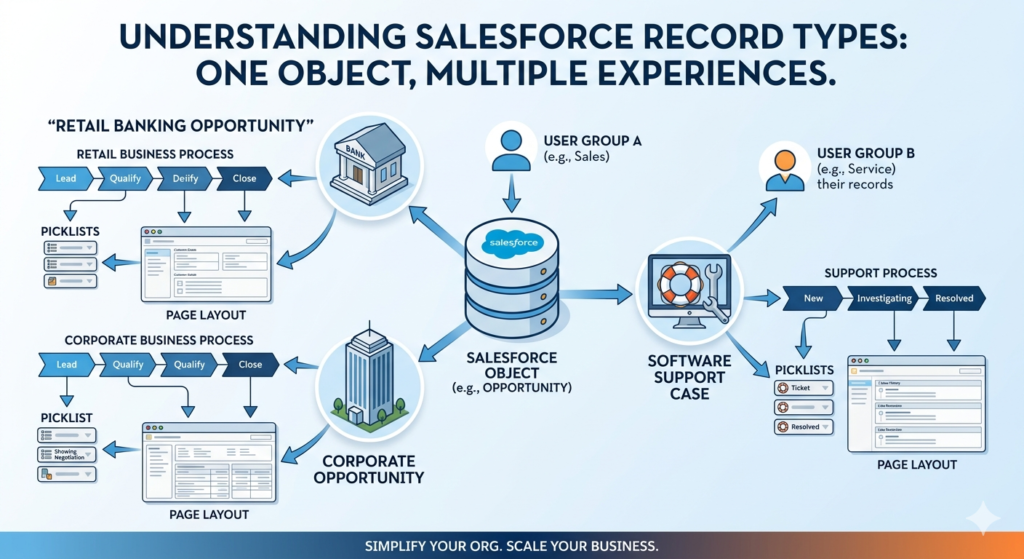
Businesses use record types for a wide range of reasons:
- A financial services company might need separate Opportunity processes for retail banking clients versus corporate accounts.
- A software company might want customer support cases to look completely different from billing inquiries.
- A manufacturing firm might need their sales team to see different picklist values than their service team when working with the same Account object.
In each of these scenarios, record types are the tool that makes it possible — without duplicating objects, building complex Apex code, or forcing users to navigate fields that are irrelevant to their work.
This guide is designed for Salesforce Admin beginners, Salesforce certification aspirants, business analysts, and consultants who want a thorough, practical understanding of salesforce record types. We will walk through definitions, compare record types vs page layouts, provide a complete salesforce record type setup walkthrough, and explore real-world use cases across Sales Cloud, Service Cloud, and custom objects.
Let’s dive in.
What Are Salesforce Record Types?
The Core Definition
A Salesforce Record Type is a configuration feature that enables administrators to define different subsets of records within a single standard or custom object. Each record type can control three critical elements:
- Business Processes — The stages or statuses available within a picklist field (most commonly used with Lead Status, Opportunity Stage, Case Status, and Solution Status).
- Picklist Values — The specific values users can select from dropdown menus, which can vary by record type.
- Page Layouts — The fields, related lists, and sections visible to users when viewing or editing a record.
This means two users working in the same object — say, the Leads object — can have an entirely different experience based on which record type is assigned to their records.
The Technical Reality
From a technical standpoint, record types are assigned at the profile level (and can be further refined with permission sets). When a user creates a new record, Salesforce presents them with a list of record types they are eligible to use. If only one record type is assigned to their profile, Salesforce automatically defaults to that type without prompting the user.
Every Salesforce object has a built-in default record type called “Master.” This default exists even when no custom record types have been created. When you create your first custom record type, you are essentially building on top of this foundation.
What Record Types Control
Here is a clean breakdown of what record types can and cannot control:
| Feature | Controlled by Record Type? |
|---|---|
| Business Process (Stage/Status values) | ✅ Yes |
| Picklist field values | ✅ Yes |
| Page Layout assignment | ✅ Yes |
| Field-level security | ❌ No (controlled by profiles/permission sets) |
| Record visibility | ❌ No (controlled by sharing rules/OWD) |
| Validation rules | ❌ No (apply across all record types by default) |
| Flows and automation | ❌ Partially (must filter by record type field if needed) |
Admin Pro Tip: The
RecordType.DeveloperNameorRecordType.Namefield can be referenced in validation rules, flows, process builder automations, and Apex code to create record-type-specific logic. This makes record types a surprisingly versatile filtering mechanism beyond just UI control.
Record Types in Salesforce Classic vs Lightning Experience
| Aspect | Salesforce Classic | Lightning Experience |
|---|---|---|
| Record type selection UI | Pop-up dialog | Streamlined modal |
| Page layout rendering | Standard layout | Dynamic forms supported |
| Record type visibility | Profile-based | Profile + permission set |
| Dynamic Forms compatibility | ❌ Not supported | ✅ Supported |
Lightning Experience has significantly improved the record type user experience, particularly with the introduction of Dynamic Forms, which allow field-level visibility rules that work in conjunction with record types for even more granular control.
Record Types vs Page Layouts: Key Differences
This is arguably the most common point of confusion for new Salesforce admins. The phrase record types vs page layouts comes up constantly in admin forums, certification exams, and project discovery sessions. Let’s clear it up once and for all.
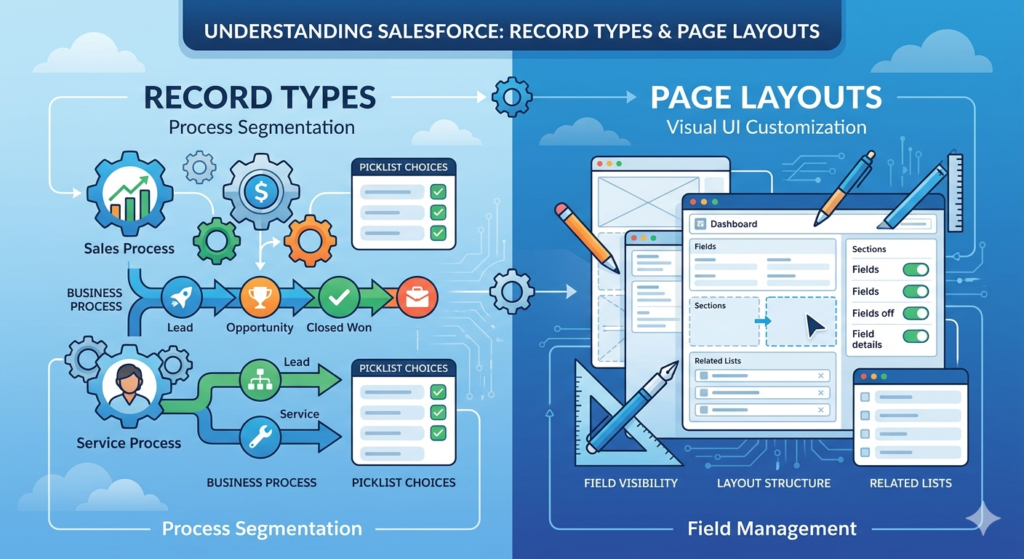
The Simple Mental Model
Think of it this way:
- Record Types = Process Segmentation — They answer the question: “What kind of record is this, and what business process does it follow?”
- Page Layouts = UI Customization — They answer the question: “What should this record look like on the screen?”
Record types and page layouts are related but separate. A record type points to a page layout, but the page layout itself has no inherent knowledge of the record type. You can assign the same page layout to multiple record types, or you can assign a unique layout to each record type — the choice is yours.
Side-by-Side Comparison Table
| Dimension | Record Types | Page Layouts |
|---|---|---|
| Primary Purpose | Business process segmentation | Visual UI customization |
| Controls Picklists | ✅ Yes | ❌ No |
| Controls Business Processes | ✅ Yes | ❌ No |
| Controls Field Visibility | ❌ No | ✅ Yes (show/hide fields) |
| Controls Field Order | ❌ No | ✅ Yes |
| Controls Related Lists | ❌ No | ✅ Yes |
| Controls Required Fields | ❌ No | ✅ Yes (layout-level) |
| Assigned to Profiles | ✅ Yes | ✅ Yes (via record type) |
| Works Without the Other | ❌ No (needs page layout) | ✅ Yes (can exist without record types) |
| User Sees at Record Creation | ✅ Yes (selection prompt) | ❌ No (transparent) |
Real Business Example: B2B vs B2C Sales Process
Imagine you are a Salesforce Admin at a company that sells both directly to consumers (B2C) and through enterprise contracts (B2B). Both sales motions use the Opportunity object, but they are fundamentally different:
B2C Opportunity:
- Simple, fast sales cycle (1-7 days)
- Stages: Prospecting → Proposal → Closed Won / Closed Lost
- Fields needed: Product Interest, Estimated Close Date, Discount Code
- No fields needed: Contract Value, Legal Review Date, Procurement Contact
B2B Opportunity:
- Complex, multi-month sales cycle
- Stages: Discovery → Technical Validation → Procurement → Contract Review → Closed Won / Closed Lost
- Fields needed: Contract Value, Legal Review Date, Procurement Contact, Executive Sponsor
- No fields needed: Discount Code
The solution: Create two Opportunity Record Types — B2C_Sale and B2B_Enterprise. Each record type maps to a different Business Process (controlling Stage values) and a different Page Layout (showing or hiding relevant fields).
This means your B2C sales reps never see a “Legal Review Date” field cluttering their screen, and your B2B account executives have every field they need front and center.
Real Business Example: Sales Team vs Support Team on Accounts
A slightly different scenario involves two different teams using the same Account record but needing to see it differently:
- Sales team cares about: Revenue Potential, Industry, Decision Maker, Account Tier
- Support team cares about: Support Contract Level, Number of Open Cases, Preferred Contact Method, SLA Tier
Rather than creating a single cluttered page layout that tries to satisfy both teams, you can create two record types on the Account object — Sales_Account and Support_Account — each with its own tailored page layout. Profiles for Sales reps get access to the Sales_Account record type; Support agents get Support_Account.
Admin Pro Tip: Not every scenario that feels like it needs separate record types actually requires them. Sometimes a single page layout with Dynamic Forms (Lightning) or careful section organization can achieve the same goal without adding record type complexity. Always ask: “Is there a genuine business process difference, or just a UI preference?” If it’s purely UI, consider page layout sections or Dynamic Forms first.
Salesforce Record Type Setup: Step-by-Step Guide
Now let’s get practical. This section walks through the complete salesforce record type setup process in Lightning Experience. We will use the Opportunity object as our example, creating a New Business and a Renewal record type.
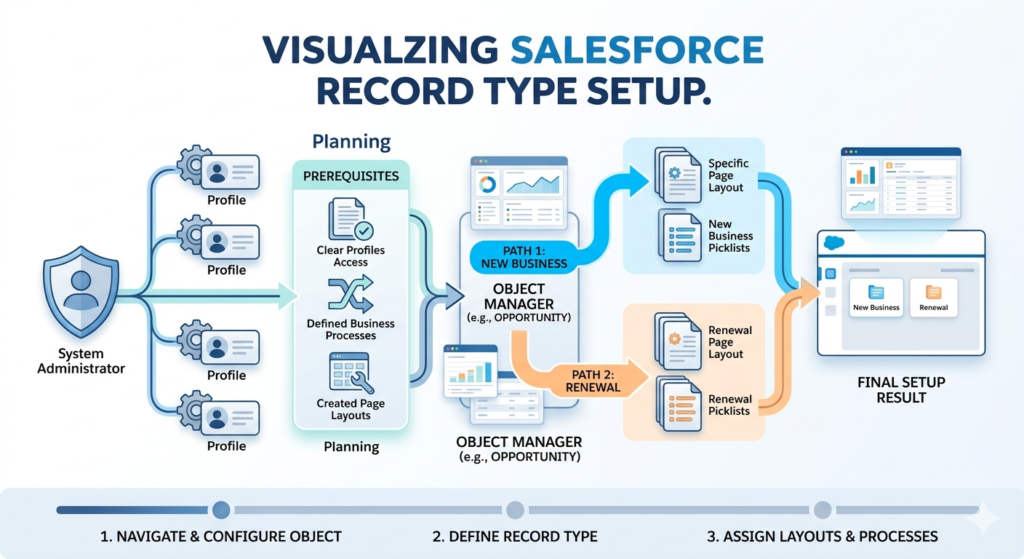
Prerequisites
Before starting your salesforce record type setup, make sure you have:
- System Administrator profile or equivalent
- A clear understanding of which profiles need access to each record type
- Defined business processes (if applicable)
- Page layouts already created (or a plan for which layouts to assign)
Step 1: Navigate to Object Manager
- Click the Setup gear icon in the top-right corner of Salesforce Lightning.
- Select Setup from the dropdown.
- In the Setup search bar, type “Object Manager” and click the result.
- Find and click on the Opportunity object (or whichever object you are configuring).
Classic Path: Setup → Build → Customize → [Object] → Record Types
Step 2: Access Record Types for the Object
- Inside the Object Manager for Opportunities, look at the left-hand sidebar.
- Click on “Record Types.”
- You will see any existing record types listed here. By default, you may only see the Master record type.
- Click the “New” button to begin creating a new record type.
Step 3: Create the New Record Type
You will now see the “New Record Type” setup page. Fill in the following fields:
Record Type Label: New Business
(This is the user-facing name that appears when creating records.)
Record Type Name (API Name): New_Business
(Auto-populated based on the Label; this is used in code, formulas, and reports. No spaces allowed.)
Business Process: Select an existing business process, or leave as Master if you have not created a custom one yet.
(For Opportunities, business processes control which Stage values are available.)
Description: Used for net-new customer opportunities where no prior contract exists.
(Always fill this in — future admins will thank you.)
Active: ✅ Checked
(Inactive record types are hidden from users.)
Make Default: Check this if this should be the default record type for profiles that have access to multiple types.
Click “Next.”
Step 4: Assign Profiles
On the next screen, Salesforce asks which profiles should have access to this record type.
You have two options for each profile:
| Option | What It Means |
|---|---|
| No Access | Users with this profile cannot create records of this type |
| Access | Users with this profile can create records of this type |
| Access + Default | This record type auto-selects for this profile without prompting |
For our example:
- Sales Representative profile → Access + Default
- Sales Manager profile → Access
- Service Agent profile → No Access
- System Administrator → Access (always give admins access for testing)
Click “Save.”
Step 5: Assign Page Layouts
After saving the record type and profile access, Salesforce immediately takes you to the Page Layout Assignment screen. This is where you map each profile to the correct page layout for this record type.
For our New Business record type:
| Profile | Page Layout to Assign |
|---|---|
| Sales Representative | Opportunity Layout – New Business |
| Sales Manager | Opportunity Layout – New Business |
| System Administrator | Opportunity Layout – New Business |
If you have not created a separate page layout yet, you can assign the default layout here and update it later. You do not need to return to the record type settings to change page layout assignments — you can manage this directly under Page Layout Assignment within the object.
Click “Save.”
Step 6: Repeat for Additional Record Types
Follow the same process to create the Renewal record type:
- Label: Renewal
- API Name: Renewal
- Business Process: Renewal Process (if you have created one with stages like: Renewal Outreach → Negotiation → Renewed / Churned)
- Profiles: Same sales profiles, potentially with different defaults
- Page Layout: Opportunity Layout – Renewal (which might include fields like Contract End Date, Previous Contract Value, Upsell Opportunity)
Step 7: Test the User Experience
This is a step many admins skip — do not skip it.
- Log in as a test user with the relevant profile using “Login As” functionality (Setup → Users → Login).
- Navigate to the Opportunity tab and click “New.”
- Verify the record type selection screen appears with only the correct record types.
- Create a test record of each type and verify:
- Correct picklist values appear
- Correct page layout is displayed
- No unexpected fields or missing fields
- Run a report filtered by Record Type to verify data integrity.
Admin Pro Tip: Use Salesforce’s built-in “Log in as” feature rather than creating dummy credentials. Always test with real profile assignments, not just as a System Administrator, because admins bypass many restrictions that regular users experience.
Beginner Mistakes to Avoid During Setup
| Mistake | Why It’s a Problem | How to Avoid It |
|---|---|---|
| Using “Master” business process for all record types | Limits your ability to control stage/status values | Create distinct business processes before creating record types |
| Not filling in the Description field | Future admins have no context | Always write a clear, specific description |
| Assigning all profiles to all record types | Creates user confusion and data quality issues | Map profiles carefully to only the record types they need |
| Forgetting to test with actual user profiles | Layouts and access may look different for non-admins | Always test with Login As before going live |
| Creating record types before planning page layouts | Forces you to go back and reassign layouts | Plan your page layout strategy before starting setup |
Real-World Examples of Salesforce Record Types
Understanding the mechanics is important, but seeing how record types are used in the real world is what makes them click. Here are practical examples across multiple clouds and object types.
Example 1: Leads — Partner Lead vs. Direct Lead
Business Scenario: A technology company generates leads both from its website (Direct) and through channel partners (Partner). The information needed, the follow-up process, and the responsible team are completely different.
| Attribute | Direct Lead | Partner Lead |
|---|---|---|
| Record Type Name | Direct_Lead | Partner_Lead |
| Business Process | Direct Lead Process | Partner Lead Process |
| Lead Source Values | Web, Email, Event, Referral | Partner Referral, Reseller |
| Unique Fields Visible | Campaign Name, UTM Source | Partner Account, Partner Contact, Commission Rate |
| Hidden Fields | Partner Account, Commission Rate | Campaign Name, UTM Source |
| Responsible Team | Inside Sales | Channel Sales |
| Lead Status Values | New, Contacted, Working, Qualified, Unqualified | New, Partner Verified, Joint Pursuit, Qualified, Declined |
Result: Inside sales reps see a clean, web-focused layout. Channel managers see partner-specific fields. Reporting on Lead Record Type allows leadership to track direct vs. partner pipeline separately.
Example 2: Opportunities — New Business vs. Renewal
Business Scenario: A SaaS company wants to differentiate between acquiring new logos and renewing existing customers because the sales motions, KPIs, and fields are fundamentally different.
| Attribute | New Business | Renewal |
|---|---|---|
| Record Type Name | New_Business | Renewal |
| Stage Values | Prospecting, Discovery, Demo, Proposal, Negotiation, Closed Won/Lost | Renewal Outreach, Risk Assessment, Negotiation, Renewed, Churned |
| Key Fields | Competition, Deal Velocity, New Logo Bonus Eligible | Contract End Date, Previous ARR, Churn Risk Score, Expansion Amount |
| Page Layout Focus | Discovery and qualification fields heavy | Financial and risk fields heavy |
| Default Profile | New Business AEs | Renewal Managers |
Business Value: Sales forecasting becomes dramatically more accurate because New Business and Renewal pipelines can be tracked and reported on independently. Compensation calculations can be automated based on record type.
Example 3: Cases — Technical Support vs. Billing Support
Business Scenario: A software company’s support team handles both technical issues and billing disputes. These two case types have different SLAs, different escalation paths, and require different information.
| Attribute | Technical Support | Billing Support |
|---|---|---|
| Record Type Name | Technical_Support | Billing_Support |
| Case Status Values | New, Triaged, In Progress, Pending Customer, Resolved, Closed | New, Under Review, Awaiting Finance, Resolved, Closed |
| Priority Values | P1 Critical, P2 High, P3 Medium, P4 Low | Standard, Urgent |
| Unique Fields | Salesforce Version, Error Log, Stack Trace, Reproduction Steps | Invoice Number, Payment Method, Dispute Amount, Refund Approved |
| Hidden Fields | Invoice Number, Dispute Amount | Error Log, Stack Trace |
| SLA Entitlement | Technical SLA Process | Billing SLA Process |
Result: Technical support agents are not distracted by financial fields. Billing agents do not have to scroll past debugging fields. Each team’s queue and reports can be filtered by record type for clean workflow management.
Example 4: Custom Object — Training Requests
Business Scenario: An internal HR team uses a custom object called Training_Request__c to manage employee development. Different types of training requests require different approvals and information.
| Record Type | Purpose | Unique Fields | Approver |
|---|---|---|---|
| External_Training | Conferences, third-party courses | Vendor Name, Cost, Travel Required, Pre-Approval Budget Code | Manager + Finance |
| Internal_Training | Internal workshops, onboarding | Facilitator Name, Location, Max Participants | HR Business Partner |
| Certification_Reimbursement | Exam fee reimbursement | Exam Name, Certification Body, Exam Date, Receipt Upload | Manager only |
Each of these record types connects to a separate Approval Process in Salesforce, ensuring the right stakeholders are notified and the right financial controls are applied — all within a single clean custom object.
Example 5: Accounts — Sales Account vs. Partner Account
Business Scenario: A B2B company tracks both customer accounts and partner/reseller accounts in the same Account object but needs completely different fields, processes, and layouts for each.
| Attribute | Sales Account | Partner Account |
|---|---|---|
| Key Fields | Revenue, Industry, Key Contact, Contract Value | Partner Tier (Gold/Silver/Bronze), Commission Rate, MDF Budget, Certification Level |
| Related Lists | Opportunities, Cases, Contacts | Opportunities (Co-sell), Partner Contacts, MDF Requests |
| Reporting Group | Customer Accounts | Partner Ecosystem |
Best Practices for Salesforce Admins
After understanding what record types do and seeing them in action, let’s talk about how to use them wisely. These best practices will save you hours of cleanup work down the road.
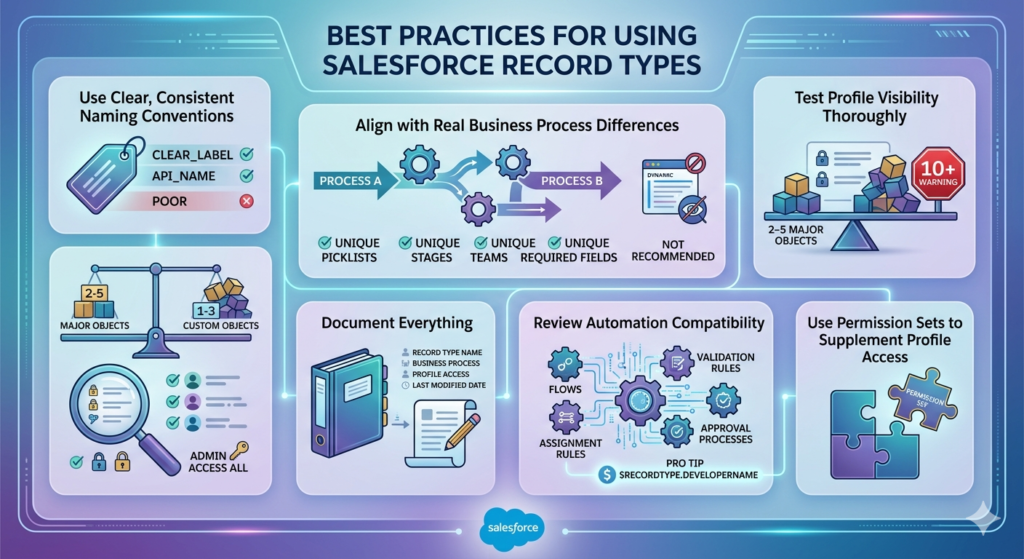
1. Use Clear, Consistent Naming Conventions
Record type labels and API names should be immediately understandable to any admin who comes after you.
Good naming conventions:
New_Business,Renewal,Upsell(for Opportunities)Technical_Support,Billing_Support,Feature_Request(for Cases)Direct_Lead,Partner_Lead,Marketing_Qualified_Lead(for Leads)
Poor naming conventions:
Type1,Type2,OldLayout(meaningless)SalesPROCESS_v2_FINAL(version tracking in the name is a red flag)Test_RecordType(should never exist in production)
2. Always Align Record Types with Real Business Process Differences
This is the golden rule: only create a new record type when there is a genuine business process difference. If the only difference is visual, use page layout sections, Dynamic Forms, or field-level visibility rules instead.
Ask yourself these qualifying questions before creating a new record type:
- Are the picklist values different? ✅ Good reason for a record type
- Are the stage/status values different? ✅ Good reason
- Is a different team responsible? ✅ Good reason
- Are different fields required? ✅ Good reason
- Is it just a different color or section label preference? ❌ Not a good reason
3. Keep the Total Number of Record Types Manageable
Salesforce allows up to 200 record types per object, but that does not mean you should use anywhere near that number. Most well-designed orgs have:
- 2-5 record types per major object
- 1-3 record types per custom object
If you find yourself creating 10+ record types on a single object, that is usually a signal that your data model needs rethinking, not more record types.
4. Test Profile Visibility Thoroughly Before Deployment
Profile assignment is where record types most often go wrong in production. Create a testing checklist:
- Each relevant profile sees only the record types they should see
- Default record types are correctly assigned per profile
- Users with multiple record types see the selection screen
- System Administrator has access to all record types
- No profile can access a record type that contains sensitive fields they should not see at the layout level
5. Document Everything
Maintain an admin documentation sheet that includes:
- Record type name and API name
- Object it belongs to
- Business process assigned
- Page layout(s) assigned per profile
- Profiles with access
- Date created and last modified
- Business owner who requested it
This documentation pays dividends when you onboard a new admin, prepare for a Salesforce audit, or troubleshoot a production issue at 11pm.
6. Review Automation Compatibility Carefully
Flows, validation rules, assignment rules, and approval processes can all be affected by record types. When creating or modifying record types:
- Review all validation rules on the object — some may need
$RecordType.DeveloperNameconditions added. - Review assignment rules (for Leads and Cases) to ensure they route correctly by record type.
- Review flows to confirm they are checking record type where appropriate.
- Review approval processes — some may need to be record-type-specific.
Admin Pro Tip: Use the Salesforce
$RecordType.DeveloperNameglobal variable in validation rule formulas to exempt specific record types from rules that do not apply to them. For example:AND($RecordType.DeveloperName = "New_Business", ISBLANK(Contract_Value__c))— this ensures that the Contract Value field is only required for New Business opportunities, not Renewals.
7. Use Permission Sets to Supplement Profile Access
In more complex orgs, you may need to give specific users access to a record type that their profile does not grant. While record type access is primarily profile-based, permission sets can be used to extend access granularly without changing a user’s base profile.
Common Mistakes Admins Make
Even experienced admins fall into these traps. Learn from these common pitfalls:
Mistake 1: Creating Too Many Record Types
The Problem: An admin creates a separate record type for every slight variation in business process. Within a year, the org has 15 record types on the Opportunity object, each with its own page layout, business process, and partial automation logic.
The Impact: Maintenance becomes a nightmare. Every new field, validation rule, or flow must be tested across 15 combinations. Reporting becomes complex. New admins are overwhelmed.
The Fix: Regularly audit your record types. Consolidate wherever business processes are 80%+ the same. Consider using Dynamic Forms in Lightning to handle field-level variations without separate record types.
Mistake 2: Confusing Page Layouts with Record Types
The Problem: An admin wants different users to see different fields on an Account record. Instead of simply assigning different page layouts to different profiles (which requires no record types at all), they create two separate record types unnecessarily.
The Impact: Data becomes segmented in ways that complicate reporting, automation, and data integrity. Users have to choose a “type” when none is conceptually meaningful to them.
The Fix: Remember the mental model — record types are for process differences, page layouts are for UI differences. If users are working the same process, they do not need different record types.
Mistake 3: Incorrect Profile Assignments
The Problem: A new record type is created for the Renewal team, but the admin forgets to remove access from the New Business Sales profile. Now New Business reps can (and sometimes do) accidentally create Renewal opportunities.
The Impact: Data quality issues, incorrect pipeline reporting, and confusion in sales compensation calculations.
The Fix: Double-check profile assignments every time. Have a second admin peer-review the setup before deployment. Add a validation rule if needed: AND($RecordType.DeveloperName = "Renewal", ISNEW(), NOT(Profile_is_Renewal_Manager__c)).
Mistake 4: Ignoring the Reporting Impact
The Problem: An admin creates record types without considering how they affect existing reports and dashboards. After deployment, leadership’s monthly pipeline report suddenly shows duplicate stage categories, or the funnel chart breaks because new Stage values were added.
The Impact: Broken dashboards, incorrect executive reporting, and loss of trust in Salesforce data.
The Fix: Before deploying any record type change that affects business processes or picklist values, audit all existing reports and dashboards that reference those fields. Update them proactively before the deployment date.
Mistake 5: Not Using the Description Field
The Problem: Every record type in the org has a blank Description field. Six months later, a new admin cannot tell what Type_A and Type_B were designed for, who requested them, or whether they are still actively used.
The Fix: Make the Description field mandatory in your personal admin workflow. Write descriptions like: “Created 2024-03 for the Renewal Sales team. Owner: Sarah Chen, Sales Ops. Governs renewal-specific opportunity stages and contract fields.”
Mistake 6: Forgetting to Update Page Layout Assignments After Profile Changes
The Problem: A new profile is created (e.g., “Senior Sales Representative”), but no one updates the page layout assignment for that profile within existing record types. The new profile falls back to the default layout, which may not be appropriate.
The Fix: Whenever a new profile is created in your org, immediately audit all record type page layout assignments across every object that profile will use.
Conclusion
Salesforce record types are one of the most impactful tools in a Salesforce Admin’s toolkit. When used correctly, they transform a generic Salesforce implementation into a precisely tailored business application where every user sees exactly what they need, follows the right process, and works with relevant data — nothing more, nothing less.
Throughout this guide, we have covered everything you need to implement record types with confidence:
- What they are: A mechanism to control business processes, picklist values, and page layout assignments within a single Salesforce object.
- The critical distinction between record types vs page layouts: Record types drive process segmentation; page layouts drive UI customization. Understanding this difference is fundamental to clean Salesforce architecture.
- How to complete a proper salesforce record type setup: From navigating Object Manager to assigning profiles and testing user experience, each step matters.
- Real-world applications: From B2B vs. B2C opportunities to Technical vs. Billing support cases, record types solve genuine business problems every day.
- Best practices and common mistakes: Naming conventions, documentation, automation compatibility, and the discipline to resist creating unnecessary record types all contribute to a scalable, maintainable org.
The key takeaway is this: record types are a design decision, not just a configuration task. Before creating one, always ask whether the business genuinely needs a new process segment, or whether a simpler solution exists. When a record type truly is the right tool, implement it thoughtfully — with clear naming, careful profile assignments, thorough testing, and solid documentation.
Whether you are preparing for the Salesforce Administrator certification, consulting on a new implementation, or managing an existing org, mastering salesforce record types will elevate the quality of your work and the experience of every user who relies on the system you build.
Now go build something great.
About RizeX Labs
At RizeX Labs, we specialize in delivering cutting-edge Salesforce solutions, including advanced Salesforce administration, automation, and customization for businesses of all sizes. Our expertise combines deep technical knowledge, industry best practices, and real-world implementation experience to help organizations optimize CRM processes, improve user experience, and scale efficiently.
We empower businesses to transform their Salesforce operations—from manual and complex configurations to streamlined, user-friendly systems powered by smart automation, better data visibility, and scalable architecture.
Internal Linking Opportunities:
- Link to your Salesforce course page
- How to Build a Salesforce Portfolio That Gets You Hired (With Project Ideas)
- Salesforce Admin vs Developer: Which Career Path is Right for You in 2026?
- Wealth Management App in Financial Services Cloud
- Salesforce Admin And Development Course
External Linking Opportunities:
- Salesforce official website
- Salesforce Record Types documentation
- Salesforce Trailhead Admin modules
- Salesforce Page Layouts guide
- Salesforce Profiles & Permissions
- Salesforce AppExchange
Quick Summary
Salesforce Record Types are a powerful admin feature that allows organizations to customize business processes, page layouts, and picklist values for different teams or use cases—all within a single object. By using record types effectively, admins can create tailored user experiences for departments like Sales, Support, Finance, or Recruitment without needing separate objects.
With Record Types, businesses can simplify data entry, improve user adoption, enforce process consistency, and align Salesforce with real-world workflows. Whether managing B2B vs B2C sales, customer support tiers, or region-specific operations, implementing Salesforce Record Types correctly is essential for scalable CRM administration.
