
Introduction: Why Data Security is the Backbone of Salesforce
Imagine a company where every employee — from the CEO down to a new intern — can see every customer's personal details, every sales deal, and every financial record. Sounds chaotic, right? That's exactly why data security isn't optional in any CRM system — it's absolutely critical.
In Salesforce, controlling who sees what data is one of the most important responsibilities of a Salesforce Administrator. Get it wrong, and you risk data breaches, compliance violations, and loss of customer trust. Get it right, and your organization runs securely, efficiently, and with confidence.
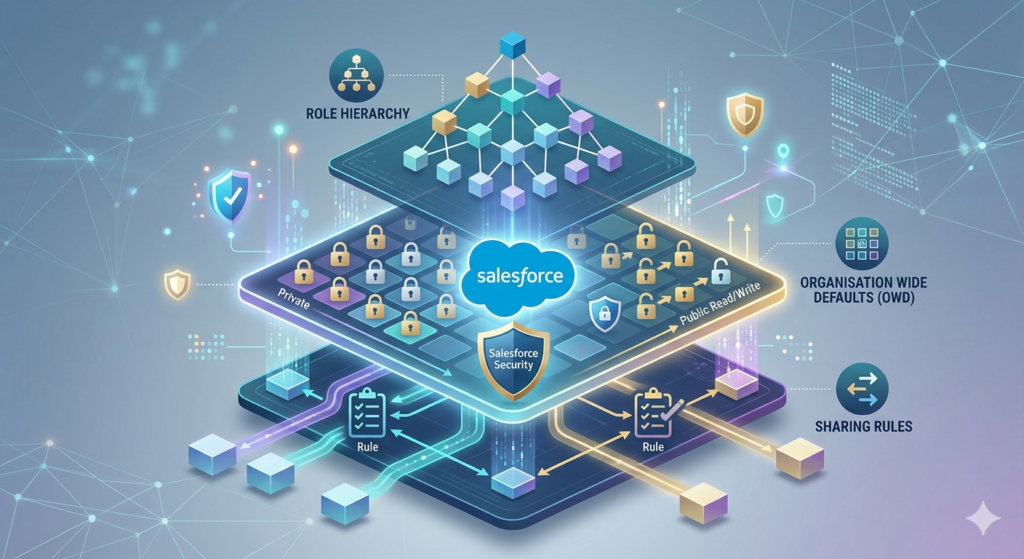
This is where the Salesforce OWD sharing rules, role hierarchy, and the broader sharing model come into play. These three powerful mechanisms work together like layers of a security system — each one adding a specific level of control over your data access.
In this complete guide, you'll learn:
- What Salesforce Organisation Wide Defaults (OWD) are and how to configure them
- How Salesforce Role Hierarchy controls data visibility top-down
- What Salesforce OWD sharing rules are and when to use them
- How all three combine into a powerful, flexible sharing model
- Real-world examples, best practices, and common mistakes to avoid
Let's dive in.
What is the Salesforce Security Model?
Before jumping into the specifics, it helps to understand the big picture of Salesforce security. Salesforce uses a layered security model — think of it like an onion with multiple protective layers, each controlling a different level of access.
The Four Layers of Salesforce Security
| Security Layer | What It Controls | Example |
|---|---|---|
| Org-Level Security | Who can log into Salesforce | Login IP restrictions, MFA |
| Object-Level Security | Which objects a user can access | Can a user see the Leads object? |
| Field-Level Security | Which fields a user can see/edit | Can a user see the Salary field? |
| Record-Level Security | Which specific records a user can access | Can a user see THIS opportunity? |
The first three layers are controlled by Profiles and Permission Sets. But the fourth layer — record-level security — is where OWD, Role Hierarchy, and Sharing Rules come in.
This guide focuses specifically on record-level security, which is the most complex and nuanced part of the Salesforce security model — and the one most frequently tested in Salesforce Admin interviews and certification exams.
Key Principle: Salesforce security works on the principle of "start restrictive, then open up." You begin by locking data down with OWD, then gradually grant additional access through roles, sharing rules, and manual sharing.
Salesforce Organisation Wide Defaults (OWD)
What Are Organisation Wide Defaults?
Salesforce Organisation Wide Defaults (OWD) are the baseline access settings that define the minimum level of access users have to records they don't own. In simpler terms, OWD answers the question:
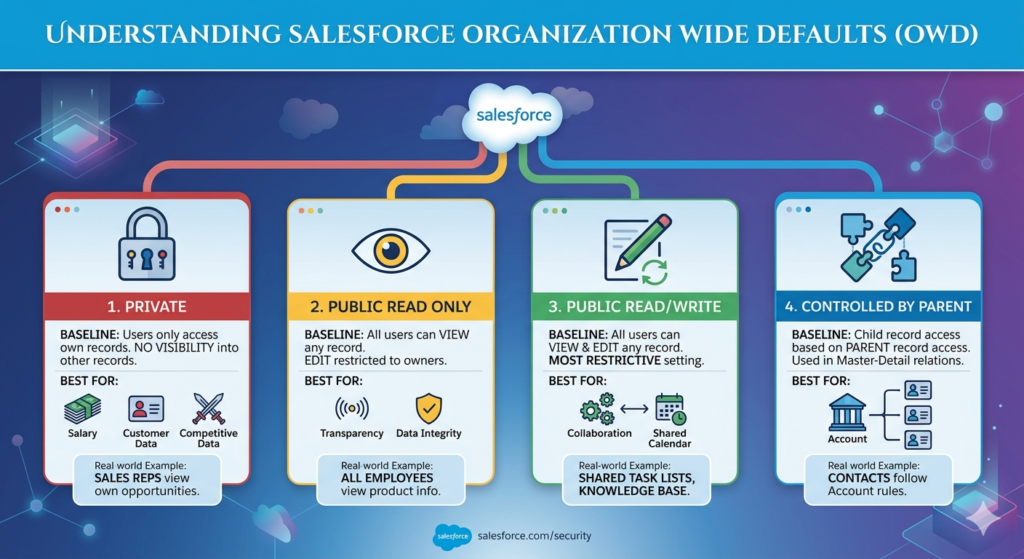
"If a user has no special permissions, what can they see by default?"
OWD is the foundation of your entire record-level security strategy. Everything else — roles, sharing rules — builds on top of it.
Types of OWD Settings
Salesforce offers several OWD options for each object. Here are the most commonly used ones:
1. Private 🔒
- Users can only see and edit records they own
- No visibility into other users' records unless explicitly granted
- Best for: Sensitive data like salary information, personal customer data, or competitive deal information
Real-world example: A sales rep at a large enterprise company should only see their own opportunities — not their colleagues' deals. Setting Opportunities OWD to Private ensures reps can't poach each other's leads.
2. Public Read Only 👁️
- All users can view any record, but can only edit records they own
- Promotes transparency while protecting data integrity
Real-world example: A company wants all employees to see product information (Accounts with product details) but only allow account owners to make changes. Public Read Only is the perfect fit.
3. Public Read/Write ✏️
- All users can view AND edit any record, regardless of ownership
- Least restrictive OWD setting
- Best for: Non-sensitive objects where collaboration is more important than restriction
Real-world example: A shared task list or internal knowledge base where anyone should be able to create, read, and update records.
4. Controlled by Parent 🔗
- The child record's access is determined by the parent record's access
- Used for objects that have a master-detail relationship with a parent object
Real-world example: Contact records set to "Controlled by Parent" will follow the access rules of their parent Account. If a user can see an Account, they can see its Contacts.
OWD Quick Reference Table
| OWD Setting | View Own Records | View Others' Records | Edit Others' Records |
|---|---|---|---|
| Private | ✅ | ❌ | ❌ |
| Public Read Only | ✅ | ✅ | ❌ |
| Public Read/Write | ✅ | ✅ | ✅ |
| Controlled by Parent | Depends on parent | Depends on parent | Depends on parent |
Pro Tip: Always set OWD to the most restrictive setting your business can tolerate, then use roles and sharing rules to open access as needed. It's much easier to grant access than to take it away after the fact.
Salesforce Role Hierarchy
What is Role Hierarchy?
Salesforce Role Hierarchy is a tree-like structure that mirrors your company's organizational chart. It controls upward data visibility — meaning users in higher roles can see records owned by users below them in the hierarchy.
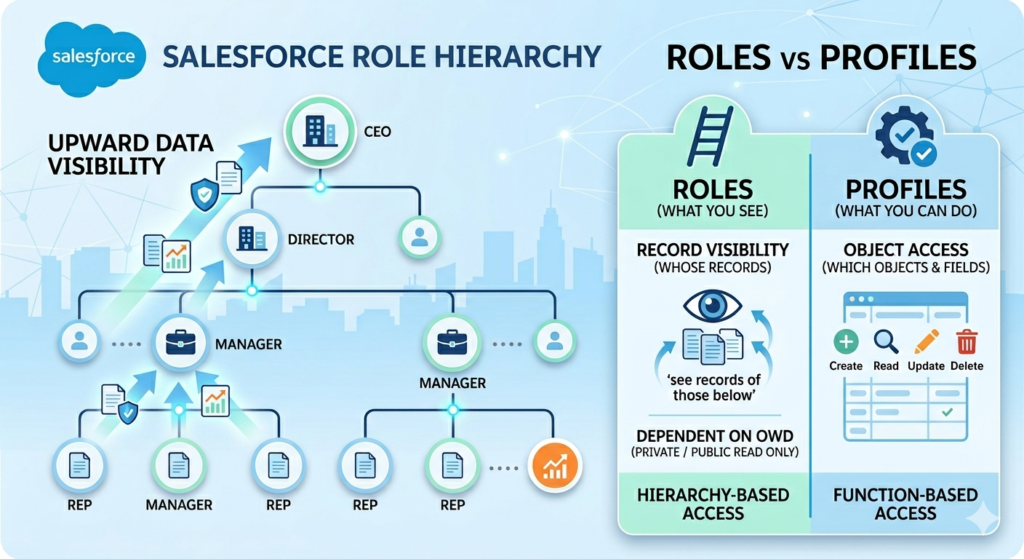
Think of it like a traditional corporate ladder:
- The CEO (at the top) can see everything
- Regional Managers can see data for their region
- Sales Reps (at the bottom) can only see their own data
How Role Hierarchy Works
Role hierarchy only comes into effect when OWD is set to Private or Public Read Only. When OWD is Public Read/Write, role hierarchy doesn't add any additional access (everyone already sees everything).
How it works step by step:
- A Sales Rep owns an Opportunity record
- The Sales Manager is positioned above the Sales Rep in the role hierarchy
- Because of role hierarchy, the Sales Manager can automatically see and edit that Opportunity
- The Sales Director (above the Manager) can also see it
- But a peer Sales Rep in a different branch cannot see it
Roles vs. Profiles — What's the Difference?
This is one of the most common points of confusion for beginners, so let's clear it up once and for all:
| Feature | Roles | Profiles |
|---|---|---|
| Controls | Record-level visibility (which records) | Object and field-level access (which objects/fields) |
| Based on | Position in org chart | Job function |
| Affects | What data you can see | What you can do with data |
| Example | Sales Manager role sees team's opportunities | Sales Profile allows access to Opportunities object |
Simple way to remember it: Profiles control what you can do. Roles control what you can see.
Real-World Role Hierarchy Example
Company: TechCorp Sales Division
textCEO
└── VP of Sales
    ├── East Region Manager
    │   ├── East Sales Rep 1
    │   └── East Sales Rep 2
    └── West Region Manager
        ├── West Sales Rep 1
        └── West Sales Rep 2
With Opportunities OWD set to Private:
- East Sales Rep 1 sees only their own opportunities
- East Region Manager sees opportunities from East Rep 1 AND East Rep 2
- VP of Sales sees ALL opportunities from both regions
- West Sales Rep 1 cannot see East Region opportunities
This is clean, logical, and exactly how most enterprise sales organizations need their data controlled.
Salesforce OWD Sharing Rules
What Are Sharing Rules?
Even with a well-designed role hierarchy, there are situations where users need access to records outside their normal hierarchy. That's where Salesforce OWD sharing rules come in.
Sharing rules are exceptions to OWD settings that allow you to automatically grant additional record access to specific groups of users — without changing OWD for everyone.
Think of sharing rules as automatic VIP passes — they give specific users or groups access to records they wouldn't normally see based on OWD alone.
Types of Sharing Rules
1. Owner-Based Sharing Rules
- Share records based on who owns the record
- Example: "Share all Opportunities owned by the East Sales Team with the Finance Team"
- Great when you want to share records based on team membership
2. Criteria-Based Sharing Rules
- Share records based on field values on the record itself
- Example: "Share all Opportunities where Amount > $100,000 with the Executive Team"
- More flexible and powerful — doesn't depend on who owns the record
When to Use Sharing Rules
Use sharing rules when:
- ✅ A cross-functional team needs visibility into another team's records
- ✅ Certain high-value records need broader visibility
- ✅ A temporary project team needs access to specific data
- ✅ OWD is Private but specific groups need controlled exceptions
Step-by-Step: Creating a Sharing Rule in Salesforce
Scenario: Your Finance team needs to view all Opportunities over $50,000, even if they're owned by Sales reps outside their hierarchy.
Step 1: Go to Setup → Search "Sharing Settings"
Step 2: Scroll down to the Opportunity Sharing Rules section
Step 3: Click New
Step 4: Enter a Label — e.g., "High Value Opps — Finance Access"
Step 5: Choose Rule Type → Select "Based on criteria"
Step 6: Set criteria: Amount Greater Than 50000
Step 7: Under "Share with," select Finance Team (Public Group)
Step 8: Set access level: Read Only or Read/Write
Step 9: Click Save
That's it! Salesforce will now automatically share all qualifying Opportunities with the Finance team.
Understanding the Complete Salesforce Sharing Model
Now let's zoom out and see how OWD + Role Hierarchy + Sharing Rules work together as a unified sharing model.
The Sharing Model — How It All Fits Together
textLAYER 1: OWD (Organisation Wide Defaults)
         ↓ Sets the FLOOR (minimum access for everyone)

LAYER 2: Role Hierarchy
         ↓ Opens access UPWARD through the org chart

LAYER 3: Sharing Rules
         ↓ Creates EXCEPTIONS for specific groups

LAYER 4: Manual Sharing
         ↓ One-off access granted by record owners

RESULT: Right people see right data ✅
Real-world combined example:
- OWD: Opportunities = Private (no one sees others' records by default)
- Role Hierarchy: Managers automatically see their team's opportunities
- Sharing Rule: Finance team sees all opportunities over $50,000
- Manual Share: A sales rep manually shares one specific deal with a consultant
Each layer adds access. No layer can remove access that was granted by a higher layer — Salesforce always grants the most permissive access when multiple rules apply.
How to Configure Security in Salesforce — Step-by-Step
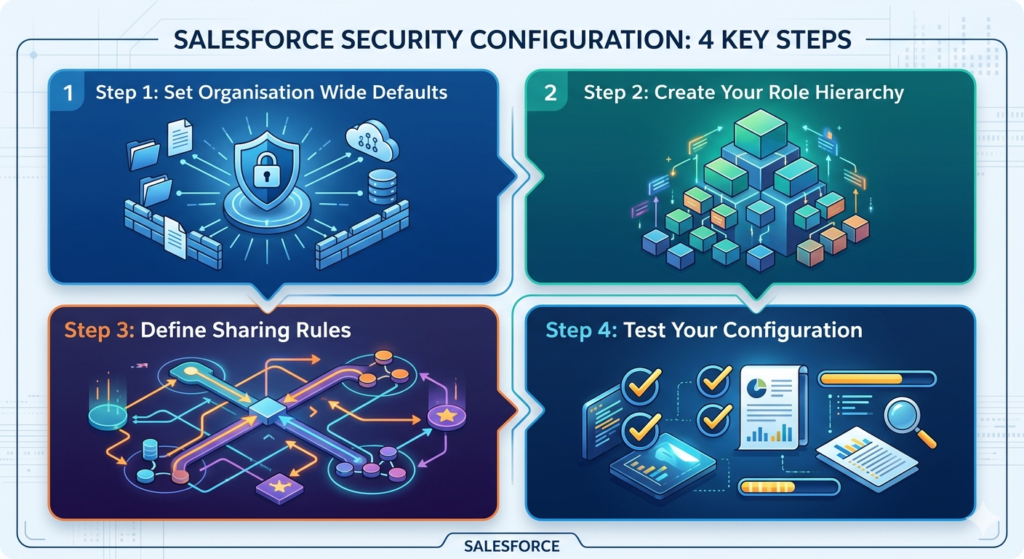
Step 1: Set Organisation Wide Defaults
- Go to Setup → Search "Sharing Settings"
- Click Edit next to the object you want to configure
- Choose the appropriate OWD (Private, Public Read Only, etc.)
- Click Save and wait for recalculation
Step 2: Create Your Role Hierarchy
- Go to Setup → Search "Roles"
- Click Set Up Roles
- Click Add Role under the appropriate parent role
- Enter Role Name, Report To role, and description
- Assign users to roles via user records
Step 3: Define Sharing Rules
- Go to Setup → Sharing Settings
- Scroll to the object's Sharing Rules section
- Click New and configure as shown in the earlier example
- Set criteria, target group, and access level
Step 4: Test Your Configuration
- Use the "Login As" feature (Setup → Users → Login) to test as a specific user
- Check which records that user can see and edit
- Use Setup → Security → View Setup Audit Trail to review changes
- Use Record Detail Page → Sharing button to see who has access to a specific record
Real-World Use Cases
🏢 Sales Team Data Access
Scenario: A global sales company has reps in North America, Europe, and Asia.
Solution: OWD = Private, role hierarchy mirrors regional structure, sharing rules grant cross-regional visibility for key accounts.
📞 Customer Support Team
Scenario: Support agents should only see cases assigned to them, but team leads need full visibility.
Solution: Cases OWD = Private, role hierarchy places team leads above agents, criteria-based sharing rule shares escalated cases (Priority = High) with senior support staff.
💰 Finance Data Restrictions
Scenario: Financial records should be strictly confidential — only Finance team and executives can view them.
Solution: Custom financial object OWD = Private, no sharing rules created, only Finance role and CEO role in hierarchy have access through role assignment.
Best Practices for Salesforce Security
🎯 Principle of Least Privilege
Always grant the minimum access a user needs to do their job. Don't give everyone Public Read/Write "just to be safe."
🚫 Avoid Over-Sharing
More sharing rules = more complexity = harder to maintain. Keep your sharing model as simple as possible.
🔍 Conduct Regular Security Audits
- Review OWD settings quarterly
- Check for outdated sharing rules
- Audit user roles when people change positions or leave the company
📝 Use Clear Naming Conventions
Name sharing rules descriptively:
- ✅
"Finance — View High Value Opps — Read Only" - ❌
"Sharing Rule 1"
👥 Use Public Groups for Sharing Rules
Instead of sharing with individual users, share with Public Groups. When team membership changes, just update the group — the sharing rule stays intact.
Common Beginner Mistakes
❌ Mistake 1: Confusing Roles and Profiles
Beginners often try to control record visibility through profiles. Remember: Profiles = what you can do. Roles = what you can see.
❌ Mistake 2: Setting OWD Too Permissive From the Start
Starting with Public Read/Write and trying to restrict later is extremely difficult. Always start restrictive and open up gradually.
❌ Mistake 3: Overusing Sharing Rules
Creating dozens of overlapping sharing rules makes your security model impossible to audit or troubleshoot. Simplify wherever possible.
❌ Mistake 4: Forgetting to Test
Configuring security without testing as an actual user leads to surprise access issues. Always test with real user accounts before rolling out changes.
❌ Mistake 5: Not Accounting for Role Hierarchy When Setting OWD
If OWD is Private but you forget about role hierarchy, managers might see more than you intended. Always plan OWD and role hierarchy together.
Conclusion: Master Security, Master Salesforce
Data security in Salesforce is not just an admin task — it's a strategic responsibility that directly impacts your company's data integrity, regulatory compliance, and operational efficiency.
In this guide, you've learned:
- The four layers of the Salesforce security model
- How Salesforce Organisation Wide Defaults set the baseline access floor
- How Role Hierarchy enables top-down visibility across your org chart
- How Salesforce OWD sharing rules create flexible exceptions for specific groups
- How all three combine into a powerful, layered sharing model
- Step-by-step configuration, real-world use cases, and best practices
For anyone pursuing a Salesforce Admin career, mastering the sharing model is non-negotiable. It's consistently one of the top topics in the Salesforce Administrator Certification exam and one of the first things hiring managers ask about in interviews.
Your next step: Open your Salesforce Trailhead playground, set up a practice org, and configure OWD, roles, and sharing rules from scratch. Hands-on experience is worth a thousand tutorials.
About RizeX Labs
At RizeX Labs, we specialize in delivering cutting-edge Salesforce solutions with a strong focus on data security and access control within the Salesforce ecosystem. Our expertise combines deep technical knowledge, industry best practices, and real-world implementation experience to help businesses protect sensitive data while enabling seamless collaboration.
We empower organizations to design robust security architectures using salesforce organisation wide defaults, salesforce role hierarchy, and advanced sharing model strategies—ensuring the right users have the right access at the right time.
Internal Links:
- Link to your Salesforce course page
- How to Build a Salesforce Portfolio That Gets You Hired (With Project Ideas)
- Salesforce Admin vs Developer: Which Career Path is Right for You in 2026?
- Wealth Management App in Financial Services Cloud
- Salesforce Admin course page
External Links:
- Salesforce official website
- Salesforce Security Guide
- Salesforce Trailhead (Security Modules)
- Salesforce AppExchange
Quick Summary
The salesforce OWD sharing rules and overall sharing model form the backbone of data security in Salesforce. By configuring salesforce organisation wide defaults, organizations define the baseline level of access to records across users.
The salesforce role hierarchy then extends access vertically, allowing managers to view data owned by their team members. When additional access is required beyond these defaults, salesforce OWD sharing rules provide a flexible way to grant access based on ownership or specific criteria.
Together, these components create a powerful and flexible sharing model that ensures data is secure, accessible, and aligned with business needs. Mastering these concepts helps organizations maintain compliance, protect sensitive information, and enable efficient collaboration across teams.