
Introduction
Salesforce admin interview questions 2026 have evolved far beyond simple definitions and textbook answers. With over 150,000 companies worldwide running their business on Salesforce, the demand for skilled administrators is surging — and so is the bar for getting hired.
Whether you are a fresher stepping into your first role or an experienced admin targeting a senior position, you need to be prepared for more than “What is an object?” Interviewers today want to see how you think, not just what you know. Expect a blend of conceptual questions, configuration challenges, and real-world scenario-based problems designed to test your practical skills.
Technical rounds now simulate actual business problems — a user cannot access a record, a report is running slowly, a client needs a complex multi-step approval process. This guide from RizeX Labs covers the Top 40 Salesforce Admin interview questions and answers, structured from basic to advanced, with step-by-step explanations and real-world examples for every scenario question. Whether you are doing Salesforce admin interview prep for your first role or preparing for a senior admin position, this guide has everything you need to walk in confident and walk out with an offer.
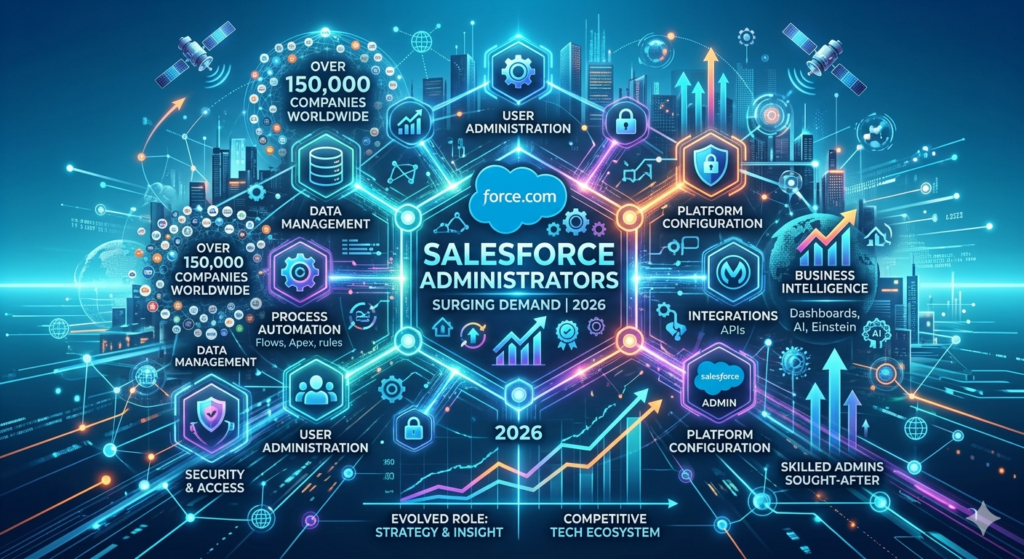
This guide from RizeX Labs covers the Top 40 Salesforce Admin interview questions and answers, structured from basic to advanced, with step-by-step explanations and real-world examples for every scenario question. Whether you are doing Salesforce admin interview prep for your first role or targeting a senior admin position, this guide has everything you need.
Who Is a Salesforce Admin?
A Salesforce Administrator is the backbone of any Salesforce org. They are responsible for configuring, maintaining, and optimizing the Salesforce platform to meet business needs — without writing complex code.
Key Roles and Responsibilities
- User Management: Creating users, assigning profiles, roles, and permission sets
- Data Management: Importing, exporting, deduplicating, and maintaining data quality
- Security Configuration: Setting up profiles, roles, sharing rules, and field-level security
- Automation: Building Flows, Workflow Rules, and Approval Processes to streamline operations
- Reports and Dashboards: Building actionable insights for business stakeholders
- Customization: Creating custom objects, fields, page layouts, and record types
- Deployment: Managing sandboxes and deploying changes across environments

Key Skills a Salesforce Admin Must Have in 2026
- Strong understanding of Salesforce data model
- Proficiency in Flow Builder (the primary automation tool)
- Security model knowledge (Profiles, Roles, OWD, Sharing Rules)
- Analytical thinking for troubleshooting
- Communication skills to translate business needs into technical solutions
- Familiarity with AppExchange and third-party integrations
Top 40 Salesforce Admin Interview Questions and Answers
✅ Section 1: Basic Questions (1–10)
Question 1: What is Salesforce, and what is it primarily used for?
Answer:
Salesforce is a cloud-based Customer Relationship Management (CRM) platform that helps businesses manage their sales, service, marketing, and more — all in one place. It eliminates the need for locally installed software and operates entirely on the internet through a multi-tenant architecture.
Real-world context: A sales team uses Salesforce to track leads, manage opportunities, schedule follow-ups, and forecast revenue — all from a single dashboard accessible anywhere in the world.
Question 2: What is an Object in Salesforce?
Answer:
An Object in Salesforce is essentially a database table that stores specific types of information. There are two types:
- Standard Objects: Pre-built by Salesforce (e.g., Account, Contact, Lead, Opportunity, Case)
- Custom Objects: Created by admins to store business-specific data (e.g., Invoice, Project, Property)
Example: A real estate company might create a custom object called Property__c to store details like location, price, and status — information that does not fit neatly into standard Salesforce objects.
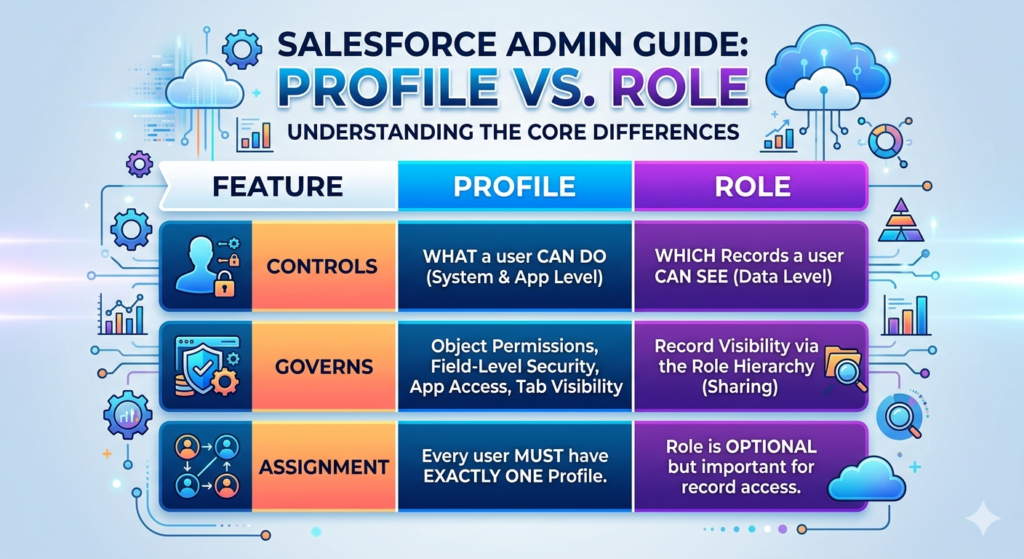
Question 3: What is the difference between a Profile and a Role in Salesforce?
Answer:
This is one of the most common questions in Salesforce admin interview prep, and many candidates confuse the two.
| Feature | Profile | Role |
|---|---|---|
| Controls | What a user can do | What records a user can see |
| Governs | Object permissions, field access, app access | Record visibility through the Role Hierarchy |
| Assignment | Every user must have exactly one profile | Role is optional but important for record access |
Simple rule: Profile = permissions, Role = visibility.
Question 4: What is OWD (Organization-Wide Default) in Salesforce?
Answer:
OWD defines the baseline level of access users have to each other’s records. It is the most restrictive layer of the Salesforce security model, and access is then opened up using roles, sharing rules, and manual sharing.
OWD Options:
- Private: Users can only see their own records
- Public Read Only: Users can view all records but edit only their own
- Public Read/Write: Users can view and edit all records
- Controlled by Parent: For detail objects in a master-detail relationship
Example: If OWD for Opportunities is set to Private, a sales rep in New York cannot see the opportunities owned by a rep in London — unless sharing rules or the role hierarchy opens that access.
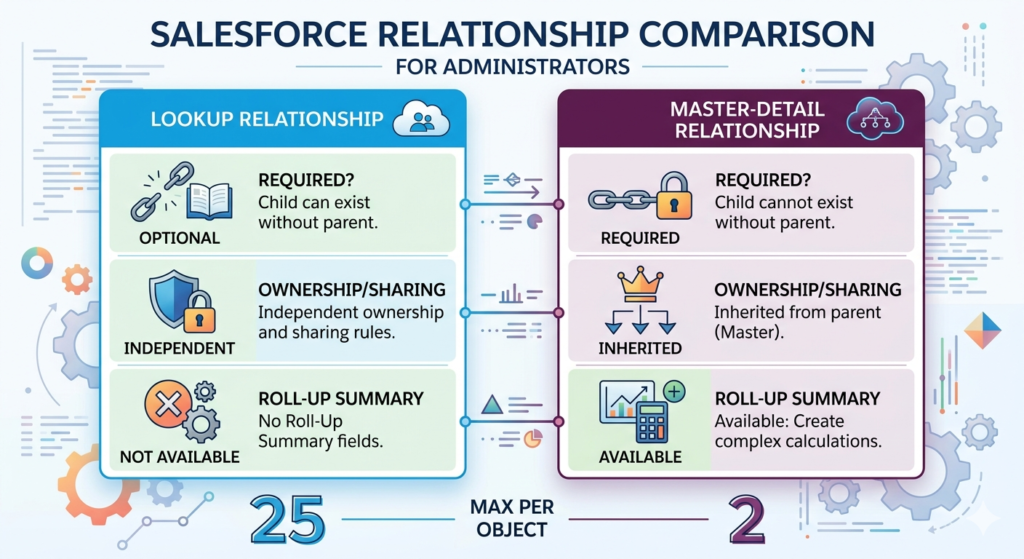
Question 5: What is a Lookup Relationship vs. a Master-Detail Relationship?
Answer:
| Feature | Lookup Relationship | Master-Detail Relationship |
|---|---|---|
| Required? | Optional (child can exist without parent) | Required (child cannot exist without parent) |
| Ownership/Sharing | Independent | Inherited from parent |
| Roll-Up Summary | Not available | Available |
| Max per object | 25 | 2 |
Example: An Opportunity has a lookup to Account — you can create an opportunity without linking it to an account. But a Line Item in a master-detail with Order cannot exist without the Order record.
Question 6: What are Record Types in Salesforce?
Answer:
Record Types allow admins to offer different page layouts, picklist values, and business processes to different groups of users on the same object.
Example: On the Case object, you might have two record types:
- Technical Support — with fields specific to IT issues
- Billing Inquiry — with fields related to invoices and payments
Each record type can show a different page layout to the assigned profile.
Question 7: What is a Validation Rule?
Answer:
A Validation Rule ensures that data entered into Salesforce meets certain criteria before the record is saved. If the criteria are met (i.e., the rule evaluates to true for an error condition), Salesforce prevents the save and shows an error message.
Example Formula:
textAND(
  ISPICKVAL(Stage, "Closed Won"),
  ISBLANK(Close_Date__c)
)
This validation rule prevents a user from marking a deal as Closed Won without entering a close date.
Question 8: What is a Workflow Rule, and is it still used in 2026?
Answer:
A Workflow Rule is a legacy automation tool that triggers automated actions (email alerts, field updates, task creation, outbound messages) based on criteria. In 2026, Salesforce has officially retired Workflow Rules and Process Builder in favor of Flow Builder. However, interview questions still cover Workflow Rules to test foundational knowledge, and some orgs may still have them running.
Key point for interviews: Always mention that the current best practice is to use Salesforce Flow for all automation needs.
Question 9: What are Permission Sets in Salesforce?
Answer:
Permission Sets are used to extend the access of a user beyond what their Profile allows — without changing the profile itself. This is extremely useful when only specific users in a profile need extra permissions.
Example: All sales reps share the same Profile, but one rep is also a Team Lead who needs access to the Forecasting module. Rather than creating a new profile, you assign a Permission Set granting Forecasting access to that one user.
Question 10: What is an AppExchange?
Answer:
AppExchange is Salesforce’s official marketplace for pre-built apps, components, and solutions built by Salesforce partners and developers. It functions like an “app store” specifically for Salesforce.
Examples of popular AppExchange products:
- DocuSign for e-signatures
- Conga Composer for document generation
- DemandTools for data quality
Admins should always check AppExchange before building a custom solution — many business problems already have off-the-shelf solutions.
⚙️ Section 2: Intermediate Questions (11–25)
Question 11: What are Sharing Rules in Salesforce?
Answer:
Sharing Rules are exceptions to the OWD setting that automatically open access to groups of records for specific users or groups. They can only expand access — they cannot restrict it.
Two types:
- Owner-based Sharing Rules: Share records based on who owns them
- Criteria-based Sharing Rules: Share records based on field values (e.g., share all Opportunities where Region = “West” with the Western Sales Team)
Question 12: What is Field-Level Security (FLS) in Salesforce?
Answer:
FLS controls whether a user can see or edit specific fields on an object. It is configured at the Profile or Permission Set level and works in conjunction with object permissions.
Important distinction: Even if a user has access to an object, FLS can hide individual sensitive fields — such as Social Security Numbers or financial data — from users who do not need them.
Question 13: 🔧 Scenario-Based — A user says they cannot see a field that exists on the page layout. How would you troubleshoot?
Answer:
This is a classic Salesforce admin technical round question. Here is a structured troubleshooting approach:
Step 1 — Check the Page Layout
Go to Setup → Object Manager → [Object] → Page Layouts. Confirm the field is on the page layout assigned to the user’s profile.
Step 2 — Check Field-Level Security
Go to the field’s settings and check FLS for the user’s Profile. The field might be hidden at the profile level even if it appears on the layout.
Step 3 — Check Record Type Assignment
If multiple record types exist, confirm the user’s profile is assigned to a record type that uses a layout containing the field.
Step 4 — Check Permission Set
If FLS is restricted at the profile level, check if a Permission Set can override it.
Real-world example: A Sales Manager reports they cannot see the “Competitor” field on Opportunity. The field exists on the layout, but FLS for their profile has it set to “Hidden.” Updating FLS to “Read” or “Edit” resolves the issue instantly.
Question 14: 🔧 Scenario-Based — A user cannot access a record at all. How would you troubleshoot?
Answer:
Record access issues are layered. Use this systematic approach:
Step 1 — Check OWD
Is the OWD for the object set to Private? If yes, the user needs explicit access.
Step 2 — Check Role Hierarchy
Is the user in a role that is above (or the same as) the record owner in the hierarchy?
Step 3 — Check Sharing Rules
Are there criteria-based or owner-based sharing rules that should grant access?
Step 4 — Use “Why Can’t I See This Record?” or the Sharing button
On the record, use the Sharing button (if enabled) to see a list of users with access. In Setup, use “Share with Users” or Apex Sharing Debugger (for advanced scenarios).
Step 5 — Check Manual Sharing
Has the record been manually shared with the user or their group?
Pro tip for interviews: Mention the Record Access Audit in Salesforce Setup — it is an underused but powerful tool to debug sharing issues quickly.
Question 15: 🔧 Scenario-Based — A sales manager wants to receive an email alert whenever a deal is marked as “Closed Won.” What would you use?
Answer:
In 2026, the recommended approach is Salesforce Flow (Record-Triggered Flow).
Steps to implement:
- Go to Setup → Flows → New Flow → Record-Triggered Flow
- Select the Opportunity object
- Set the trigger to “A record is updated”
- Add an entry condition:
Stage EQUALS Closed Won - Set “When to Run the Flow for Updated Records” to “Only when a record is updated to meet the condition requirements” (to avoid repeated triggers)
- Add a Send Email Alert action and configure the email template and recipients
- Save and Activate
Real-world example: At a SaaS company, when an Opportunity moves to Closed Won, the flow sends an email to the Sales Manager, updates the Account’s “Last Won Date” field, and creates a follow-up task for the customer success team — all in one flow.
Question 16: What are the types of Reports in Salesforce?
Answer:
Salesforce offers four report types:
- Tabular Reports — Simple list format, like a spreadsheet. Cannot be used as source for dashboards (unless summarized). Best for mailing lists.
- Summary Reports — Grouped by rows with subtotals. The most common type for sales analysis.
- Matrix Reports — Grouped by both rows and columns. Best for comparing data across two dimensions (e.g., sales by region and by quarter).
- Joined Reports — Multiple report blocks in one view. Useful for side-by-side comparison of different data sets.
Question 17: What is a Roll-Up Summary Field?
Answer:
A Roll-Up Summary field is created on a parent object in a Master-Detail relationship to aggregate values from the child records.
Four roll-up types:
- COUNT — counts related child records
- SUM — adds up a numeric field from child records
- MIN — shows the minimum value
- MAX — shows the maximum value
Example: On the Account object, create a Roll-Up Summary field that SUM’s the Amount field from all related Opportunities — giving the total deal value at the account level instantly.
Question 18: What is the difference between a Sandbox and a Production org?
Answer:
| Feature | Sandbox | Production |
|---|---|---|
| Purpose | Development and testing | Live business operations |
| Data | Can be refreshed from Production | Contains real business data |
| Users | Inactive by default after refresh | Active users |
| Licenses | Dependent on sandbox type | Full licenses |
Types of Sandboxes:
- Developer Sandbox — 200 MB storage, no data copy
- Developer Pro Sandbox — 1 GB storage
- Partial Copy Sandbox — 5 GB, sample of production data
- Full Sandbox — Full copy of production (data + metadata)
Question 19: What is a Change Set in Salesforce?
Answer:
A Change Set is a deployment tool that moves customizations (metadata) from one Salesforce org to another — typically from Sandbox to Production. It does not move data, only configuration changes.
Steps:
- Create an Outbound Change Set in the source org (e.g., Sandbox)
- Add components (fields, layouts, flows, etc.)
- Upload and deploy using an Inbound Change Set in the target org (e.g., Production)
Limitation: Change Sets are one-directional and can be slow for large deployments. Many teams use tools like Salesforce DX (SFDX) or Copado for enterprise deployments.
Question 20: What is Data Loader, and when would you use it?
Answer:
Data Loader is a desktop client application used to import, export, update, upsert, and delete large volumes of records in Salesforce (up to 5 million records per batch).
Use it when:
- You need to insert/update more than the 50,000 record limit in Data Import Wizard
- You need to work with objects not supported by the Import Wizard
- You need to schedule data operations
When to use Data Import Wizard instead: For smaller datasets, standard objects (Leads, Contacts, Accounts), and non-technical users who prefer a simpler UI.
Question 21: 🔧 Scenario-Based — Your org has 10,000 duplicate Lead records. How would you handle this?
Answer:
Step 1 — Assess the Scope
Use Data Loader or Reports to export and analyze the duplicates before taking action.
Step 2 — Enable Duplicate Management
Go to Setup → Duplicate Management → Matching Rules and Duplicate Rules. Configure rules to detect duplicates based on Email, Phone, or Name.
Step 3 — Use the Duplicate Jobs Feature (Data Quality)
For bulk merging, use the Duplicate Jobs feature (available with some licenses) to identify and merge duplicates at scale.
Step 4 — Use a Third-Party Tool
For 10,000 records, consider an AppExchange tool like DemandTools or Cloudingo for efficient bulk deduplication with fine-grained control.
Step 5 — Prevent Future Duplicates
Activate Duplicate Rules on Lead creation to alert or block duplicate entry going forward.
Question 22: What is an Approval Process in Salesforce?
Answer:
An Approval Process automates multi-step approvals for records. When a record is submitted for approval, it follows a predefined sequence of approval steps, each potentially involving different approvers with different criteria.
Key components:
- Entry Criteria — conditions the record must meet to enter the process
- Approval Steps — each step defines who approves and under what conditions
- Approval Actions — what happens when approved (e.g., field update, email alert)
- Rejection Actions — what happens when rejected
- Final Approval Actions — triggered when all steps are approved
Example: A discount request on an Opportunity over 30% requires approval first from the Account Executive’s manager, then from the VP of Sales.
Question 23: 🔧 Scenario-Based — A manager reports that a Flow you built is not triggering as expected. How would you debug it?
Answer:
Step 1 — Check Activation
Confirm the Flow is Active. New flows are saved as Inactive by default.
Step 2 — Check Trigger Conditions
Re-examine the entry conditions. A common mistake is using “Every time a record is saved” when it should be “Only when a record is updated to meet conditions.”
Step 3 — Enable Flow Debug Logs
Run the Flow in Debug Mode from Flow Builder (click Debug) to simulate a test record and see each element’s execution result.
Step 4 — Check Paused/Failed Flow Interviews
Go to Setup → Flows → Paused and Failed Flow Interviews to see if the flow ran but encountered an error.
Step 5 — Review Field Values at Run Time
Use Debug Log in Setup → Logs to capture the actual field values when the flow should have triggered.
Question 24: What is the difference between “Run as System” and “Run as User” in Flow?
Answer:
- System Mode (System Context): The Flow runs with full admin-level permissions, ignoring the running user’s profile and sharing settings. Used for automating background processes where data access must be guaranteed.
- User Mode (User Context): The Flow respects the permissions and sharing rules of the user who triggered the flow. Used when you want the automation to honor the same access controls as the user.
Best practice: Screen Flows displayed to users should often run in User Mode to respect data visibility. Background Record-Triggered Flows may run in System Mode to ensure they can update necessary records.
Question 25: 🔧 Scenario-Based — How would you prevent a user from deleting Opportunity records worth over $50,000?
Answer:
There is no native validation rule for delete operations (validation rules only fire on create/edit). Here are the admin-friendly options:
Option 1 — Remove Delete Permission
Remove the “Delete” object permission for Opportunities from the user’s Profile or Permission Set. This is the most straightforward approach but affects ALL opportunity deletions.
Option 2 — Use a Before-Delete Flow (Salesforce Flow — Record-Triggered)
In 2026, Salesforce supports Before-Delete triggered Flows:
- Create a Record-Triggered Flow on Opportunity → Trigger: Before Delete
- Add a condition: Amount > 50000
- Add a Custom Error element to display a message and halt deletion
Option 3 — Apex Trigger (Developer involvement needed)
For more complex logic, a developer can write a before-delete Apex trigger. As an admin, you can document the requirement and coordinate with the development team.
🚀 Section 3: Advanced Questions (26–40)
Question 26: 🔧 Scenario-Based — A client wants different page layouts shown to users based on their role, not just their profile. How would you implement this?
Answer:
Page layouts are assigned at the Profile + Record Type level — not directly by Role. Here is how to solve this:
Solution: Use Record Types
- Create Record Types for each variation needed (e.g., “Enterprise Client View,” “SMB Client View”)
- Assign Record Types to Profiles — each profile gets access to only the record type appropriate for their user group
- Assign different Page Layouts to each Record Type per Profile (in the Page Layout Assignment matrix)
- Map roles to profiles — if roles align to user types, users in specific roles will have profiles that give them the appropriate record type and page layout
Alternative for field-level variations only: Use Dynamic Forms (Lightning App Builder) to control field visibility using filter conditions — including role-based criteria — without needing multiple record types.
Real-world example: A financial services company has “Retail Advisors” and “Corporate Advisors.” Each has a different profile and record type on the Contact object, resulting in completely different page layouts showing only relevant fields.
Question 27: 🔧 Scenario-Based — Design a solution using Flow for a multi-step approval logic where different managers approve based on deal amount.
Answer:
Business Requirement: Deals under $10,000 → Direct Manager approves. Deals $10,000–$50,000 → Regional Manager approves. Deals above $50,000 → VP of Sales approves.
Solution: Approval Process + Flow (Hybrid Approach)
Step 1 — Build an Approval Process with Three Steps:
- Step 1: Entry criteria: Amount < 10,000 → Approver: Direct Manager (lookup field on User)
- Step 2: Entry criteria: Amount >= 10,000 AND Amount <= 50,000 → Approver: Regional Manager
- Step 3: Entry criteria: Amount > 50,000 → Approver: VP of Sales (hardcoded user or queue)
Use “Filters” on each step to ensure only the relevant step activates.
Step 2 — Use a Record-Triggered Flow to Auto-Submit
- Trigger: Opportunity is updated → Stage = “Pending Approval”
- Action: Submit Opportunity for Approval using the Submit for Approval Flow action
- Handle errors using a fault path
Step 3 — Add Approval Actions
- On approval: Update Stage to “Approved,” send email to the opportunity owner
- On rejection: Update Stage to “Needs Revision,” send rejection email with comments
Pro tip: Use Approval History related list on the Opportunity layout so users can track the current step.
Question 28: 🔧 Scenario-Based — How would you handle a situation where the CEO needs to see all records in the org, but the OWD is Private?
Answer:
The simplest and most secure approach is to leverage the Role Hierarchy.
Solution:
- Create a CEO role at the very top of the role hierarchy
- Since Salesforce’s role hierarchy grants access to all records owned by users below in the hierarchy, placing the CEO at the top gives them visibility to all records
- Assign the CEO’s user account to this top-level role
Alternative — “View All” Permission:
If the CEO’s role should not logically be at the top for reporting purposes, you can use:
- “View All Data” system permission on the Profile — grants access to ALL records in the org (use with extreme caution)
- “View All” object permission on specific objects — grants access to all records on that object only (safer and more targeted)
Best practice recommendation: Always prefer the Role Hierarchy approach over “View All Data” for security and auditability.
Question 29: 🔧 Scenario-Based — How would you optimize a slow-running Salesforce report?
Answer:
Slow reports are a common real-world problem. Here is a systematic optimization approach:
Step 1 — Reduce the Data Set
- Add or tighten report filters to limit records (e.g., filter by “Created Date = This Year” instead of all time)
- Use relative date filters to avoid full-table scans
Step 2 — Remove Unnecessary Fields
- Remove columns that are not needed — especially formula fields and fields from related objects, which require joins
Step 3 — Simplify Groupings
- Limit the number of grouping levels in Summary and Matrix reports
- Avoid grouping by formula fields
Step 4 — Check Report Type
- Ensure the custom report type does not include unnecessary object joins
Step 5 — Use Report Filters Effectively
- Always include indexed fields (like ID, Name, Created Date, Owner) in your filter criteria
Step 6 — Schedule the Report
- If the report must be comprehensive and run daily, schedule it to run during off-peak hours and deliver results via email, rather than running it on demand
Pro tip: Consider creating a Data Export or Tableau/Einstein Analytics dashboard for very large datasets that exceed report performance limits.
Question 30: 🔧 Scenario-Based — A business wants to automatically create a follow-up Task 30 days after an Opportunity is closed. How would you build this?
Answer:
Solution: Record-Triggered Flow with Scheduled Path
- Go to Flow Builder → New Flow → Record-Triggered Flow
- Object: Opportunity
- Trigger: A record is created or updated
- Entry Conditions: Stage = “Closed Won”
- Add a Scheduled Path:
- Click “Add Scheduled Paths”
- Set: 30 Days After → Close Date
- In the Scheduled Path, add a Create Records element:
- Object: Task
- Subject: “30-Day Follow-Up Call”
- Related To: Opportunity ID (from trigger record)
- Assigned To: Opportunity Owner ID
- Due Date: {!$Flow.CurrentDateTime} + 30 days (or use a formula)
- Save and Activate
Real-world context: This is used at many B2B SaaS companies to ensure Customer Success teams reach out to new clients 30 days post-close for onboarding check-ins.
Question 31: 🔧 Scenario-Based — Two users are fighting over who should own a Lead. How would you resolve this systematically?
Answer:
This is a data governance and process question as much as a technical one.
Short-term resolution:
- As an admin with “Modify All” permission, you can manually reassign the lead to the correct owner using the record’s Owner field
- Review Lead History to see how ownership changed
Long-term systematic solution:
- Define Lead Assignment Rules in Setup → Lead Assignment Rules
- Criteria-based routing (e.g., by region, industry, lead source) automatically assigns leads to the right owner
- Implement Queues
- Route leads to a Queue where designated team leads pull or assign leads, removing ambiguity
- Document the Process
- Work with business stakeholders to create a clear Lead Ownership Policy
- Use Reports to Monitor
- Build a report tracking Lead Owner changes to identify patterns and enforce the process
Question 32: 🔧 Scenario-Based — Your company just acquired another company and needs to import 200,000 Contact records. How would you approach this?
Answer:
Step 1 — Assess and Clean the Data
- Export the source data and review for duplicates, missing required fields, and formatting inconsistencies
- Standardize field values (e.g., country names, phone formats)
Step 2 — Map Fields
- Create a field mapping document matching the source system’s fields to Salesforce fields
- Create any missing custom fields in Salesforce before importing
Step 3 — Test with a Small Batch
- Import 100–500 records first to verify mapping and data integrity
Step 4 — Use Data Loader for the Full Import
- Use Upsert operation with a unique external ID (e.g., the source system’s Contact ID) to avoid duplicates
- Enable duplicate detection rules before importing
Step 5 — Post-Import Verification
- Run a report to confirm record count and spot-check data quality
- Check for failed records in Data Loader’s error log and resolve individually
Step 6 — Enable Duplicate Rules
- After import, activate duplicate rules to prevent future duplicates from entering the org
Question 33: What is the difference between “Modify All” and “View All” object permissions?
Answer:
- View All: User can see all records for that object regardless of OWD or sharing settings. They cannot edit, delete, or transfer records beyond their normal edit access.
- Modify All: User can view, edit, delete, and transfer ALL records for that object regardless of OWD or sharing. This is essentially admin-level access for that specific object.
Security warning: Granting Modify All on sensitive objects like Financial Data or HR Records should be tightly controlled and audited regularly.
Question 34: 🔧 Scenario-Based — A Flow is updating thousands of records and causing governor limit errors. How would you fix this?
Answer:
Governor limits are Salesforce’s guardrails to protect multi-tenant performance. Here is how to address this:
Step 1 — Identify the Bottleneck
Review the error message. Common issues include “Too many SOQL queries,” “DML limit exceeded,” or “CPU time limit exceeded.”
Step 2 — Reduce Redundant Queries in the Flow
- Use Get Records elements efficiently — store results in variables and reuse them instead of querying the same data multiple times
Step 3 — Move Bulk Logic Outside the Flow
- If the flow is triggered by a batch data import, consider using Batch Apex (developer involvement) for bulk operations instead of record-triggered flows
Step 4 — Optimize the Flow Structure
- Avoid loops that perform DML operations. Collect records in a loop into a Collection Variable, then perform a single Create Records or Update Records action outside the loop
Step 5 — Use Asynchronous Processing
- Convert synchronous operations to asynchronous where possible (e.g., use a Subflow or Platform Event)
Real-world example: A company imports 5,000 leads daily. Their lead-triggered flow updated a custom object inside a loop — hitting DML limits. Refactoring the flow to collect all updates in a variable and perform a single bulk update operation resolved the issue.
Question 35: 🔧 Scenario-Based — How would you set up a process where a Contract must be reviewed by Legal before it can be activated?
Answer:
Solution: Approval Process + Validation Rule
Step 1 — Create a Status Field
Add a custom picklist field Legal_Review_Status__c with values: Pending, Approved, Rejected.
Step 2 — Build an Approval Process on Contract
- Entry criteria: Contract Status = “Draft” AND
Legal_Review_Status__c= “Pending” - Approver: Legal Team Queue or specific legal reviewer
- Approval Action: Update
Legal_Review_Status__cto “Approved” - Rejection Action: Update
Legal_Review_Status__cto “Rejected” and notify the owner
Step 3 — Add a Validation Rule
Prevent activation without legal approval:
textAND(
  ISPICKVAL(Status, "Activated"),
  NOT(ISPICKVAL(Legal_Review_Status__c, "Approved"))
)
Error Message: “Contract cannot be activated until Legal Review is Approved.”
Step 4 — Notify the Owner
Use a Flow to send an email notification when the Legal Review Status changes.
Question 36: 🔧 Scenario-Based — How would you restrict a sales rep from editing an Opportunity once it reaches the “Closed Won” stage?
Answer:
Option 1 — Validation Rule (Recommended for Admins)
Create a validation rule on Opportunity:
textAND(
  ISPICKVAL(StageName, "Closed Won"),
  NOT($Profile.Name = "System Administrator")
)
Error Message: “Closed Won opportunities cannot be edited. Please contact your manager.”
Limitation: This prevents any field edit but can be bypassed by admins. Adjust the profile condition to exclude any profiles that legitimately need to edit closed records.
Option 2 — Record-Level Security with Flow
Use a Record-Triggered Flow to lock the record using the Lock Record action when Stage = Closed Won. Record locking prevents all edits unless the user has “Modify Locked Records” permission.
Option 3 — Approval Process Lock
Submit the Opportunity through an Approval Process upon closing. Approved records are automatically locked.
Best practice in 2026: Combine the Flow-based record lock with a validation rule for maximum control.
Question 37: What is Einstein Analytics / Tableau CRM, and how does it differ from standard Salesforce Reports?
Answer:
Einstein Analytics (now branded as Tableau CRM within Salesforce) is Salesforce’s advanced analytics platform that goes beyond standard reports.
| Feature | Standard Reports | Tableau CRM |
|---|---|---|
| Data Source | Salesforce data only | Salesforce + external data sources |
| Processing | Real-time queries | Pre-processed datasets |
| Visualization | Basic charts and tables | Advanced, interactive dashboards |
| AI Capabilities | Limited | Predictive analytics, AI-driven insights |
| Performance | Can slow with large data | Handles millions of rows efficiently |
| Licensing | Included | Requires additional license |
When to recommend Tableau CRM: Large data volumes, need for external data blending, executive dashboards requiring advanced visualization, or AI-powered forecasting.
Question 38: 🔧 Scenario-Based — A business unit needs a private community where external partners can log cases and view their account data. How would you set this up?
Answer:
Solution: Salesforce Experience Cloud (formerly Communities)
Step 1 — Enable Experience Cloud
Go to Setup → Digital Experiences → Settings → Enable Digital Experiences.
Step 2 — Create a New Experience Site
Choose the Partner Central or Customer Service template based on the use case.
Step 3 — Set Up External Users
- Enable Partner or Customer Community licenses for external users
- Create Community User profiles (e.g., “Partner Community User”)
- Create external user accounts linked to Contact records
Step 4 — Configure Data Access
- Set OWD for Cases to “Private”
- Create Sharing Rules or use Account Relationships so partners only see their own cases
- Restrict object access using the Community User profile
Step 5 — Build the Pages
- Use Experience Builder to add a Case submission form, case list view, and account information page
- Configure navigation and branding per business requirements
Step 6 — Test and Launch
Test as an external user before publishing. Set the site status to “Active.”
Question 39: 🔧 Scenario-Based — How would you migrate an entire set of Flows and custom objects from a Sandbox to Production safely?
Answer:
Recommended Approach: Change Set or Salesforce DX
Using Change Sets (Admin-Friendly):
- In Sandbox, go to Setup → Outbound Change Sets → Create New
- Add components: Flows (active version), Custom Objects, Custom Fields, Validation Rules, Page Layouts
- Add dependent components (Salesforce will suggest missing dependencies)
- Upload the Change Set to Production
- In Production, go to Inbound Change Sets → Deploy
- Run the deployment in “Validate Only” mode first to catch errors without committing changes
- If validation passes, execute the full deployment during a maintenance window
Using Salesforce DX (Recommended for Teams):
- Pull metadata from Sandbox using SFDX CLI
- Store in a version control system (Git)
- Review and test in a scratch org
- Deploy to Production using SFDX deploy command or a CI/CD pipeline (Copado, Gearset)
Post-deployment checklist:
- Activate Flows in Production (they deploy as inactive)
- Verify custom object permissions in profiles
- Run a smoke test with real users
Question 40: 🔧 Scenario-Based — A C-level executive asks you to present a real-time sales performance dashboard. What would you build and how?
Answer:
Step 1 — Gather Requirements
Understand what “sales performance” means to this executive. Typical KPIs:
- Total Revenue this Quarter vs. Target
- Top 10 Deals in the Pipeline
- Win Rate by Region
- Average Deal Cycle Time
- Monthly New Leads vs. Qualified Leads
Step 2 — Build the Underlying Reports
Create these reports (Summary or Matrix):
- Opportunity Revenue by Stage (this Quarter)
- Won Opportunities by Region (MTD)
- Lead Conversion Rate by Source
- Average Days to Close (Won Opportunities)
Step 3 — Build the Dashboard
Go to Reports → Dashboards → New Dashboard
- Use Gauge charts for target vs. actual metrics
- Use Bar charts for regional comparisons
- Use Metric components for single KPI numbers (e.g., Total Revenue = $2.4M)
- Use Funnel charts for pipeline stage visualization
Step 4 — Set Dashboard Running User
Set the running user to a senior admin or a user with broad data access so the executive always sees org-wide data, not just their own.
Step 5 — Schedule the Dashboard to Refresh
Schedule the dashboard to refresh daily (or at a frequency the business needs). Send the refreshed dashboard to the executive’s email each morning.
Step 6 — Add to Executive’s Home Page
Pin the dashboard to the executive’s Home Page via Lightning App Builder for instant access on login.
Tips to Crack Salesforce Admin Interviews (Technical Round Focus)
1. Always Think “Why Before How”
When given a scenario, before jumping to a solution, ask:
- “What is the business problem here?”
- “What permissions and access issues might be involved?”
- “Are there any existing tools that solve this out of the box?”
Interviewers appreciate structured thinking over rushed answers.
2. Master the Security Model Layers
The Salesforce admin technical round almost always includes security questions. Memorize this access order:
OWD → Role Hierarchy → Sharing Rules → Manual Sharing → Teams → Permission Sets
Access can only be opened up from the baseline OWD — never restricted beyond it by sharing tools.
3. Know Flow Inside and Out
Flow is the centerpiece of modern Salesforce admin work. Practice:
- Record-Triggered Flows (Before/After)
- Screen Flows
- Scheduled Flows
- Subflows
- Error handling with Fault Paths
Build at least 5–10 real Flows in a Developer Edition org before your interview.
4. Avoid These Common Interview Traps
- ❌ Saying you would use Workflow Rules or Process Builder for new automation (they are retired in 2026)
- ❌ Confusing Profiles (what you can DO) with Roles (what you can SEE)
- ❌ Forgetting that Validation Rules do not fire on delete (use Before-Delete Flow instead)
- ❌ Not considering governor limits when designing automation for large data volumes
5. Use the STAR Method for Scenario Questions
For every scenario-based question, structure your answer:
- Situation — Briefly describe the context
- Task — What needed to be done
- Action — What you specifically did (step by step)
- Result — What was the outcome
This makes your answers memorable, structured, and professional.
6. Ask Clarifying Questions
In real interviews, it is perfectly acceptable — and actually impressive — to ask:
- “Is this for a single user or multiple users?”
- “What is the current OWD for this object?”
- “How many records are we talking about?”
This mirrors how a real Salesforce Admin gathers requirements from stakeholders.
Conclusion
Cracking a Salesforce Admin interview in 2026 requires more than memorizing definitions. You need to demonstrate practical problem-solving skills, a deep understanding of the platform’s security model, and confidence in building automation solutions using Flow.
The 40 questions in this guide cover the full spectrum — from basics that establish your foundational knowledge to advanced, real-world scenarios that prove you can handle the complexity of enterprise Salesforce environments.
Here is what to do next:
- Get hands-on practice in a free Salesforce Developer Edition org at developer.salesforce.com
- Earn your Salesforce Administrator Certification — it validates your knowledge and signals commitment to employers
- Complete Trailhead modules on Flow, Security, and Data Management
- Build real projects — even in demo orgs — so you can speak from experience in interviews
About RizeX Labs
We’re Pune’s leading IT training institute specializing in emerging technologies like Salesforce and data analytics. At RizeX Labs, we help professionals master the Salesforce ecosystem through hands-on training, real-world projects, and expert mentorship. Our programs are designed to transform learners into job-ready Salesforce professionals with the analytical and technical skills required to thrive in the 2026 job market.
Internal Links:
- Salesforce Admin & Development Training
- Mastering Salesforce Flow: A Complete Guide for 2026
- Salesforce Career Roadmap: From Non-IT to Tech Pro
