
Introduction1. Introduction: Why Field Type Selection Matters in Salesforce
Every Salesforce implementation begins with a series of deceptively simple decisions. Among the most impactful — and most frequently misunderstood — is choosing the right field type for capturing user input. Specifically, the debate between a Salesforce Picklist vs Multi-Select Picklist is one that trips up admins, consultants, and architects at every level of experience.
On the surface, both field types seem nearly identical. Both present users with a predefined list of values. Both enforce data consistency. Both appear in the Object Manager the same way. But underneath that surface similarity lies a world of critical differences that can dramatically affect your reporting capabilities, automation logic, integration health, and long-term CRM scalability.
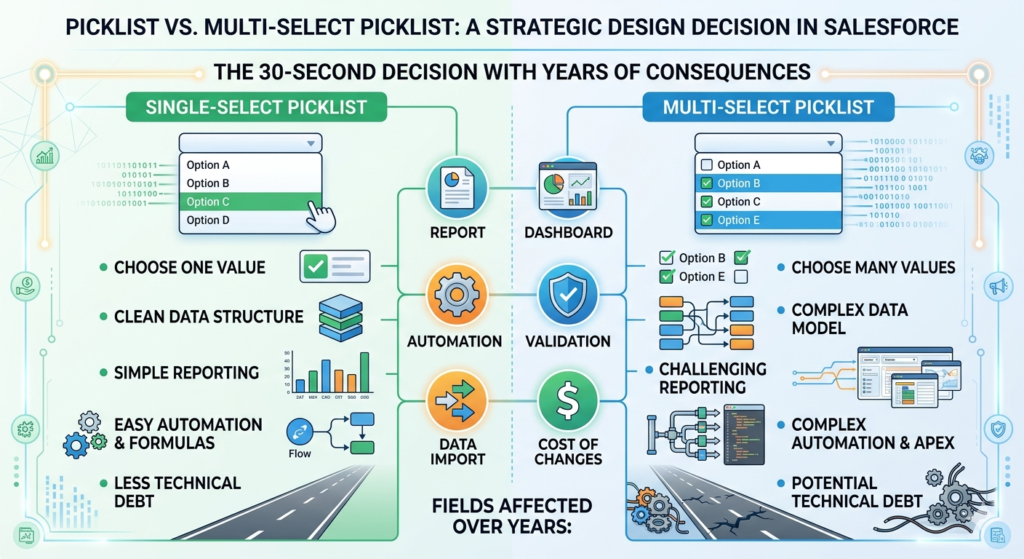
Choose the wrong field type and you may find yourself:
- Unable to group records in reports the way leadership expects
- Writing complex Apex workarounds just to evaluate a field value in a Flow
- Struggling to sync data cleanly with external systems via API
- Watching user adoption suffer because the interface feels clunky or inconsistent
This guide is designed to eliminate that ambiguity. Whether you are a Salesforce Admin building your first org, a CRM Consultant advising a client on field architecture, a Business Analyst defining data requirements, or a Solution Architect planning an enterprise-scale implementation, this comprehensive comparison will give you the knowledge to make the right call every time.
By the end of this article, you will understand exactly what each field type does, where each one shines, where each one struggles, how to set them up correctly, and how to avoid the most common design mistakes that create technical debt down the road.
Let us start at the beginning.
2. What Is a Salesforce Picklist Field?
Definition and Core Functionality
A Salesforce Picklist field is a single-select dropdown field that presents users with a predefined list of values and allows them to choose exactly one option at a time. Think of it as a digital multiple-choice question where only one answer is permitted.
When a user clicks on a picklist field, a dropdown menu appears displaying all available values. The user selects one, and that value is saved to the record. The field can also be left blank if it is not marked as required.
Technical Characteristics
- Data type: Text-based, stored as a single string value
- UI presentation: Dropdown menu (desktop) or scroll wheel (mobile)
- Max values: Up to 1,000 picklist values per field
- Value enforcement: Only predefined values are accepted (no free text)
- Formula field compatibility: Full support for
ISPICKVAL()function - Report grouping: Fully supported
- Flow compatibility: Native support for all comparison operators
Common Use Cases
The Salesforce Picklist field is the backbone of process-driven data capture across the platform. Common real-world applications include:
- Lead Status — New, Working, Qualified, Unqualified, Converted
- Opportunity Stage — Prospecting, Qualification, Proposal, Negotiation, Closed Won, Closed Lost
- Case Priority — Low, Medium, High, Critical
- Account Industry — Technology, Healthcare, Finance, Manufacturing, Retail
- Contract Status — Draft, In Review, Activated, Expired
- Case Origin — Phone, Email, Web, Chat
Notice the pattern: these are all fields where a record has one definitive state or classification at any given moment. A Lead cannot simultaneously be both “Qualified” and “Unqualified.” A Case cannot be both “Low Priority” and “High Priority.” This is exactly where the standard Picklist field belongs.
Benefits of Controlled Values
One of the most significant advantages of the Salesforce Picklist field is data consistency. Because users can only select from a predefined list, you eliminate the risk of free-text variation that makes reporting unreliable — problems like “Technology” vs. “Tech” vs. “technology” vs. “TECH” all being treated as different values in a report.
Additional benefits include:
- Clean grouping in reports and dashboards — values aggregate naturally
- Simple validation rules —
ISPICKVAL()syntax is clean and readable - Effortless automation — Flows and Process Builder handle picklist comparisons natively
- Easy integration — a single string value maps cleanly to external system fields
- Support for dependent picklists — controlling fields can drive dependent picklist behavior
3. What Is a Multi-Select Picklist?
Definition and Core Functionality
A Multi-Select Picklist (also called a multi-select field or MSP) is a field type that allows users to select more than one value from a predefined list simultaneously. Instead of a simple dropdown, users typically see a box where they can highlight and select multiple items, and those selections appear as a semicolon-separated string when stored in the database.
For example, if a Contact has interests in “Email Marketing,” “Social Media,” and “SEO,” a Multi-Select Picklist field would store that value as:
textEmail Marketing;Social Media;SEO
That semicolon-delimited string is the key to understanding nearly every limitation associated with this field type.
Technical Characteristics
- Data type: Text-based, stored as a semicolon-separated string
- UI presentation: Multi-select box (desktop), scrollable list with checkboxes (mobile Lightning)
- Max values: Up to 150 picklist values per field (significantly less than standard picklist)
- Max selections per record: Up to 100 values selected simultaneously
- Formula field compatibility: Limited —
INCLUDES()function instead ofISPICKVAL() - Report grouping: Not natively supported
- Flow compatibility: Requires special handling and contains-style logic
How Multiple Selections Work
When a user edits a record with a Multi-Select Picklist field in Lightning Experience, they typically see a two-panel interface: available options on the left and selected options on the right. Users move items between panels using arrow buttons or by double-clicking. The selected items are then stored as a single concatenated string with semicolons as delimiters.
This is fundamentally different from how checkboxes work. A group of individual checkbox fields creates separate boolean fields for each option, each independently reportable and filterable. A Multi-Select Picklist stores everything in one field as one string — which is both its strength and its greatest weakness.
Typical Use Cases
Multi-Select Picklists are best suited for scenarios where a record genuinely has multiple simultaneous attributes from the same category:
- Product Interests — Cloud Storage, Security Suite, Analytics Platform
- Preferred Communication Channels — Email, SMS, Phone, Web Portal
- Skills or Certifications — Salesforce Admin, Salesforce Developer, AWS, Azure
- Marketing Segment Tags — Enterprise, SMB, Startup, Healthcare Vertical
- Subscription Preferences — Newsletter, Product Updates, Event Invitations
- Languages Spoken — English, Spanish, French, Mandarin
How It Differs from Checkbox Groups
Many admins confuse Multi-Select Picklists with a group of individual checkbox fields. Here is a quick distinction:
| Feature | Multi-Select Picklist | Checkbox Group (Individual Fields) |
|---|---|---|
| Storage | One field, semicolon-delimited | Multiple separate boolean fields |
| Reportability | Limited | Full — each field filters independently |
| Adding new options | Edit one field | Add new checkbox field |
| API access | One field, complex parsing | Simple true/false per field |
| Formula support | INCLUDES() only | Standard boolean logic |
For most enterprise reporting needs, individual checkbox fields or related objects outperform Multi-Select Picklists. More on that in the recommendations section.
4. Salesforce Picklist vs Multi Select: Core Differences
The following comparison table provides a comprehensive side-by-side view of the critical differences between these two field types.
Comprehensive Comparison Table
| Feature / Dimension | Salesforce Picklist Field | Multi-Select Picklist Field |
|---|---|---|
| Number of selections | One value only | Multiple values simultaneously |
| Data storage format | Single string value | Semicolon-delimited string |
| Max value options | 1,000 values | 150 values |
| UI component (Lightning) | Dropdown menu | Dual-panel selection box |
| Mobile experience | Excellent — native scroll wheel | Acceptable — scrollable list |
| Formula field support | Full — ISPICKVAL() | Limited — INCLUDES() only |
| Validation rule support | Full — clean syntax | Possible but complex |
| Report grouping | ✅ Fully supported | ❌ Not supported |
| Report filtering | ✅ Simple and intuitive | ⚠️ Limited — “contains” logic only |
| Dashboard charts | ✅ Fully supported | ❌ Cannot group by MSP field |
| Flow — assignment | ✅ Native support | ⚠️ Requires special handling |
| Flow — decision logic | ✅ Equals / Not Equals | ⚠️ Contains — no exact match |
| Process Builder | ✅ Fully supported | ⚠️ Limited support |
| Apex handling | Simple string comparison | Requires string splitting / parsing |
| SOQL querying | Standard WHERE clause | LIKE '%value%' — less efficient |
| Data import / export | Clean, one value per field | Semicolons must be handled carefully |
| API integration | Simple — single value | Complex — string parsing required |
| Dependent picklist | ✅ Can be controlling or dependent | ⚠️ Can be dependent only — not controlling |
| Global value sets | ✅ Fully compatible | ✅ Compatible |
| Record type variation | ✅ Full support | ✅ Full support |
| Change set / deployment | Straightforward | Straightforward |
| User experience | Intuitive and fast | Can feel clunky with many options |
| Long-term scalability | High | Moderate — can accumulate debt |
| Recommended default | ✅ Yes — use as default | ⚠️ Only when truly necessary |
This table should serve as your quick-reference cheat sheet whenever you face the Salesforce Picklist vs Multi Select decision.
5. When to Use a Salesforce Picklist Field
The Core Principle
Use a standard Salesforce Picklist field whenever a record should have one and only one value from a set of options at any given point in time. If the question you are answering has exactly one correct answer per record, use a picklist.
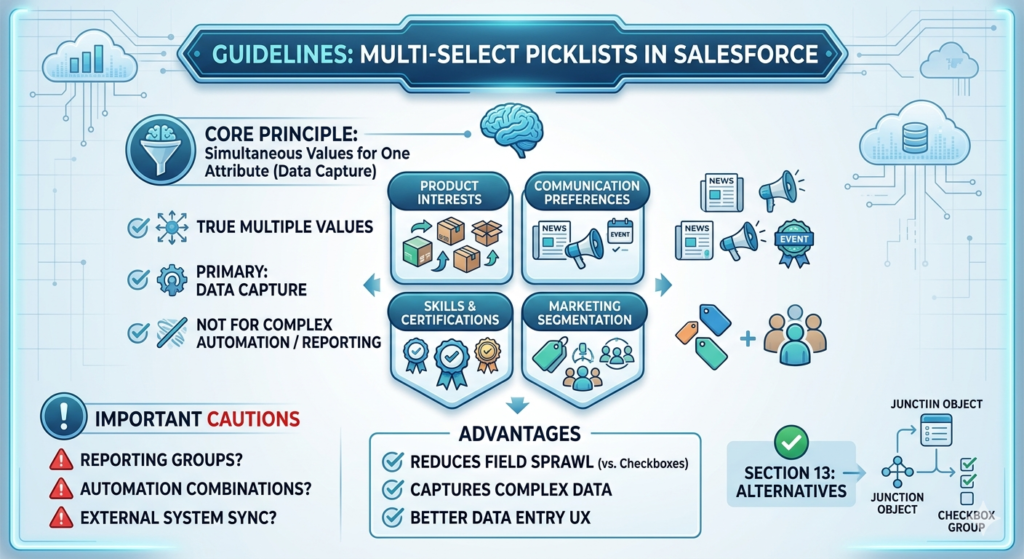
Best Scenarios for Picklist Fields
1. Standardized Business Process Stages
Any field that drives a lifecycle or workflow stage should use a standard picklist. Stage progression is sequential — a record moves from one state to the next, never occupying two stages simultaneously.
Examples: Opportunity Stage, Case Status, Lead Status, Contract Lifecycle Stage
2. Sales Pipeline Values
Sales pipeline management depends on clean, singular stage values. Revenue forecasting, pipeline reports, and sales dashboards all require the ability to group and sum records by stage. This is impossible with Multi-Select fields.
Examples: Opportunity Stage, Quote Status, Forecast Category
3. Priority and Severity Classifications
When a record has a single priority level at any moment, a standard picklist keeps the logic clean and the data trustworthy.
Examples: Case Priority, Escalation Level, Risk Rating, Incident Severity
4. Compliance-Required Fields
Regulated industries often require clear, auditable single-value classifications for records. A picklist provides the clean, reportable, history-tracked data that compliance teams need.
Examples: KYC Status, Regulatory Category, Compliance Review Status
5. Classification and Categorization
When categorizing records by a single primary attribute, the picklist ensures clean segmentation.
Examples: Account Industry, Account Type, Contact Role, Product Family
Why Picklist Fields Win on Automation and Reporting
Here is a practical example that illustrates why picklist fields make automation dramatically simpler:
Scenario: You want to send an email alert when a Case Priority changes to “High.”
With a standard Picklist:
text{!Case.Priority} Equals "High"
Done. One condition. Clean. Reliable.
With a Multi-Select Picklist attempting the same logic:
text{!Case.PriorityTags} Contains "High"
This has problems. What if a value contains “High” as part of a longer word? What if the user selected “High” along with “Critical”? The logic becomes ambiguous and unreliable.
This single example illustrates why Salesforce Admins consistently favor the standard picklist wherever the business logic allows it.
6. When to Use a Multi-Select Picklist
The Core Principle
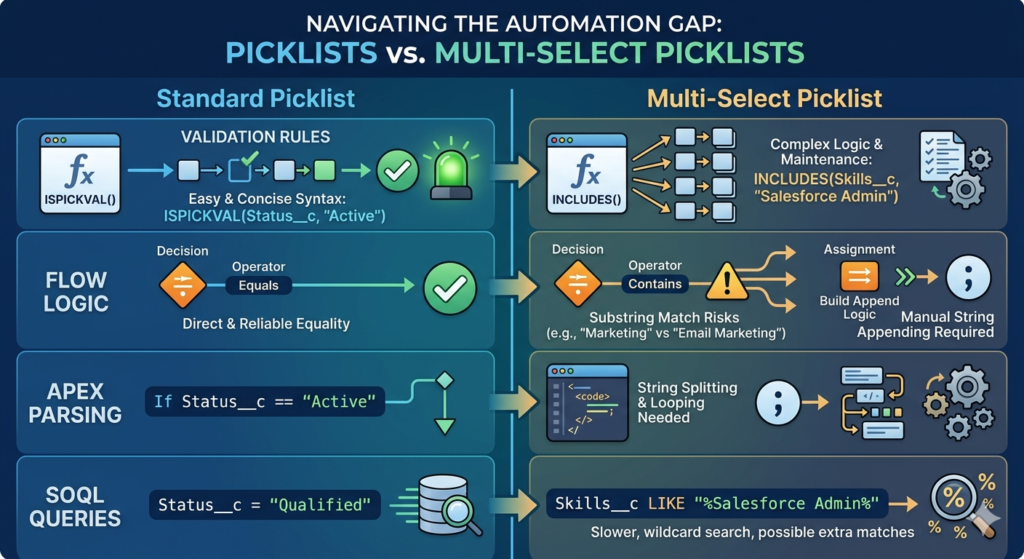
Use a Multi-Select Picklist only when a record genuinely and legitimately has multiple simultaneous values from the same attribute category, AND when the primary use case is data capture rather than complex reporting, filtering, or automation.
Best Scenarios for Multi-Select Picklist
1. Product or Service Interests
A prospect might be interested in multiple product lines simultaneously. A Multi-Select Picklist captures this reality without creating multiple boolean checkbox fields.
Example: A Lead is interested in “CRM Platform,” “Marketing Automation,” and “Customer Service Suite”
2. Communication and Subscription Preferences
Customers often want to receive multiple types of communications. Capturing these preferences in one field is convenient and practical.
Example: A Contact opts into “Newsletter,” “Product Updates,” and “Webinar Invitations”
3. Skills and Certifications
For HR, staffing, or professional services use cases, a resource may hold multiple qualifications simultaneously.
Example: A Contact record for a consultant shows “Salesforce Admin,” “Salesforce Developer,” “MuleSoft Integration Specialist”
4. Marketing Segmentation Tags
When marketing teams need to tag records with multiple non-exclusive attributes for campaign targeting, a Multi-Select Picklist offers convenient tagging.
Example: An Account is tagged as “Enterprise,” “Healthcare Vertical,” and “Expansion Opportunity”
Advantages When Used Appropriately
- Reduces field sprawl — one field instead of many checkboxes
- Captures real-world complexity — some data is genuinely multi-valued
- Improves user experience for data entry when multiple options apply
- Reduces data model complexity for simple preference tracking
Important Cautions
Before choosing a Multi-Select Picklist, ask yourself these questions:
- Will we need to group records by this field in a report? (If yes, avoid MSP)
- Will automation need to make decisions based on specific combinations of values? (If yes, avoid MSP)
- Will this data need to sync with an external system via API? (If yes, proceed with caution)
- Will this field have more than 10 possible values? (If yes, consider an alternative data model)
If you answer “yes” to most of these questions, a Multi-Select Picklist is probably the wrong choice, and you should consider alternatives described in Section 13.
7. Setup Guide: How to Create Each Field Type
a. Salesforce Picklist Field Setup
Step 1: Navigate to Object Manager
- Click the Setup gear icon in the top-right corner
- Select Setup from the dropdown
- In the Quick Find box, type Object Manager
- Click Object Manager and select the object (e.g., Lead, Contact, Opportunity)
Step 2: Create the New Field
- Click Fields & Relationships in the left sidebar
- Click the New button in the top right
- Under “Data Type,” select Picklist from the list
- Click Next
Step 3: Configure the Field
- Enter the Field Label (e.g., “Primary Industry”)
- The Field Name auto-populates — review and adjust if needed
- Choose between:
- Enter values, with each value on a separate line (for a custom value set)
- Use a global picklist value set (recommended for shared values across objects)
- Type your picklist values, one per line
- Optionally select a Default Value
- Configure Sort Values Alphabetically if desired
- Add a Description and Help Text for users
- Click Next
Step 4: Field-Level Security
- Set visibility and editability by profile
- Click Next
Step 5: Page Layout Assignment
- Select which page layouts should display the field
- Click Save
Screenshot Note: [Suggested screenshot: Object Manager > Field creation screen showing Picklist data type selected with sample values entered]
Setting Up Dependent Picklists
Dependent picklists allow one picklist (the “controlling field”) to filter the available values of another picklist (the “dependent field”). This is powerful for progressive disclosure — showing only relevant values based on a prior selection.
- After creating both picklist fields, go to Object Manager > Fields & Relationships
- Click Field Dependencies
- Click New
- Select the Controlling Field and Dependent Field
- Use the dependency matrix to map which dependent values appear for each controlling value
- Click Save
Example: A “Region” controlling picklist filters the “Sub-Region” dependent picklist — selecting “North America” shows only “Northeast, Southeast, Midwest, Southwest, West Coast.”
b. Multi-Select Picklist Setup
Step 1-2: Follow the same initial steps as the standard Picklist setup above.
Step 3: Select Multi-Select Picklist Data Type
- Under “Data Type,” select Picklist (Multi-Select) from the list
- Click Next
Step 4: Configure the Field
- Enter the Field Label (e.g., “Product Interests”)
- Enter your picklist values, one per line
- Set the Number of Lines Visible (controls how many options show without scrolling — default is 4, maximum is 10)
- Optionally configure Default Values — be cautious here, as default values in MSP fields can create data quality issues if users do not review them
- Add Description and Help Text
- Click Next
Step 5-6: Complete Field-Level Security and Page Layout assignment as with the standard picklist.
Important Configuration Note: Unlike standard picklists, Multi-Select Picklists cannot be used as a controlling field in a dependent picklist relationship. They can only be the dependent field.
Screenshot Note: [Suggested screenshot: Field creation screen showing Multi-Select Picklist type and the “Number of Lines Visible” setting]
8. Reporting & Dashboard Considerations
The Most Important Limitation You Need to Understand
This section may be the most critical part of this entire guide for business decision-making. The reporting limitations of Multi-Select Picklist fields are significant enough that many experienced Salesforce architects treat them as a strong default reason to choose a different field type.
Why Multi-Select Picklist Complicates Reporting
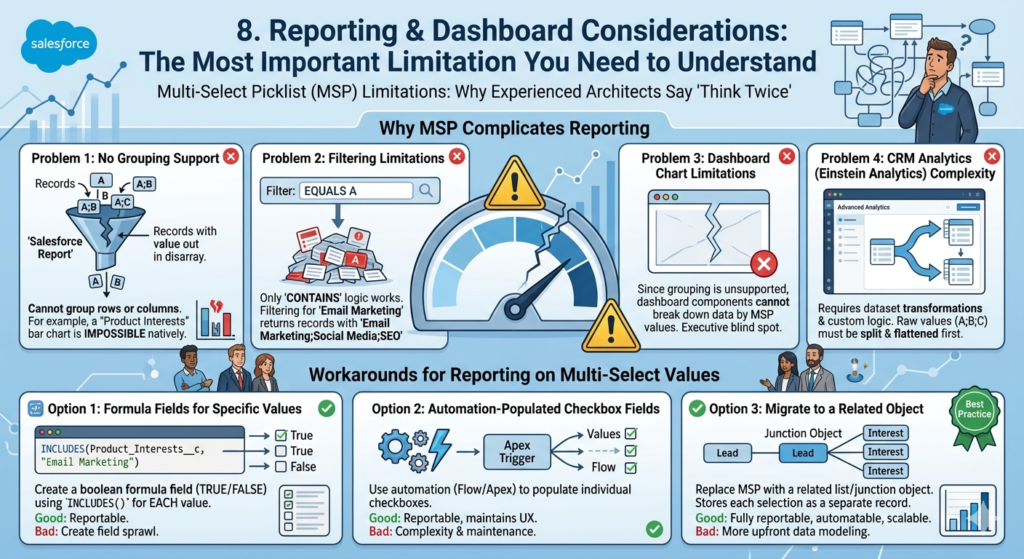
Problem 1: No Grouping Support
In Salesforce Reports, you cannot group rows or columns by a Multi-Select Picklist field. This means you cannot create a report showing “how many records have each value” in the way you would with a standard picklist.
Example: You have a “Product Interests” Multi-Select Picklist on Leads. You want to see a bar chart of how many Leads are interested in each product. This is not possible natively with a Multi-Select Picklist field.
With a standard Picklist field for “Primary Product Interest,” that chart would take thirty seconds to build.
Problem 2: Filtering Limitations
When filtering a report on a Multi-Select Picklist field, you can only use “contains” logic. You cannot filter for records where the field value is exactly equal to a specific single value — because the stored value may contain that value as part of a longer semicolon-delimited string.
Example: Filtering for Leads where “Product Interests” equals “Email Marketing” may also return Leads where the value is “Email Marketing;Social Media;SEO” — because all of these “contain” the word “Email Marketing.”
Problem 3: Dashboard Chart Limitations
Since dashboards are built on reports, and grouping by Multi-Select Picklist is not supported, you cannot build dashboard charts that break down data by Multi-Select Picklist values. This is a significant operational blind spot for organizations that rely on Salesforce dashboards for executive visibility.
Problem 4: CRM Analytics (Einstein Analytics) Complexity
Even in Salesforce’s advanced analytics layer, Multi-Select Picklist fields require dataset transformations and custom logic to be useful. The raw semicolon-delimited value must be split and flattened before meaningful analysis is possible.
Workarounds for Reporting on Multi-Select Values
If you are committed to using a Multi-Select Picklist and need reporting visibility, here are your primary options:
Option 1: Formula Fields for Specific Values
Create individual formula fields using the INCLUDES() function to create boolean indicators for each value you need to report on:
textINCLUDES(Product_Interests__c, "Email Marketing")
This returns TRUE/FALSE and can be grouped in reports — but you need one formula field per value you want to track, which creates significant field sprawl.
Option 2: Automation-Populated Checkbox Fields
Use a Flow or Apex trigger to parse the Multi-Select Picklist value and populate individual checkbox fields. This approach preserves the user experience of multi-selection while enabling proper reporting — but adds automation complexity and maintenance overhead.
Option 3: Migrate to a Related Object
The cleanest long-term solution: replace the Multi-Select Picklist with a junction object or related list that stores each selection as a separate record. This is fully reportable, fully automatable, and infinitely scalable — but requires more upfront data model design.
9. Automation & Flow Challenges
Understanding the Automation Gap
When you choose a Multi-Select Picklist, you are accepting a set of automation constraints that every admin and developer on your team will encounter repeatedly over the life of the org. Understanding these constraints before implementation is far better than discovering them after a field is in production use.
Validation Rules with Multi-Select Picklist
The primary formula function for Multi-Select Picklist evaluation in validation rules is INCLUDES():
textINCLUDES(Skills__c, "Salesforce Admin")
This returns TRUE if “Salesforce Admin” is among the selected values. Validation rules can use this to require or restrict certain value combinations, but the logic becomes complex quickly when you need to evaluate multiple conditions simultaneously.
Standard Picklist equivalent:
textISPICKVAL(Status__c, "Active")
Notice how much cleaner the standard picklist syntax is. For complex validation scenarios, the standard picklist approach is dramatically easier to build, test, and maintain.
Flow Logic for Multi-Select Picklist
In Salesforce Flow, comparing a Multi-Select Picklist field requires using “Contains” as your operator rather than “Equals.” This is an important distinction:
- Equals: The entire field value must be exactly equal to your comparison string — nearly impossible to use reliably with a Multi-Select Picklist
- Contains: The field value string contains your comparison substring — this is the correct approach
Example Decision Element in Flow:
textCondition: {!Case.Tags__c} Contains "Escalation"
However, this “Contains” logic can produce false positives if you have values where one value name is a substring of another (e.g., “Marketing” and “Email Marketing” — checking for “Marketing” would match both).
Assignment actions for Multi-Select Picklist fields in Flow also require careful handling. When you want to add a value without removing existing ones, you cannot simply use “Assign” — you need to build logic that reads the current value, appends the new value with a semicolon separator, and then reassigns the field.
Apex Parsing for Multi-Select Values
For developers working with Multi-Select Picklist values in Apex, the stored semicolon-delimited string must be split before individual values can be evaluated:
apexString fieldValue = record.Skills__c;
List<String> selectedValues = fieldValue.split(';');

for(String value : selectedValues) {
    if(value.trim() == 'Salesforce Admin') {
        // Process logic here
    }
}
Compare this to a standard Picklist field in Apex:
apexif(record.Status__c == 'Active') {
    // Process logic here
}
The difference in code complexity is significant, and this complexity multiplies across every trigger, handler class, and service layer that needs to interact with the field.
SOQL Query Considerations
Querying Multi-Select Picklist fields in SOQL requires LIKE syntax with wildcard characters:
soqlSELECT Id, Name, Skills__c
FROM Contact
WHERE Skills__c LIKE '%Salesforce Admin%'
Standard Picklist fields support clean equality comparison:
soqlSELECT Id, Name, Status__c
FROM Lead
WHERE Status__c = 'Qualified'
The LIKE query approach is less efficient, more error-prone (wildcard matching can produce unexpected results), and harder to read and maintain.
10. Common Mistakes to Avoid
Mistake 1: Using Multi-Select Picklist for Process-Critical Fields
The most damaging mistake is placing a Multi-Select Picklist on a field that drives business process logic. If automation, assignments, SLA calculations, or reporting depend on a field, that field must be a standard Picklist.
Real Example Gone Wrong: An admin creates a “Service Category” Multi-Select Picklist on Cases to allow tickets to span multiple service areas. Three months later, the team discovers they cannot build a dashboard showing case volume by service category, cannot use the field to drive assignment rules, and cannot report on average resolution time by service type. The fix requires field migration, data transformation, and re-training users.
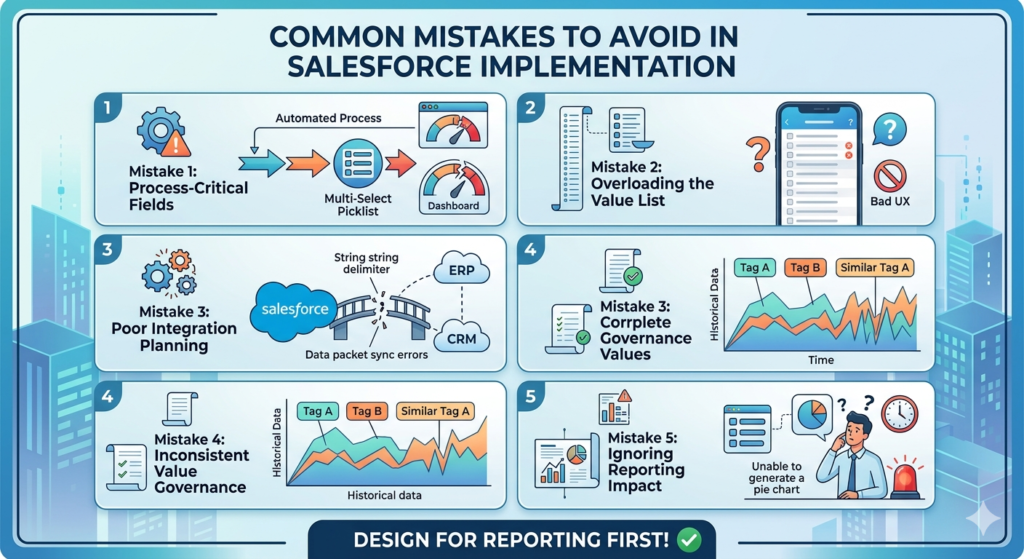
Mistake 2: Overloading the Value List
Multi-Select Picklists with 50+ values create terrible user experiences and make the field practically unusable on mobile devices. If your list of options is growing beyond 10–15 values, it is a strong signal that you need a different data model — likely a related object.
Mistake 3: Poor Integration Planning
Teams often implement Multi-Select Picklist fields without consulting their integration team. When the field needs to sync with an external CRM, ERP, or marketing platform, the semicolon-delimited string requires custom parsing on both sides of the integration — adding development cost and introducing sync error risk.
Mistake 4: Inconsistent Value Governance
Because Multi-Select Picklist fields can accumulate values over time, organizations without a governance process end up with duplicate or redundant options (“Marketing Email” vs. “Email Marketing” vs. “Email Campaigns”) that silently corrupt historical data and make the field unreliable.
Mistake 5: Ignoring the Reporting Impact Until It Is Too Late
This is perhaps the most common mistake of all. Reporting requirements are often discussed after field implementation, not before. By the time stakeholders ask “can we see a chart of how many contacts selected each interest?” the Multi-Select Picklist is already in production with thousands of records. Migration is painful and expensive.
The Fix: Always design for reporting first. Before creating any field, ask: “What report or dashboard will this field appear in, and how will it be grouped or filtered?”
11. Best Practices for Salesforce Field Design
a. Prioritize Simplicity
The simplest solution that meets the business requirement is almost always the right choice. A standard Picklist is simpler than a Multi-Select Picklist in every dimension — storage, querying, reporting, and automation. Default to the simpler option and only add complexity when the business requirement genuinely demands it.
b. Design for Reporting First
Before creating any field, map out how that field will appear in reports and dashboards. Ask stakeholders to describe the specific report or chart they envision. If the answer requires grouping by this field, the field must be a standard Picklist or a related object — never a Multi-Select Picklist.
c. Consider Future Integrations
Your Salesforce org does not exist in isolation. Even if you have no integrations today, plan for the possibility. Fields that sync with external systems should be as clean and simple as possible. Standard Picklist fields integrate predictably. Multi-Select Picklist fields require custom handling in almost every integration scenario.
d. Use Global Value Sets When Possible
Global Value Sets allow you to define a picklist value list once and use it across multiple fields on multiple objects. When you need to update the values, you update one Global Value Set and all fields using it are updated automatically. This is an enormous governance advantage in complex orgs.
To create a Global Value Set:
- Setup > Picklist Value Sets > New
- Define your values
- Reference the Global Value Set when creating any picklist field
e. Document Field Purpose
Every picklist field — standard or multi-select — should have a clear Description and Help Text configured in its setup. The Description explains why the field exists and how it should be used (visible to admins in Setup). The Help Text appears to users on the record page when they hover over the field name.
Good documentation prevents the “what does this field mean?” confusion that leads to inconsistent data entry and eventual data quality degradation.
f. Establish a Value Governance Process
Define who is authorized to add, edit, or deactivate picklist values. Create a simple request and approval process so that new values are not added ad hoc by individual admins. This is especially important for Multi-Select Picklist fields where value proliferation can get out of control quickly.
12. Real-World Examples
Example 1: Lead Qualification (Sales Use Case)
Scenario: A B2B SaaS company wants to track lead qualification attributes.
- Lead Status → Standard Picklist ✅
Values: New, Contacted, Qualified, MQL, SQL, Unqualified
Why: Status is a single state at any point in time. Drives automation and pipeline reporting. - Product Lines Interested In → Multi-Select Picklist ⚠️ (with caution)
Values: CRM, Marketing Automation, Service Cloud, Analytics
Why: A lead may genuinely be interested in multiple products. Used primarily for routing and not for dashboard grouping. - Primary Industry → Standard Picklist ✅
Values: Technology, Healthcare, Finance, Manufacturing, Retail, Other
Why: An account has one primary industry. Used for territory assignment and industry-specific reporting.
Example 2: Customer Preference Center (Marketing Use Case)
Scenario: A retail brand tracks customer communication preferences.
- Preferred Contact Method → Standard Picklist ✅
Values: Email, Phone, SMS, Mail
Why: The primary preferred method is one value. Used in automation to select the right channel. - Subscription Preferences → Multi-Select Picklist ⚠️
Values: Newsletter, Sale Alerts, New Arrivals, Event Invitations, Loyalty Updates
Why: Customers opt into multiple subscriptions. Used for filtering in marketing campaigns, not for dashboard reporting.
Example 3: HR Skills Tracking (People Operations Use Case)
Scenario: A professional services firm tracks consultant capabilities.
- Seniority Level → Standard Picklist ✅
Values: Junior, Mid-Level, Senior, Principal, Partner
Why: A consultant has one seniority classification at a time. - Certifications → Related Object (not MSP) ✅
Why: Certifications have attributes (issue date, expiry date, certification body) that require a proper data structure. A related “Certification” object with a lookup to Contact is far superior to a Multi-Select Picklist for this use case.
Example 4: Financial Services Risk Classification (Compliance Use Case)
Scenario: A wealth management firm needs to classify client accounts.
- Risk Profile → Standard Picklist ✅ (Required field)
Values: Conservative, Moderate Conservative, Moderate, Moderate Aggressive, Aggressive
Why: Regulatory requirement — one classification per client. Drives automated disclosures and product restrictions. - Regulatory Flags → Standard Picklist (one controlling picklist + dependent picklist) ✅
Why: Even if multiple regulatory categories apply, it is better to create separate picklist fields per regulatory dimension than to use a Multi-Select Picklist — especially for audit trail and compliance reporting.
13. Expert Recommendations
Default to Standard Picklist Unless Multiple Values Are Truly Essential
The professional consensus among experienced Salesforce architects is clear: start with the standard Picklist and escalate to Multi-Select only when the business requirement unambiguously requires capturing multiple simultaneous values.
Ask this question: “If I forced the user to pick just one value, would critical business information be genuinely lost?” If the answer is no — if one value would realistically cover the primary need — use the standard Picklist.
Alternatives to Multi-Select Picklist
Before implementing a Multi-Select Picklist, evaluate these alternatives:
| Alternative | When to Use | Trade-offs |
|---|---|---|
| Multiple Standard Picklist Fields | When you have 2–4 well-defined categories | More fields, but cleaner reporting |
| Individual Checkbox Fields | When options are independent boolean attributes | More fields, fully reportable |
| Junction Object / Related List | When selections have their own attributes or need reporting | More complex data model, maximum flexibility |
| Custom Object with Lookup | When each selection is an entity in its own right | Highest setup cost, best scalability |
| Tags (Salesforce Tagging) | For informal, user-driven categorization | Less control, harder to enforce governance |
Governance Recommendations for Enterprise Orgs
For organizations with multiple admins and complex org structures:
- Create a field request process — No new fields without documented business justification and reporting requirements
- Establish picklist value owners — Designate someone responsible for the value list of each critical field
- Conduct quarterly field audits — Review fields with low usage or high blank rates; deactivate obsolete values
- Document all Multi-Select Picklist fields — Maintain a registry of MSP fields with their business justification, reporting workarounds, and integration notes
- Use sandboxes for testing — Before changing a picklist value used in automation, test the impact in a sandbox environment
14. Conclusion: Making the Right Choice for Scalable CRM Design
The Salesforce Picklist vs Multi Select Picklist decision is one of the most consequential field design choices you will make in any Salesforce implementation. What appears to be a minor technical detail at the time of field creation can have lasting implications for your org’s reporting capabilities, automation reliability, integration health, and overall user experience.
Here is the strategic summary:
Choose a Standard Salesforce Picklist Field when:
- A record should have exactly one value at a time
- The field drives business process stages or workflow logic
- The field will be used for report grouping, dashboard charts, or pipeline analysis
- The field will be referenced in automation, validation rules, or formulas
- The field must integrate cleanly with external systems
Choose a Multi-Select Picklist when:
- A record genuinely needs multiple simultaneous values from the same attribute category
- The primary use case is data capture and filtering, not grouping or aggregation
- The number of possible values is relatively small (under 15)
- Reporting needs can be met with “contains” filtering or workaround formulas
- The field does not drive critical automation or integration logic
When in doubt, default to the standard Picklist. It is easier to evolve from a simple field type to a more complex one as requirements mature than to undo the technical debt created by an inappropriate Multi-Select Picklist field in a production org with thousands of records.
The most scalable Salesforce orgs are built by admins and architects who design for reporting first, automate with confidence, and choose simplicity over flexibility whenever both options would meet the immediate need.
Your users, your reporting team, your integration partners, and your future self will thank you for making the right choice today.
About RizeX Labs
At RizeX Labs, we specialize in delivering cutting-edge Salesforce solutions, including advanced data modeling, UI optimization, and field design strategies within the Salesforce ecosystem.
Our expertise combines deep technical knowledge, industry best practices, and real-world implementation experience to help businesses structure their data efficiently, improve reporting accuracy, and enhance user experience.
We empower organizations to move from messy, inconsistent data entry to well-structured, scalable data models—using the right field types like Picklists and Multi-Select Picklists for maximum efficiency and clarity.
Internal Linking Opportunities:
External Linking Opportunities:
- Salesforce official website
- Salesforce Picklist documentation
- Salesforce Trailhead (Picklist module)
- Salesforce AppExchange
- Salesforce Admin Blog
Quick Summary
Salesforce Picklist vs Multi-Select Picklist is not a small UI choice — it’s a data architecture decision that directly impacts reporting, automation, and scalability.
A Picklist allows users to select only one value, ensuring clean, structured, and easy-to-analyze data.
A Multi-Select Picklist, on the other hand, allows users to select multiple values, storing them as a semicolon-separated list.
While multi-select fields seem flexible, they introduce serious limitations in reporting, filtering, automation, and integrations.
