
Introduction: Why SFMC Roles and Permissions Matter More Than You Think
Imagine a junior marketing intern accidentally deleting an active customer journey that took weeks to build. Or a third-party agency gaining full access to your entire customer data warehouse when they only needed to send one email campaign. These are not hypothetical horror stories — they are real consequences of poorly configured Salesforce Marketing cloud roles permissions.
Salesforce Marketing Cloud is one of the most powerful digital marketing platforms in the world. It houses sensitive customer data, orchestrates multi-channel campaigns, and drives revenue-critical automations. With that power comes significant responsibility, and that responsibility starts with knowing who has access to what — and why.
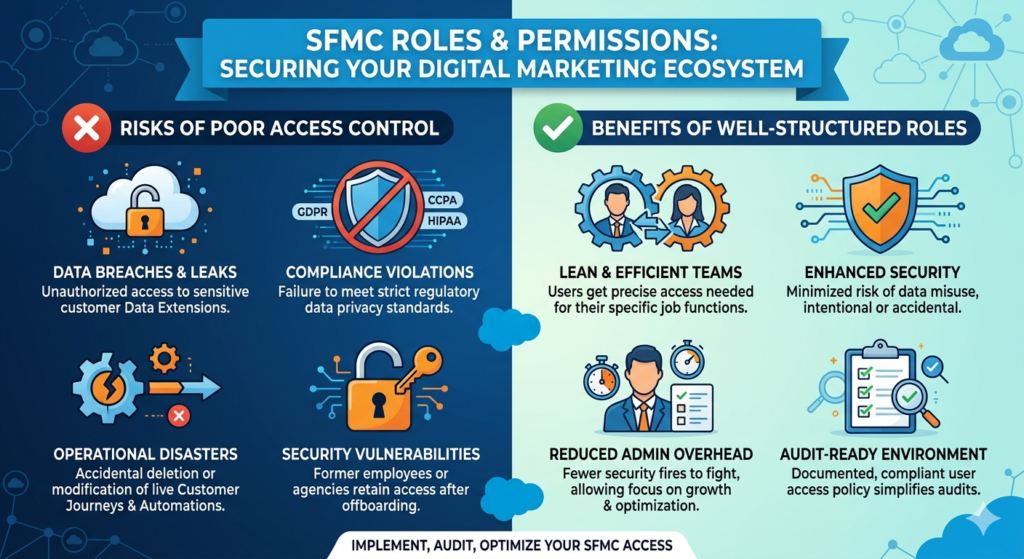
Poor access control in SFMC can lead to:
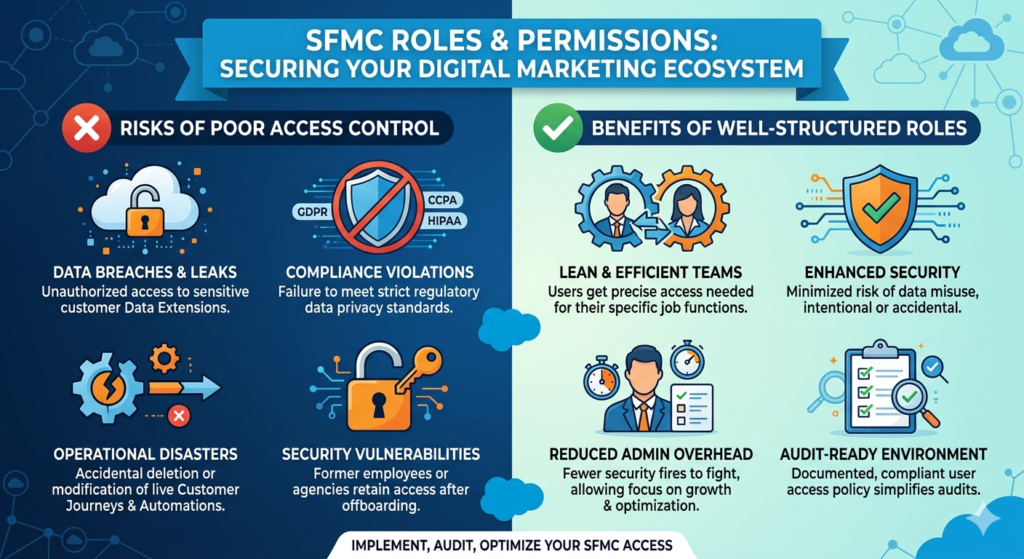
- Data breaches caused by unauthorized access to customer data extensions
- Compliance violations under regulations like GDPR, CCPA, and HIPAA
- Operational disasters from accidental modifications to live journeys or automations
- Security vulnerabilities when former employees or agencies retain access after offboarding
- Audit failures when there is no documented user access policy
On the flip side, well-structured sfmc roles permissions create a lean, efficient, and secure working environment. Teams get exactly the access they need to do their jobs — nothing more, nothing less. Administrators spend less time putting out fires and more time enabling business growth.
This guide is designed for marketers, SFMC administrators, and consultants who want to implement, audit, or optimize user access within Salesforce Marketing Cloud. Whether you are setting up Marketing Cloud for the first time or reviewing an existing implementation, this guide will give you a clear, actionable roadmap.
What Are Roles and Permissions in SFMC?
Before diving into specifics, it is important to understand the foundational concepts that govern SFMC access control.
Defining the Core Concepts
Users are individual people who log into Salesforce Marketing Cloud. Each user has a unique login credential and is associated with specific roles, business units, and access levels.
Roles are predefined or custom collections of permissions that determine what a user can see and do inside SFMC. Think of a role as a job function blueprint — it tells the system what capabilities are granted to a person with that designation.
Permissions are the granular building blocks of roles. A permission might allow a user to create emails, view reports, publish journeys, or manage subscribers. Permissions are bundled into roles, and roles are assigned to users.
Business Units (BUs) are organizational subdivisions within a Marketing Cloud account. They allow enterprise organizations to segment access, data, and content by region, brand, department, or function. A user can have different roles in different business units.
How SFMC Access Control Works at a High Level
SFMC uses a role-based access control (RBAC) model. Here is how it flows:
- An administrator creates or selects a role
- The role is assigned a set of permissions (read, write, publish, delete, etc.)
- The role is assigned to a user within one or more business units
- The user logs in and can only see and interact with what their role permits
This layered approach means that access is always intentional, traceable, and revocable. It also means that a single misconfiguration can either lock someone out of tools they need or grant them access they should never have.
The Difference Between Users, Roles, and Business Units
| Concept | What It Is | Example |
|---|---|---|
| User | An individual person with a login | jane.smith@company.com |
| Role | A collection of permissions | Content Creator |
| Business Unit | An organizational division | North America Marketing |
Understanding these three layers is the foundation of effective marketing cloud user management.
Understanding SFMC User Roles
Salesforce Marketing Cloud comes with several default system roles that cover the most common use cases. Understanding each role is essential before deciding whether standard roles meet your needs or whether custom roles are required.
Overview of Default SFMC Roles
1. Administrator
The Administrator role has the highest level of access in SFMC. Administrators can manage users, configure account settings, create business units, manage data extensions, and access all tools across the platform.
Can do:
- Create and manage users and roles
- Access all studios and builders
- Manage account-level settings and integrations
- Create and modify data extensions
- View all reports and analytics
Cannot do (by default):
- This role effectively has no meaningful restrictions in most configurations
Best for: IT administrators, Marketing Cloud consultants, senior platform owners
Caution: The Administrator role should be assigned sparingly. Over-assignment is one of the most common and dangerous mistakes in SFMC access control.
2. Content Creator
The Content Creator role is designed for marketing professionals who build and manage content assets like emails, landing pages, and templates.
Can do:
- Create and edit emails, templates, and content blocks
- Use Content Builder
- Preview and test email sends
Cannot do:
- Deploy or send emails independently
- Manage users or account settings
- Access sensitive data extensions or subscriber data
Best for: Copywriters, designers, and digital marketers focused on content production
3. Analyst
The Analyst role provides read-only access to data and reporting tools. It is ideal for stakeholders who need insights without the ability to modify campaigns or data.
Can do:
- View reports and dashboards
- Access Analytics Builder
- Export performance data
Cannot do:
- Create or modify campaigns
- Send emails or trigger journeys
- Manage users or settings
Best for: Marketing analysts, data teams, and business intelligence stakeholders
4. Marketing Cloud Channel Manager
This role provides access to specific communication channels like Email Studio and Mobile Studio. It is suitable for team members who execute campaigns within defined tools.
Can do:
- Build and send emails
- Manage subscriber lists
- Access specific channel studios
Cannot do:
- Access Journey Builder or Automation Studio without additional permissions
- Manage account-level settings
- Create custom roles or manage users
Best for: Email marketers and campaign managers
5. Marketing Cloud Security Administrator
This role focuses on security-specific functions within the platform, including user management and access configuration.
Can do:
- Create and manage user accounts
- Assign and modify roles
- Configure security settings
Cannot do:
- Build or send campaigns
- Access content creation tools
Best for: IT security teams and compliance officers
6. Marketing Cloud Viewer
The Viewer role provides the most limited access. Users can see campaign data and results but cannot modify anything.
Best for: Executive stakeholders, clients, or temporary observers
When to Use Standard Roles vs Custom Roles
Standard roles work well for small to mid-sized organizations with straightforward team structures. However, as organizations grow, standard roles often become either too broad or too narrow.
Use standard roles when:
- Your team is small and roles map cleanly to default definitions
- You are just getting started with SFMC
- You want low administrative overhead
Use custom roles when:
- You need to restrict access to specific business units
- Agency partners need limited, scoped access
- Your team has specialized functions not covered by default roles
- Compliance requirements demand granular access logging
Marketing Cloud User Management Explained
Effective marketing cloud user management is an ongoing operational discipline, not a one-time setup task. Here is a practical walkthrough of how to manage users in SFMC.
How to Create a New User in SFMC
- Navigate to Setup in the top-right corner of Marketing Cloud
- Under Users, select Create
- Enter the user’s first name, last name, and email address
- Set a username (typically the email address)
- Assign the user to one or more Business Units
- Select the appropriate Role for each business unit
- Set a temporary password and notify the user
- Click Save
How to Assign Roles to Existing Users
- Go to Setup > Users
- Search for and select the user
- Click Edit
- Navigate to the Business Unit Assignments section
- Add or modify roles per business unit
- Save changes
Role Assignment Best Practices Across Teams
Marketing Teams:
Assign Content Creator or Channel Manager roles. Avoid giving marketing team members access to data extension management unless absolutely required.
IT Teams:
Assign Administrator or Security Administrator roles. Document all admin-level accounts and review quarterly.
Agencies and Contractors:
Create time-bound user accounts with the minimum permissions required for the specific project. Assign agency users to a dedicated business unit where possible. Remove access immediately upon project completion.
Data Teams:
Assign Analyst roles with read-only permissions. If data manipulation is required, scope it to specific data extensions only.
Deep Dive into SFMC Access Control
Understanding the nuances of SFMC access control means going beyond just assigning roles. It requires thinking about access at multiple layers.
Business Units and Role-Based Access
Business units are a powerful tool for access segmentation. A user assigned as a Content Creator in the North America business unit should not automatically have access to the EMEA business unit.
Key principles for BU-based access control:
- Always assign roles at the BU level, not just the account level
- Use the Parent Business Unit for global administrators only
- Create separate BUs for agencies to isolate their access from internal data
Data-Level vs Feature-Level Permissions
Feature-level permissions control which tools a user can access — Email Studio, Journey Builder, Automation Studio, Analytics Builder, etc.
Data-level permissions control which data a user can see and modify — specific data extensions, subscriber lists, or audience segments.
A common mistake is granting feature-level access without thinking about data-level access. A user might have access to Email Studio but should only be able to send to a specific audience segment — not the full subscriber database.
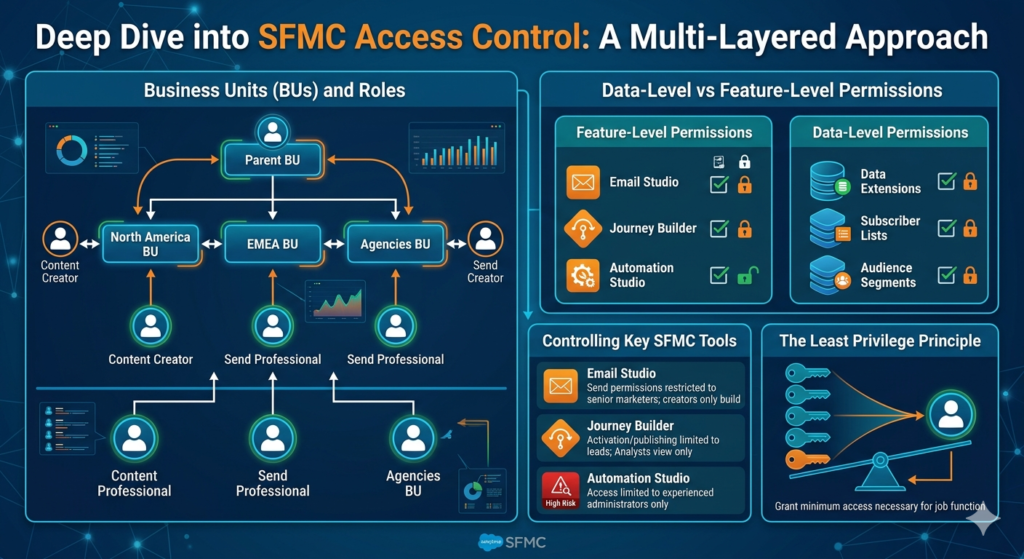
Controlling Access to Key SFMC Tools
Email Studio: Restrict send permissions to senior marketers. Content creators should be able to build but not deploy.
Journey Builder: Limit journey activation and publishing rights to leads or administrators. Allow analysts to view journeys without modifying them.
Automation Studio: This is a high-risk tool. Automations can move, delete, or transform large volumes of data. Restrict access to experienced administrators only.
Contact Builder and Data Extensions: Limit who can create, edit, or delete data extensions. These contain your most sensitive customer data.
The Least Privilege Principle
The least privilege principle states that every user should have only the minimum level of access necessary to perform their job function — nothing more.
Implementing least privilege in SFMC means:
- Starting with the most restrictive role and adding permissions as needed
- Reviewing access requests individually rather than applying broad roles
- Regularly auditing who has access to what and why
Creating Custom Roles in SFMC
When default roles do not meet your business needs, custom roles give you the flexibility to design precise access profiles.
When Custom Roles Are Necessary
- Your agency partner needs access to build emails but must not see subscriber data
- A regional marketing manager needs Journey Builder access for one BU only
- A compliance officer needs read-only access to reports across all BUs
Step-by-Step Guide to Creating a Custom Role
- Navigate to Setup > Roles
- Click Create Role
- Enter a role name that clearly describes its function (e.g., “Agency Email Builder – North America”)
- Navigate through the permission categories:
- Email Studio – toggle send, preview, and content creation permissions
- Journey Builder – toggle activation, editing, and view permissions
- Automation Studio – toggle run, schedule, and view permissions
- Data Management – toggle data extension access
- Save the role
- Assign the role to relevant users in the appropriate business unit
Custom Role Scenarios for Real Business Cases
Scenario 1: External Agency Partner
- Access: Content Builder (create/edit), Email Studio (preview only)
- No access: Data extensions, Journey Builder, Automation Studio, user management
- BU: Agency-only sandbox BU
Scenario 2: Regional Marketing Manager
- Access: Email Studio (full), Journey Builder (activate/edit), Analytics Builder (view)
- No access: Account-level settings, user management, parent BU
- BU: Assigned regional BU only
Scenario 3: Data Governance Officer
- Access: Analytics Builder (view all), Data extensions (read-only), Subscriber management (view)
- No access: Campaign creation, journey activation, user management
- BU: All BUs (view only)
Best Practices for SFMC Roles and Permissions
Following best practices is what separates a well-governed SFMC instance from a chaotic one.
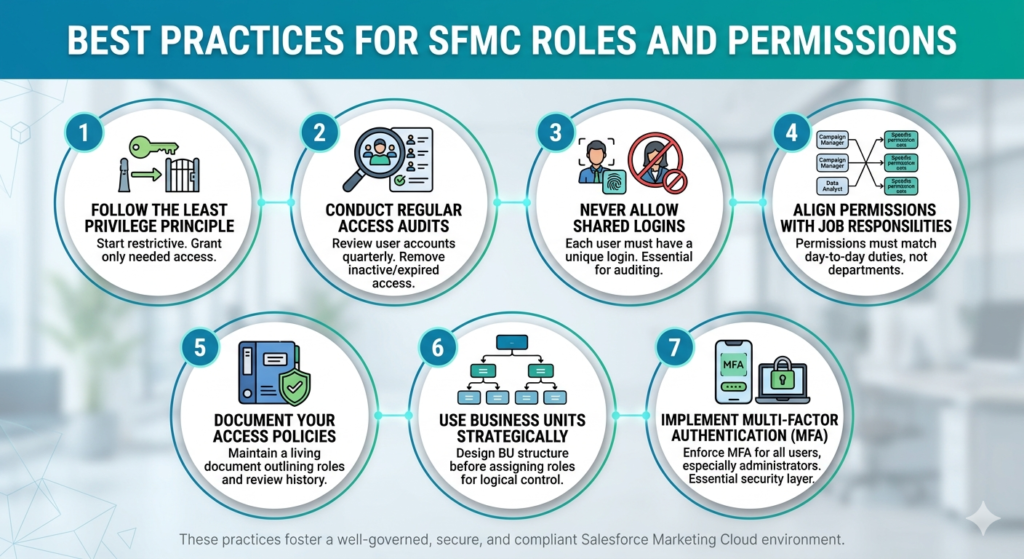
1. Follow the Least Privilege Principle
Always start restrictive. Grant additional access only when there is a clear business justification.
2. Conduct Regular Access Audits
Review all user accounts quarterly. Remove accounts for departed employees or ended agency contracts. Flag accounts that have not been used in 90+ days.
3. Never Allow Shared Logins
Shared credentials make it impossible to audit who took what action. Every user must have a unique login — no exceptions.
4. Align Permissions with Job Responsibilities
Permissions should reflect what a person actually does in their role, not what department they belong to. A marketing director may need fewer permissions than a hands-on campaign manager.
5. Document Your Access Policies
Maintain a living document that outlines what roles exist, who holds them, and when they were last reviewed. This is essential for compliance audits and onboarding.
6. Use Business Units Strategically
Design your BU structure before you start assigning roles. A well-planned BU hierarchy makes role assignment much easier and more logical.
7. Implement Multi-Factor Authentication (MFA)
Enforce MFA for all SFMC users, especially administrators. This adds a critical layer of security beyond role-based controls.
Common Mistakes to Avoid
Even experienced administrators make mistakes with sfmc roles permissions. Here are the most common pitfalls and how to avoid them.
Over-Permissioning Users
Giving users broad Administrator access because it is easier than scoping custom roles is a dangerous shortcut. Take the time to configure appropriate permissions.
Not Restricting Data Extension Access
Data extensions contain your most sensitive customer information. Not restricting access to these assets is a compliance risk and a data governance failure.
Ignoring Business Unit Structure
Treating all users as if they exist in a flat, single-BU environment prevents you from using SFMC’s most powerful isolation tools. Always plan your BU structure before assigning roles.
Lack of Governance in Marketing Cloud User Management
Without a documented process for user onboarding and offboarding, access inevitably becomes bloated over time. Establish clear workflows for requesting, approving, and removing access.
Failing to Remove Former Employees and Vendors
Dormant accounts with active credentials are a serious security risk. Create a formal offboarding checklist that includes SFMC account deactivation.
Using Generic Role Names
Role names like “Role 1” or “Custom Role A” make audits nearly impossible. Always use descriptive names that reflect the function and scope.
Real-World Use Case: Setting Up Roles for a Global Marketing Team
Let us walk through a realistic scenario to see how everything comes together.
Company: A global retail brand with operations in North America, EMEA, and APAC
Challenge: The marketing team includes internal staff, a regional creative agency in EMEA, and a data analytics vendor. They all need SFMC access, but with very different levels of control.
Business Unit Setup:
- Parent BU: Global Admin (internal platform owners only)
- Child BU: North America
- Child BU: EMEA
- Child BU: APAC
- Child BU: Agency Sandbox (isolated, no live data)
Role Configuration:
| User Type | Role | Business Unit |
|---|---|---|
| Global SFMC Admin | Administrator | Parent BU |
| NA Marketing Manager | Channel Manager + Journey Builder | North America BU |
| EMEA Agency Designer | Custom: Content Builder Only | Agency Sandbox BU |
| APAC Analyst | Analyst (Read-Only) | APAC BU |
| Data Vendor | Custom: Data Extensions Read-Only | All BUs (view only) |
Outcome:
- The agency cannot access live customer data or send emails independently
- The APAC analyst can report on performance without touching campaign settings
- The data vendor can audit data quality without modifying records
- The global admin has full visibility and control
This setup improves SFMC access control, reduces risk, and gives every team member exactly what they need to do their job effectively.
Conclusion: Build a Secure and Scalable SFMC Environment
Salesforce Marketing Cloud is a powerful platform that holds enormous potential — but that potential can only be safely realized when access is properly governed. SFMC roles permissions are not just a technical configuration; they are a strategic business decision that affects data security, operational efficiency, and regulatory compliance.
By understanding the difference between users, roles, and business units, leveraging both standard and custom roles, following the least privilege principle, and conducting regular audits, your organization can build a Marketing Cloud environment that is both productive and protected.
The next step is to audit your current setup. Ask yourself:
- Do all current users have the minimum access required for their role?
- Are there any dormant accounts that should be deactivated?
- Is your business unit structure optimized for role-based isolation?
- Do you have documented access policies in place?
If any of these questions reveal gaps, now is the time to address them. A well-governed marketing cloud user management strategy is not a luxury — it is a necessity for any organization that takes its data, its customers, and its brand seriously.
Start with a permissions audit today. Your future self — and your customers — will thank you for it.
About RizeX Labs
At RizeX Labs, we specialize in delivering advanced Salesforce Marketing Cloud solutions that help businesses streamline their digital marketing operations. Our expertise spans across campaign management, automation, personalization, and secure platform configuration.
We combine deep technical knowledge with industry best practices and real-world implementation experience to help organizations optimize their sfmc roles permissions, strengthen SFMC access control, and improve overall marketing cloud user management.
We empower organizations to transform their marketing operations—from unstructured access and security risks to well-governed, role-based environments that enhance efficiency, compliance, and collaboration.
Internal Linking Opportunities:
- Link to your Salesforce course page
- How to Build a Salesforce Portfolio That Gets You Hired (With Project Ideas)
- Salesforce Admin vs Developer: Which Career Path is Right for You in 2026?
- Wealth Management App in Financial Services Cloud
- Salesforce Marketing Cloud Training(SFMC) With GenAI
External Linking Opportunities:
- Salesforce official website
- Salesforce Marketing Cloud overview
- Salesforce Help (User Roles & Permissions)
- Salesforce Trailhead (User Management modules)
- Salesforce AppExchange
Quick Summary
Salesforce Marketing Cloud Roles and Permissions are essential for maintaining a secure and efficient marketing environment. By implementing proper sfmc roles permissions, organizations can control who has access to specific tools, data, and functionalities within the platform.
Effective marketing cloud user management ensures that users are assigned the right roles based on their responsibilities, reducing the risk of errors, unauthorized access, and data misuse. With strong SFMC access control, businesses can protect sensitive customer data while enabling teams to work efficiently within their defined scope.
A well-structured roles and permissions strategy helps organizations improve governance, maintain compliance, and scale their marketing operations with confidence.
