
Introduction: Why Choosing the Right Data Import Tool Matters in Salesforce
When working with Salesforce, one of the most critical tasks you'll face is getting your data into the system accurately and efficiently. Whether you're migrating from a legacy CRM, consolidating multiple data sources, or performing regular data updates, the tool you choose can make the difference between a smooth migration and a costly nightmare.
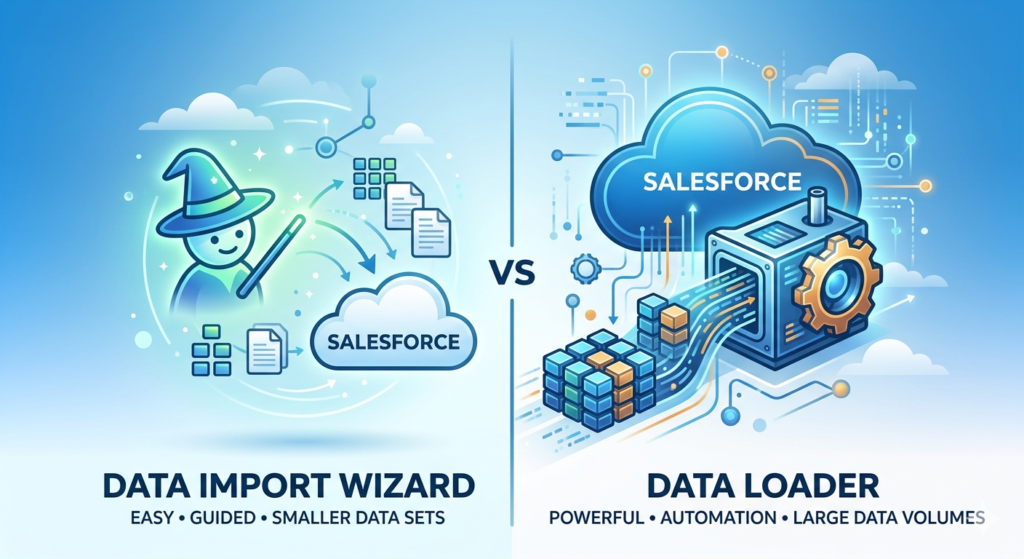
The Salesforce Data Import Wizard vs Data Loader debate is one of the most common questions among Salesforce administrators, developers, and business users. Both tools serve the fundamental purpose of helping you import data into Salesforce, but they're designed for vastly different scenarios and user skill levels.
Choosing the wrong tool can lead to:
- Data integrity issues that compromise your CRM's reliability
- Wasted time performing tasks manually when automation could help
- Failed imports that require hours of troubleshooting
- Performance bottlenecks during critical business operations
- User frustration and reduced adoption of your Salesforce instance
Understanding the strengths, limitations, and ideal use cases for each tool is essential for anyone responsible for data management in Salesforce. In this comprehensive guide, we'll break down everything you need to know about the Salesforce Data Import Wizard and Data Loader, helping you make informed decisions about which tool to use for your specific data migration needs.
Quick Comparison Table: Data Import Wizard vs Data Loader
Before diving deep into each tool, let's look at a side-by-side comparison to help you quickly understand the key differences:
| Feature | Data Import Wizard | Data Loader |
|---|---|---|
| Access Method | Web-based (within Salesforce) | Desktop application (downloadable) |
| Maximum Records | 50,000 records per import | 5 million records per import (150 million for bulk operations) |
| Supported Objects | Standard objects: Accounts, Contacts, Leads, Solutions, Campaign Members, Person Accounts; Custom objects | All standard and custom objects |
| User Skill Level | Beginner-friendly | Intermediate to advanced |
| Automation Support | No automation | Command-line automation possible |
| Duplicate Handling | Basic duplicate checking | Advanced duplicate matching rules |
| Data Operations | Insert, Update, Upsert (limited) | Insert, Update, Upsert, Delete, Hard Delete, Export |
| Field Mapping | Automatic with manual override | Manual mapping required |
| Relationship Handling | Limited to one-to-many | Complex relationship support |
| Scheduling | Not available | Available via command-line |
| File Format | CSV only | CSV only |
| Price | Free (included with Salesforce) | Free (included with Salesforce) |
| Best For | Small, one-time imports | Large, complex, or recurring imports |
| Learning Curve | Minimal | Moderate to steep |
| Error Handling | Basic error messages | Detailed error logs |
What is the Salesforce Data Import Wizard?
The Data Import Wizard is Salesforce's built-in, browser-based tool designed to make data imports accessible to users without technical expertise. Launched as a user-friendly alternative to more complex import methods, it guides you through the import process with a simple wizard-style interface.
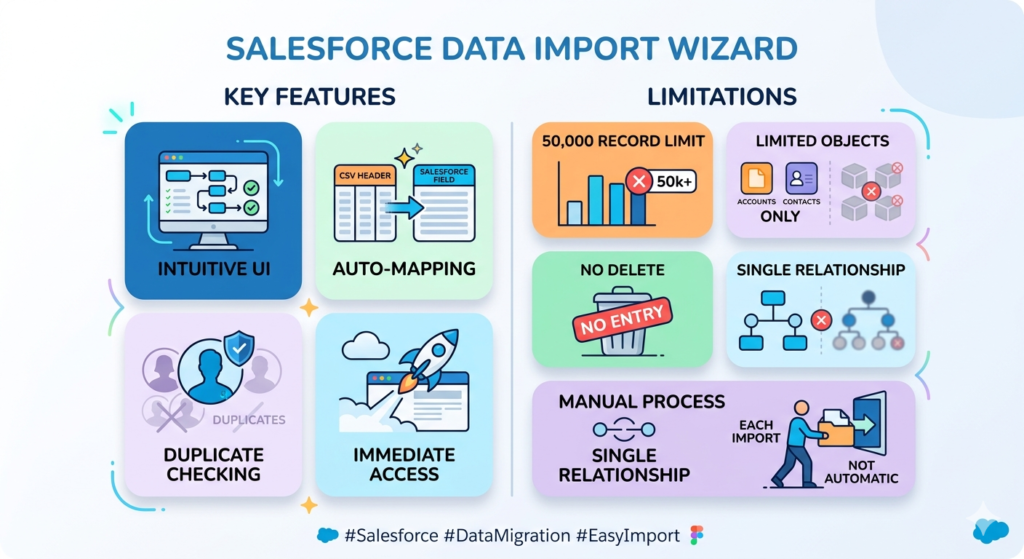
Key Features of Data Import Wizard
1. Intuitive User Interface
The Data Import Wizard uses a step-by-step approach that walks users through:
- Selecting the object type to import
- Choosing the operation (add new records, update existing, or add/update)
- Uploading the CSV file
- Mapping fields from your file to Salesforce fields
- Reviewing and confirming the import
2. Automatic Field Mapping
One of the wizard's strongest features is its ability to automatically match column headers in your CSV file to Salesforce field names. If your CSV headers closely match Salesforce field labels or API names, the tool will map them automatically, saving significant time.
3. Built-in Duplicate Detection
The wizard includes basic duplicate checking capabilities that can help prevent creating duplicate records for:
- Accounts (based on account name)
- Contacts and Leads (based on email, name, or other criteria)
- Custom objects (using matching rules if configured)
4. Immediate Access
No installation required—simply navigate to Setup → Data Import Wizard and start importing. This makes it ideal for quick imports or users who don't have admin rights to install software.
Limitations of Data Import Wizard
While convenient, the Data Import Wizard has several important constraints:
- Record limit of 50,000 per import session
- Limited object support—primarily standard objects like Accounts, Contacts, Leads, and certain custom objects
- No delete operations—you can only add or update records
- Single relationship handling—complex parent-child relationships are challenging
- No automation capabilities—every import must be initiated manually
- Limited error reporting—basic error messages that may not provide enough detail for troubleshooting
What is Salesforce Data Loader?
Data Loader is Salesforce's more powerful, desktop-based data import and export tool designed for handling large volumes of data and complex operations. It's a Java-based application that connects to your Salesforce org via API, offering greater flexibility and control than the Data Import Wizard.
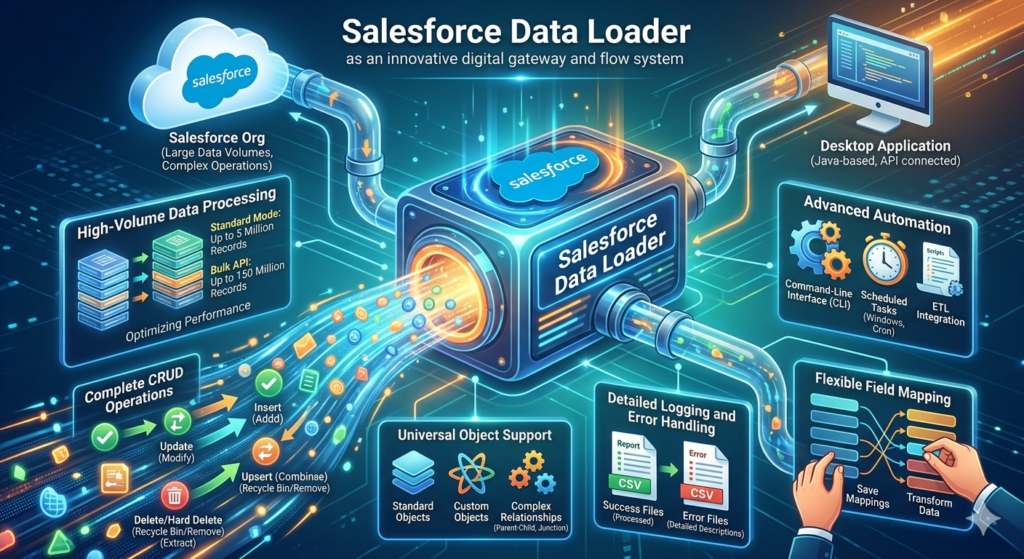
Key Features of Data Loader
1. High-Volume Data Processing
Data Loader can handle:
- Up to 5 million records in a single operation using standard mode
- Up to 150 million records when using Bulk API mode
- Batch processing to optimize performance and avoid timeouts
2. Complete CRUD Operations
Unlike the Import Wizard, Data Loader supports:
- Insert: Add new records
- Update: Modify existing records
- Upsert: Add new or update existing based on external ID
- Delete: Soft delete records (moved to Recycle Bin)
- Hard Delete: Permanently remove records (with proper permissions)
- Export: Extract data from Salesforce
- Export All: Export including deleted records
3. Advanced Automation
Data Loader can be run via command-line interface, enabling:
- Scheduled imports/exports using Windows Task Scheduler or cron jobs
- Integration with ETL (Extract, Transform, Load) processes
- Scripted data migrations
- Automated backup procedures
4. Universal Object Support
Data Loader works with:
- All standard Salesforce objects
- All custom objects
- Complex relationships including parent-child hierarchies
- Junction objects for many-to-many relationships
- External objects
5. Detailed Logging and Error Handling
Every operation generates:
- Success files listing all successfully processed records
- Error files with detailed descriptions of what went wrong
- CSV format for easy analysis and correction
6. Flexible Field Mapping
Data Loader allows you to:
- Save mapping configurations for reuse
- Map complex relationships using external IDs
- Transform data during import using mapping functions
- Handle null values with specific instructions
Technical Requirements for Data Loader
To use Data Loader, you'll need:
- Java Runtime Environment (JRE) installed on your computer
- API access enabled for your Salesforce user account
- Download and installation from Salesforce (available in Setup)
- Basic understanding of CSV file structure and Salesforce object relationships
Real-World Use Cases: When to Use Each Tool
Understanding theoretical differences is helpful, but let's explore practical scenarios where each tool shines.
Data Import Wizard Use Cases
Scenario 1: Marketing Campaign Import
Situation: Your marketing team has a spreadsheet with 2,000 leads from a recent trade show that need to be added to Salesforce.
Why Import Wizard: The volume is well under 50,000 records, the data is clean, and marketing staff can complete the import themselves without IT assistance.
Scenario 2: Quarterly Contact Updates
Situation: You receive updated contact information for 5,000 existing customers quarterly, including phone numbers and addresses.
Why Import Wizard: Regular but simple updates to standard objects that don't require automation. The wizard's duplicate matching will help update existing contacts rather than creating duplicates.
Scenario 3: New Sales Rep Territory Assignment
Situation: A new sales representative joins the team, and you need to assign 1,500 accounts to them.
Why Import Wizard: Single-field update on a standard object with moderate volume. Quick and doesn't require complex mapping.
Scenario 4: Product Interest Campaign Members
Situation: You want to add 10,000 contacts to a campaign based on their product interests.
Why Import Wizard: Campaign Member is one of the supported objects, and the volume is manageable. The wizard can handle the Contact-to-Campaign relationship.
Data Loader Use Cases
Scenario 1: Legacy CRM Migration
Situation: Your company is migrating from another CRM system with 500,000 accounts, 1.2 million contacts, 3 million opportunities, and associated activities.
Why Data Loader: High volume exceeds Import Wizard limits. Complex relationships require precise mapping. The ability to export and verify data before migration is critical.
Scenario 2: Custom Object Bulk Updates
Situation: You have a custom "Product Inventory" object with 200,000 records that need price updates based on a new pricing structure.
Why Data Loader: High volume, custom object, and the need for detailed error logging. You can export current data, perform transformations in Excel or Python, and re-import.
Scenario 3: Automated Nightly Data Sync
Situation: Your company uses an external order management system that needs to sync order data to Salesforce custom objects every night.
Why Data Loader: Command-line automation allows scheduling via Windows Task Scheduler or cron. The process runs without manual intervention.
Scenario 4: Data Cleanup - Deleting Test Records
Situation: During UAT (User Acceptance Testing), your team created 50,000 test records across multiple objects that need to be removed from production.
Why Data Loader: Only Data Loader supports delete and hard delete operations. You can export test records based on criteria, then use the delete function.
Scenario 5: Complex Multi-Object Import
Situation: You need to import accounts with related contacts, opportunities, and custom junction objects representing service agreements.
Why Data Loader: The ability to use external IDs for relationship mapping allows you to sequentially import each object type while maintaining relationships.
Scenario 6: Historical Data Archive
Situation: Compliance requires maintaining exports of all Salesforce data quarterly for the past seven years.
Why Data Loader: Automated export functionality can be scheduled, and the tool can export all objects systematically with complete field data.
Pros and Cons: Side-by-Side Analysis
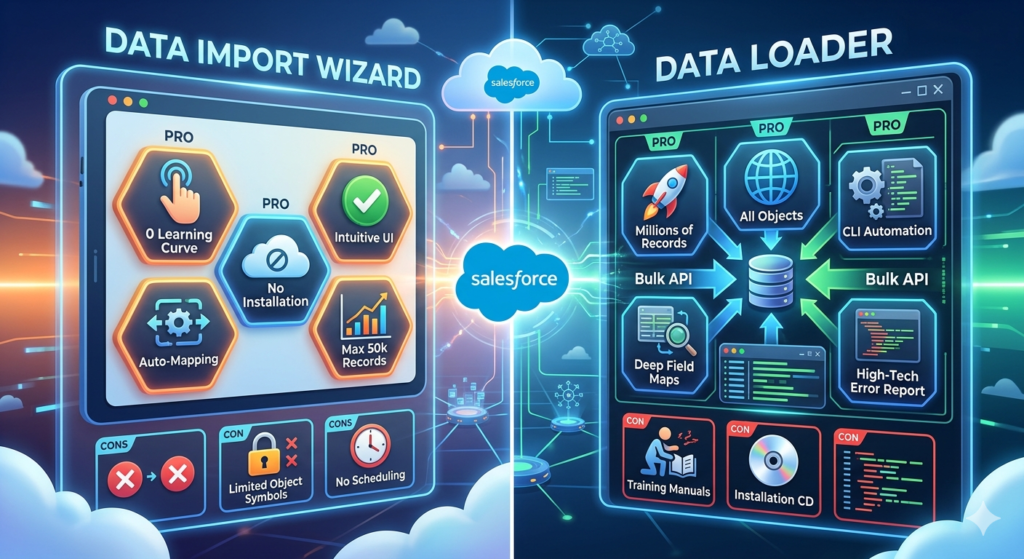
Data Import Wizard
Pros ✅
- Zero learning curve: Intuitive interface that most users can navigate without training
- No installation required: Accessible from any browser with Salesforce access
- Automatic field mapping: Saves time when field names match
- Built-in duplicate detection: Reduces risk of creating duplicate records
- Perfect for small datasets: Ideal for imports under 50,000 records
- Immediate feedback: See results instantly in your browser
- No technical prerequisites: Non-technical users can perform imports independently
- Mobile accessible: Can be used from tablets if needed
Cons ❌
- Record limit of 50,000: Unsuitable for large-scale migrations
- Limited object support: Restricted to specific standard and some custom objects
- No automation: Every import requires manual initiation
- Basic error reporting: Troubleshooting can be challenging
- No delete capability: Cannot remove records
- Limited relationship handling: Complex parent-child imports are difficult
- No scheduling options: Cannot set up recurring imports
- Single-user process: Can't be integrated into enterprise ETL workflows
Data Loader
Pros ✅
- Handles millions of records: Scalable for enterprise-level data operations
- Universal object support: Works with all standard and custom objects
- Complete CRUD operations: Insert, update, upsert, delete, hard delete, and export
- Automation-ready: Command-line interface for scheduling and scripting
- Detailed error logging: Comprehensive error files for troubleshooting
- Complex relationship support: External ID mapping for sophisticated data models
- Reusable configurations: Save field mappings for repeated operations
- Bulk API optimization: Efficient processing for large datasets
- Export capabilities: Extract data for analysis or backup
- Professional-grade tool: Suitable for production environments
Cons ❌
- Steep learning curve: Requires training and practice to master
- Installation required: Must download, install, and maintain the application
- Java dependency: Requires JRE installation and updates
- Desktop-bound: Only available on computers with the software installed
- Manual field mapping: More time-consuming setup for new imports
- API access required: Users need proper permissions
- Less forgiving: Mistakes can have wider impact due to higher volumes
- Command-line complexity: Automation requires technical scripting knowledge
When to Use Which Tool: Decision Framework
Making the right choice between Salesforce Data Import Wizard vs Data Loader doesn't have to be complicated. Use this decision framework:
Choose Data Import Wizard When:
✓ Your import volume is under 50,000 records
✓ You're working with standard objects (Accounts, Contacts, Leads, etc.)
✓ The import is a one-time or infrequent operation
✓ Non-technical users need to perform the import
✓ You need quick turnaround without setup time
✓ Simple field mapping is sufficient
✓ You're doing basic operations (insert or update only)
✓ Your organization restricts software installation
✓ You need to add campaign members to existing campaigns
✓ Duplicate prevention is a priority with standard matching rules
Choose Data Loader When:
✓ Your import volume exceeds 50,000 records
✓ You're working with custom objects or all object types
✓ You need delete or hard delete functionality
✓ Automation and scheduling are required
✓ You're handling complex parent-child relationships
✓ Detailed error logging is essential
✓ You need to export data from Salesforce
✓ The import involves complex field transformations
✓ You're performing a full data migration from another system
✓ Recurring imports are part of your business process
✓ You need to maintain reusable mapping configurations
✓ Integration with ETL tools or scripts is necessary
The Hybrid Approach
In many organizations, the best strategy is to use both tools strategically:
- Data Loader for initial large-scale migrations and automated processes
- Data Import Wizard for ongoing small updates and empowering business users
This approach balances technical capability with user accessibility, ensuring data operations are both powerful and democratized across the organization.
Common Mistakes Users Make During Data Import in Salesforce
Even experienced Salesforce administrators make mistakes when importing data. Here are the most common pitfalls and how to avoid them:
1. Not Creating a Backup Before Import
The Mistake: Running updates or deletes without exporting existing data first.
The Impact: Irreversible data loss if the import contains errors.
The Solution: Always export the data you're about to modify. In Data Loader, use the Export function before running updates or deletes. For Import Wizard operations, create a report and export it manually.
2. Ignoring Field-Level Security and Validation Rules
The Mistake: Attempting to import data without understanding field permissions and validation rules.
The Impact: Import failures with cryptic error messages; required fields missed; data imported without proper validation.
The Solution: Review field-level security for your user profile and document all validation rules before starting. Consider temporarily deactivating validation rules during large migrations (and reactivating immediately after).
3. Using Wrong Data Types
The Mistake: Formatting dates incorrectly (MM/DD/YYYY vs DD/MM/YYYY), using text in number fields, or incorrect picklist values.
The Impact: Failed imports, data corruption, or incorrect values in Salesforce.
The Solution:
- Use ISO date format (YYYY-MM-DD) for consistency
- Validate picklist values match exactly (case-sensitive)
- Remove currency symbols and formatting from number fields
- Use TRUE/FALSE for checkbox fields (not 1/0 or Yes/No)
4. Not Testing with a Small Batch First
The Mistake: Importing all 100,000 records at once without testing.
The Impact: Discovering errors after massive import, requiring extensive cleanup.
The Solution: Always import a test batch of 50-100 records first. Verify the data, check relationships, and confirm field mappings before proceeding with the full import.
5. Forgetting About External IDs for Relationships
The Mistake: Trying to relate records using Salesforce IDs instead of external IDs.
The Impact: Inability to import related records in Data Loader; manual lookup required.
The Solution: Create external ID fields on parent objects before importing. Use these for relationship mapping in Data Loader (e.g., Account_Number__c instead of Account ID).
6. Overlooking Record Owner Assignment
The Mistake: Not specifying record owners, resulting in all records owned by the importing user.
The Impact: Incorrect record ownership requiring mass reassignment; visibility issues; broken territory rules.
The Solution: Include an OwnerId field in your CSV, mapped to the correct user IDs. Export a user list from Salesforce first to get accurate IDs or use username for matching.
7. Not Handling Null Values Properly
The Mistake: Leaving fields blank in CSV thinking they'll remain unchanged, or not understanding how to clear existing values.
The Impact: Unexpected data updates or inability to clear field values.
The Solution:
- In Data Loader, configure settings to insert null values or not
- Use #N/A to explicitly set fields to null
- Test behavior with a small batch first
8. Exceeding Governor Limits
The Mistake: Importing data that triggers workflows, process builders, or triggers that hit Salesforce governor limits.
The Impact: Failed imports after partial completion; inconsistent data state.
The Solution:
- Review all automation tied to the objects you're importing
- Consider temporarily deactivating complex workflows during large imports
- Use Bulk API mode in Data Loader for better governor limit handling
- Break very large imports into smaller batches
9. Incorrect Character Encoding
The Mistake: Using CSV files with wrong encoding, especially for international characters.
The Impact: Special characters display as garbled text (e.g., José becomes José).
The Solution:
- Save CSV files as UTF-8 encoding
- In Excel, use "CSV UTF-8" format when saving
- Verify special characters in test imports before full migration
10. Not Documenting the Import Process
The Mistake: Failing to document field mappings, transformation logic, and import steps.
The Impact: Inability to repeat the import; difficulty troubleshooting; knowledge loss when team members leave.
The Solution:
- Save Data Loader mapping files (.sdl) with descriptive names
- Document transformation logic in a separate document
- Keep a log of import dates, record counts, and any issues encountered
- Store error files for future reference
Best Practices for Data Migration in Salesforce
Successfully importing data into Salesforce requires more than just choosing the right tool. Follow these best practices to ensure smooth data migration Salesforce projects:
1. Plan Before You Import
Create a Data Migration Plan
- Document source systems and data volume
- Identify objects and fields to migrate
- Map source fields to Salesforce fields
- Define data transformation rules
- Establish migration timeline and phases
- Identify stakeholders and approval processes
Perform Data Profiling
- Analyze data quality in source systems
- Identify duplicates, incomplete records, and inconsistencies
- Calculate actual record counts for each object
- Determine which data is truly necessary (avoid migrating garbage)
2. Clean Your Data Before Import
The "Garbage In, Garbage Out" Principle
Poor data quality in your source will result in poor data quality in Salesforce. Invest time in:
- Deduplication: Identify and merge duplicate records before import
- Standardization: Create consistent formats for phone numbers, addresses, company names
- Validation: Ensure required fields have values
- Enrichment: Fill in missing information where possible
- Normalization: Standardize picklist values and categorizations
Tools for Data Cleaning
- Excel power query for basic transformations
- OpenRefine for advanced data cleaning
- Third-party deduplication tools (Duplicate Check, DataGroomr)
- Python or SQL scripts for complex transformations
3. Use a Sandbox First
Never Import Directly to Production
- Set up a Full or Partial Copy Sandbox that mirrors production
- Run complete import process in sandbox environment
- Validate data accuracy and completeness
- Test user acceptance with actual users
- Document any issues and solutions
- Only proceed to production after successful sandbox testing
4. Implement Proper Field Mapping
Create a Field Mapping Document
| Source Field | Salesforce Object | Salesforce Field | Transformation Rule | Data Type | Required |
|---|---|---|---|---|---|
| CustomerID | Account | Account_Number__c | Direct mapping | Text | Yes |
| Company_Name | Account | Name | Trim whitespace, Title case | Text | Yes |
| Contact_Email | Contact | Lowercase, validate format | No |
Mapping Considerations
- Use API names, not field labels
- Document calculated or transformed fields
- Note any default values applied
- Identify lookup relationships and external IDs
5. Manage Dependencies and Order of Operations
Import in the Correct Sequence
When importing data Salesforce with relationships, order matters:
- Independent objects first (e.g., Accounts, Products)
- Dependent child objects (e.g., Contacts related to Accounts)
- Junction objects last (e.g., Opportunity Products)
Handle Lookups Properly
- Create external ID fields on parent objects
- Use these for relationship matching during child object imports
- Verify parent records exist before importing children
6. Control User Access During Migration
Temporarily Restrict User Access
For large migrations:
- Consider enabling maintenance mode or restricting login hours
- Communicate migration schedule clearly to users
- Provide specific windows when users should not access Salesforce
- Use permission sets to control who can access newly migrated data
7. Leverage Data Loader Settings Appropriately
Optimize Data Loader Configuration
In the Settings menu:
- Batch size: Default is 200; increase to 500-2000 for faster imports (test for optimal performance)
- Insert Null Values: Decide whether blank CSV fields should clear existing Salesforce values
- Use Bulk API: Enable for large volumes (over 10,000 records)
- Assignment Rule: Enable if using account/lead assignment rules
- Time Zone: Set correctly to avoid date/time field issues
- Query Results: Configure result folder locations
8. Monitor and Validate After Import
Post-Import Validation Checklist
- Record counts: Compare imported count vs. source count
- Relationship integrity: Verify parent-child connections
- Field values: Spot-check critical fields for accuracy
- Ownership: Confirm records assigned to correct owners
- Sharing: Test record visibility for different user profiles
- Automation: Verify workflows and triggers executed correctly
- Reports and dashboards: Check that existing reports display migrated data properly
Create Validation Reports
- Build reports to identify orphan records (children without parents)
- Create reports for records missing required business data
- Generate duplicate detection reports
- Compare record counts by type/status with source system
9. Maintain Data Integrity with Ongoing Processes
Establish Data Governance
After successful import:
- Document data standards and naming conventions
- Create validation rules to prevent future data quality issues
- Implement duplicate rules to maintain clean data
- Train users on data entry best practices
- Schedule regular data quality audits
- Assign data stewards for critical objects
10. Keep Detailed Import Logs
Document Everything
Maintain a migration log including:
- Date and time of each import
- User who performed import
- Object and operation type
- Number of records processed
- Number of successes and failures
- Location of error files
- Any issues encountered and resolutions
- Time taken for import completion
This documentation becomes invaluable for:
- Troubleshooting issues weeks or months later
- Compliance and audit requirements
- Training new team members
- Planning future migrations
Advanced Tips for Import Data Salesforce Operations
Using External IDs Effectively
What Are External IDs?
External IDs are custom fields marked as "External ID" in Salesforce that store unique identifiers from external systems. They're crucial for:
- Maintaining relationships during import
- Upsert operations (update if exists, insert if not)
- Integration with external systems
Best Practices for External IDs
- Create indexed external ID fields on all objects that will receive imports
- Use meaningful names (e.g., Legacy_Account_ID__c, ERP_Customer_Number__c)
- Ensure uniqueness in your source data
- Document which external ID corresponds to which source system
Handling Large Volume Imports
For Imports Exceeding 5 Million Records
- Break into multiple batches: Split CSV files into manageable chunks
- Use Bulk API mode: Enable in Data Loader settings
- Schedule during off-peak hours: Minimize performance impact
- Monitor Salesforce performance: Watch for degradation
- Consider Salesforce Bulk API directly: For extremely large volumes, use API programming
Automating Recurring Imports
Command-Line Data Loader Setup
For regular import data Salesforce tasks:
- Create process configuration files (.sdl for mapping, process-conf.xml for settings)
- Write batch scripts (Windows .bat or Unix shell scripts)
- Schedule using Task Scheduler or cron
- Set up error notification: Email alerts when errors occur
- Log file rotation: Manage storage of historical logs
Example Automation Workflow
- Nightly export from source system to shared folder
- Scheduled Data Loader script picks up file
- Transforms data and imports to Salesforce
- Generates success/error reports
- Sends summary email to data team
Using Data Loader CLI Parameters
Common command-line parameters:
textprocess.operation=insert
process.mappingFile=AccountMapping.sdl
sfdc.endpoint=https://login.salesforce.com
sfdc.username=your@email.com
Troubleshooting Common Import Errors
Error: "Required Fields Missing"
Cause: CSV doesn't include all required Salesforce fields
Solution:
- Review object's field setup to identify required fields
- Add missing columns to CSV with appropriate values
- Use default values where appropriate
Error: "Unable to Lock Row"
Cause: Record being updated is currently locked by another process
Solution:
- Wait and retry the operation
- Import during off-peak hours
- Reduce batch size in Data Loader
- Check for long-running processes or workflows
Error: "Duplicate External ID"
Cause: Multiple records in your import file have the same external ID value
Solution:
- Deduplicate your source data before import
- Review external ID field definition
- Use upsert operation if updating is acceptable
Error: "Invalid Field for Insert/Update"
Cause: Attempting to import to fields that are read-only or don't exist
Solution:
- Review field-level security settings
- Check for API name spelling errors in mapping
- Remove read-only fields (like system fields) from mapping
Error: "Circular Reference"
Cause: Records reference each other in a way that creates a dependency loop
Solution:
- Import in two passes: first without relationship, then update with relationship
- Restructure data model if design allows
Conclusion: Making the Right Choice for Your Salesforce Data Needs
The Salesforce Data Import Wizard vs Data Loader decision ultimately comes down to understanding your specific requirements, data volume, technical capabilities, and long-term data management strategy.
Quick Recap:
- Data Import Wizard is your go-to tool for straightforward imports under 50,000 records involving standard objects, especially when empowering non-technical users to manage their own data.
- Data Loader is the professional-grade solution for large volumes, complex relationships, automation requirements, and comprehensive data operations including exports and deletes.
The Path Forward:
- Assess your current needs: Volume, complexity, frequency
- Evaluate user technical skills: Who will perform imports?
- Consider future requirements: Will data operations become more complex?
- Invest in training: Whichever tool you choose, proper training prevents costly mistakes
- Document your processes: Create repeatable, reliable data operations
- Implement data governance: Maintain quality beyond the initial import
Remember: Both tools are free and included with your Salesforce license. There's no need to choose just one—the most successful Salesforce administrators master both tools and deploy each strategically based on the specific situation.
Whether you're migrating from a legacy CRM, integrating with external systems, or simply maintaining your Salesforce data, the right tool choice combined with best practices will ensure your data migration Salesforce projects succeed.
Start small, test thoroughly, document everything, and gradually build your expertise. With the knowledge from this guide, you're now equipped to make informed decisions about importing data into Salesforce efficiently and accurately.
About RizeX Labs
At RizeX Labs, we specialize in delivering cutting-edge Salesforce solutions, including data migration, automation, and CRM optimization. Our expertise combines deep technical knowledge, industry best practices, and real-world implementation experience to help businesses streamline data processes, reduce errors, and accelerate growth.
We empower organizations to transform their data management approach—from manual and fragmented systems to fully automated, scalable workflows that drive efficiency and accuracy.
Internal Links:
- Salesforce Admin course page
- Salesforce Flows vs Apex: When Should You Use Code vs No-Code Automation?
- Salesforce Page Layouts vs Lightning App Builder
- Salesforce Custom Objects: Complete Build Guide for Beginners
- Salesforce Headless 360: The Complete Guide to Building the Agentic Enterprise
- Salesforce Mobile App: Complete Admin Configuration Guide for Enterprise Deployment
- Salesforce Currency Management: Multi-Currency Setup Guide
External Links:
McKinsey Sales Growth Reports