
Introduction: The Automation Showdown You've Been Waiting For
Imagine you're managing a growing IT service desk. Tickets are piling up, approvals are stuck in email chains, and your team is drowning in manual tasks. Sound familiar?
That's exactly where ServiceNow Automation steps in — and at the heart of it lies a crucial decision: Flow Designer or Workflow Editor?
If you've been using ServiceNow for a while, you know both tools promise automation magic. But here's the truth — they're not equals. One is a modern powerhouse built for today's no-code world. The other? A legacy tool slowly being retired.
In this guide, we'll break down ServiceNow Flow Designer vs Workflow Editor in plain English. Whether you're a curious beginner or a seasoned ServiceNow architect, by the end of this post, you'll know exactly which tool deserves your attention — and why Flow Designer is winning the race.
Let's dive in. 🚀
What Is ServiceNow Workflow Editor?
Before we compare, let's appreciate where it all began.
The Workflow Editor has been ServiceNow's backbone automation tool for years. It's a graphical, drag-and-drop interface that allows developers and administrators to automate business processes using activities, transitions, and conditions.
Key Characteristics of Workflow Editor:
- Script-heavy environment requiring JavaScript knowledge
- Works within ServiceNow's classic UI (Now Platform legacy interface)
- Uses activities as building blocks
- Best suited for record-based automations
- Requires technical expertise to build and maintain
Think of Workflow Editor as that trusty old pickup truck — reliable, gets the job done, but needs a skilled mechanic under the hood.
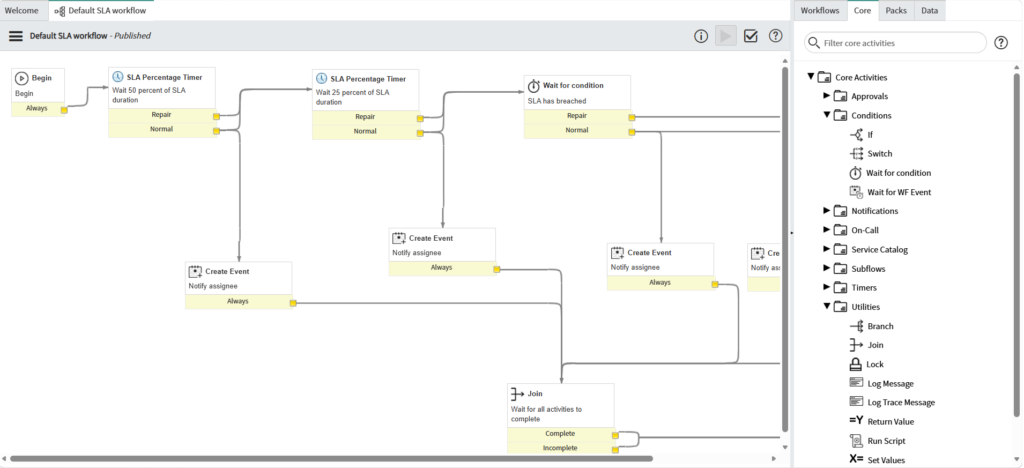
Example use case: Automating an incident escalation process that notifies a manager when a ticket remains unresolved for 4 hours.
While it served organizations brilliantly, the modern enterprise needed something more agile, visual, and accessible — enter Flow Designer.
What Is ServiceNow Flow Designer?
Flow Designer is ServiceNow's next-generation, low-code/no-code automation builder introduced in the Kingston release (2017) and significantly enhanced in every release since.
It's built on a completely different philosophy: make automation accessible to everyone — not just developers.
Key Characteristics of Flow Designer:
- Intuitive, modern UI with a clean visual interface
- Supports triggers, actions, flow logic, and subflows
- Deep integration with IntegrationHub for third-party connectivity
- Reusable components (Action Designer, Subflows, Spoke Actions)
- Natural language-style building blocks
- Supports cross-scope automation seamlessly
- No deep scripting required for most use cases
Think of Flow Designer as a Tesla — sleek, intelligent, future-ready, and built for the modern road of ServiceNow Automation.
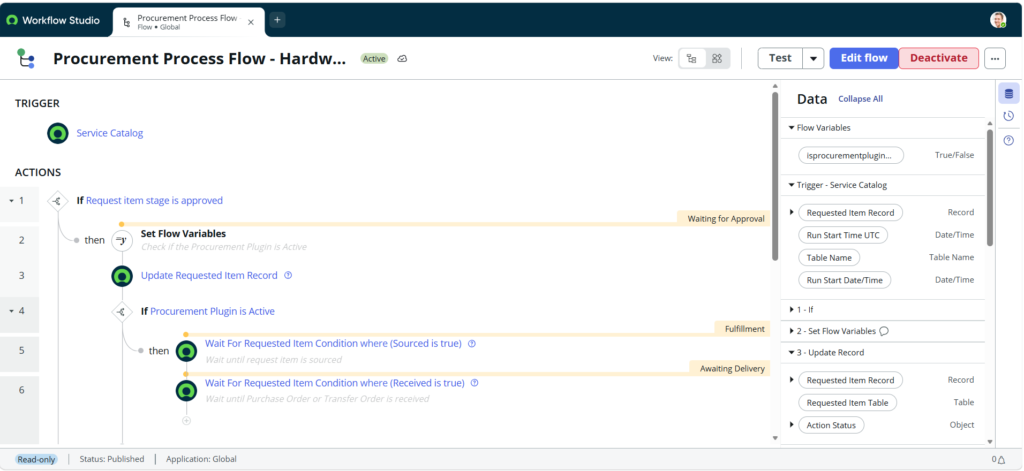
Example use case: When a new employee is onboarded, automatically provision their laptop, create accounts in Active Directory, notify IT, and send them a welcome email — all within one flow, zero scripts.
ServiceNow Flow Designer vs Workflow Editor: Head-to-Head Comparison
Let's cut through the noise and put these two tools side by side. This is where things get interesting.
1. 🎨 User Interface & Ease of Use
| Feature | Flow Designer | Workflow Editor |
|---|---|---|
| Interface Style | Modern, clean, intuitive | Classic, cluttered |
| Learning Curve | Low (beginner-friendly) | High (developer-focused) |
| Drag & Drop | Yes, simplified | Yes, but complex |
| Visual Clarity | Excellent | Moderate |
Flow Designer wins. Its interface is significantly cleaner. Anyone who's opened Workflow Editor for the first time knows the initial overwhelm — arrows flying in every direction, activity boxes stacked on top of each other.
Flow Designer presents automation as a linear, logical story — trigger → condition → action → outcome. Simple, readable, and maintainable.
2. 🧠 Technical Skill Requirements
| Aspect | Flow Designer | Workflow Editor |
|---|---|---|
| Scripting Needed | Optional (inline scripts available) | Often mandatory |
| Business User Friendly | Yes | No |
| Developer Friendly | Yes | Yes |
Flow Designer wins. This is perhaps its biggest advantage in the world of ServiceNow Automation. Business analysts, process owners, and non-developers can build meaningful automations without writing a single line of code.
Workflow Editor frequently requires JavaScript to handle conditions, transformations, and custom logic — creating a bottleneck where developers become the gatekeeper of all automation.
3. ⚡ Performance & Execution
| Aspect | Flow Designer | Workflow Editor |
|---|---|---|
| Execution Engine | Asynchronous & Synchronous | Primarily Synchronous |
| Scalability | High | Moderate |
| Background Processing | Optimized | Legacy processing |
Flow Designer wins. Under the hood, Flow Designer is built with a modern execution engine that handles both synchronous and asynchronous processes more efficiently. At scale — think thousands of triggered flows daily — this translates to better performance and less system strain.
4. 🔗 Integration Capabilities
| Aspect | Flow Designer | Workflow Editor |
|---|---|---|
| IntegrationHub Support | Native, deep integration | Limited |
| REST/SOAP Calls | Via Spoke Actions | Via scripted steps |
| Third-Party Apps | Slack, Jira, Teams, etc. | Manual scripting required |
Flow Designer wins — by a mile. If your organization uses tools like Slack, Microsoft Teams, Salesforce, or Jira, Flow Designer's IntegrationHub spokes make connecting them a point-and-click exercise.
With Workflow Editor, you'd need to write REST API calls manually. Not impossible, but time-consuming and error-prone.
5. 🔄 Reusability & Modularity
| Aspect | Flow Designer | Workflow Editor |
|---|---|---|
| Reusable Components | Subflows, Action Designer | Workflow Activities |
| Cross-Application Use | Easy | Complex |
| Maintenance | Centralized | Decentralized |
Flow Designer wins. The concept of Subflows is a game-changer. Build a "Create User Account" subflow once, and reuse it across 20 different flows — employee onboarding, contractor setup, department transfers.
Workflow Editor's activities can be reused, but the architecture isn't nearly as elegant or maintainable at scale.
6. 🔍 Debugging & Monitoring
| Aspect | Flow Designer | Workflow Editor |
|---|---|---|
| Execution History | Detailed, visual | Basic logs |
| Error Identification | Step-by-step visual trace | Complex log parsing |
| Testing Mode | Built-in test runner | Manual trigger required |
Flow Designer wins. Debugging in Workflow Editor has always been… let's say character building. You're digging through logs, adding script outputs, and hoping for the best.
Flow Designer gives you a visual execution history where you can see exactly what happened at each step, what data was passed, and where things went wrong. Debugging transforms from painful to productive.
7. 📦 ServiceNow's Future Direction
This one isn't even close.
ServiceNow has officially communicated that Workflow Editor is a legacy tool. While it won't disappear overnight, new features, enhancements, and innovations are being invested exclusively in Flow Designer.
With each new ServiceNow release (Utah, Vancouver, Washington DC), Flow Designer gets more powerful. Workflow Editor gets maintenance updates at best.
Verdict: If you're building for the future, Flow Designer is your only sensible choice.
When Should You Still Use Workflow Editor?
Fair question — and honesty matters here.
There are scenarios where you might still encounter or use Workflow Editor:
- Legacy implementations: Your organization has hundreds of existing workflows built over years that are still functioning perfectly.
- Specific approval engines: Some older approval processes are tightly coupled with Workflow.
- Migration isn't immediate: You're on a planned migration path but haven't completed it yet.
Our advice? Don't break what's working just for the sake of it. But don't build anything new in Workflow Editor. All new automation projects should start in Flow Designer.
Migrating from Workflow Editor to Flow Designer: What You Need to Know
The big question: "How do I move from Workflow Editor to Flow Designer?"
ServiceNow doesn't have a one-click migration tool (yet), but here's a practical roadmap:
Step 1: Audit Your Existing Workflows
Catalog all active workflows — their purpose, trigger conditions, and complexity. Prioritize based on business impact and technical complexity.
Step 2: Identify Equivalent Flow Designer Components
Map your workflow activities to Flow Designer equivalents:
- Approval Activity → Approval Action
- Notification Activity → Send Email/Notification Action
- Script Activity → Inline Script in Flow
Step 3: Rebuild in Flow Designer
Start with simpler workflows first to build team confidence. Involve business stakeholders — they'll appreciate the visual clarity.
Step 4: Test Thoroughly
Use Flow Designer's built-in test runner to validate behavior against your original workflow.
Step 5: Deactivate Old Workflows Gradually
Don't delete immediately. Mark as inactive, monitor for issues, then archive after a defined period.
Pro Tip:
Engage your ServiceNow platform team early. Migrations often uncover undocumented dependencies you didn't know existed.
Real-World Use Cases: ServiceNow Automation in Action
Let's ground this in reality with practical examples of ServiceNow Automation using Flow Designer.
Use Case 1: Employee Onboarding Automation
Trigger: New hire record created in HR module
Flow Steps:
- Send welcome email to new employee
- Create IT ticket for laptop provisioning
- Add user to Active Directory groups (via IntegrationHub)
- Notify manager with onboarding checklist
- Schedule 30-day check-in reminder
Time Saved: What once took 3 hours of manual coordination now runs in minutes — automatically.
Use Case 2: Incident Management & Escalation
Trigger: Incident open for more than 2 hours with no update
Flow Steps:
- Check incident priority (P1/P2 escalation path vs P3/P4)
- Send Slack notification to assigned team (IntegrationHub Spoke)
- If still unresolved after 1 more hour, escalate to manager
- Log escalation in incident record
- Notify service desk lead via Teams message
Business Impact: Faster resolution, better SLA compliance, happier end users.
Use Case 3: Change Management Approval Workflow
Trigger: Change Request submitted
Flow Steps:
- Route for CAB (Change Advisory Board) approval
- Parallel approval from IT Security team
- If approved by both → Schedule implementation window
- If rejected → Notify submitter with feedback
- Auto-close if no action taken within 5 days
This would be painful in Workflow Editor. In Flow Designer, it's readable, maintainable, and modifiable by process owners — not just developers.
Advanced Tips for ServiceNow Flow Designer Power Users
Already comfortable with the basics? Here's where you level up.
🔧 Tip 1: Use Action Designer for Custom Reusable Actions
Don't just build flows — build custom actions in Action Designer. These become your organization's proprietary building blocks, reusable across any flow.
🔧 Tip 2: Leverage Flow Variables Smartly
Use Data Pill Picker efficiently. Create flow-level variables to store intermediate data rather than repeatedly querying the database.
🔧 Tip 3: Error Handling with Flow Logic
Always add error handling using Flow Logic's exception handling capabilities. Production flows should gracefully handle failures, not silently crash.
🔧 Tip 4: Subflows for Complex Logic
If a section of your flow exceeds 10-15 steps, extract it into a Subflow. This keeps your main flow readable and the logic reusable.
🔧 Tip 5: Use Execution Details for Performance Tuning
Regularly review Execution Details to identify slow steps. IntegrationHub calls or database lookups that take too long can be optimized or cached.
How RizeX Labs Can Help with ServiceNow Automation
At RizeX Labs, we've helped organizations across industries transform their IT operations through intelligent ServiceNow Automation strategies.
Whether you're:
- Just getting started with Flow Designer
- Looking to migrate complex legacy workflows
- Building enterprise-grade automation architectures
- Integrating ServiceNow with your existing tool ecosystem
...our certified ServiceNow specialists bring the expertise and hands-on experience to make your automation vision a reality.

👉 Explore Our ServiceNow Services
👉 Book a Free ServiceNow Consultation
We don't just implement — we enable. Your team walks away more capable, confident, and ready to build.
Conclusion: The Future of ServiceNow Automation Is Clear
The debate between ServiceNow Flow Designer vs Workflow Editor isn't really a debate anymore.
Flow Designer is faster to build with, easier to understand, more powerful through integrations, and where ServiceNow is investing its future. Workflow Editor served its era brilliantly — but that era is drawing to a close.
If you're still building new automations in Workflow Editor, it's time to make the switch. If you're new to ServiceNow, you're in luck — you get to start with the better tool from day one.
ServiceNow Automation is one of the most powerful levers IT and business teams have to drive efficiency, reduce manual effort, and deliver better service experiences. Flow Designer puts that power in more hands than ever before.
Ready to Transform Your ServiceNow Automation Strategy?
Don't let outdated tools slow down your digital transformation.
🚀 Get a Free ServiceNow Automation Assessment from RizeX Labs
Let our experts review your current automation landscape and build a roadmap to maximize the power of Flow Designer in your organization.
Have questions? Drop them in the comments below. We read every single one.
Found this useful? Share it with your team — someone is probably still building workflows the old way. 😄
📌 Explore More from RizeX Labs:
- GenAI Capabilities in ServiceNow: Transforming Enterprise Service Management with Artificial Intelligence
- How to Learn ServiceNow from Scratch (Complete Roadmap 2026)
- ServiceNow Flow Designer: 5 Powerful Real-Time Examples You Must Know
📖 External Resources: